Custom Resume Generator
Custom Resume is an AI tool that generates a tailored, ATS-optimized resume for each specific job by analyzing the job description and highlighting your most relevant experience and skills. Instead of sending the same generic resume to every employer, you get a job-specific version that uses the exact keywords hiring managers are looking for, generated in under 90 seconds.
The Custom Resume appears as an interactive card in the Prepare section, displayed alongside your Custom Cover Letter for efficient application preparation.
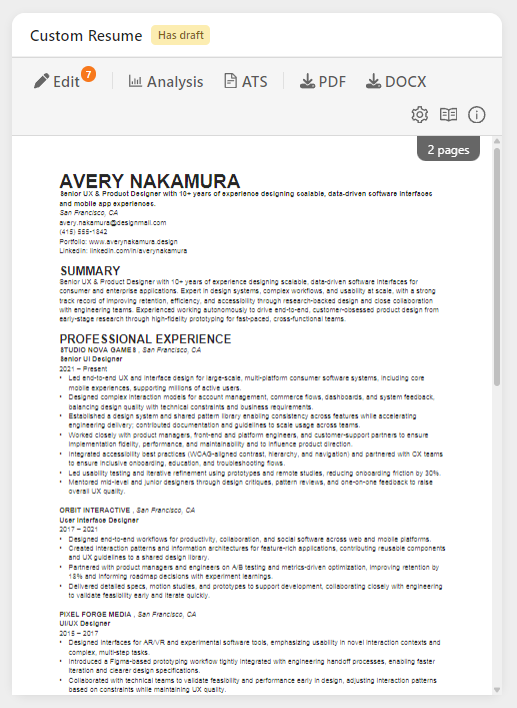
What You'll See
AI-Generated Custom Resume
A complete, professionally formatted resume specifically tailored to the job:
What gets customized: - Professional Summary: Rewritten to emphasize fit for this specific role - Skills Section: Reordered and enhanced to match job requirements - Work Experience: Descriptions adjusted to highlight relevant accomplishments - Education & Certifications: Positioned to match their priorities - Keywords: Strategic placement of terms from the job description - Emphasis: Your strongest relevant experience moved forward
What stays consistent: - Factual accuracy: No invented experience or false claims - Your voice: Maintains your professional tone - Core achievements: Real projects and results - Timeline: Accurate dates and progression - Contact information: Your actual details - Layout and formatting: Your base resume's structure is preserved (see below)
Layout Inheritance from Base Resume
Your Custom Resume inherits the layout and formatting from your base resume. The AI preserves:
| Element | What's Preserved |
|---|---|
| Page breaks | Manual page breaks stay in the same positions relative to content |
| Section order | Your section sequence (Summary → Experience → Education → Skills, etc.) is maintained |
| Bullet formats | Bullet point styles and indentation levels remain consistent |
| Spacing | Line breaks and spacing between sections are kept |
| Document structure | The overall document structure serves as the formatting template |
Why this matters: If you've carefully arranged your base resume with specific page breaks and section ordering, your Custom Resumes will follow that same layout, so you don't need to reformat each one.
Important: Custom Resumes are generated using your base resume as it exists at generation time. If you later update your base resume's layout (add page breaks, reorder sections, change formatting), those changes only apply to newly generated Custom Resumes. Existing Custom Resumes won't automatically update. To apply your updated layout to a Custom Resume, click the Regenerate button (🔄) in the toolbar.
Which Base Resume Is Used
If you keep more than one base resume, Callings.ai chooses the one that best fits each job and tailors from it. The choice is made automatically the first time it is needed (when the job is added, or when you first generate content for it) and then reused for both the Custom Resume and the Custom Cover Letter, so they always start from the same resume.
How the automatic choice is made:
- It reads your active resumes, their descriptions, and the job description, then picks the best match.
- Your resume descriptions are the strongest signal. If your resumes are similar, write what each one is for and when to use it so the right one is picked (for example, "Use for individual-contributor roles" vs. "Use for management roles"). See Managing your resumes.
- If a clear choice cannot be made, your primary resume is used as the fallback.
Choosing the base resume for a job manually
You can override the automatic choice for any specific job:
- Open the job and find the options menu (the ⋮ icon in the top-right of the job header, next to Apply).
- Hover Base resume to open the submenu.
- Before a resume has been assigned, the submenu shows Best match (automatic) selected at the top, with your resumes listed below. Pick a resume to assign it to this job. Once a resume is assigned, the submenu shows your resumes with a check mark on the one currently in use.
Selecting a base resume here sets which resume future generations tailor from. It does not rebuild content you already created: regenerate the Custom Resume (and Cover Letter) with the Regenerate button (🔄) to apply the new base resume.
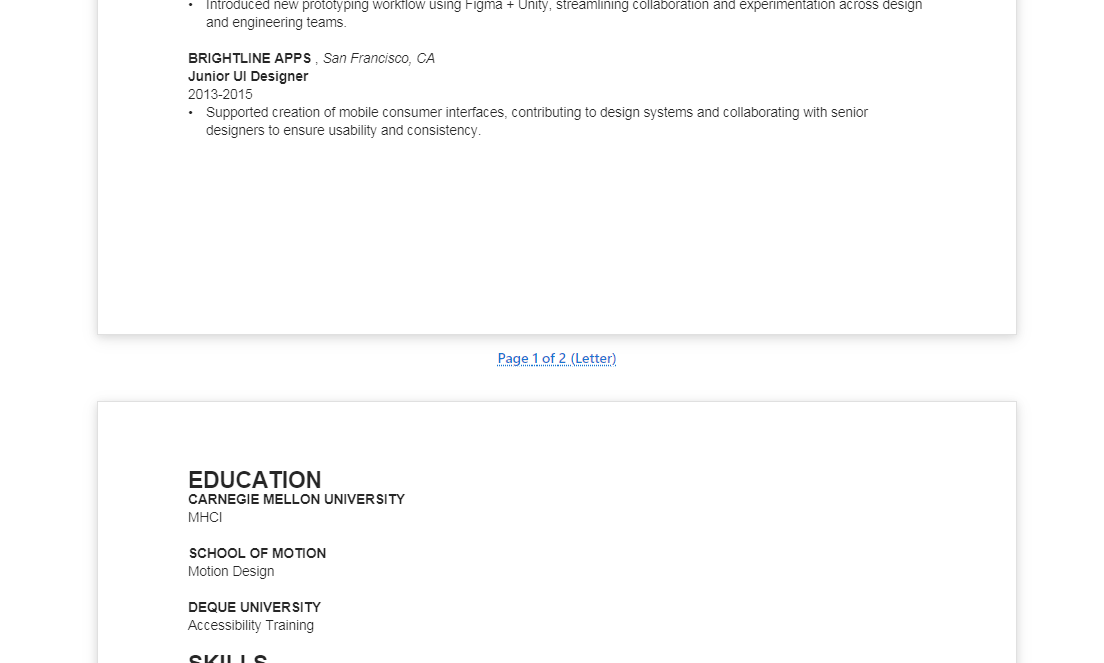
Page Preview
As you work on your resume, you can see exactly how it will look when downloaded. The preview shows page breaks between pages, so you know precisely where content splits:
Card Toolbar
Once your resume is generated, the card displays a toolbar with quick-access tools:
| Tool | Description |
|---|---|
| Edit | Open the AI Editor to review suggestions and refine your resume. Shows a badge with pending suggestion count (e.g., "Edit 6"). |
| Analysis | View the match/mismatch analysis comparing your base resume to the job requirements. |
| ATS | Open the ATS Compatibility Report to check for parsing issues. |
| Download your resume as a PDF file. | |
| DOCX | Download as Microsoft Word format. |
| Regenerate (🔄) | Create a fresh version from scratch (confirms before replacing). |
Analysis Modal
Click Analysis to view how your base resume compares to the job listing:
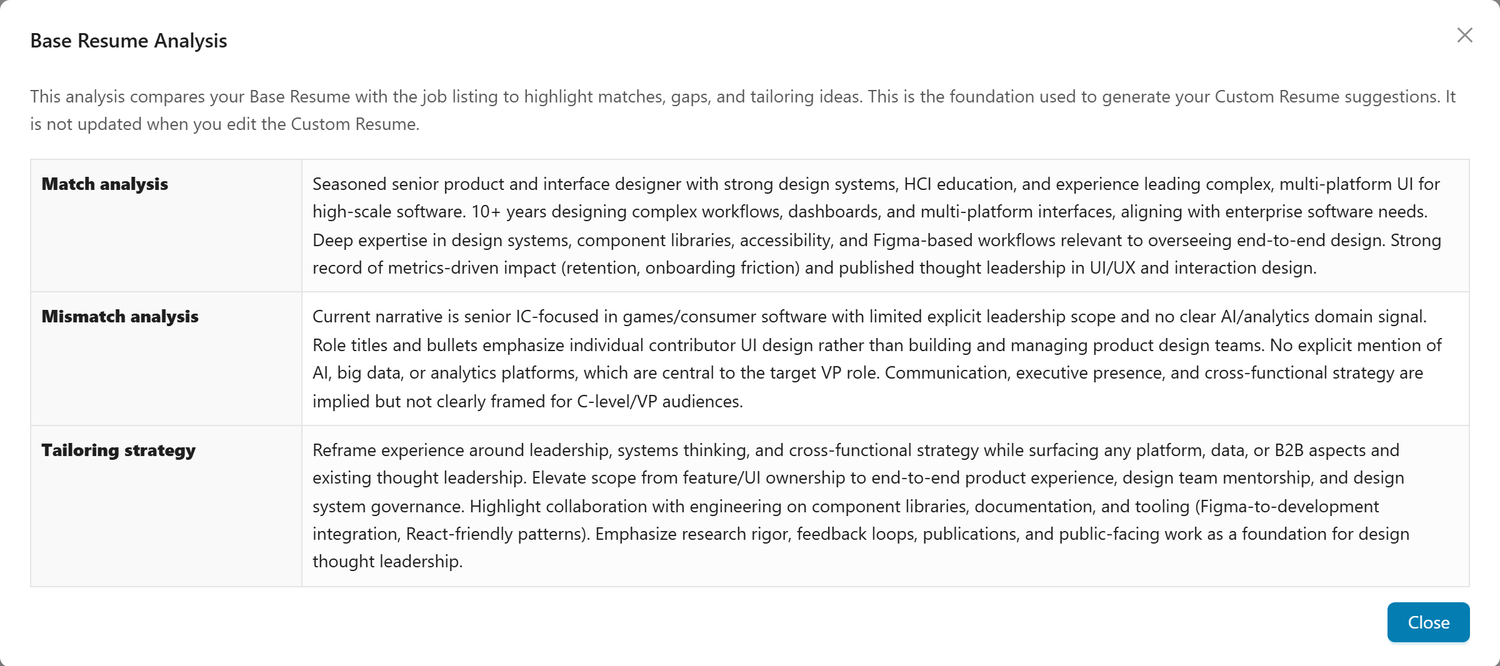
The analysis shows: - Match Analysis: Skills and experience that align with job requirements - Mismatch Analysis: Gaps between your background and what they're looking for - Tailoring Strategy: Recommendations used to generate your custom resume
Note: This analysis is based on your Base Resume and the job description at generation time. It doesn't update when you edit the Custom Resume; it shows the foundation used to create the initial suggestions.
Header Utility Icons
The card header includes three utility icons:
| Icon | Action |
|---|---|
| ⚙️ Settings | Configure AI Custom Instructions, paper size, and resume font size |
| 📖 Documentation | Open this documentation page |
| ℹ️ Tips & Info | Quick tips modal with usage guidance |
Using the AI Editor
The AI Editor provides an interactive way to review, refine, and perfect your customized resume section by section. Click anywhere on the resume thumbnail or the Edit button in the toolbar to open the editor.
The editor features a three-panel layout designed for efficient editing and real-time preview:
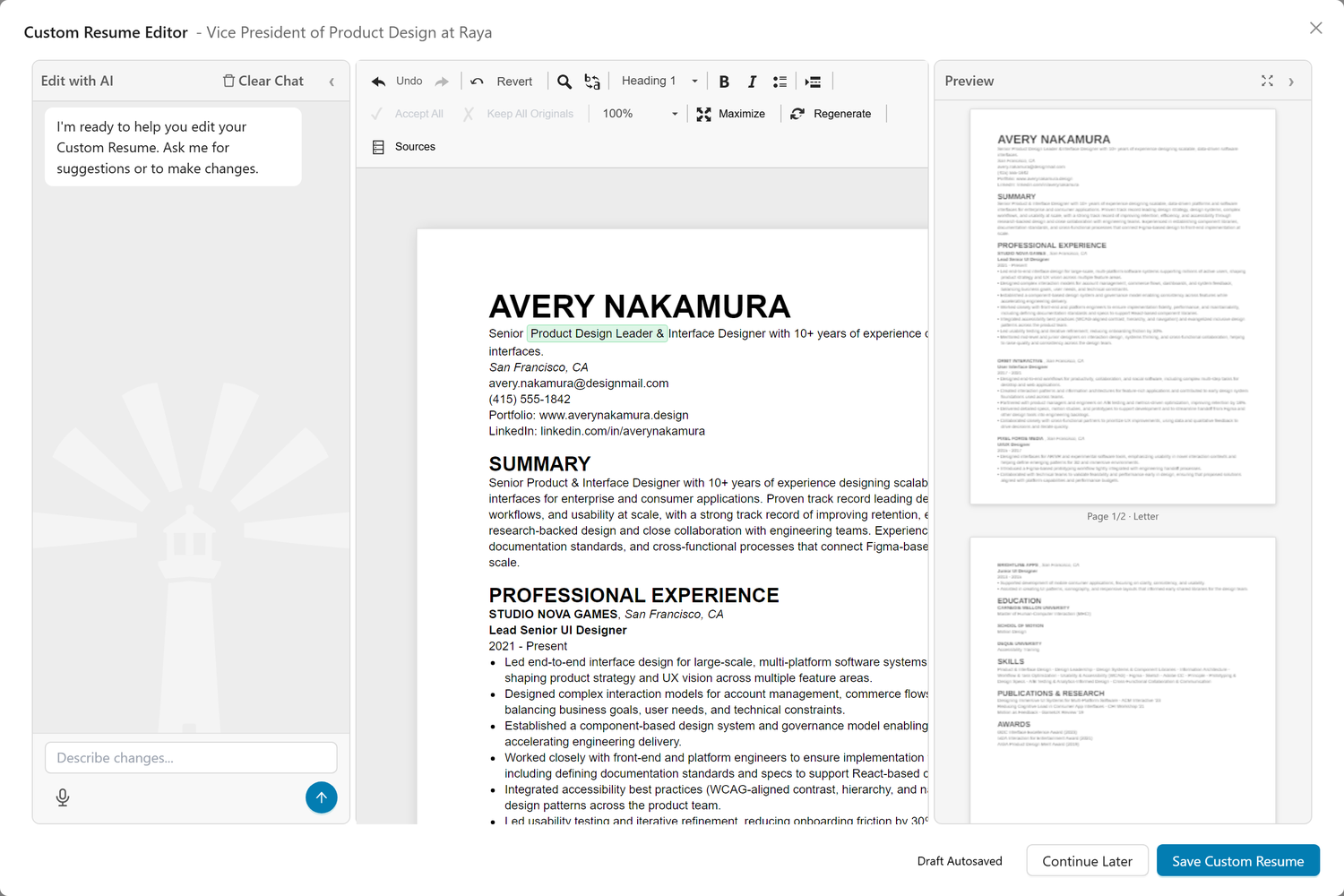
Three-Panel Layout:
The three panels are resizable: drag the dividers between panels to adjust widths based on your preference.
| Panel | Purpose |
|---|---|
| AI Chat (left) | Get AI assistance with edits, ask questions about your resume, and receive contextual suggestions |
| Editor (center) | Review and edit your resume with visual change tracking and section-by-section controls |
| Page Preview (right) | See how your resume will look when printed or downloaded, updating live as you edit |
AI Chat Panel:
The left panel provides an AI assistant to help you refine your resume: - Ask questions about specific sections or wording choices - Request alternative phrasings for accomplishments - Get suggestions for strengthening weak sections - Receive coaching on how to better match job requirements - Clear chat history with the Clear Chat button - Revert to original content using the Revert button
Note: You can use the AI Chat at any point, including while suggestions are still pending. It knows how many are unresolved, so it can tell you to settle those first when that would change its answer. Ask for refinements in plain language, like "shorten my summary and use bullet points" or "make my experience section more impactful."
Page Preview Panel:
The right panel shows a live thumbnail preview of your resume exactly as it will appear when downloaded: - Real-time updates: Changes in the editor are reflected immediately in the preview - Page break visibility: See exactly where your content splits across pages - Paper size support: Preview automatically adjusts for Letter or A4 paper sizes - Multi-page display: All pages are shown as thumbnails with page indicators (e.g., "Page 1/2 Letter")
Visual change tracking:
The center editor displays your original and AI-modified content together, making changes immediately visible: - Green highlighting: New content added by the AI to better match the job - Red strikethrough: Original content suggested for removal or replacement - Each resume section (headline, summary, work experience, skills, etc.) shows its changes independently - Pending suggestions counter: The Edit button in the toolbar shows how many AI suggestions are waiting for your review
Accept or reject changes:
The editor gives you three levels of control for managing AI suggestions; choose the approach that fits your workflow:
- Document-level: Use the toolbar's "Accept All" or "Keep All Originals" buttons to resolve everything in one click
- Section-level: Work through each resume section (summary, experience, skills, etc.) and accept or reject that section's suggestions as a group
- Inline-level: Click on individual highlighted text to accept or reject specific words or phrases within a section
Most users start at the section level, then fine-tune with inline edits where needed. The document-level buttons are handy when you want to quickly accept everything or start fresh with your original content.
For each section of your resume, you have full control: - Accept suggestions: Apply the AI's recommended changes to that section - Keep original: Reject the suggestions and preserve your original content - Edit before deciding: Modify the text directly in the editor, then accept or reject
Granular change control:
You can accept or reject individual changes within a section by clicking directly on highlighted text. A popover appears with contextual options:
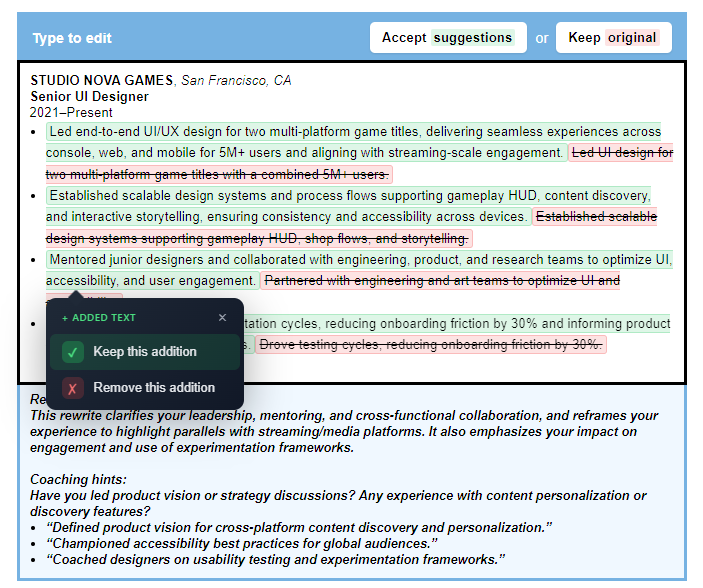
For added text (green/yellow highlighting): - Click on any green or yellow highlighted text to see a "+ ADDED TEXT" popover - Keep this addition: Accept this specific addition (✓) - Remove this addition: Reject this addition and remove it (✗)
For removed text (red strikethrough): - Click on any red strikethrough text to see a "- REMOVED TEXT" popover - Keep original: Reject the removal and preserve your original text - Confirm removal: Accept the removal and delete the text
How it works: - Each click resolves one specific change within the section - As you resolve changes, the highlighting disappears from that text - When all changes in a section are resolved, the section automatically finalizes - You can mix and match, keeping some additions while removing others
This granular control lets you fine-tune exactly which AI suggestions you want to keep, giving you precise control over every word in your resume.
Toolbar buttons for bulk actions: - Accept All: Accept all pending suggestions across all sections at once - Keep All Originals: Reject all suggestions and preserve your original content throughout - Download Annotated PDF: Available when suggestions are pending; downloads a PDF that preserves all diff highlights, reasoning blocks, and coaching hints exactly as shown in the editor. Useful for sharing with a mentor or keeping as a reference before you accept or reject changes.
Every section is fully editable at any time, before or after you accept or reject the AI's suggestions.
Auto-save and Draft Management:
Your work is automatically saved as you edit: - Draft saved indicator confirms your changes are preserved - Has draft badge appears on the card when you have unsaved edits - Continue Later - Save your progress and return to finish editing later - Save Custom Resume - Finalize your resume when you're satisfied with all sections
Your saved draft, including your full chat conversation history with the AI, will be available when you return.
Reasoning explanations:
Below each section, the AI explains the reasoning behind its suggested changes. For example: - Why specific keywords were added to align with the job description - How the rewrite emphasizes relevant skills like user research, information architecture, or accessibility - Which job requirements the changes are designed to address
Coaching hints:
Beyond the direct suggestions, each section includes coaching hints that prompt you to think deeper: - Questions about experience you may have that wasn't captured in your base resume - Suggestions for additional bullet points you could add - Alternative phrasings that might strengthen your positioning - Examples of new content tailored to the specific role
These hints are designed to help you think about options to make your custom resume even stronger, going beyond what the AI found in your existing resume to surface relevant experience you may have forgotten to include.
ATS Optimization Report
Your custom resume includes the same ATS compatibility analysis available for your base resume. The report identifies potential parsing issues (such as incorrect date associations, sidebar problems, or formatting failures) and ensures your resume will be correctly read by all Applicant Tracking Systems.
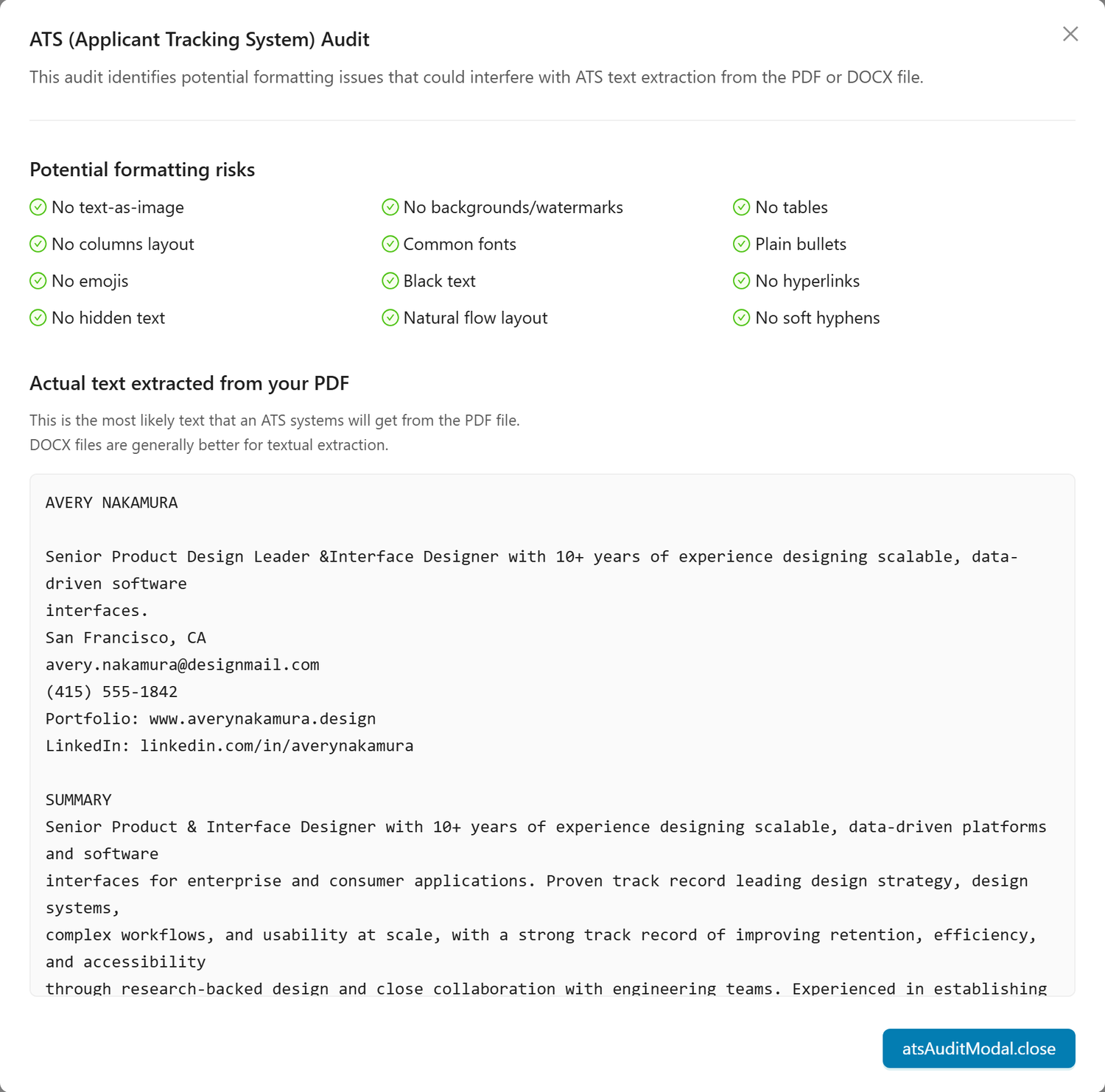
Key features: - Parsing analysis: Identifies how ATS systems will extract your resume data - Issue detection: Flags formatting that could cause silent extraction failures - Optimized output: Generates ATS-friendly PDF and Word versions automatically
Learn more about the ATS Compatibility Report
AI Custom Instructions
Personalize how your custom resumes are generated by setting AI Custom Instructions in your Account Settings. This is a global setting that influences the AI's output (including language, tone, and emphasis) for all newly generated Custom Resumes across every job.
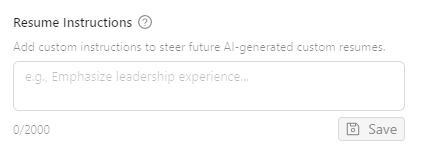
Access Custom Instructions: - Click the Settings icon (gear) in the Custom Resume section to go to your account settings - Or navigate to Profile → Settings → AI Custom Instructions
Example instructions:
| Goal | Instruction |
|---|---|
| Generate in another language | "Always write resumes in Spanish" |
| Adjust tone | "Use a confident, direct tone without hedging language" |
| Emphasize achievements | "Focus heavily on quantified results with specific metrics" |
| Highlight background | "Emphasize my transition from engineering to product management" |
| Technical depth | "Include more technical detail about implementation approaches" |
How it works: Your custom instructions are injected into the AI prompt when generating new resumes. The AI will: - Follow your language and style preferences - Adjust emphasis based on your guidance - Maintain factual accuracy: it won't invent experience - Continue optimizing for ATS compatibility
Important: Custom Instructions apply only to newly generated content. If you've already generated a Custom Resume and want to apply updated instructions: - Regenerate: Click "Regenerate" to create a fresh version using your current instructions - Use the AI Editor: Open the existing resume and use the AI chat to request specific changes (e.g., "rewrite this in French" or "emphasize my leadership experience more")
Download Options
Multiple formats for different application scenarios:
PDF: - Preserves exact formatting - Universally readable - Professional appearance - File size optimized
Microsoft Word (DOCX): - Editable by employers if needed - Some ATS systems prefer this - Easy to update for recruiter submissions
Annotated PDF (AI Editor only): - Available in the AI Editor while suggestions are pending - Preserves diff highlights: green for AI additions, red strikethrough for removals - Includes reasoning blocks and coaching hints for each section - Useful for reviewing suggestions offline, sharing with a career coach, or keeping a record of the AI's recommendations before finalizing
How to Use This Tool
- Generate your custom resume
- Open the Prepare tab for any job in your tracker
- Click "Generate Resume" on the Custom Resume card
- The AI analyzes your base resume against the job description
-
Generation typically takes 30-90 seconds
-
Open the AI Editor
- Click anywhere on the resume thumbnail, or click the "Edit" button in the toolbar
- The three-panel editor opens: AI Chat (left), Editor (center), Page Preview (right)
- Review each section's suggested changes (green = added, red = removed)
-
Note the pending suggestions count shown on the Edit button
-
Review and accept/reject changes
- Work through each section of your resume
- Accept or reject AI suggestions per section, or use Accept All / Keep All Originals
- Click individual green or red text to accept/reject specific changes
- Edit any section directly to add details the AI couldn't know
-
Watch the Page Preview update in real-time as you make changes
-
Use AI Chat for further refinements
- Once all pending suggestions are resolved, the AI Chat panel activates
- Ask for specific changes like "shorten my summary" or "add more metrics"
-
The AI updates your resume and you can undo/redo any changes
-
Verify with Page Preview
- Check the live preview on the right to see exact formatting
- Navigate through multiple pages if your resume is longer than one page
- Ensure proper spacing, margins, and professional appearance
-
Verify content fits appropriately on the page
-
Review the final resume
- Scroll through the complete resume in the editor
- Verify all facts and dates are accurate
- Ensure the tone matches your professional voice
-
Proofread for any errors
-
Check ATS optimization
- Click the ATS button in the toolbar to review the compatibility report
- Address any parsing issues flagged
-
Download the ATS-optimized version for online applications
-
Download and apply
- Use the PDF or DOCX buttons in the toolbar to download
- The resume is ready for submission
Tips & Best Practices
Understand What the AI Does Well
The Custom Resume AI excels at:
Strategic keyword integration: - Identifies terms from job description - Places them naturally in your experience - Balances density without stuffing
Experience reframing: - Highlights relevant aspects of your background - De-emphasizes less relevant work - Reorders content for maximum impact
ATS optimization: - Ensures clean, parseable formatting - Uses standard section headers - Maintains single-column structure
Consistency: - Keeps formatting uniform throughout - Maintains parallel structure in bullets - Ensures professional tone
Understand What Requires Human Judgment
The AI needs your help with:
Specific details: - Exact metrics and numbers - Names of projects or clients - Technical implementation specifics - Unique accomplishments
Strategic choices: - Which older experience to include/exclude - How much detail for each role - Tone and voice adjustments - Cultural fit considerations
Accuracy verification: - Checking dates and titles - Ensuring no exaggerations - Confirming all claims are true - Catching any hallucinations
Personal context: - Why you're excited about this specific role - Connections to company mission - Unique value you bring - Career trajectory narrative
Resume Best Practices
Consider avoiding:
- Vague descriptions: "Helped with projects" doesn't convey your specific contribution or impact
- Passive voice: "Was responsible for" is weaker than active, direct statements
- Walls of text: Long paragraphs are harder to scan than concise bullet points
- Irrelevant experience: Including everything dilutes focus on what matters for this role
- Generic objectives: "Seeking a challenging position" adds no value
- Inconsistent formatting: Mixed fonts, spacing, or bullet styles can look unprofessional
- Exaggerations: Claims you can't support in an interview can backfire
- Personal pronouns: "I managed" can often be shortened to "Managed"
Consider trying:
- Quantifying results: Numbers, percentages, and dollar amounts can strengthen impact
- Strong action verbs: Starting bullets with "Developed," "Led," or "Increased" tends to read better
- Showing progression: Demonstrating growing responsibility can be compelling
- Tailoring for relevance: Emphasizing experience that matches the job description often helps
- Clean formatting: Simple layouts typically parse better in ATS systems
- Proofreading carefully: Typos can create a negative impression
- Being accurate: Ensure all claims can be supported in an interview
- Including relevant links: LinkedIn, portfolio, or GitHub when applicable
Learn From Each Custom Resume
As you generate resumes for different roles:
Notice patterns: - Which experiences get emphasized most? - What skills appear across multiple customs? - How does framing shift for different roles? - Which accomplishments are most versatile?
Improve your base resume: - Add details that were missing - Quantify more achievements - Reword descriptions that need changing every time - Remove content that never gets used
Build your resume library: - Keep successful custom versions - Note which ones led to interviews - Identify what worked for different role types - Create templates for common variations
Timing: When to Customize
Always generate custom resume when: - First application to a company - Different role type than previous applications - Highly competitive opportunity - Dream job or top target - Role requirements are very specific
Consider reusing when: - Applying to 5+ similar roles quickly - Time-sensitive opportunity (apply fast) - Very generic job description - Your base resume already strongly matches - Volume matters more than perfection
Update/regenerate when: - You haven't used this version in 2+ months - Your base resume has significant updates - Job description is better than you thought - You're advancing to final interviews (fresh polish)
Frequently Asked Questions
Q: What does the number badge on the Edit button mean?
A: The badge shows how many pending AI suggestions need your review. For example, "Edit 6" means 6 sections have suggestions waiting to be accepted or rejected.
Q: How do I accept or reject all suggestions at once?
A: Use the toolbar buttons in the editor: "Accept All" applies all AI suggestions, while "Keep All Originals" rejects all suggestions and preserves your original content.
Q: Can I accept just part of a suggestion?
A: Yes! Click on any green (added) or red (removed) text within a section to see a popover with options for that specific change. For additions, you can "Keep this addition" or "Remove this addition." For removals, you can "Keep original" or "Confirm removal." This lets you fine-tune exactly which changes you want to keep.
Q: What is the Analysis button for?
A: The Analysis button opens a modal showing how your base resume matches (and mismatches) the job requirements. This is the analysis used to generate your custom resume suggestions. It doesn't change when you edit; it shows the foundation used for the initial generation.
Q: Why doesn't the custom resume show an updated match score as I edit?
A: This is intentional. The initial match score helps you identify promising opportunities, but we don't display a live score in the editor to avoid what we call "the scoring trap." A 100% match essentially means your resume mirrors the job description, and recruiters tell us they're seeing too many AI-generated resumes that look exactly like their job postings. They're actively looking for uniqueness and authentic voice. The Custom Resume engine balances job relevance with showcasing what makes you distinctive. That's why the editor includes Reasoning explanations and Coaching hints: to help you strengthen your positioning while staying true to yourself. Focus on telling your story compellingly, not chasing a number.
Q: How long does it take to generate a custom resume?
A: Initial generation takes 30-90 seconds. Plan for 10-20 minutes total for review and refinement before downloading.
Q: Will the AI invent experience I don't have?
A: It's designed not to, but always verify. The change tracking feature helps you catch any invented content immediately. Never submit without reviewing.
Q: Can I edit the resume after generation?
A: Yes! The built-in word processor lets you make any changes you want. Edit freely, save automatically.
Q: What is the Page Preview panel?
A: The right side of the editor shows a live thumbnail of your resume exactly as it will appear when downloaded. It updates in real-time as you edit, so you can see formatting changes immediately without downloading.
Q: Why does my Page Preview show multiple pages?
A: If your resume content exceeds one page, the preview shows all pages as thumbnails with indicators (e.g., "Page 1/2 Letter"). These thumbnails help you see where page breaks occur; use the main editor to scroll and edit content.
Q: Can I change the paper size in Page Preview?
A: Yes, the preview supports both Letter and A4 paper sizes. The preview automatically adjusts to show how your resume will look on the selected paper size.
Q: What does the AI Chat panel do?
A: The AI Chat on the left side of the editor provides an assistant to help refine your resume. It becomes available after you've accepted or rejected all pending suggestions. Once enabled, you can ask for specific changes like "shorten my summary into bullet points" or "make my experience more impactful." Use "Clear Chat" to start fresh or "Revert" to undo AI changes.
Q: Why is the AI Editor not enabled?
A: The AI Chat is temporarily disabled while you have pending suggestions to review. You'll see "AI Editor Temporarily Disabled" with a count of how many suggestions remain. Accept or reject all suggestions first: this ensures the AI has your final content to work with. Once all decisions are made, the AI Chat activates automatically.
Q: Where can I change the paper size for downloads?
A: Click the Settings icon (gear) in the card header. You can choose between Letter (US standard) and A4 (international standard). This affects both the Page Preview and downloaded files.
Q: Can I change the resume font size?
A: Yes. The same Settings dialog lets you set the resume body text to 9, 10, or 11 point. The editor, the Page Preview, and the PDF and Word downloads all use the size you pick. Changing it reflows your content, so check your page breaks afterwards.
Q: Should I regenerate if I update my base resume?
A: If the update is significant (new job, major accomplishment, new skills, layout changes), yes. For minor tweaks, updating the custom version directly is fine. Remember that existing Custom Resumes don't automatically update when you change your base resume; only newly generated ones will reflect those changes.
Q: I changed my base resume's layout (page breaks, section order). Why doesn't my Custom Resume show those changes?
A: Custom Resumes are snapshots generated from your base resume at a specific point in time. Changes to your base resume only affect newly generated Custom Resumes. To apply your updated layout, click the Regenerate button (🔄) on the Custom Resume card to create a fresh version using your current base resume.
Q: What if the custom resume doesn't feel right?
A: Edit it! The AI provides a strong starting point, but you're the expert on your career. Adjust until it feels authentic and accurate.
Q: Do I need to customize for every single job?
A: Ideally yes for your top targets. For volume applications to similar roles, you can reuse. Quality vs quantity balance depends on your strategy.
Q: What format should I download for applications?
A: PDF for most applications (preserves formatting). DOCX if specifically requested or if working with a recruiter who needs to edit.
Q: How are downloaded file names generated?
A: Files follow the pattern YourName_CompanyName_JobTitle_Resume.pdf (or .docx). The company name always appears before the job title, making it easy to find files when sorting alphabetically by company. If including all fields would exceed 60 characters, the job title is dropped first, then the company name. Fields are never abbreviated or truncated, so the file name always looks clean and professional.
Q: Can I use the custom resume as my new base resume?
A: Not recommended. Your base resume should be comprehensive and less tailored. Custom resumes sacrifice some breadth for depth in specific areas.
Q: How do I know which keywords to prioritize?
A: The AI handles this automatically by analyzing the job description. Focus your manual editing on accuracy and compelling storytelling, not keyword optimization.
Q: Should my LinkedIn match my custom resume exactly?
A: No. LinkedIn should be comprehensive like your base resume. It's a living profile, not a application document. Custom resumes are tailored snapshots.
Q: What if I don't have enough relevant experience?
A: The AI will emphasize transferable skills and adjacent experience. Focus on demonstrating potential, learning agility, and enthusiasm. Also consider if this role is truly a good fit (check the Job Fit Report).
Q: How does Custom Resume work for speculative roles?
A: When the job is a speculative role (a hypothetical position you created, not an actual job posting), the AI adapts its approach. Instead of keyword-matching from a job posting, it emphasizes transferable skills, versatility, and breadth of relevant experience. The resume is positioned for exploratory conversations and networking rather than a formal application. Your adaptability and cross-functional capabilities are highlighted, and the role exploration document is used as directional guidance rather than a strict requirements list.
Q: How often should I update my base resume to improve custom generations?
A: After major accomplishments, every 3-6 months minimum, or before serious job searching begins. Better base resume = better custom versions.
Q: Can I generate multiple versions and compare them?
A: Yes, but the tool generates one at a time. If you want to try different approaches, save the first version (download it), regenerate, compare manually.
Q: Will my edits be saved if I close the editor?
A: Yes, the editor auto-saves your work as a draft. You can click "Continue Later" to explicitly save and return later, or "Save Custom Resume" when you're finished. A "Has draft" badge on the card indicates you have unsaved changes waiting.
Q: What is the "Has draft" badge?
A: The "Has draft" badge appears on the Custom Resume card when you have edits that haven't been finalized with "Save Custom Resume." Your draft is preserved; click on the card to continue editing where you left off.
Related Topics
- Prepare Overview - Understanding the Prepare section layout
- My Base Resume - Build the foundation for all custom resumes
- Job Description - What you're customizing to match
- Job Fit Report - Understanding your strengths to emphasize
- Custom Cover Letter - Pair with your custom resume for applications
- ATS Resume Report - Learn about ATS optimization in depth
A generic resume gets generic results. The Custom Resume tool helps you present your best, most relevant self for each opportunity, dramatically increasing your chances of getting past ATS systems and catching the eye of hiring managers. Invest the time to customize, review, and polish. Your effort compounds across your job search.