Uploading Your Resume
Add a resume to Callings.ai from any file (PDF, Word, text, even a phone photo), from your LinkedIn profile URL, or by pasting its text. The platform reads it with AI-powered text extraction and rebuilds it into one clean, ATS-friendly resume that unlocks personalized job matching, career insights, custom documents, and interview preparation. Unlimited Membership includes up to 5 resumes for different job targets.
Getting your resume into Callings.ai is the first step. Each resume can come from one of three sources:
- A file, in any supported format
- Your LinkedIn profile URL, imported automatically
- Pasted text, copied from any document
Whichever you pick, you end up with the same thing: a Callings resume you can preview, edit with AI, assess, and download, with your original kept beside it for reference.
Where to Add a Resume
Open My Resumes from the Personal Brand section of the sidebar (My Resumes). There are three ways to start:
- Click Add resume at the top of the page. The count beside it shows how many slots you have left.
- Click the Add resume row at the end of your resume list. It shows the same count.
- Drop a file anywhere on the list. The row reads Drop to add while you hold the file over it; letting go opens the dialog and starts the upload right away.
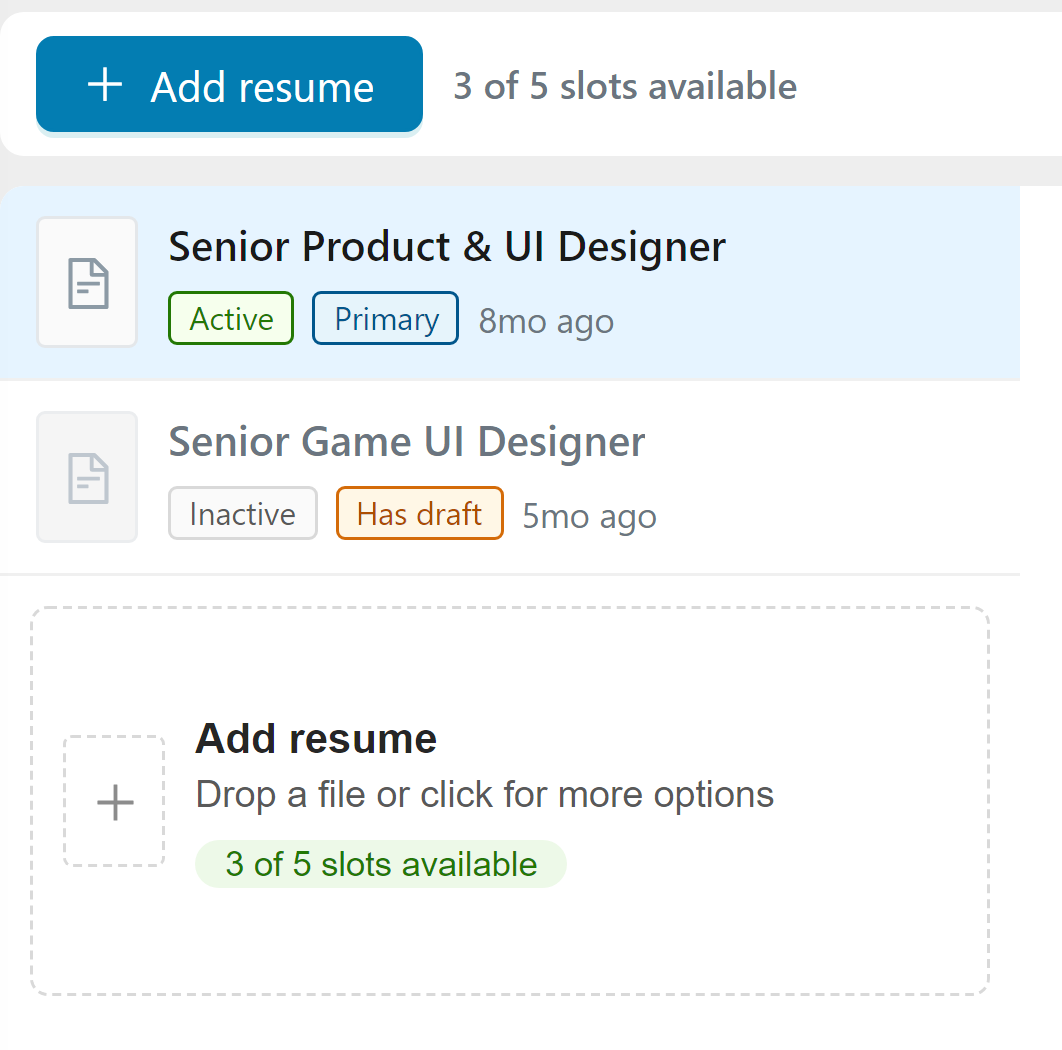
The button and the row open the Add a Resume dialog, with a tab for each source: Upload File, LinkedIn, and Paste Text. When every slot is used, both read Resume limit reached; delete a resume to free one (see Resume Limits below).
On a phone, My Resumes shows an Add new resume button under the list, and the dialog opens as a bottom sheet with the same three tabs, shown as icons.
Option 1: Upload a Resume File
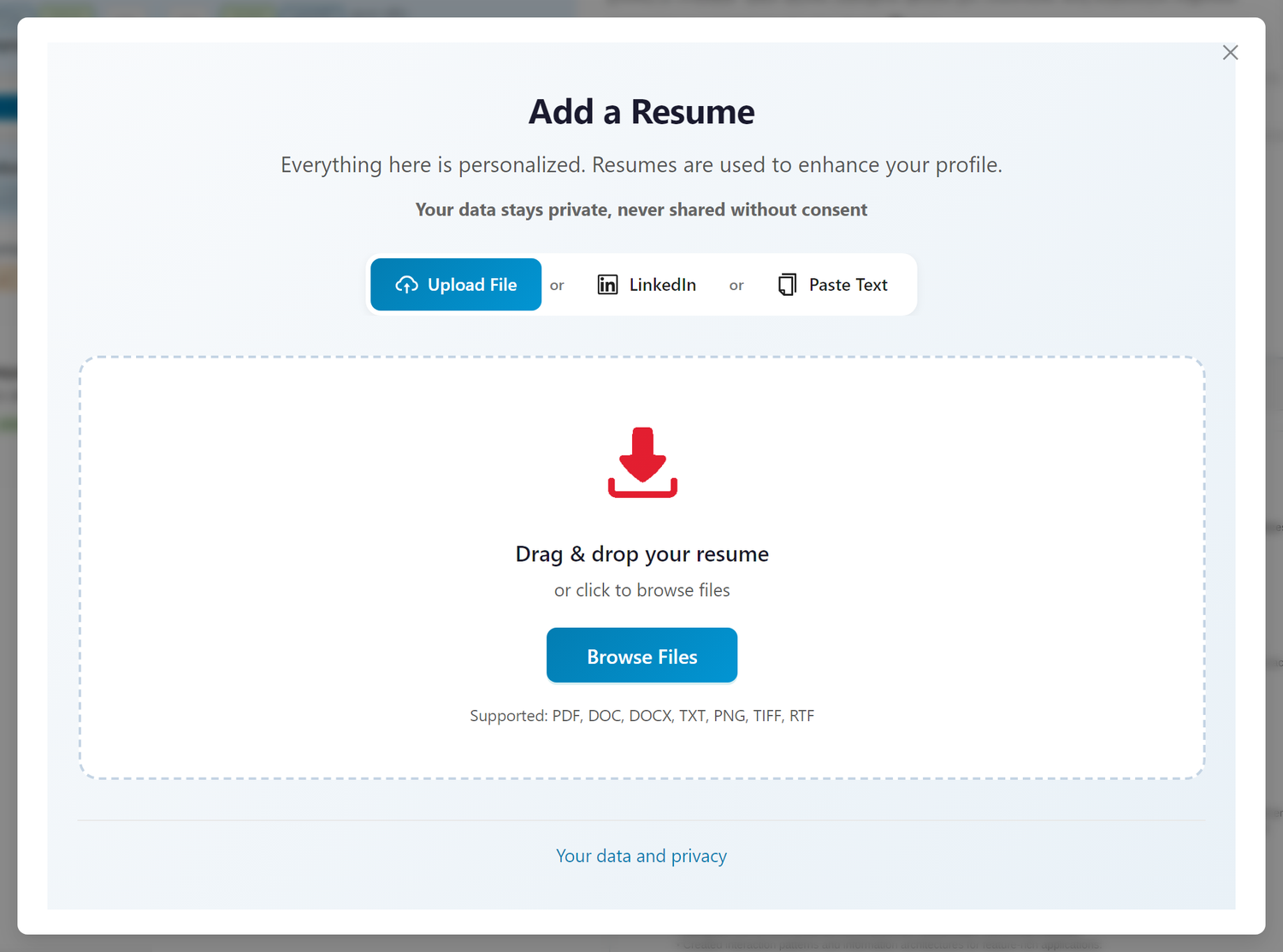
Drag your file onto the dotted area, or click Browse Files and pick it. The upload starts as soon as the file is chosen, and a progress bar walks through the steps: uploading, analyzing your profile, optimizing the layout, finalizing.
Supported Formats
Document formats:
- PDF (.pdf), recommended for the most reliable results
- Microsoft Word (.doc, .docx)
- Plain Text (.txt)
- Rich Text Format (.rtf)
- OpenDocument Text (.odt)
Image formats:
- JPEG (.jpg, .jpeg)
- PNG (.png)
- TIFF (.tif, .tiff)
Note: you can upload a photo of your resume taken with your phone. Our AI-powered text extraction reads images of resumes, so a paper copy is enough to get started.
Maximum file size: 6 MB.
Don't Have Your Final Resume Ready?
That's perfectly fine! You can upload an older version or a draft to get started. The platform uses your resume to:
- Understand your background and experience
- Generate personalized job recommendations
- Create your career insights and goals
- Power all the AI tools and reports
You can update your resume at any time as you refine it. Job matching follows along automatically: searches that use your resume pick up the new version and match scores refresh. Reports like the Resume Assessment and your My Insights pages keep their current content until you click Regenerate, so you decide when they change.
Option 2: Import from LinkedIn
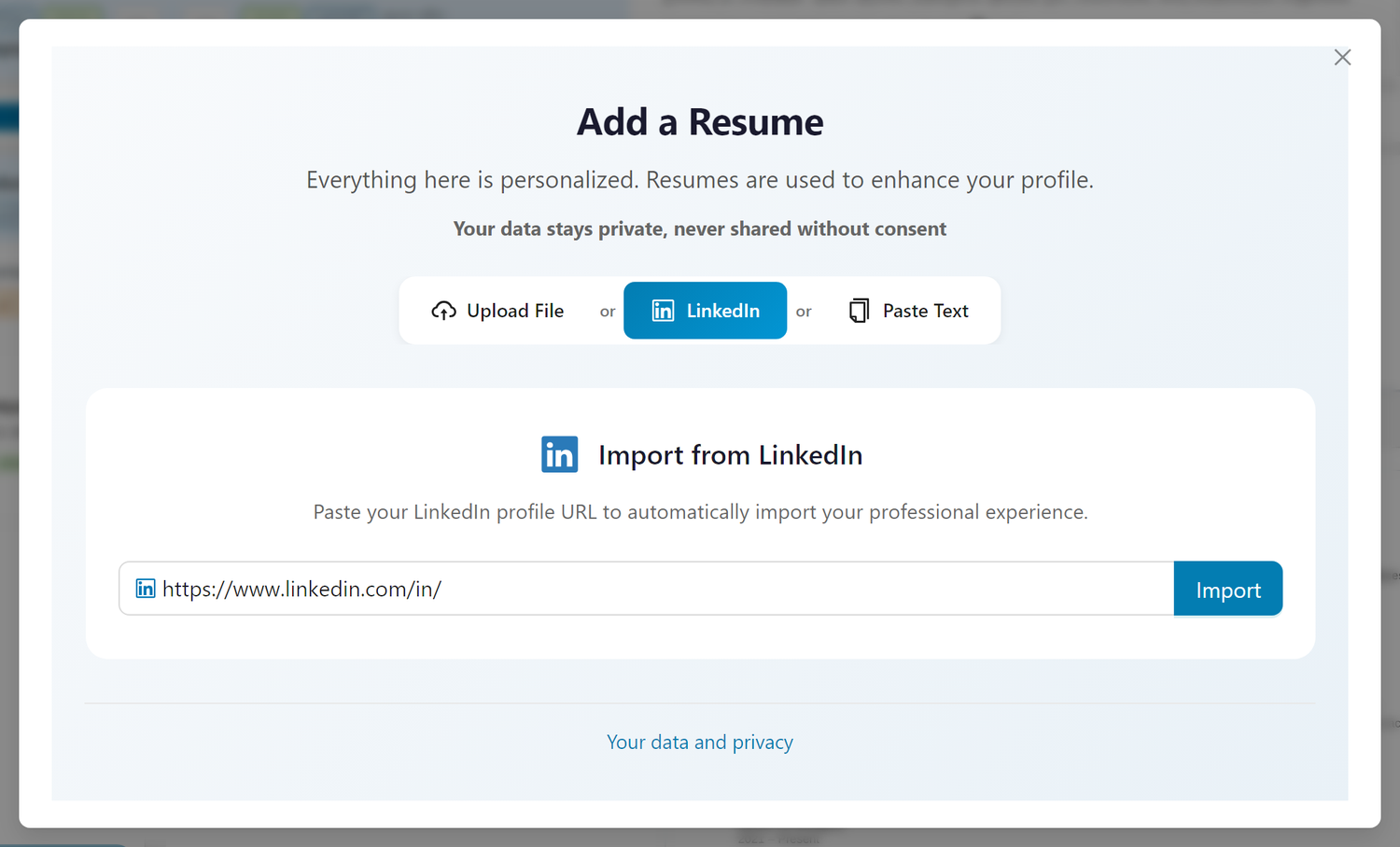
Instead of uploading a file, you can paste your LinkedIn profile URL on the LinkedIn tab of the dialog.
How It Works
- Go to your LinkedIn profile page
- Copy the URL from your browser's address bar (e.g.,
https://www.linkedin.com/in/yourname) - Paste it into the field on the LinkedIn tab, which already starts with
https://www.linkedin.com/in/, and click Import - We retrieve your publicly available professional information and build your resume from it
An imported resume says imported from LinkedIn beside its update date, and its Source tab links back to your profile instead of naming a file.
Benefits of LinkedIn Import
- Quick setup: get started in seconds without preparing a resume file
- Comprehensive data: captures your work history, education, skills, and accomplishments from your public profile
- Convenient updates: you can import again any time to refresh your information
Note: the LinkedIn import uses publicly available profile information. In some cases, the most recent version of your LinkedIn profile may not be immediately available through our import: there can be a delay of a few days before recent updates are reflected. For best results, ensure your LinkedIn profile contains your current professional details. If your imported data seems outdated, you can try again later or export your resume directly from LinkedIn (use LinkedIn's "Save to PDF" feature) and upload that file instead.
Option 3: Paste Resume Text
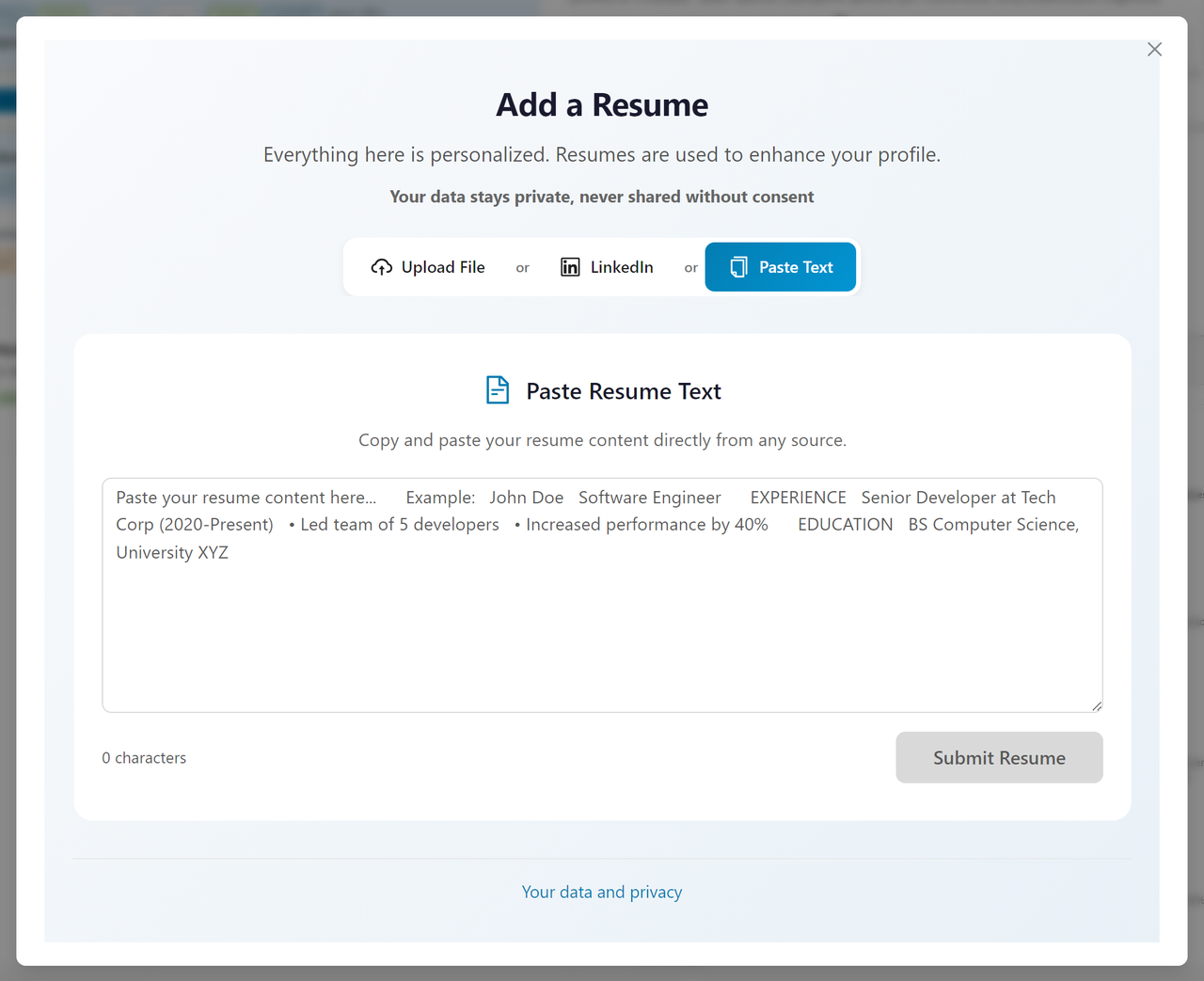
If your resume lives in a document, an email, or a web page, you can copy and paste its text on the Paste Text tab.
How It Works
- Open your existing resume (Word, Google Docs, an email, a web page)
- Select and copy all of its text
- Paste it into the text area on the Paste Text tab
- Click Submit Resume
The character count under the text area updates as you paste. Submit Resume stays disabled until the text is at least 50 characters long.
When to Use Paste Text
- Quick transfer: copy from an existing document without saving or exporting it
- Email content: paste resume text from an email you sent or received
- Online sources: copy from your LinkedIn "About" section or other profiles
- Plain text versions: when you have a text-only version of your resume
After You Add a Resume
The dialog closes and a new row appears in your resume list, marked Processing while we read it. This usually takes under a minute, and you can leave the page in the meantime. When it finishes, the row shows a title taken from the resume, and selecting it shows the resume in the right column exactly as it will download.
What you see there is not your file as you sent it. We rebuild every upload into one clean, editable, ATS-friendly format so every tool can work with it. Your original is kept untouched on the resume's Source tab (see Your Original File below).
Give the resume a title and a description you will recognize: click the title, or the pencil icon beside it, to open Edit details. The description also tells Callings.ai when to use this resume; see My Resumes Overview.
If we could not read the file, the row says Upload failed and offers two buttons. Retry reads the original file again; when we have no copy of it, Retry opens the Add a Resume dialog instead. Remove takes the failed upload off your list. If a retry fails too, check that the file is under 6 MB and in a supported format; for an image, a PDF export of the same document reads more reliably.
Your first resume becomes your primary resume and is active right away. On Basic (Free) membership, resumes you add after it are stored as inactive (see Resume Limits below).
Privacy Note
Your resumes are kept confidential. We use them solely to provide services to you. We do not share your resumes with recruiters or third parties without your explicit action (e.g., applying for a job).
Your Original File
Every resume keeps the file you uploaded or the LinkedIn profile you imported. Select the resume in the list and open its Source tab.
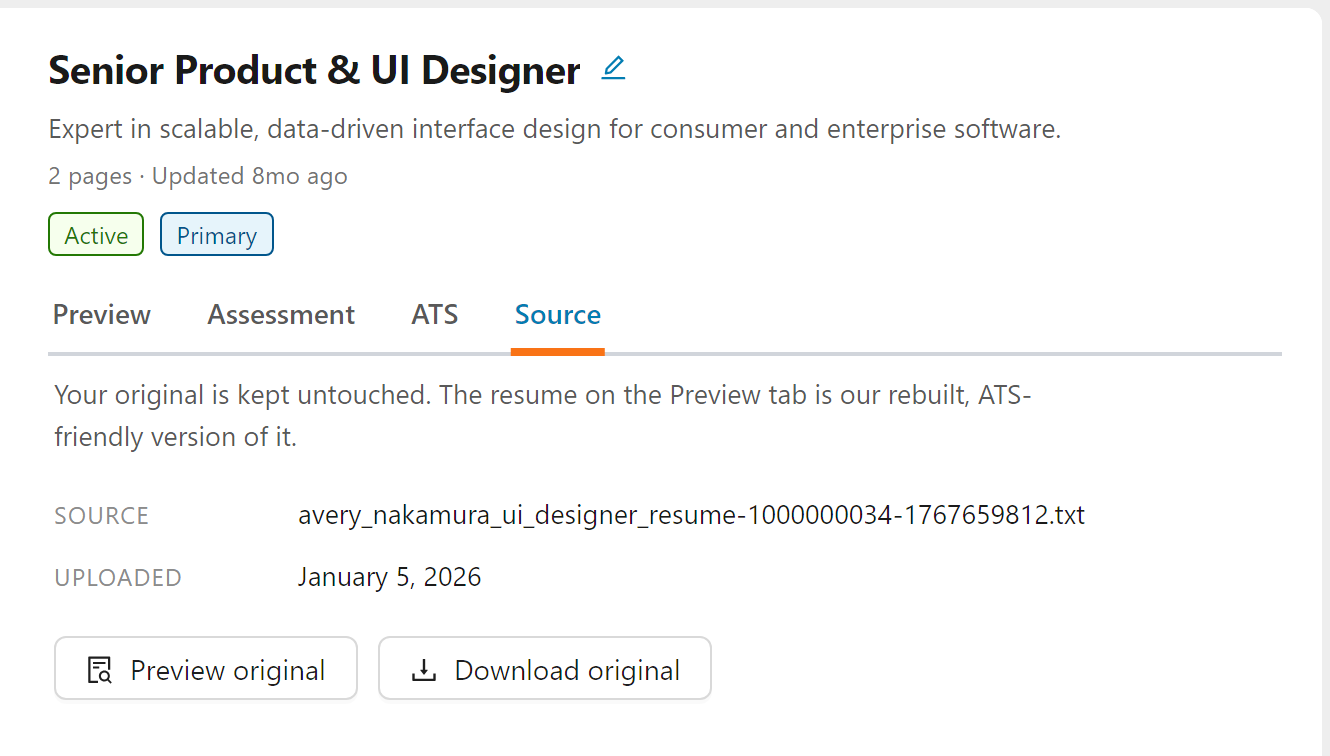
The tab lists the original document's name and the date you uploaded it. For a LinkedIn import, it shows the import date and a View LinkedIn profile link instead. Preview original opens the Original source popup, and Download original saves the exact file you uploaded.
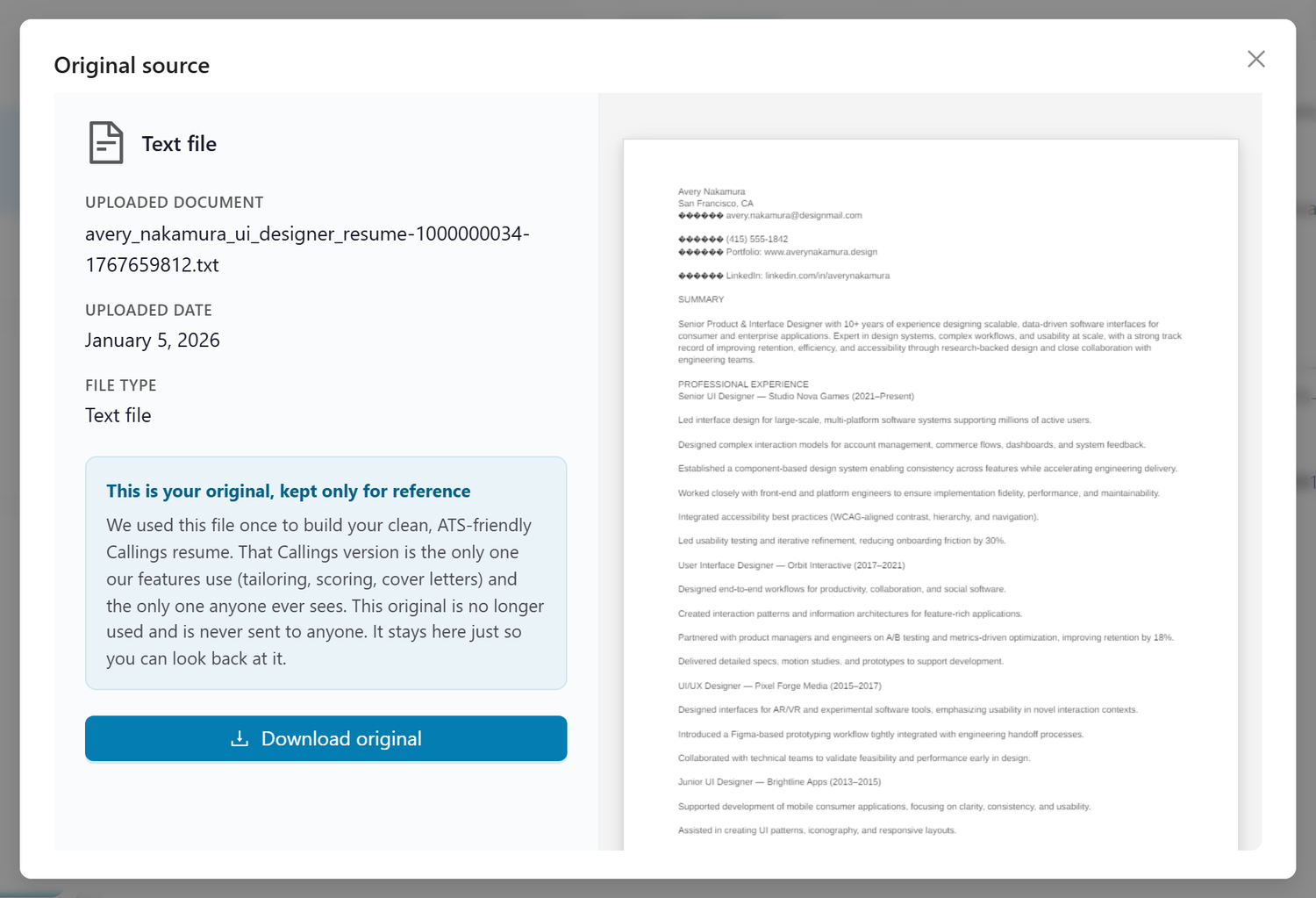
The popup has two parts:
- Left column, details: the file type, the document name, and the upload (or import) date.
- Right column, preview: a rendered preview of the original. PDFs, Word documents, and text files are shown as pages; images are shown directly. LinkedIn imports have no file to preview and show the LinkedIn logo instead.
Important: your original is kept only for your reference. It was used once to build your clean, ATS-friendly Callings resume, and that Callings version is the only one our features use and the only one anyone ever sees. The original is no longer used by any feature and is never sent to anyone.
Resume Limits and Active Resumes
| Membership | Total Uploads | Active Resumes |
|---|---|---|
| Basic (Free) | Up to 5 | 1 (primary only) |
| Unlimited | Up to 5 | Up to 5 |
Active vs. inactive:
- Active resumes are included in AI processing. Most AI features intelligently curate information from all your active resumes, selecting the most relevant content based on the specific task (e.g., job matching, custom resume generation, insights).
- Inactive resumes are completely excluded from all AI processes: they are stored but never used by any AI feature. An inactive resume is dimmed in the list.
- Switch a resume on or off with the Active box on the toolbar of its Preview tab. Your primary resume is always active, so its box is locked; to deactivate it, first make another resume primary with the Primary box on that resume's toolbar.
- Basic Membership users can only have their primary resume active; other resumes are automatically set to inactive.
Tip: use the description to guide which resume gets used. When you have more than one active base resume, Callings.ai automatically selects the one that best fits each job, and your description is the strongest signal it uses. Write what the resume is for and when to use it. For example, put "Use for individual-contributor roles" on one resume and "Use for management roles" on another, and we will route an individual-contributor job to the first and a management job to the second. You can always override the choice for a specific job from that job's options menu (see Custom Resume).
Everything else you can do with a resume once it is in your library (reorder the list, make one primary, duplicate it, delete it, download it as PDF or Word) is on the toolbar of its Preview tab and described in My Resumes Overview.
Frequently Asked Questions
Q: What's the difference between uploading a file, LinkedIn, and pasting text?
A: There's no difference in quality; all three methods work equally well. The focus is on the content of your resume, not the format. We take care of cleaning up the layout automatically, so you can choose whichever method is most convenient for you.
Q: How long does processing take?
A: Usually under a minute. The new row in your list says Processing until the resume is ready. You can leave the page and come back; the resume will be waiting in the list.
Q: My resume isn't parsing correctly. What should I do?
A: Our platform is designed to handle any source, format, and layout, including complex columns, graphics, colors, decorative blocks, and any combination of images and text. Everything is automatically detected and normalized. If you notice any issues, you can always manually edit your information directly in the platform using the AI Editor.
Q: My upload failed. What now?
A: The row in your list says Upload failed when we could not read the file. Click Retry on the row to read it again, or Remove to take it off your list. If it keeps failing, check that the file is under 6 MB and in one of the supported formats. For a photo or a scan, export the document as a PDF instead, or paste its text on the Paste Text tab.
Q: Can I upload a LinkedIn PDF export?
A: Yes! You can export your LinkedIn profile to PDF and upload that. However, it's even easier to just paste your LinkedIn profile URL directly, and we'll retrieve your publicly available information.
Q: I imported my LinkedIn profile but the information isn't up to date. Why?
A: The publicly available LinkedIn data we retrieve may not always reflect your most recent profile updates. If you've recently made changes to your LinkedIn profile, it may take a few days for those updates to become available. You can try importing your profile again after a few days, or manually edit your resume in the platform to add any missing recent information. Alternatively, you can export your resume directly from LinkedIn (use LinkedIn's "Save to PDF" feature in the "More" menu on your profile) and upload that PDF file; this will always contain your most current LinkedIn data.
Q: What if I don't have a final resume ready?
A: No problem! Upload an older version or draft. You can update it anytime: job matching picks up the new version automatically, and you can regenerate your reports (Resume Assessment, My Insights) whenever you are ready.
Q: What updates automatically when I change a resume?
A: Job matching does. Searches that use the resume (the "My resume" mode in the AI Job Search) pick up the new content automatically, match scores refresh, and their daily emails follow along. Reports do not change on their own: the Resume Assessment, the My Insights reports (always based on your primary resume), and Custom Resumes already generated for specific jobs keep their current content until you click Regenerate. This keeps your reports stable while you edit and lets you compare before and after.
Q: How do I replace an existing resume?
A: To update a resume's content, select it and click Edit on the toolbar of its Preview tab to open the AI Editor. To replace it with a new file entirely, click Delete on that toolbar, confirm, and then add the new file. If the old resume is your primary one, make another resume primary first.
Q: Where did the file I uploaded go? Can I still see it?
A: Yes. Your original file (or imported LinkedIn profile) is kept and you can view or download it any time. Select the resume and open its Source tab, then click Preview original or Download original. The Callings resume on the Preview tab looks different because we normalized your upload into a clean, ATS-friendly format; the original is preserved only for your reference and is never used by AI features or sent to anyone.
Q: Can I have different resumes for different job targets?
A: Yes! You can create separate base resumes for different career directions (e.g., "Product Manager" vs. "UX Designer") or industries (e.g., "Tech" vs. "Finance"). You can also use multiple resumes to work on different versions before settling on a final one: use Duplicate on a resume's toolbar to create variants and compare them. In practice, most users maintain just 1-2 base resumes. Note that these base resumes are different from Custom Resumes: when you apply for a specific job, the platform generates a tailored Custom Resume from your base resume, optimized for that particular job description. So you don't need a different base resume for every job application; you only need different base resumes when targeting fundamentally different career paths or iterating on your content.
Q: What happens if I reach the 5-resume limit?
A: The Add resume button and the row at the end of the list read Resume limit reached. Select a resume you no longer need, click Delete on the toolbar of its Preview tab, and a slot opens up. Consider consolidating similar resumes or removing outdated versions.
Q: Is my resume information secure?
A: Yes. Your resumes are kept confidential and used solely to provide services to you. We never share your information with recruiters or third parties without your explicit consent.
Getting started is simple: add a resume once and benefit everywhere. Whether you drop a file, paste your LinkedIn URL, or copy text directly, your resume becomes the foundation for AI-powered insights, personalized job matching, and tailored application materials that help you stand out.