Account Settings
Settings is where you manage your account security and password, control email notifications, set application preferences (default landing page, paper size, resume font size, document file names), configure AI prompts for personalized content generation, and manage your privacy and account data.
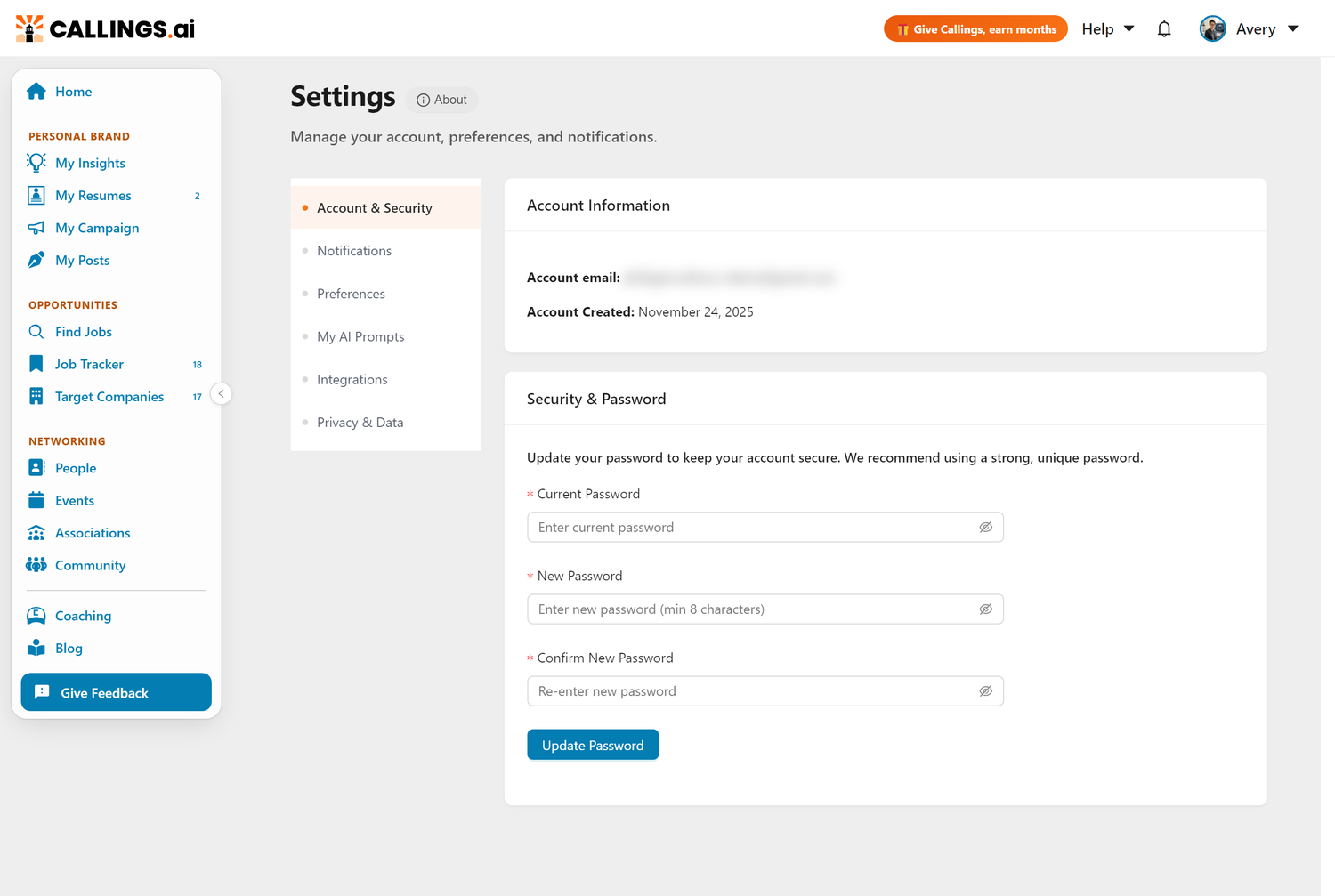
Account & Security
Account Information
View your core account details:
- Account Email - The email address used for login and notifications. You can change it from your Profile page.
- Account Created - When you first created this account on Callings.ai
To change your account email, go to Profile and click the "Change" link next to your email.
Stay Signed In
When signing in, you can check "Remember me for 90 days" to stay logged in across browser sessions. Without this option, your session ends when you close the browser.
Security & Password
To update your password:
- Enter your current password
- Enter your new password (minimum 8 characters)
- Confirm the new password
- Click Update Password
You'll receive a confirmation email when your password is changed.
Notifications
Control which emails you receive from Callings.ai:
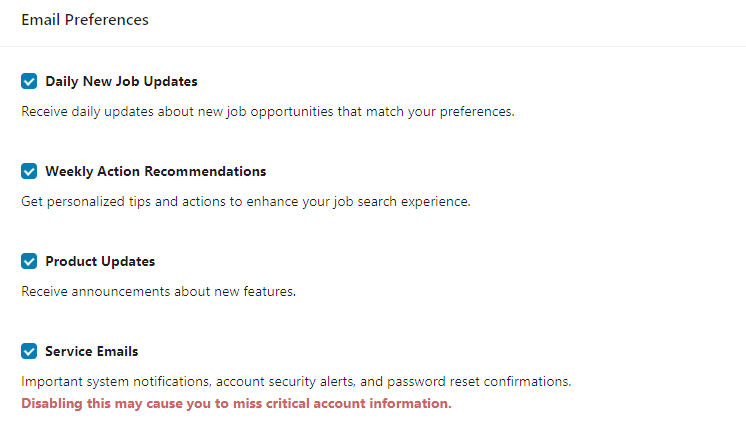
| Notification Type | What You'll Receive |
|---|---|
| Daily New Job Updates | Daily emails with new job matches from your saved searches, see Daily Job Email |
| Weekly Action Recommendations | Weekly tips and suggested actions for your job search |
| Product Updates | Announcements about new features and improvements |
| Service Emails | Password resets, security alerts, and billing notifications |
Toggle each checkbox to enable or disable. Changes save automatically.
Tip: We recommend keeping Service Emails enabled so you don't miss critical account information.
Preferences
Preferences let you customize how Callings.ai works for you, including where you land after signing in, how documents are exported, and how your resume and cover letter files are named.
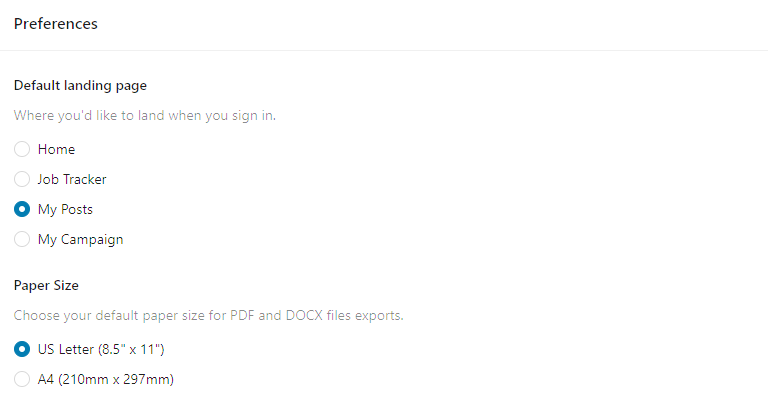
Default Landing Page
Choose which page opens automatically every time you sign in to Callings.ai.
| Option | Description |
|---|---|
| Home | The main dashboard with your job search overview |
| Job Tracker | Your Kanban board for tracking job applications |
| My Posts | Your social media content and campaign posts |
| My Campaign | Your personal career campaign and branding content |
The setting saves automatically. Your next sign-in will open directly on the selected page, skipping the default Home screen.
Paper Size
Choose your default paper size for all PDF and DOCX file exports across the application:
| Option | Dimensions | Best For |
|---|---|---|
| US Letter | 8.5" × 11" | United States, Canada, Mexico |
| A4 | 210mm × 297mm | Europe, Asia, Australia, most other countries |
Your paper size preference applies to: - Base resume exports - Custom resume downloads - Cover letter downloads - Job Fit Reports - Interview Prep Reports - Company Reports
The setting saves automatically and persists across all your devices.
Resume Font Size
Choose the body text size used for your resumes, in the resume editors and the PDF and Word exports:
| Option | Best For |
|---|---|
| 9 pt (compact) | Fitting the most content per page |
| 10 pt | A balance of density and readability |
| 11 pt | The size most career coaches recommend |
The size applies to your base resumes and all custom resumes. Section headings keep their proportions, and the in-app editors and previews render at the same size as the downloads. Changing the size reflows your content, so check where your page breaks land afterwards. Cover letters are not affected; they always use a comfortable letter format.
You can also change this setting from the settings gear next to any resume preview.
Custom Resume and Cover Letter File Names
Choose how your downloaded custom resume and cover letter are named. Instead of a fixed format, you arrange the parts of the file name yourself, and the same pattern is used for both documents.
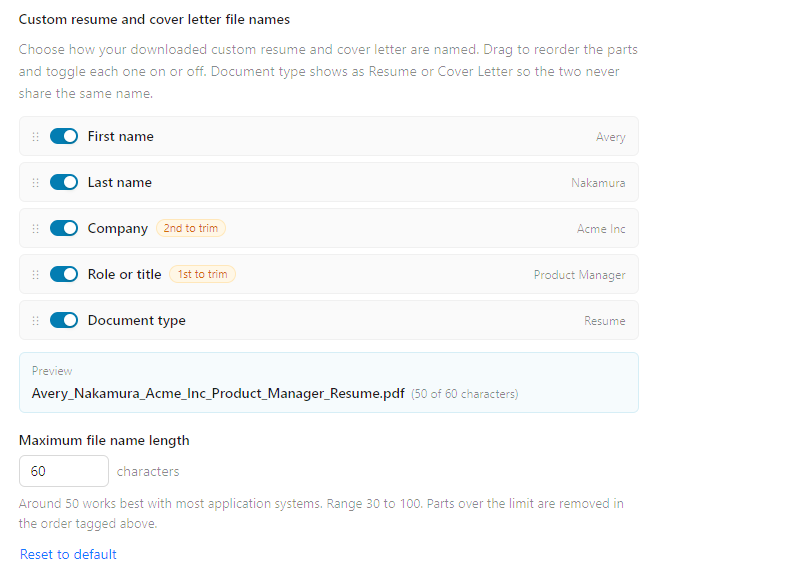
The parts you can include:
| Part | Example |
|---|---|
| First name | Philippe |
| Last name | Cailloux |
| Company | Acme_Inc |
| Role or title | Product_Manager |
| Document type | Resume or Cover_Letter |
How to set it up:
- Go to Settings, then Preferences
- Drag the rows up or down to set the order
- Use the toggle on each row to include or leave out that part
- Watch the Preview update live as you make changes
The Document type part always shows as Resume or Cover Letter, so your resume and cover letter never end up with the same file name.
Maximum file name length
Some application systems read shorter file names more reliably, and a few reject uploads when the name is very long. You can set the maximum length anywhere from 30 to 100 characters (the default is 60). Around 50 is a safe target for most systems.
If your chosen parts add up to more than your limit, parts are removed in this order until the name fits:
- Role or title is removed first
- Company is removed next
- If it is still too long, the name is trimmed to your limit
The rows in Settings are tagged ("1st to trim", "2nd to trim") so you can see at a glance which part goes first. Your name and the document type are always kept.
This setting applies to custom resume and cover letter downloads (PDF and DOCX). It saves automatically and persists across all your devices.
My AI Prompts
My AI Prompts lets you give the AI standing instructions that shape how it writes content for you across the platform. Each prompt is optional and scoped to a specific type of content, so you can be as broad or as targeted as you like.
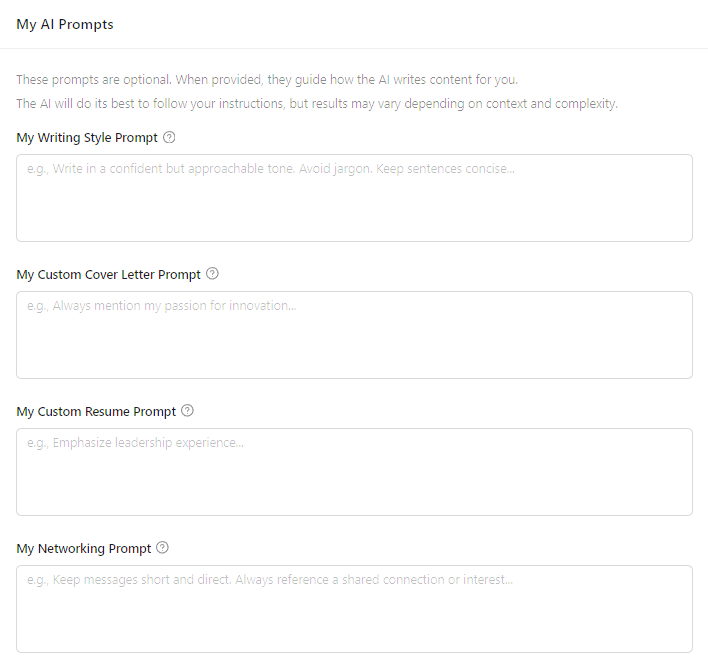
The Four Prompts
| Prompt | What It Affects |
|---|---|
| My Writing Style Prompt | Applied across all AI-generated content as the baseline voice: cover letters, resumes, networking messages, campaign story, and more |
| My Custom Cover Letter Prompt | Applied when generating new cover letters; adds focus areas or preferences on top of your writing style |
| My Custom Resume Prompt | Applied when generating new custom resumes; lets you steer emphasis, structure, or highlight specific strengths |
| My Networking Prompt | Applied when drafting outreach emails and connection requests |
How Prompts Stack
When the AI generates a cover letter, for example, it uses both your Writing Style Prompt (broad voice) and your Cover Letter Prompt (specific focus). The two stack together. If you only fill in one, the other is simply skipped.
When Prompts Apply
All prompts apply only to newly generated content. Existing documents are not retroactively changed.
| Scenario | What Happens |
|---|---|
| Generate new content | Your prompts are applied |
| Existing content | Not affected by later prompt changes |
| Update a prompt, then generate | New generation uses the updated prompt |
To apply updated prompts to an existing document, either click Regenerate or use the AI Editor to request specific changes.
Setting Your Prompts
- Go to Settings from the left sidebar
- Click My AI Prompts in the left panel
- Fill in any prompts you want (all are optional)
- Each field saves automatically as you type
Example Prompts
Writing Style (broad, all content):
Write in a confident, direct tone. Avoid jargon. Keep sentences concise.
Always generate content in French.
Warm and personable, but professional. Avoid passive voice.
Cover Letter (letter-specific):
Always mention my passion for mission-driven organizations in the opening paragraph.
Close every letter with a specific ask for a 20-minute call.
Custom Resume (resume-specific):
Emphasize quantified achievements with specific metrics and percentages wherever possible.
Highlight my transition from military service, emphasizing leadership and adaptability.
Networking (outreach-specific):
Keep messages under 5 sentences. Always reference something specific about the recipient's background.
Do not use "I hope this message finds you well." Be direct and get to the point immediately.
Tips
Be specific. "Emphasize leadership and quantify results" works better than "make it better."
Keep it focused. 2-4 clear instructions per prompt work better than a long paragraph of competing directions.
Test and iterate. Generate a document, review the output, and refine your prompt based on what the AI got right or missed.
Note: Prompts guide the AI but do not override factual accuracy. The AI will still use only your actual experience and follow formatting best practices.
Privacy & Data
Cookie Preferences
You can choose which cookies and analytics Callings.ai may use. Click Manage Cookie Preferences to open the same preferences panel as the cookie banner, where each category can be turned on or off independently.
Your choice is recorded in one place, so changing it here, in the banner, or from the Cookie Preferences link in the site footer all have the same effect. You can change it as often as you like.
If you see a note saying preferences are unavailable, your browser or one of its extensions is blocking our consent tool. That same block also stops the optional cookies from being set, so only the essentials needed to run the site are active. Allow cdn-cookieyes.com and reload the page if you want to change your choice.
When analytics is enabled, we collect data about feature usage and performance. We never track the content of your resumes, cover letters, or personal communications, and we show no third-party ads.
Danger Zone
The Danger Zone section at the bottom of Privacy & Data lets you request permanent deletion of your account.
Requesting Account Deletion
To request deletion of your account:
- Click Delete Account in the Danger Zone
- If you have an active recurring subscription, you'll see a warning recommending you cancel it first, with a link to Manage billing
- Type DELETE in the confirmation field
- Check the "I understand this is irreversible" checkbox
- Click Request Account Deletion
After submitting, your request will be processed within a few business days. You'll receive a confirmation email when your account has been deleted. You can continue using your account until it is removed.
What Gets Deleted
When your account is deleted, all associated data is permanently removed, including your profile, resumes, cover letters, job tracker data, saved companies, contacts, and any other content.
Before You Delete
- Cancel any active recurring subscription to avoid being charged after your account is removed. The deletion dialog will remind you if you have one
- This action is permanent and cannot be undone once processed
Frequently Asked Questions
Q: How do I change my account email?
A: Go to your Profile page and click "Change" next to the email field. Enter your new email and current password, then confirm via the verification link sent to the new address. You will need to sign in again after the change.
Q: What if I forget my password?
A: Use the "Forgot Password" link on the login page to receive a password reset email.
Q: Can I disable all emails?
A: Yes, but we recommend keeping Service Emails enabled for important account notifications like password resets and billing alerts.
Q: How do I delete my account?
A: Go to Settings, scroll to the Danger Zone section at the bottom, and click Delete Account. Type DELETE to confirm, check the acknowledgment box, and submit your request. Your account will be removed within a few business days.
Q: Can I cancel a deletion request?
A: If your account hasn't been deleted yet, contact support to cancel the request. Once deletion is processed, it cannot be reversed.
Q: Which paper size should I choose?
A: Choose US Letter (8.5" × 11") if you're in the United States, Canada, or Mexico. Choose A4 (210mm × 297mm) if you're in Europe, Asia, Australia, or most other countries. This ensures your exported documents print correctly.
Q: Does the paper size setting apply to all my documents?
A: Yes, your paper size preference applies to all PDF and DOCX exports including resumes, cover letters, and reports. The setting is saved and syncs across all your devices.
Q: Can I change the font size of my resume?
A: Yes. In Settings, go to Preferences and set Resume Font Size to 9, 10, or 11 point. The size is used in the resume editors and in every PDF and Word download, for base resumes and custom resumes alike. Many career coaches recommend at least 11 point.
Q: Can I change how my downloaded resume and cover letter are named?
A: Yes. In Settings, go to Preferences and find "Custom resume and cover letter file names." Drag the parts (first name, last name, company, role, document type) into the order you want and toggle any of them on or off. A live preview shows the result.
Q: Why is part of my file name missing or cut off?
A: File names are kept within your chosen maximum length (30 to 100 characters, default 60). If your selected parts are longer than that, the role or title is removed first, then the company, and finally the name is trimmed to fit. Lower your number of parts or raise the maximum length if you want more to show.
Related Topics
- Profile - Update your personal details
- Subscription - Manage billing and plans
Customize the platform to work the way you work. From AI writing preferences to document formatting, these settings let you tailor Callings.ai to your unique style, so every piece of content you generate feels authentically yours.