AI Assistants
Connect Callings to Claude, ChatGPT or another app that speaks the Model Context Protocol and it becomes your assistant's job-hunting back end: 44 tools that search the live market, add jobs to your tracker, show you where to apply, find a contact's email address, pick networking events and career coaches for you, draft tailored resumes, cover letters and interview prep, keep your Work Search Log, message your own career coach, and read your whole pipeline. You work in the assistant you already use, and Callings does the work behind it.
This is aimed at people who already run their day inside an assistant. On its own, an AI chat can write you a cover letter about a job you paste in. Connected to Callings, it already knows which jobs you are tracking, which you have applied to, how well each matches your resume, who you know at those companies, and what you were planning to do this week, and it can act on all of it.
The part that is hard to get any other way is the combination. Your assistant can put Callings beside everything else you have connected to it, so a single request can pull a recruiter's note out of your email, match it to the job in your tracker, check who you know at that company, and draft the reply. Callings holds the job-hunting data and does the job-hunting work; the assistant is where you join it to the rest of your life.
This is an experimental feature. It works, and we use it ourselves every day, but it is new, it depends on other companies' products changing underneath it, and some answers will be better than others. Nothing here can harm your account: you approve what it may see, and you can disconnect in one click. Please tell us how it goes. Feedback on this one shapes it directly, especially when an assistant misunderstands a question or picks the wrong tool.
What Your Assistant Can Do Once Connected
Connected, your assistant can read your whole job hunt and act on it, using the same data and the same engines the Callings web app runs on.
| Say something like | What it uses |
|---|---|
| "What should I work on today?" | Your weekly plan and today's actions |
| "Which of my applications have gone quiet?" | Your tracker, with dates and stages |
| "Find me product manager jobs in Boston" | A live search of the job market |
| "Which jobs match my resume best?" | Your resume match scores |
| "Who do I know at Stripe?" | Your saved contacts |
| "Add this job to my tracker and mark it applied" | Your tracker, written back |
| "Write a cover letter for the Acme role" | The Callings cover letter writer |
| "Not interested in that one" | Hides the listing from your searches and suggestions |
| "Prep me for my interview with the hiring manager" | The Callings interview prep, saved on the job |
| "I went to a job fair today, log it" | Your Work Search Log |
| "Ask my coach to look at my tailored resume for Acme" | A message to your Callings coach, sent only after you approve it |
Everything it reports is your own data. It cannot see anybody else's account, and it only ever acts as you.
Connecting Takes About Two Minutes
You add Callings as a connector in your assistant, sign in to Callings once in the browser, and approve what the assistant may see. There is nothing to install and no API key to copy.
Pick your assistant:
- Connect Claude - the most complete experience today, including pictures in the chat
- Connect ChatGPT - through Developer Mode connectors
Using something else? Anything that can add a remote MCP server will work with the same address. See Other apps below.
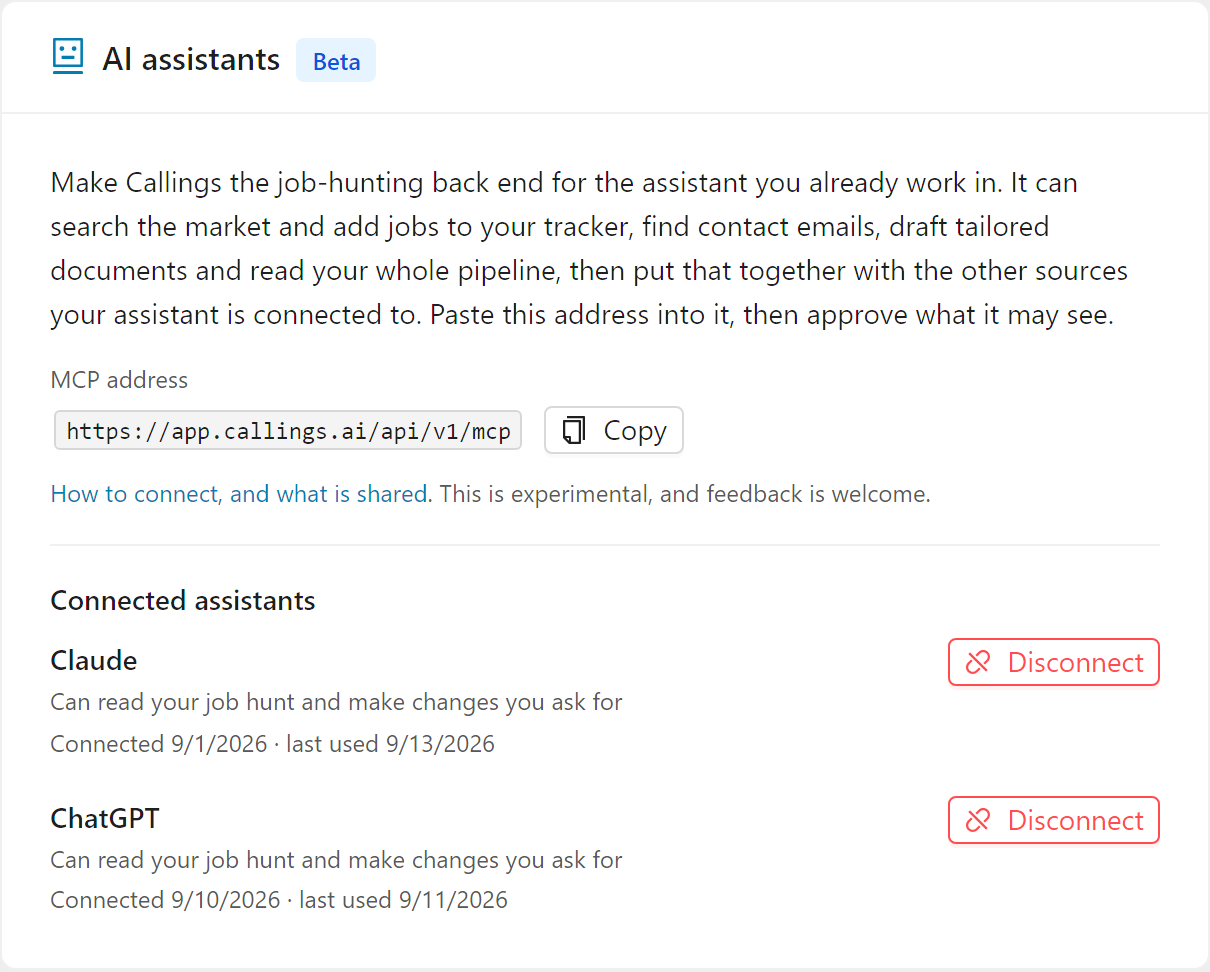
The address you will be asked for is always the same:
https://www.callings.ai/api/v1/mcp
You can see it, copy it, and review anything you have already connected under Settings > Integrations.
What This Costs
Connecting is free and reading your own job hunt is free. Six of the 44 tools are part of a paid plan, because they spend money outside Callings or write something new for you.
The six are: searching for new people outside your network, saving someone that search found to your contacts, looking up a contact's email address, generating a tailored resume, generating a cover letter, and preparing you for an interviewer. Finding career coaches matched to you is free. If you are on the free plan and ask for one of those, your assistant will tell you what it needs, what the plan costs and where to upgrade. Nothing else stops working.
Why This Is Called MCP
MCP, the Model Context Protocol, is the open standard that lets an AI assistant use an outside service. Callings runs an MCP server, which is why one address works in every app that speaks it rather than needing a separate integration for each.
You do not need to know anything about the protocol to use this. It is worth knowing the name for two reasons: it is the word you will see in your assistant's settings ("MCP server URL"), and it tells you that your Callings account is not locked to one AI company. If you switch assistants, you reconnect and carry on.
Other Apps That Can Connect
MCP is an open standard, not a Claude or ChatGPT feature. Any application that can add a remote MCP server can use Callings with the same address, and the list grows every month.
Beyond the two assistants above, MCP servers are accepted today by coding assistants and agent frameworks, desktop AI apps, terminal tools, and some automation platforms. We do not test Callings in all of them and we cannot document each one, but the requirements never change:
- The app must accept a remote MCP server over HTTPS (Callings does not run on your machine).
- It must support OAuth sign-in for that server, which is how you approve access.
- Point it at
https://www.callings.ai/api/v1/mcp.
If it connects, everything on the security and privacy page applies unchanged, and the connection appears under Settings > Integrations like any other. If it does not connect, tell us which app and we will take a look.
Tips & Best Practices
- Say what you want, not which tool to use. Your assistant picks from 44 tools on its own; "what should I do today?" works better than naming a feature.
- Start a new conversation after you connect. Assistants read the tool list when a chat begins, so a chat that was already open will not see Callings.
- Ask it to link things. It can give you direct links into Callings, so a job it mentions is one click from the tracker.
- Keep the heavy editing in Callings. The assistant is excellent at deciding what to do; the resume and cover letter editors are where the writing gets finished.
- Review anything it writes back. It can add jobs, record decisions, hide listings, save events, log work search activities, add notes to jobs, companies and contacts, and message your coach once you approve the message, so check its work in Callings, exactly as you would your own.
Frequently Asked Questions
Q: Does connecting give the AI company my job search data?
A: It gives your assistant the answers to questions you ask, and those answers pass through the assistant's own service, the same way anything you type into it does. Read Security and privacy before you connect; it explains exactly what travels where.
Q: Can I connect more than one assistant?
A: Yes. Each connection is separate, listed on its own under Settings > Integrations, and can be disconnected without touching the others.
Q: Do I need a paid Callings plan to connect?
A: No. Connecting and reading your own job hunt are free. Five tools are part of a paid plan, the same features that are paid in the app, and your assistant will say so if you ask for one.
Q: Does this work in the free version of my assistant?
A: That depends on the assistant, not on Callings. At the time of writing Claude allows one custom connector even on its Free plan, while ChatGPT needs a paid plan. The per-assistant pages say what each one needs, and each links to the vendor's own documentation, which is the authority when this changes.
Q: What if I stop wanting this?
A: Go to Settings > Integrations and press Disconnect. Access ends immediately and nothing further is shared.
Q: It is not working, or an answer was wrong. What should I do?
A: Send us the details, including which assistant you used and what you asked. This feature is experimental and a real example of a bad answer is the most useful thing you can give us.
Related Topics
Your job hunt should not live in one more tab you forget to open. Put the data and the tools behind the assistant you already work in, and the next real move in your search is one sentence away.