Connect Claude
Adding Callings to Claude takes one address and one sign-in. Claude then gains 44 tools covering your tracker, job matches, contacts, resumes and saved companies, and it is the only assistant today that shows Callings images (your Calling Card artwork, company logos) inline in the conversation.
This is an experimental Callings feature. It works and we use it daily, but it is new and it depends on Claude's own settings, which move. Please tell us how it goes, particularly if a step below no longer matches what you see.
What Claude Needs
At the time of writing, custom connectors are available on every Claude plan, Free included, though a Free account is limited to one custom connector. On Team and Enterprise an Owner adds the connector once for the organization, and members then connect their own Callings accounts to it.
Support for this changes often and Anthropic's own documentation is the authority, with screenshots of their current screens: Get started with custom connectors using remote MCP. If what you see in Claude does not match the steps below, follow theirs.
What the setting might be called. The feature has been named several things across products and versions, so look for any of: Connectors, Custom connectors, MCP servers, Integrations, Apps, Tools, or an Add custom connector button. They all mean the same thing here, which is "let this assistant call an outside service".
And a reminder worth having: Claude is not the only option. MCP is an open standard, so other apps can connect too with the same address.
Step 1: Open Connector Settings
In Claude, open Settings and choose Connectors, listed under Customize.
On a personal account that is where you add it. On Team or Enterprise, an Owner first adds it under Organization settings > Connectors > Add, hovering Custom and choosing Web; each member then opens their own Settings > Connectors and presses Connect.
Step 2: Add a Custom Connector
Press Add, then paste the Callings address. Some builds show a + button and an Add custom connector item instead; they do the same thing.
https://www.callings.ai/api/v1/mcp
Give it a name you will recognize in the conversation, such as Callings. Leave the Advanced settings alone: Callings uses OAuth, so there is no client ID, client secret, API key or request header to fill in. Click Add.
Step 3: Sign In and Approve
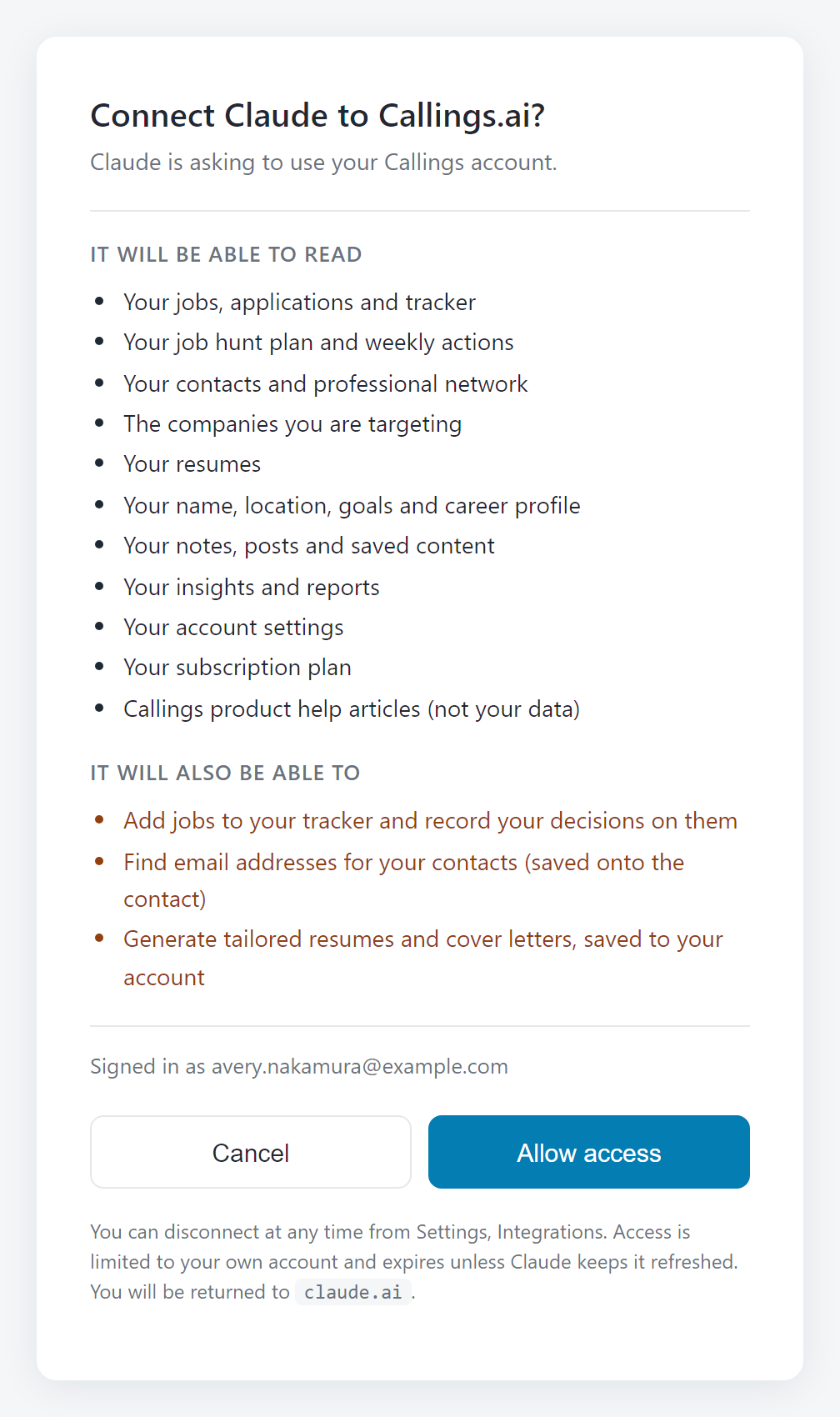
Claude opens a Callings page asking you to sign in and then showing exactly what the connector will be able to see.
Read that screen; it is the real thing and not a formality. It lists what Claude may read, grouped by area, and separately what it may change. Click Allow and Claude returns to its own settings with the connection made.
If you are not signed in to Callings in that browser, the page first asks you to sign in, naming Claude as the application asking. Sign in with Google or your email, or create an account there; either way you land on the approval screen next. Signed in as the wrong account? Click Not you? Use a different account under your email on the approval screen.
Step 4: Start a New Conversation
Claude reads its tool list when a conversation begins, so open a new chat rather than reusing one you already had open. The connector itself stays switched on once you have added it, so this is the only thing you have to do again.
You can see the switch, and turn Callings off for a chat without disconnecting it, from the + button in the message box under Connectors.
Then try it:
- "What should I work on in my job hunt today?"
- "Which of my applications have gone quiet?"
- "Which tracked jobs match my resume best?"
- "Show me my action figure images"
If Claude answers without appearing to use Callings, it is nearly always a stale chat. Start another new one.
Tips & Best Practices
- Claude renders pictures. Ask for your Calling Card artwork or a company logo and it appears in the conversation, not as a link.
- It can page through results. If a search returns more than it showed, ask for the next page rather than re-running the search.
- Let it link. Ask for links and it gives you direct URLs into Callings for anything it mentions.
- Disconnect from either side. Claude's own settings remove the connector; Callings Settings > Integrations revokes the access. Doing it in Callings is the one that is certain, because it ends the grant on our side.
Frequently Asked Questions
Q: My assistant cannot find or reach the server.
A: Check the address character for character against the one above. It must start with https://www.callings.ai and end in /mcp. If you saved a different address earlier, remove the connector and add it again with this one. Settings > Integrations in Callings always shows the current address with a Copy button, which is the safest place to take it from.
Q: Claude says it cannot reach Callings. What now?
A: Start a brand new conversation first, since a chat that began while the connector was being added keeps its old, empty tool list. If a new chat still fails, check the switch under + > Connectors in the message box (it stays on by itself, but it can be turned off), and failing that, remove the connector in Claude and add it again.
Q: Do I need a paid Claude plan?
A: Not at the time of writing. Custom connectors are available on every plan including Free, though a Free account can only have one custom connector at a time. Claude's own documentation is the authority if that changes.
Q: Does Claude Desktop work too?
A: Yes. Claude Desktop uses the same connector settings and the same address.
Q: Will Claude change things in my account without asking?
A: It can add a job, record a decision on one, add a note to a job, a saved company or a contact, save a found email address onto a contact, save someone a people search found, and start a document, and it should tell you before it does. Those are the only seven tools that write anything; everything else only reads. See Security and privacy.
Q: I have both Claude and ChatGPT connected. Do they interfere?
A: No. Each connection is separate and each is listed on its own under Settings > Integrations.
Related Topics
The best assistant is the one that already knows your situation. Give Claude your job hunt and stop pasting your own life into a chat box.