Connect ChatGPT
ChatGPT reaches Callings through a custom connector, which lives behind Developer Mode. Once added, ChatGPT gains the same tools as any other assistant: your tracker, job matches, contacts, resumes and saved companies.
This is an experimental Callings feature. It works and we use it daily, but it is new and it depends on ChatGPT's own settings, which move. Please tell us how it goes, particularly if a step below no longer matches what you see.
What ChatGPT Needs
At the time of writing, Developer Mode is available to Pro, Plus, Business, Enterprise and Education accounts on the web, so it needs a paid plan and it is not in the mobile apps. On Business and Enterprise an administrator may also have to allow it first, which is the usual reason the setting seems to be missing.
Support for this changes often and OpenAI's own documentation is the authority, with screenshots of their current screens: ChatGPT Developer Mode. If what you see in ChatGPT does not match the steps below, follow theirs.
What the setting might be called. The feature has been named several things across products and versions, so look for any of: Apps & Connectors, Connectors, Custom connectors, MCP servers, Integrations, Actions, Tools, or a Create button inside a connectors screen. They all mean the same thing here, which is "let this assistant call an outside service".
And a reminder worth having: ChatGPT is not the only option. MCP is an open standard, so other apps can connect too with the same address.
Step 1: Turn On Developer Mode
Developer Mode is what exposes custom connectors, and it is off by default.
In ChatGPT on the web, open Settings > Security and login and switch Developer mode on.
On a Business or Enterprise workspace an admin enables it first, under Workspace Settings > Permissions & Roles. If the toggle is not there at all, you are either on the free tier, on mobile, or waiting on that admin.
Step 2: Create the Connector
Open the Plugins section, press the + button to create a developer-mode app for a remote MCP server, and give it a name and the Callings address.
https://www.callings.ai/api/v1/mcp
The path matters: the address must end in /mcp. For authentication choose OAuth, which is what Callings supports, and there is nothing to paste: Callings registers itself automatically. Do not set an API key; there is none to set.
Your new app appears under Drafts in the app settings.
Step 3: Sign In and Approve
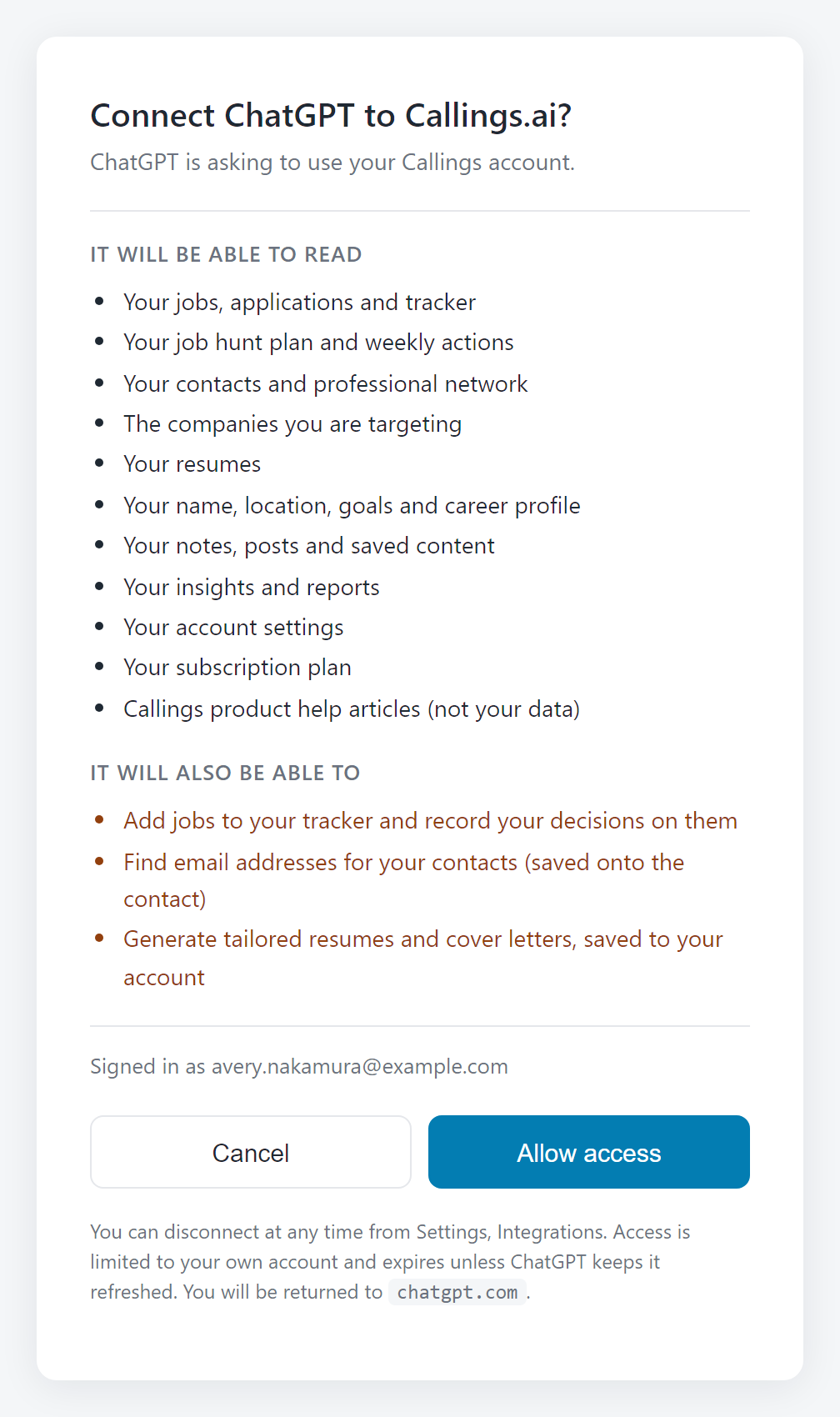
ChatGPT sends you to a Callings page to sign in, then shows exactly what the connector will be able to see and change.
Read it and click Allow. You come back to ChatGPT with the connection live.
If you are not signed in to Callings in that browser, the page first asks you to sign in, naming ChatGPT as the application asking. Sign in with Google or your email, or create an account there; either way you land on the approval screen next. Signed in as the wrong account? Click Not you? Use a different account under your email on the approval screen.
Step 4: Use It in a New Chat
Start a fresh conversation, then ask it something only your own job hunt can answer.
- "What should I work on in my job hunt today?"
- "Which of my tracked jobs best match my resume?"
- "Which applications have I not heard back on?"
In Developer Mode, ChatGPT shows you each tool call it makes, which is a useful way to see Callings actually answering rather than the model guessing.
Tips & Best Practices
- Remote only. ChatGPT talks to Callings over HTTPS at the address above. There is nothing to run on your own machine.
- Developer Mode shows its work. Leave it on while you get used to the connection; the visible tool calls make it obvious when an answer came from your account.
- Ask for links. ChatGPT will give you direct URLs into Callings for jobs, contacts and documents it mentions.
- Disconnecting is best done in Callings. Removing the connector in ChatGPT stops it being offered; Settings > Integrations in Callings revokes the access itself.
Frequently Asked Questions
Q: My assistant cannot find or reach the server.
A: Check the address character for character against the one above. It must start with https://www.callings.ai and end in /mcp. If you saved a different address earlier, remove the connector and add it again with this one. Settings > Integrations in Callings always shows the current address with a Copy button, which is the safest place to take it from.
Q: I cannot find Developer Mode.
A: It is under Settings > Security and login on the web, and it requires a paid plan. It is not in the mobile apps. On Business or Enterprise workspaces an admin has to allow it first, under Workspace Settings > Permissions & Roles.
Q: The connector was added but ChatGPT never uses it.
A: Start a new conversation. A chat that was already open kept the tool list it began with.
Q: Which authentication should I pick?
A: OAuth. Callings issues no API keys for this, and the OAuth flow is what produces the approval screen and the Disconnect button. Callings supports both of the OAuth registration methods ChatGPT offers, so there is no client ID or secret for you to fill in.
Q: Is Callings in the ChatGPT app directory?
A: Not today, which is why the setup goes through Developer Mode. The connector works exactly the same either way.
Q: Can ChatGPT change my Callings data?
A: It can add a job, record a decision on one, add a note to a job, a saved company or a contact, save a found email onto a contact, save someone a people search found, and start a document. Those seven tools are the only ones that write; the other 31 only read. See Security and privacy.
Related Topics
Your assistant does not need to be told your situation every time you open it. Connect it once, and every answer starts from your real job hunt.