My Coach
Already working with a career coach? Invite them to Callings: they follow your applications, interviews and next steps between your sessions, and you message each other right here. It is free for you on every plan, and coaches get their own dashboard for free.
Find it under Coaching > My Coach, the first tab of the Coaching page, next to Find a coach and Webinars & videos.
Before you have a coach
Until you work with a coach on Callings, My Coach shows three coaches matched to your search (the same picks as Find a coach; See all your matches opens the full list) and the two ways to start with the coach you already have.
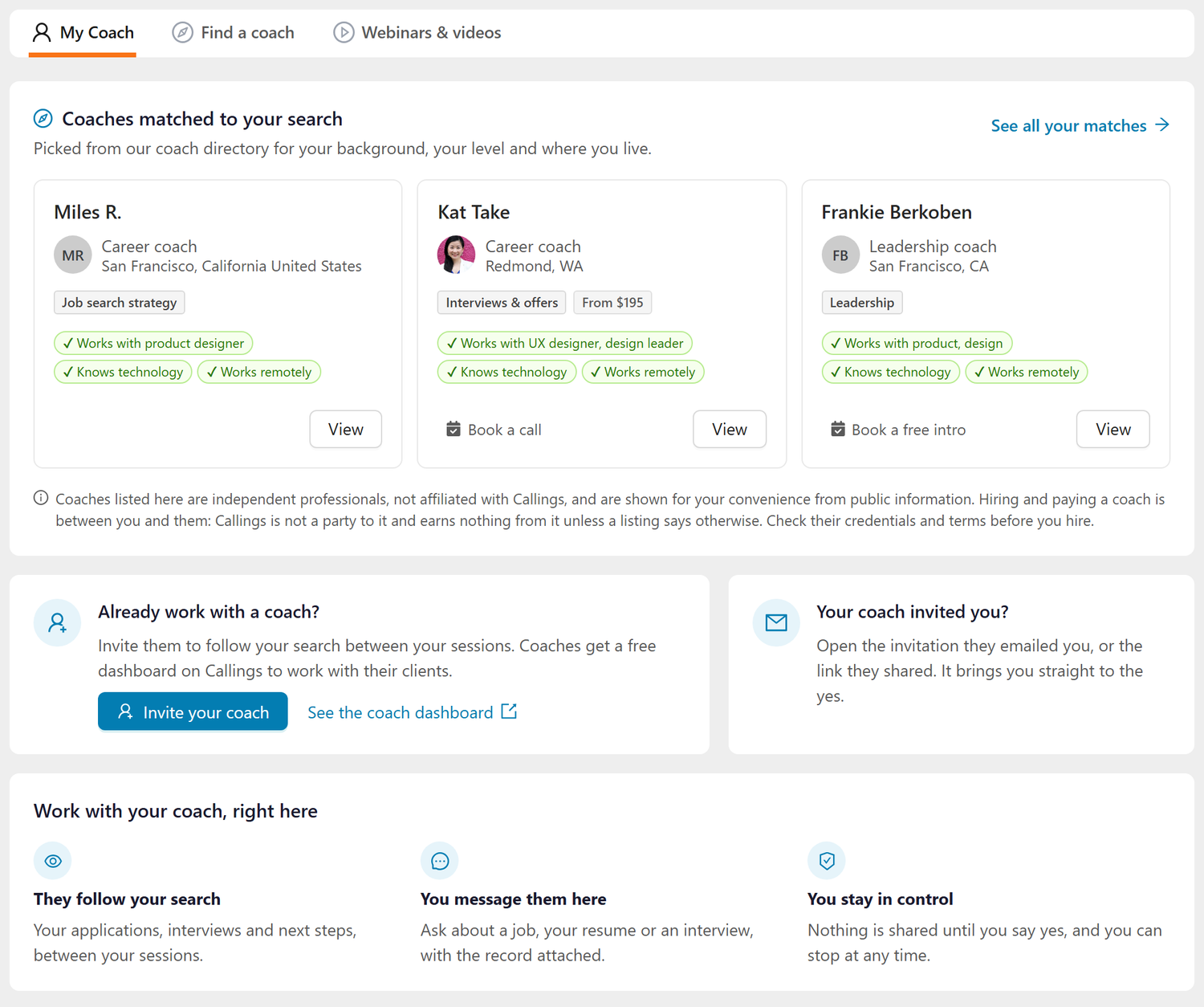
- Already work with a coach? Click Invite your coach to send them an invitation. See the coach dashboard shows what Callings looks like on their side.
- Your coach invited you? Open the invitation they emailed you, or the link they shared with you. It takes you straight to the page where you say yes.
Invite your coach
Click Invite your coach, then fill in:
- Your coach's name, so the invitation greets them properly.
- Your coach's email: the invitation goes there.
- A note for your coach, if you want to add one (up to 500 characters).
Open What your coach will see to read the full list before you send. Click Invite my coach to send it.
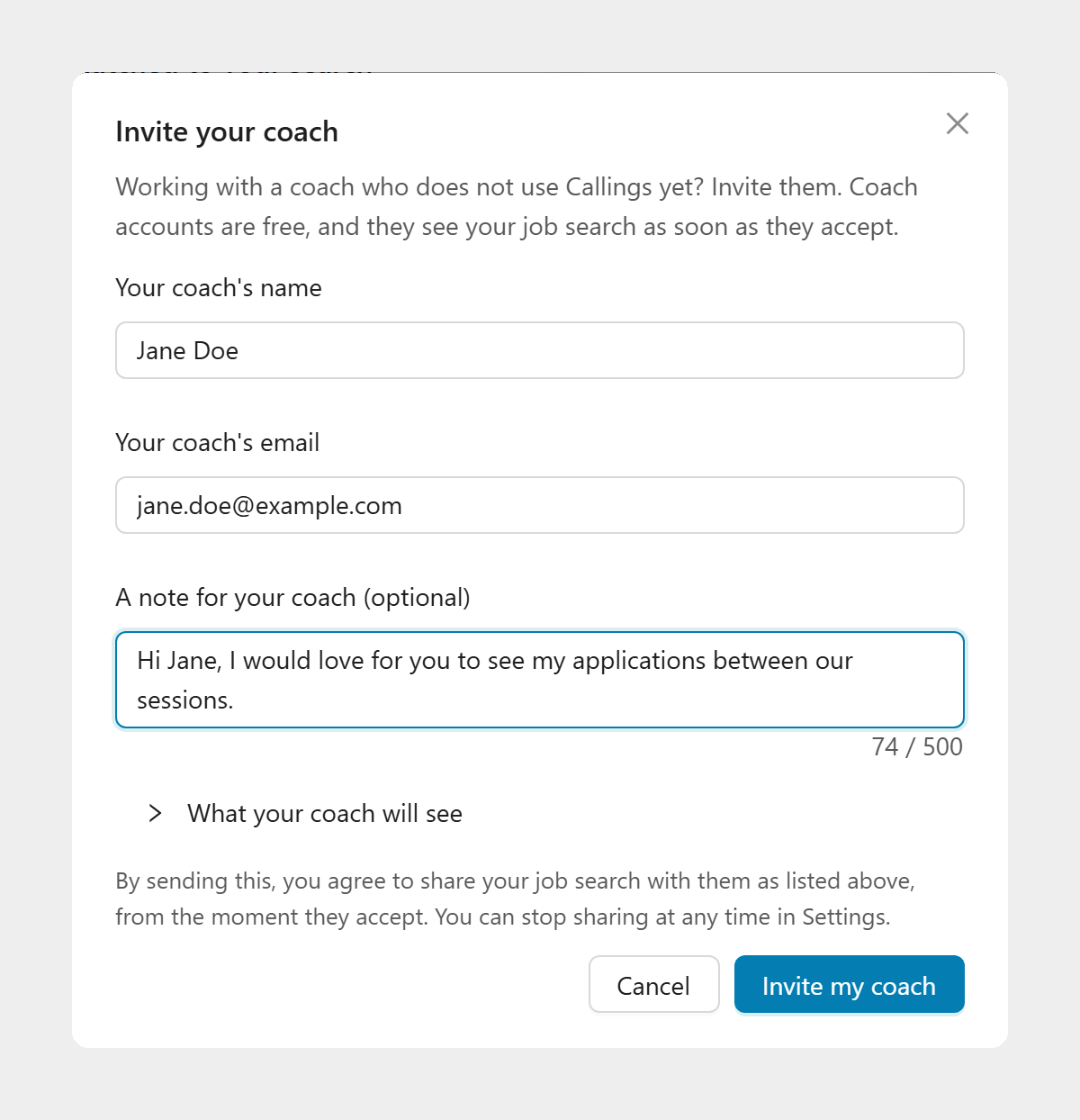
Sending the invitation is your agreement to share your job search with that coach, from the moment they accept. Your coach creates a free coach account from the email, and nothing is shared until they accept. While you wait, the invitation shows at the top of My Coach with its status; click Withdraw to cancel it.
When your coach invites you
A coach who already uses Callings can invite you by email or share their own client link. Either one opens a page that names the coach and lists exactly what they would see. Click Share my job search to accept, or Not now to close the invitation without sharing anything. If you do not have a Callings account yet, you can create a free one from that page, and nothing is shared until you click Share my job search.
Coaching that comes with a program. If your school, employer or another organization gives you a coach as part of your program, Callings shows you a one-time notice at sign-in naming your coach and what they will see. Their access starts once you have seen it, and you can choose Do not share. A program coach sees nothing from before the day your program seat started.
What your coach sees
Once you say yes, your coach can see:
- Your Job Tracker: the jobs you save and apply to, their stages, dates, fit scores and tags
- Your resumes, tailored resumes and cover letters, read-only
- Your resume assessments and interview practice results
- Your online presence: whether your Callings site, posts, LinkedIn profile, photo and scheduling link are set up, with links to what you published
- Your networking: your target companies, and how many contacts, recruiters, events and professional associations you added, attended or reached out to
- Your goals, your ideal job and your saved job searches
- Your My Insights questionnaire, personal brand and market fit reports
- Your weekly plan and how you respond to your daily tasks
- The days you were active and which tools you used
- Your messages with your coach
Your coach never sees your password, plan or billing details, your conversations with Ask Callings or any AI chat, your private notes, the documents in your knowledge library, or the names, emails and phone numbers of your contacts.
The one thing your coach can change is the focus of your weekly plan, when you share it. You see every change and can switch back to your own plan at any time. Nothing else in your account can be changed by your coach.
Messaging your coach
Once you work together, My Coach is your conversation with your coach. Their card at the top shows their name and headline, when they last wrote, and when they last viewed your progress. About opens what they wrote about themselves and their links; Manage sharing opens your sharing switch.
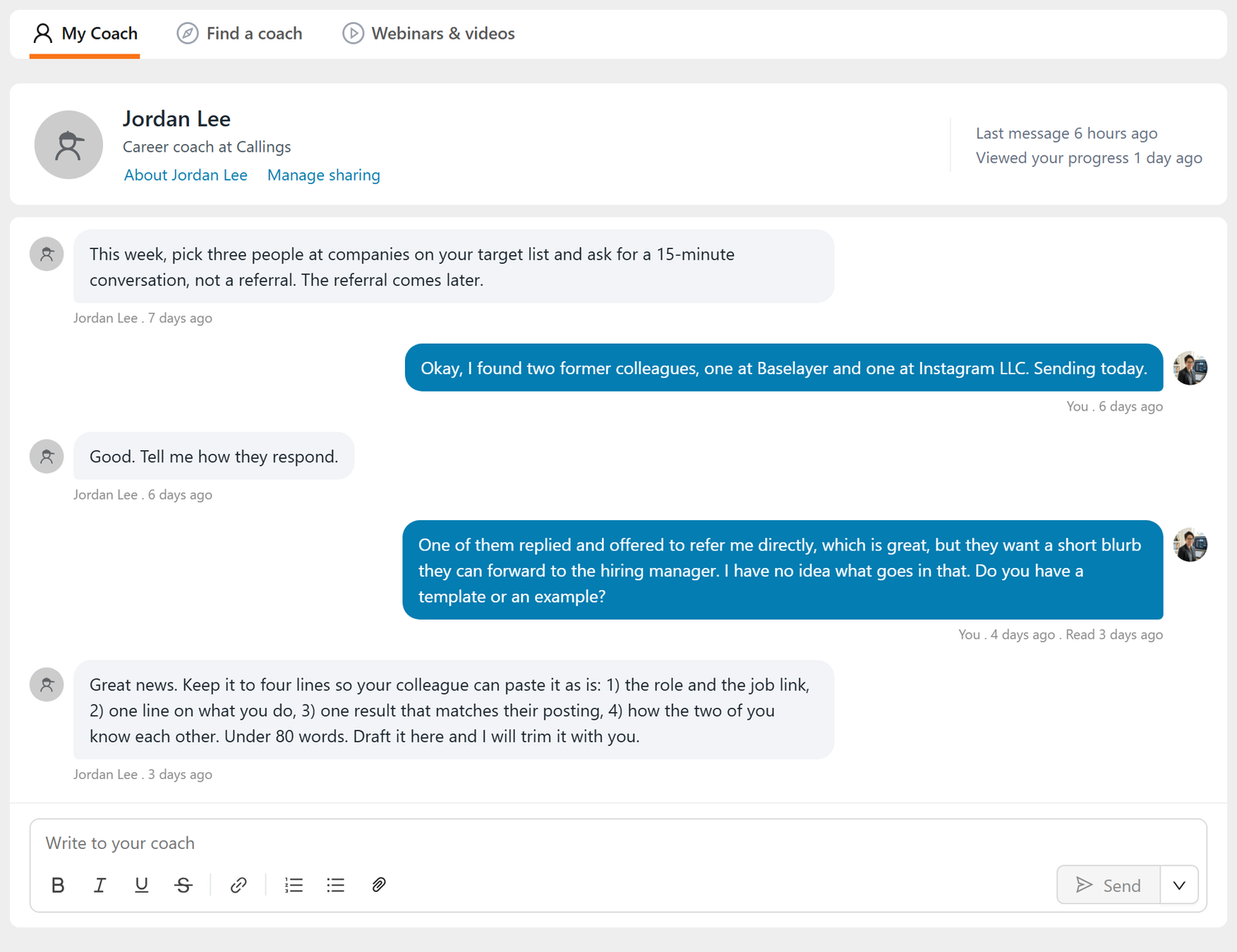
- One conversation. Everything you and your coach write is in one thread, newest at the bottom. Show earlier messages loads older ones.
- Writing. Type in the box at the bottom. The toolbar adds bold, italics, links and lists. Enter sends and Shift+Enter adds a new line; the arrow beside Send switches to Ctrl+Enter (Cmd+Enter on a Mac) if you prefer.
- Attachments. Click the paperclip, or paste, to attach up to 5 files per message: images, PDFs, Office documents, text or CSV files, up to 10 MB each.
- Read receipts. Under each of your messages, Read shows when your coach read it.
- Edit, delete and react. Hover a message to react to it, or to edit or delete one of your own. An edited message is marked edited, and a deleted one leaves "Message deleted" for both of you.
- Messages about a record. A message about a specific job, resume, interview, contact or company carries a link to it, such as About this job.
- From your AI assistant. You can also ask Ask Callings, Claude or ChatGPT to message your coach, for example "Ask my coach to look at my tailored resume for Acme". You see the message first, and it is sent only after you approve it.
Email when your coach writes. In Settings > Notifications, Messages from your coach sets how you hear about new messages: Each new message (several in a row come as one email), a Daily digest each morning, or Off. New messages always show in My Coach, and the Coaching entry in the sidebar shows how many you have not read.
Stopping or pausing sharing
Go to Settings > Privacy & data, find the My Coach block, and click Manage sharing. It is one switch for everything listed above, and turning it off takes effect immediately. Your messages stay in My Coach, read-only, until you turn sharing back on. See Settings.
If a coaching relationship ends, its conversation stays readable in My Coach. If you have worked with more than one coach on Callings, a switch above the conversation lets you open the earlier ones.
Free for coaches
Coaches work in their own dashboard at callings.ai/coach, free of charge. From there they see the progress of the clients who said yes, and message them between sessions. Your coach never needs a paid plan, and neither do you.
Frequently Asked Questions
Q: Does My Coach cost anything?
A: No. Inviting a coach, sharing your job search and messaging them are free on every plan, and coach accounts are free.
Q: My coach does not use Callings. Can I still invite them?
A: Yes. Click Invite your coach and enter their email address. They create a free coach account from the invitation and see your job search once they accept.
Q: Can my coach see my conversations with Ask Callings or my private notes?
A: No. Your coach never sees your AI conversations, your private notes, the documents in your knowledge library, or your contacts' names, emails and phone numbers.
Q: Can my coach change things in my account?
A: Only the focus of your weekly plan, when you share it. You see every change and can switch back to your own plan at any time.
Q: How do I stop sharing?
A: In Settings > Privacy & data > My Coach, click Manage sharing and turn the switch off. It stops immediately, and you can turn it back on later.
Q: Where did the My Coach page go?
A: It is the first tab of the Coaching page in the sidebar, next to Find a coach and Webinars & videos. Until October 6, 2026 it was a sidebar entry of its own that appeared only once you had a coach.
Q: Is my coach affiliated with Callings?
A: No. Your coach is an independent professional you chose, or one your program assigned. Hiring and paying a coach is between you and them.
Related
- Find a coach: coaches, resume writers and programs matched to your search
- Settings: sharing with your coach, and email about their messages
- Trust Center: how your data is protected, including what a coach can see