Profile Information
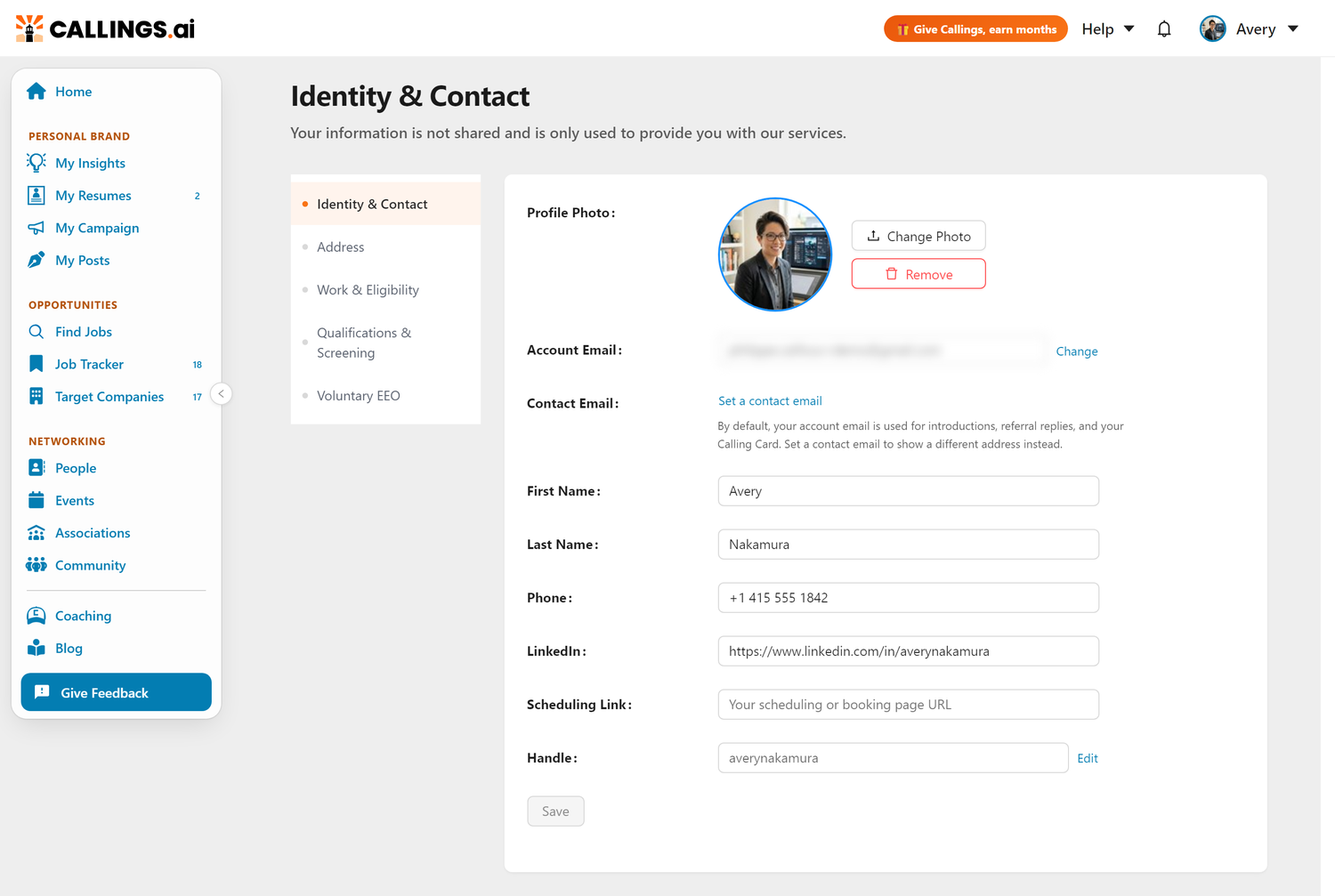
Profile is where you manage your personal details (profile photo, name, address, phone number, and LinkedIn profile) that appear in your resumes, cover letters, and other application materials generated on Callings.ai.
Overview
This page stores your profile photo, contact, and location details so they can be included in documents you create on the platform. When you generate a custom resume or cover letter, this information serves as the grounding data for your personal details, ensuring your name, address, and contact info are accurate and consistent.
Auto-filled from your resume or LinkedIn: When you first upload your resume or connect your LinkedIn profile, Callings.ai automatically extracts and populates these fields for you. However, it's good practice to review and verify that the information is correct, especially your phone number and address.
The AI uses this information contextually when generating content for you. For example, when creating a cover letter, the AI knows your name and contact details to format the header correctly, and understands your location when discussing commute or relocation in your application materials.
What your information is used for: - Populating contact headers on resumes and cover letters - Including your phone and email for recruiter follow-up - Adding your LinkedIn profile to professional documents - Location-based job matching - Including your scheduling link in AI-generated outreach emails that suggest a meeting or call
Privacy First: Your information is private and never shared with employers or third parties. It's only used to provide you with our services.
Accessing Your Profile
To view or edit your personal information:
- Click on your profile icon in the top navigation bar
- Select "Profile" from the dropdown menu
The page opens on Identity & Contact. Use the section list on the left to reach Address, Work & Eligibility, Qualifications & Screening, and Voluntary EEO.
Profile Fields
Profile Photo
Your profile photo is used to personalize your account and can be included in AI-generated visual materials. Click "Change Photo" to upload a new image, or "Remove" to delete your current photo.
Uploading a Photo: 1. Click "Change Photo" next to your current avatar 2. Select an image from your device 3. Use the crop editor to adjust your photo
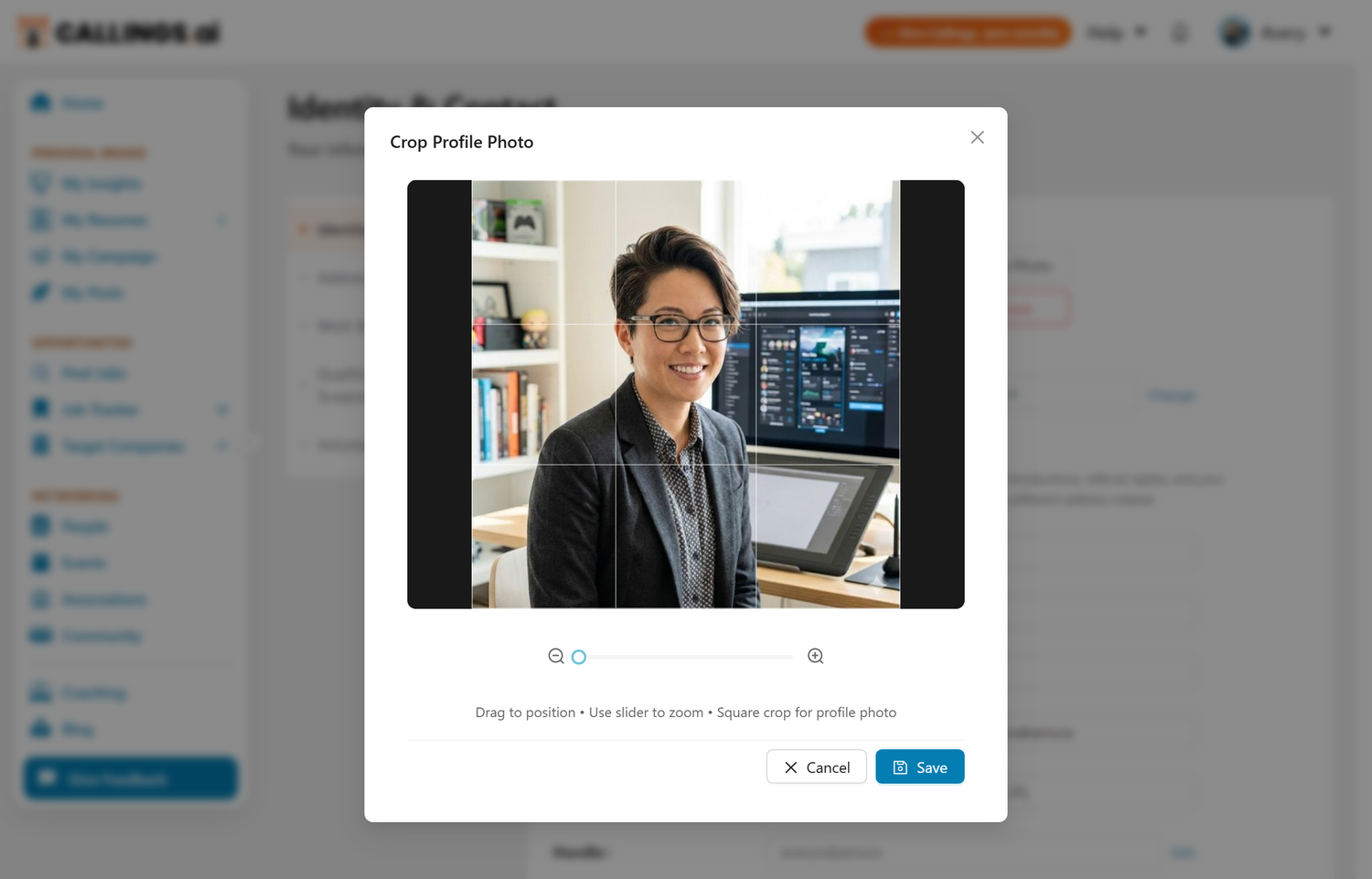
Tips for the Best Profile Photo: - Frame your shot from the chest up: This provides enough context for AI-generated visual materials to create the most representative and professional images of you - Use good lighting: Natural light or well-lit environments work best - Choose a neutral background: Simple backgrounds keep the focus on you - Look directly at the camera: Creates a more engaging and professional appearance
The circular crop area shows exactly how your photo will appear throughout the platform.
Account Email
Your account email address used for login and communication. You can change your email by clicking the "Change" link next to the email field. This opens a dialog where you enter your new email address and confirm with your current password. A verification link is sent to the new address; the change takes effect only after you click that link.
Contact Email
Your contact email is an optional preference. By default, the address other people see when Callings connects you with someone (Coffee Meetup and Community Support introductions, replies to your referral invites, and your public Calling Card) is your account email. If you prefer to keep your account email private (for example, if you use email aliases), click "Set a contact email" and enter the address you want to show.
A confirmation link is sent to the new address; the contact email is only used once you click that link and it shows as Verified. Until then, your account email keeps being used as the fallback. Click "Remove" next to the field at any time to go back to the default. To change the address, remove it first and then add the new one.
The contact email only changes what other people see. Everything Callings sends to you (daily and weekly job notifications, meetup reminders, security, billing, and sign-in messages) continues to go to your account email.
Where your contact email is used: - Coffee Meetups - the introduction email addresses you at your contact email, and your match sees that address - Community Support - the introduction sent when an offer is accepted shares your contact email - Give Callings (invites) - replies to your invites go to your contact email - Calling Card - the email shown on your public card (templates that display an email) - AI-drafted outreach - generated messages include your contact email in the signature
Personal Details
- First Name - Your given name
- Last Name - Your family name
- Handle - Your public username, used in your public page addresses (for example
callings.ai/u/yourhandle/campaign). Click Edit beside it to change it
Address
These fields are in the Address section of the page. - Address - Your street address - City - Your city of residence - Zip Code - Your postal code - State - Your state or province - Country - Your country of residence
Contact Information
- Phone - Your phone number (used in generated application materials)
- LinkedIn - Your LinkedIn profile URL
Scheduling Link
Your scheduling link is the URL to your personal booking page, such as a Calendly link, Google Calendar appointment page, or any other scheduling tool you use.

How to set it up: 1. Create a scheduling page with your preferred tool (Calendly, Google Calendar, Cal.com, Savvycal, etc.) 2. Copy the public booking URL from that tool 3. Paste it into the Scheduling Link field on your profile 4. Click Save to apply it
Where it is used automatically:
Once set, the AI picks up your scheduling link from your profile and weaves it naturally into outreach emails when suggesting a meeting or call. You do not need to paste the link manually each time.
Example 1 - Networking introduction email:
"I'd love to learn more about your work at Stripe. If you have 20 minutes, feel free to pick a time that works for you: https://calendly.com/yourname"
Example 2 - Recruiter follow-up email:
"I'm flexible on timing--if easier, you're welcome to grab a slot directly: https://calendly.com/yourname/30min"
Currently used in: - Custom Outreach - Emails generated for any purpose that includes a meeting or call ask - Networking Outreach - Contact-enrichment messages generated for networking targets
If no scheduling link is set, the AI will still generate outreach but will not include a link.
Where Your Information Appears
Your details are used as grounding data when generating professional documents:
Document Headers
When you create a resume or cover letter, your contact information appears in the header:
Example:
John Smith
123 Main Street, San Francisco, CA 94105
(555) 123-4567 • [email protected] • linkedin.com/in/johnsmith
Formatting Guidelines
- Phone Numbers: Use a standard format (e.g., +1 415 555 1842)
- LinkedIn URL: Use your full profile URL (e.g., https://www.linkedin.com/in/yourname)
- State/Country: Use standard abbreviations (CA for California)
What to Include
Recommended: - First and last name - City and state - Phone number - LinkedIn profile
Optional: - Full street address (city/state is usually sufficient) - Zip/postal code
Frequently Asked Questions
Q: How do I change my Account Email?
A: Click the "Change" link next to the email field on the Profile page. Enter your new email and your current password, then click "Send Verification Email". A confirmation link is sent to the new address. Once you click that link, the change takes effect and you will need to sign in again with your new email.
Q: What is the difference between my Account Email and my Contact Email?
A: Your account email is what you sign in with and where Callings sends you account, security, and billing messages; it is never shown to other members. Your contact email is what other people see when Callings connects you (introductions, referral replies, your Calling Card). If you do not set a contact email, your account email is used for those too.
Q: Will my daily and weekly job notifications go to my contact email?
A: No. Notifications, reminders, and every other message Callings sends directly to you continue to arrive at your account email. The contact email only changes the address other people see.
Q: Why does my Contact Email say "Pending verification"?
A: We only use a contact email after you prove you own it. Check that address's inbox for the confirmation link (it expires in 24 hours). Until you confirm, your account email continues to be used.
Q: How do I change my Contact Email to a different address?
A: Click "Remove" next to the field, then "Set a contact email" with the new address. The new address needs to be verified before it is used.
Q: What happens to documents I already generated if I update my information?
A: Previously generated documents (saved resumes, cover letters) retain the information that was current when you created them. You can either regenerate the document to include your updated details, or for editable documents like custom resumes, you can manually edit the contact information directly without regenerating the entire document.
Q: Is my LinkedIn profile required?
A: No, LinkedIn is optional. However, including it can enhance your professional presence and is often expected by recruiters in many industries.
Q: What scheduling tools are supported?
A: Any tool that gives you a public booking URL works -- Calendly, Google Calendar appointment pages, Cal.com, Savvycal, HubSpot Meetings, Doodle, or any other service. Just paste the full URL into the Scheduling Link field.
Q: Where does my scheduling link appear?
A: The AI includes it in outreach emails where a meeting or call is suggested -- such as networking introductions, recruiter replies, or informational interview requests. It is woven in naturally at the end of the message; the AI does not add it if the email topic does not warrant a meeting ask.
Q: What if I don't have a scheduling link?
A: The field is optional. Without a scheduling link, the AI will still generate outreach messages but will not include a booking URL. You can always add one later.
Q: How quickly do changes take effect?
A: Changes are instant. As soon as you save, your updated information will be used in any new documents you generate.
Q: Can I use a P.O. Box instead of a street address?
A: Yes, you can use any address format you prefer. Many job seekers prefer to list only city and state for privacy.
Q: What if I don't have a permanent address?
A: You can use your current location or a reliable mailing address. The most important fields are city and state, which help with location-based job matching.
Q: Does Callings.ai verify my information?
A: No, we don't verify personal information. You're responsible for ensuring accuracy. Incorrect information may appear in your resumes and cover letters.
Q: Can I leave fields blank?
A: Yes, all fields are optional. However, more complete information leads to better-quality generated documents.
Q: What image formats are supported for profile photos?
A: You can upload JPEG, PNG, or WebP images. The crop editor lets you adjust the framing before saving.
Q: Why should I include my chest area in my profile photo?
A: Including your upper body (chest up) in your profile photo gives the AI more visual context when generating personalized materials. This allows the system to create more accurate and professional representations of you in visual content.
Related Topics
- Settings - Manage security, password, and email preferences
- Subscription - View and manage your billing
- Custom Resume - Generate resumes using your information
- Custom Cover Letter - Create cover letters with your details
- Custom Outreach - AI message generator that uses your scheduling link in emails
- Networking Targets - Contact outreach that uses your scheduling link
Your profile powers everything, so keep it current. Accurate contact details and a polished profile photo ensure every resume and cover letter you generate looks professional and ready to impress. A few minutes of maintenance pays dividends across your entire job search.