Networking Targets
Networking Targets is an AI tool that identifies strategic contacts at each company (including hiring managers, team members, and relevant employees) who can provide insider insights or referrals. Instead of applying blindly, you get a prioritized list of people most likely to help your candidacy, complete with LinkedIn profile links and outreach recommendations.
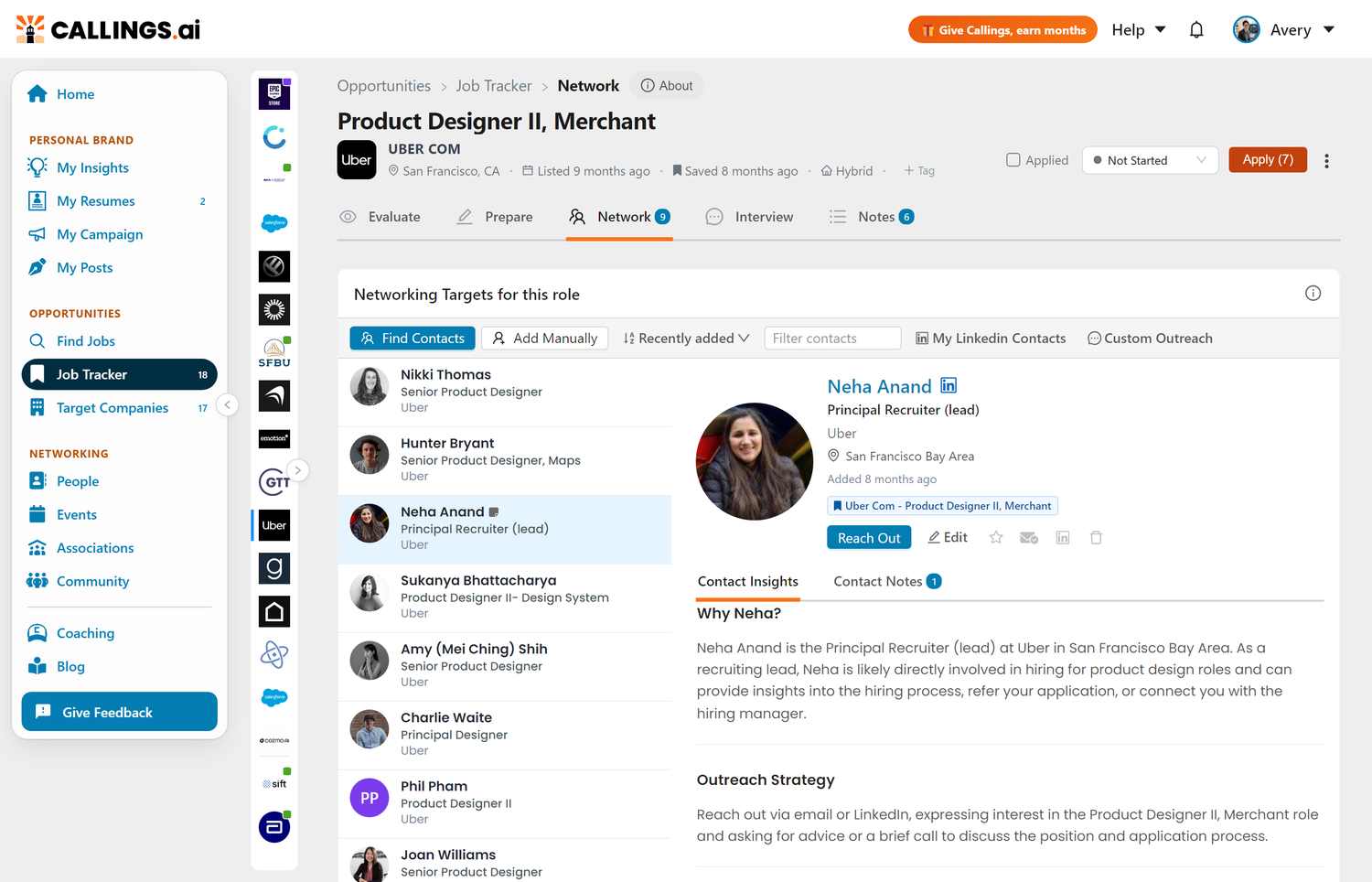
Looking for all your contacts in one place? This page covers the contacts suggested for one specific job, from inside that job. Everyone you have across every job, company and recruiter search lives on the People page.
What You'll See
Section Toolbar
At the top of the Networking Targets section, you'll find a toolbar with:
| Tool | Description |
|---|---|
| Find Contacts | Opens the AI Contact Finder modal to search for contacts by category |
| Add Manually | Add a contact via LinkedIn URL or manual entry |
| Sort | Sort contacts by Recently added, Name, or Company. The menu shows the current order and matches the People page's |
| Filter contacts | Search and filter the contacts list by keyword |
| My LinkedIn Contacts | Opens a modal to search LinkedIn for your connections at the company, with degree and title filters. See My LinkedIn Contacts |
| Custom Outreach | Open the Custom Outreach tool to draft messages for anyone, not just suggested contacts |
Suggested Contacts List
A curated list of people connected to your target role, displayed as individual contact cards:
Typical contacts identified per category: - Team Members (Peers): People in similar roles on the team (inside perspective) - Senior Peers / Managers: Senior team members, managers, or directors in related departments - Recruiter / HR: Talent acquisition and HR professionals (gatekeepers) - Specific Role or Team: Custom search for any title, team, or query you choose
Why these specific people: Each contact is selected based on: - Relevance to the specific role - Likelihood they can help - Accessibility (publicly visible profiles) - Potential to provide valuable insights or referrals - Common ground (alumni from same university, shared previous employers, mutual connections)
Contacts from Your Target Companies
If the job's company is also in your Target Companies list, any networking contacts you added on that company's Networking tab are automatically suggested here with a "Suggested" tag the next time you open this section. Each job keeps its own independent contact list (removing a contact from one job doesn't affect another), and any notes you've written travel with the contact wherever it appears.
Contact Card Overview
Each contact in the list displays a compact summary card: name, title, and company, plus a "Suggested" tag when the contact came from an AI suggestion. Status icons appear next to the contact's name when active, so you can see at a glance which contacts you've engaged with directly from the list:
- Star (gold): marked as a favorite
- LinkedIn (green): connected on LinkedIn
- Send (blue): you've reached out
Hovering a contact reveals a Menu control at the top right of the card. It opens the contact's quick actions:
- Edit the contact information (and find potential emails for the contact)
- Add to / remove from favorites
- Mark or unmark the LinkedIn connection
- Mark or unmark "reached out"
- Delete the contact
Editing a contact: Click Edit next to Reach Out in the contact header, or choose Edit contact from the card menu, to modify their information. This opens the contact editor where you can update their name, title, company, email, phone, LinkedIn URL, location, and group classification.
Contact Details Sections
When you click on a contact, its Contact Insights tab shows detailed information cards for each person:
Actions Card

- Reach Out button - Opens the Outreach Assistant to draft and send a personalized message
- Edit - Opens the contact editor
- Favorite (star icon) - Mark important contacts for quick reference
- Reached out (envelope icon) - Record that you have reached out to this contact; a send icon appears on the contact list item so you can see your outreach progress at a glance without clicking into each person
- Connected on LinkedIn (LinkedIn icon) - Track your LinkedIn connection status
- Delete (trash icon) - Remove the contact
- Tags - Your own free-form labels on the contact (Mentor, Conference 2026, anything you like). Filter by them from the People search box as
tag:Value. Tags replaced the old fixed Group dropdown; existing group values were carried over
About Card
The person's own words, taken from their LinkedIn profile: their headline, and their About text as they wrote it. Every other card here is our read of them; this one is theirs, so it is the place to pick up how they describe their own work before you write to them.
Why This Person Card
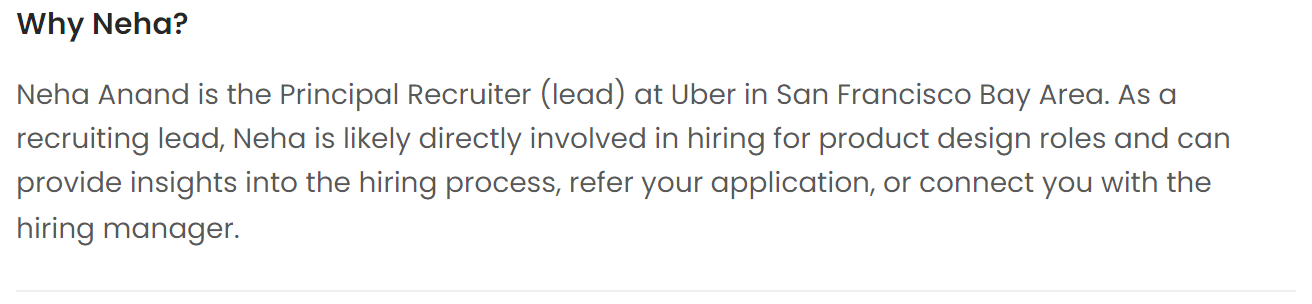
Explains why this specific contact was identified for this job opportunity: - Their relevance to the role you're pursuing - How they can potentially help your candidacy - Their position in the hiring process or team structure
Outreach Strategy Card

A personalized strategy for approaching this contact: - Recommended approach and tone - Suggested talking points - Best timing for outreach - What to ask or discuss
In Common Card
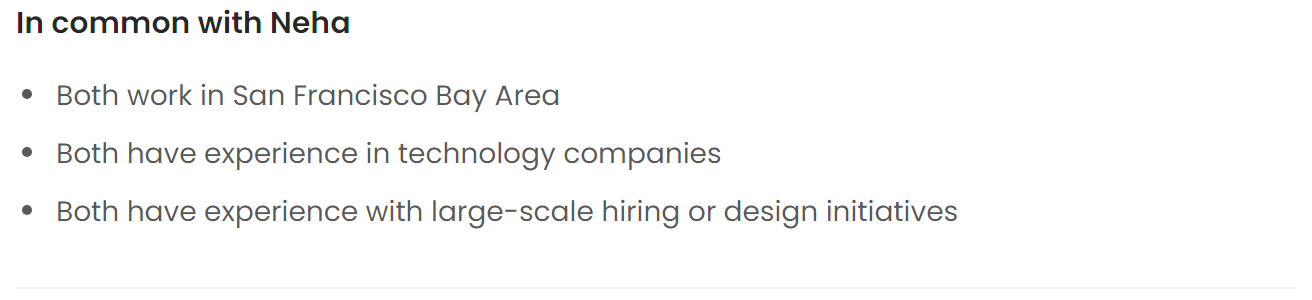
Highlights shared background and connection points: - Same companies you both worked at (with timeframes) - Same schools or universities attended - Shared professional interests or experiences - Other relevant common ground to establish rapport
Networking Profile Card
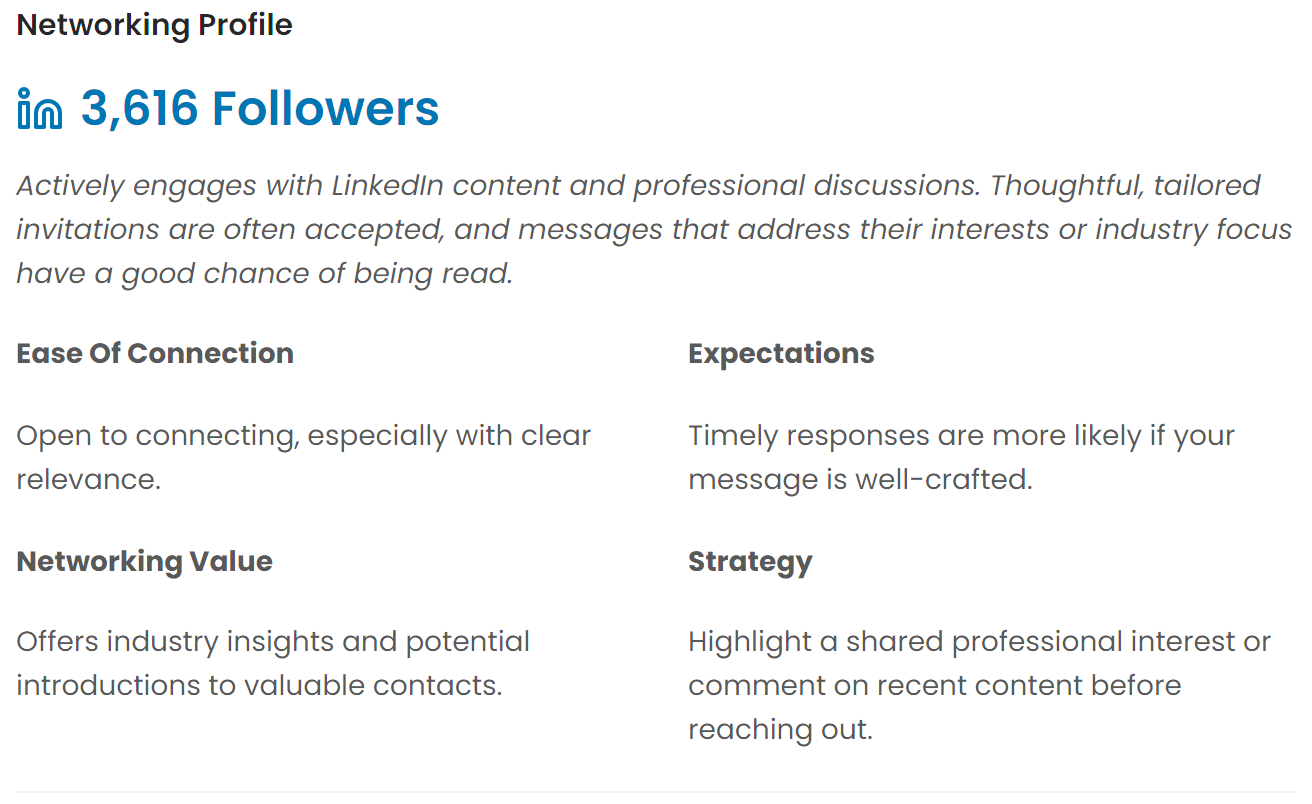
Insights based on their LinkedIn presence and activity: - Follower count - Indicates their network size and influence - Profile description - What to expect based on their engagement level - Response likelihood - Prediction based on their activity patterns - Best approach - Tailored recommendations for reaching out
Interests Card
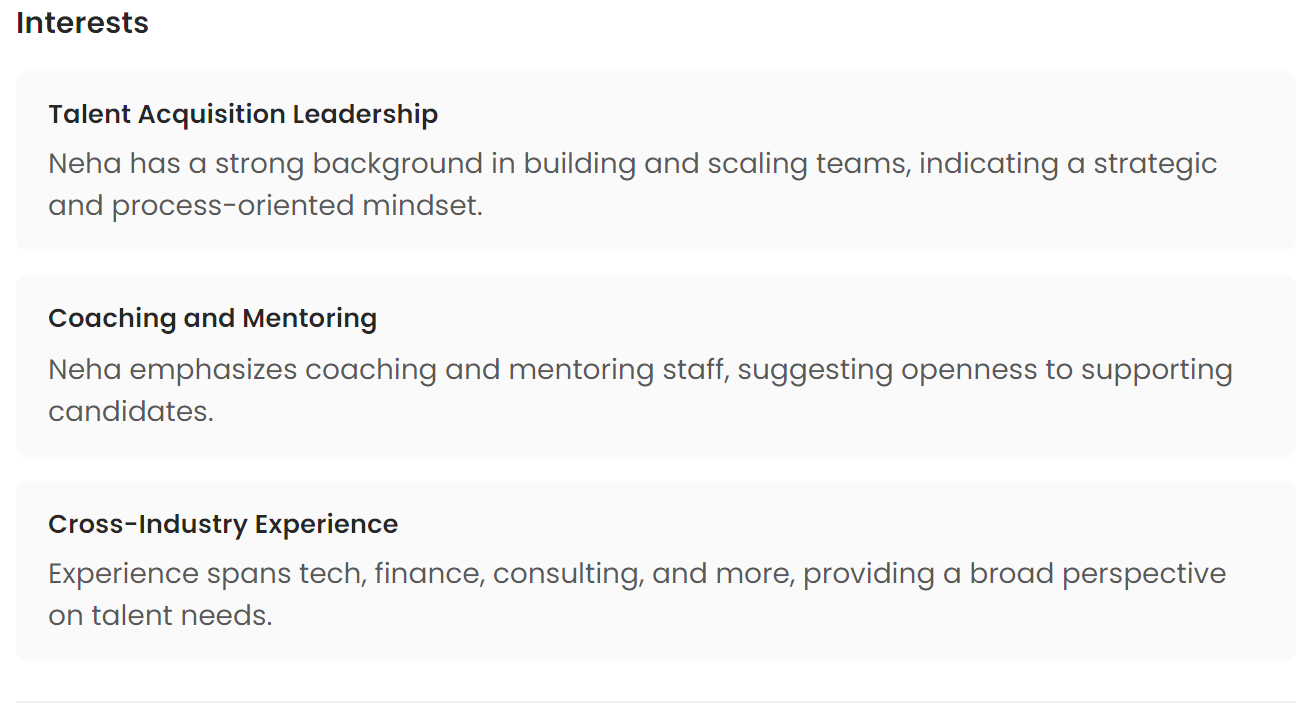
Psychographic insights about the contact in the context of your search: - Professional interests and focus areas - Topics they engage with on LinkedIn - Industry specializations - Areas of expertise relevant to your target role
Work History Card
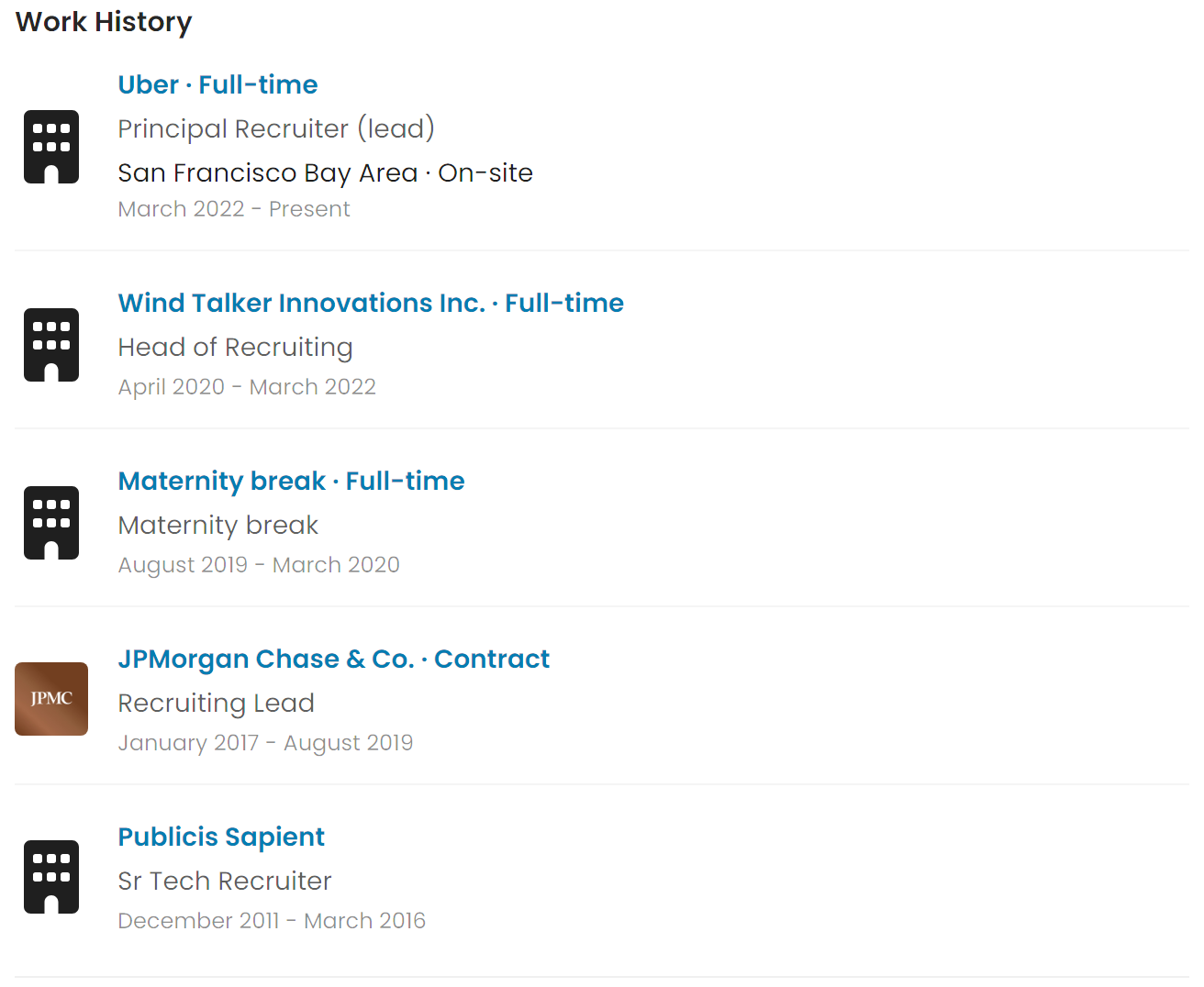
The contact's professional experience timeline: - Company names with logos (when available) - Job titles at each company - Employment dates (start and end) - Locations - Links to company LinkedIn pages
Education Card

The contact's educational background: - Schools and universities attended - Degrees obtained - Years of attendance - Links to institution LinkedIn pages
Adding New Contacts
You can add contacts manually to supplement the AI-generated suggestions:
Two ways to add contacts:
1. AI Contact Finder (Recommended):
Click "Find Contacts" in the toolbar to open the AI Contact Finder modal. This is the fastest way to discover and save relevant contacts: see the AI Contact Finder section below for the full walkthrough.
2. Add Manually:
Click "Add Manually" in the toolbar to add a specific person you already know about.
Import from LinkedIn (Recommended):
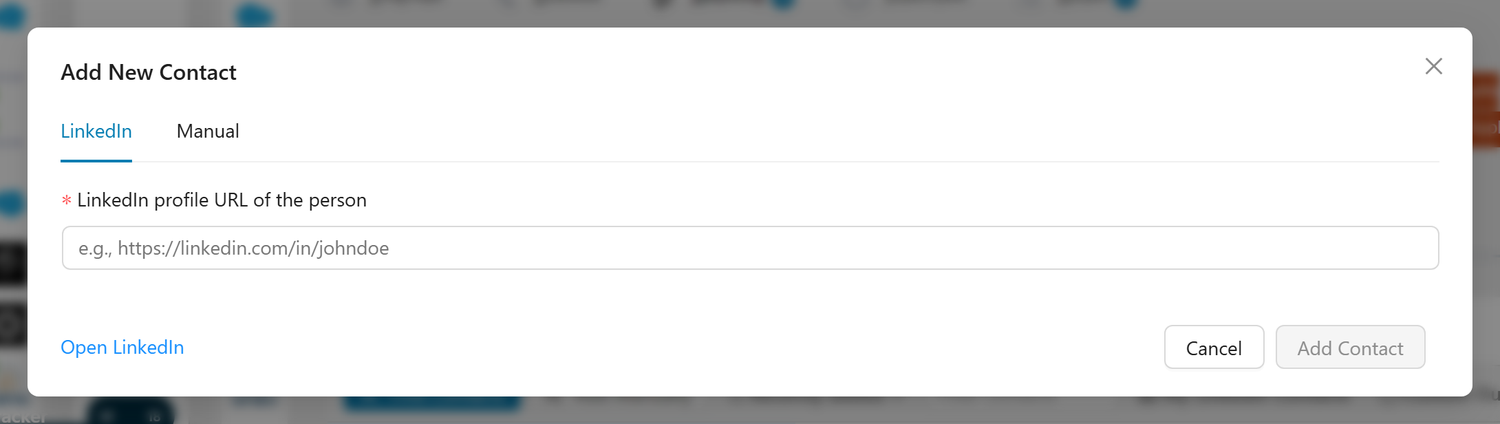
- Paste the LinkedIn profile URL (e.g., https://linkedin.com/in/johndoe)
- The system automatically enriches the contact with their profile information
- Saves time and ensures accurate data
- Full processing included: Manually added contacts with a LinkedIn URL receive the same AI-powered analysis as suggested contacts, including the Why This Person card, Outreach Strategy, In Common insights, Networking Profile, Interests, Work History, Education, and pre-generated outreach messages
Manual Entry:
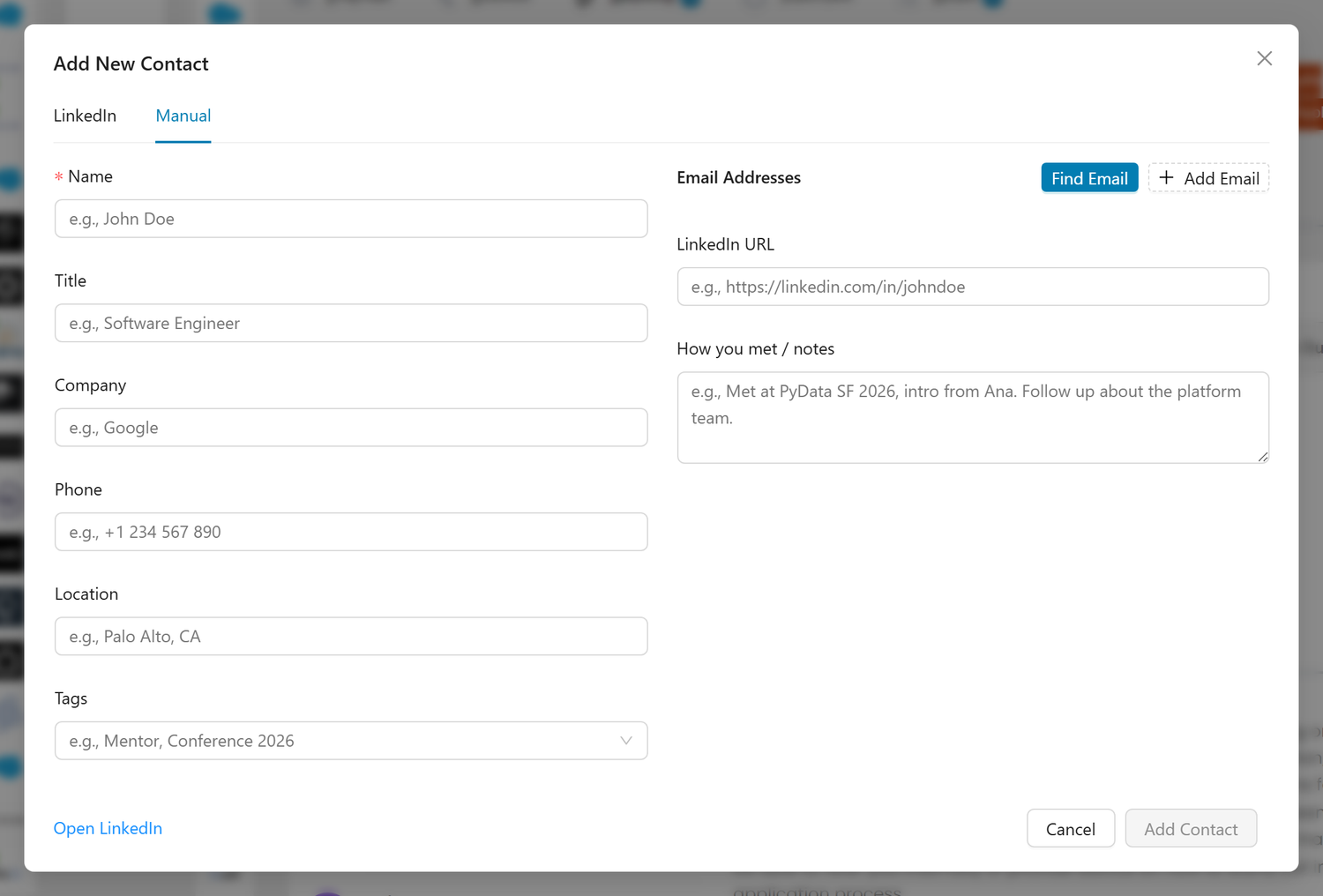
- Enter contact details directly:
- Name (required)
- Title
- Company
- Email addresses (with type: work/personal and status: Verified, Unverified, or Available), or click Find Email to look one up
- Phone
- LinkedIn URL
- Location
- Tags
- How you met / notes
My LinkedIn Contacts
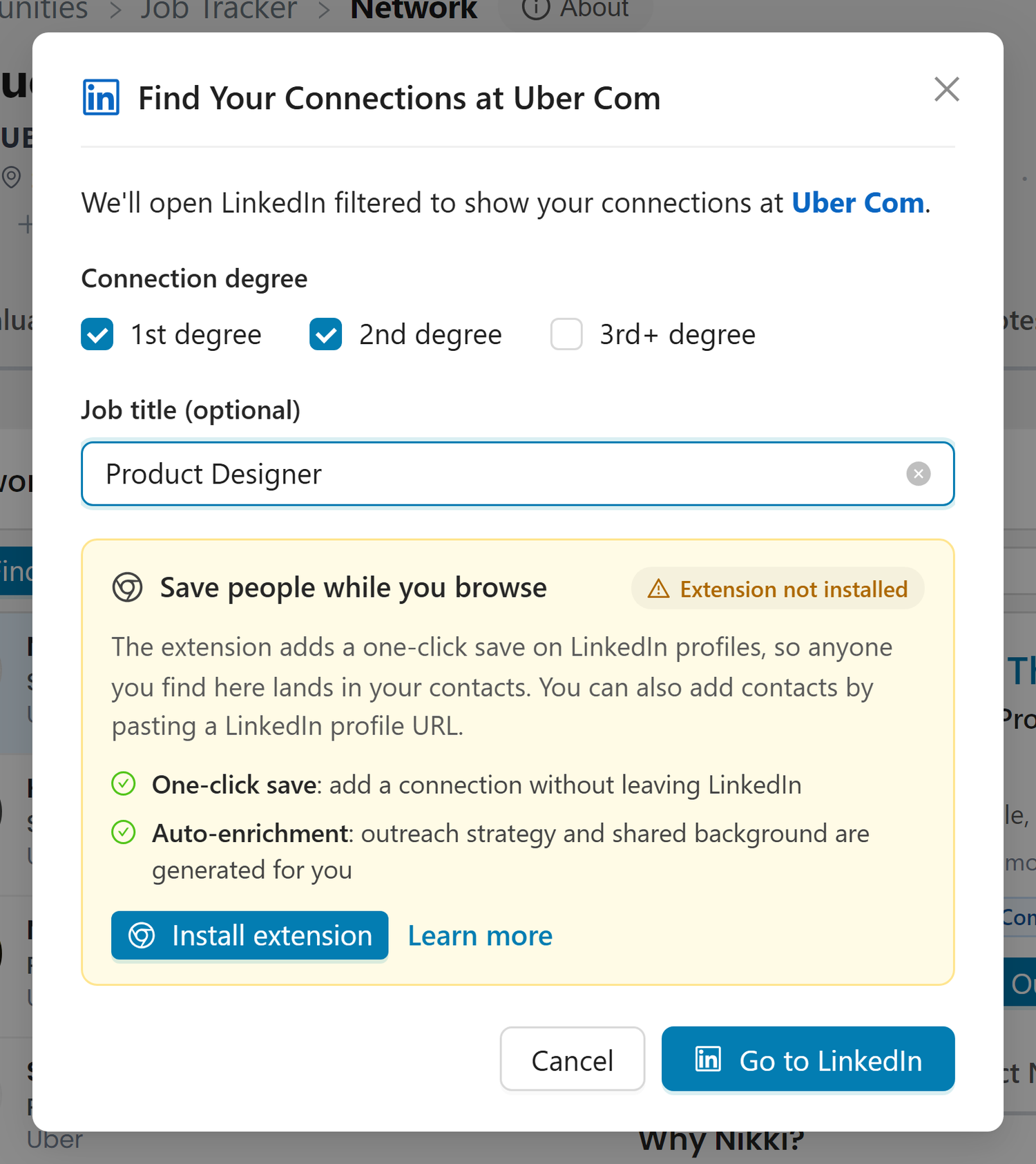
The My LinkedIn Contacts button lets you quickly check whether you already know someone at the company through your LinkedIn network. It opens a modal where you can configure filters before opening LinkedIn.
This is a great first step before using the AI Contact Finder. If you already have connections at the company, reaching out to them will be more effective than cold outreach.
How It Works
- Click "My LinkedIn Contacts" in the toolbar
- A modal opens with filter options:
- Connection degree: Choose which degrees to include: 1st degree (checked by default), 2nd degree (checked by default), and 3rd+ degree (unchecked by default)
- Job title (optional): Enter a keyword to narrow results by role, for example "Engineering Manager" or "Recruiter"
- Click "Go to LinkedIn" to open the filtered search
- LinkedIn opens in a new tab showing people in your network who work (or have worked) at that company, filtered by the degrees and title you selected
Adding Found Contacts
When you find a promising connection on LinkedIn:
- Click the + button on the Callings.ai Chrome extension while viewing their LinkedIn profile
- The contact is automatically added to your Networking Targets for this job
- The system processes the contact with full AI analysis: outreach strategy, shared background, personalized messages, and more
Tip: Even 2nd degree connections are valuable. Ask your mutual connection for an introduction, which dramatically increases response rates.
When This Feature Is Unavailable
The LinkedIn search requires the company's LinkedIn page to be identified. In rare cases where the company's LinkedIn page cannot be resolved, the button will be disabled. You can still search for contacts manually on LinkedIn or use the AI Contact Finder instead.
AI Contact Finder
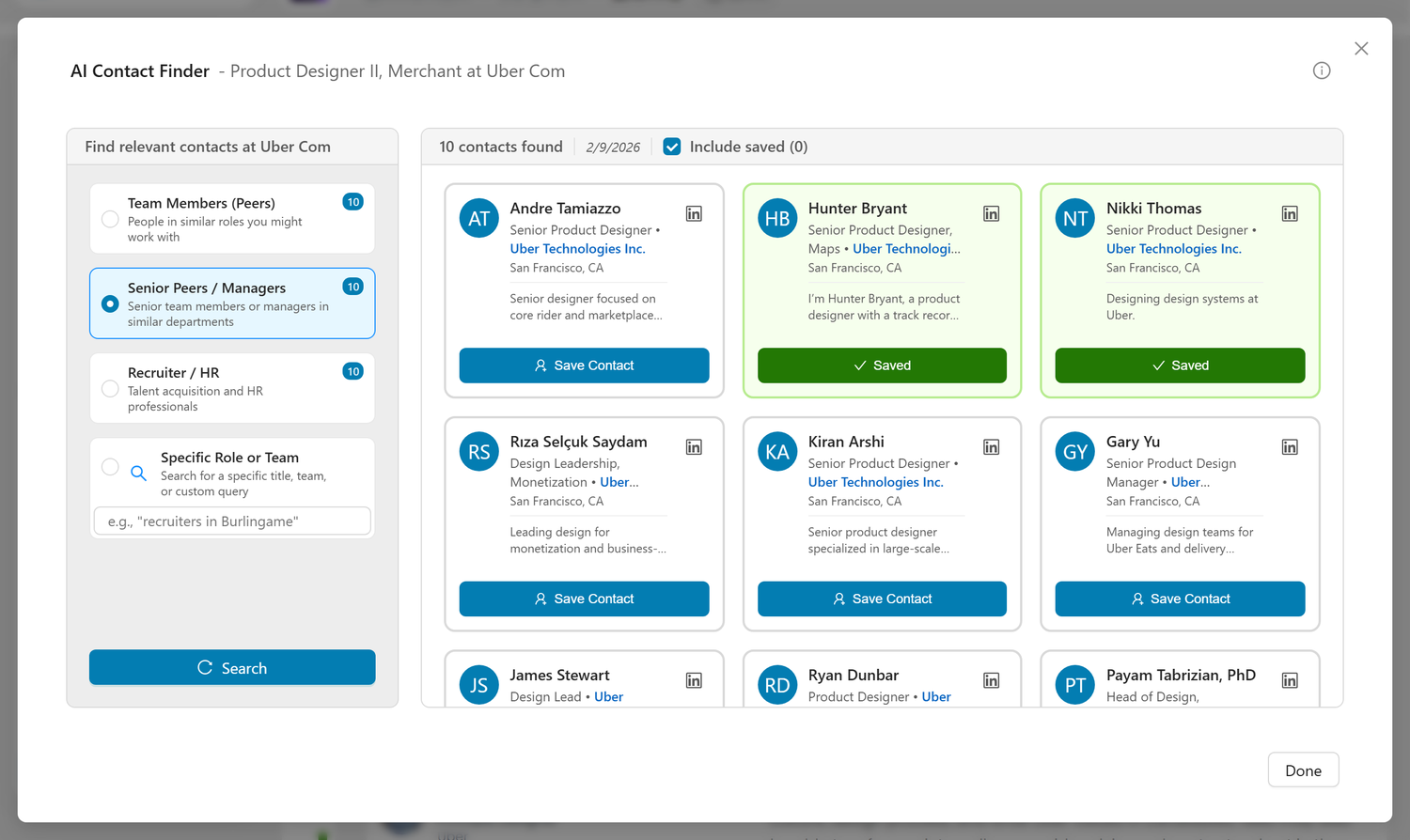
The AI Contact Finder is a dedicated modal for discovering and saving contacts by category. It's the primary way to build your networking list for a job opportunity.
Click "Find Contacts" in the toolbar to open it.
Modal Layout
The modal header reads AI Contact Finder, followed by the job title and company. The layout is split into two panels:
- Left panel: Category selector and search controls
- Right panel: Results grid with contact cards
Contact Categories
Choose from four categories to focus your search:
| Category | Who It Finds | Best For |
|---|---|---|
| Team Members (Peers) | People in similar roles you might work with | Getting day-to-day perspective on the team |
| Senior Peers / Managers | Senior team members or managers in similar departments | Understanding team dynamics and leadership |
| Recruiter / HR | Talent acquisition and HR professionals | Getting your application seen |
| Specific Role or Team | Custom search by title, team, or any query you enter | Finding a specific hiring manager, department head, or niche role |
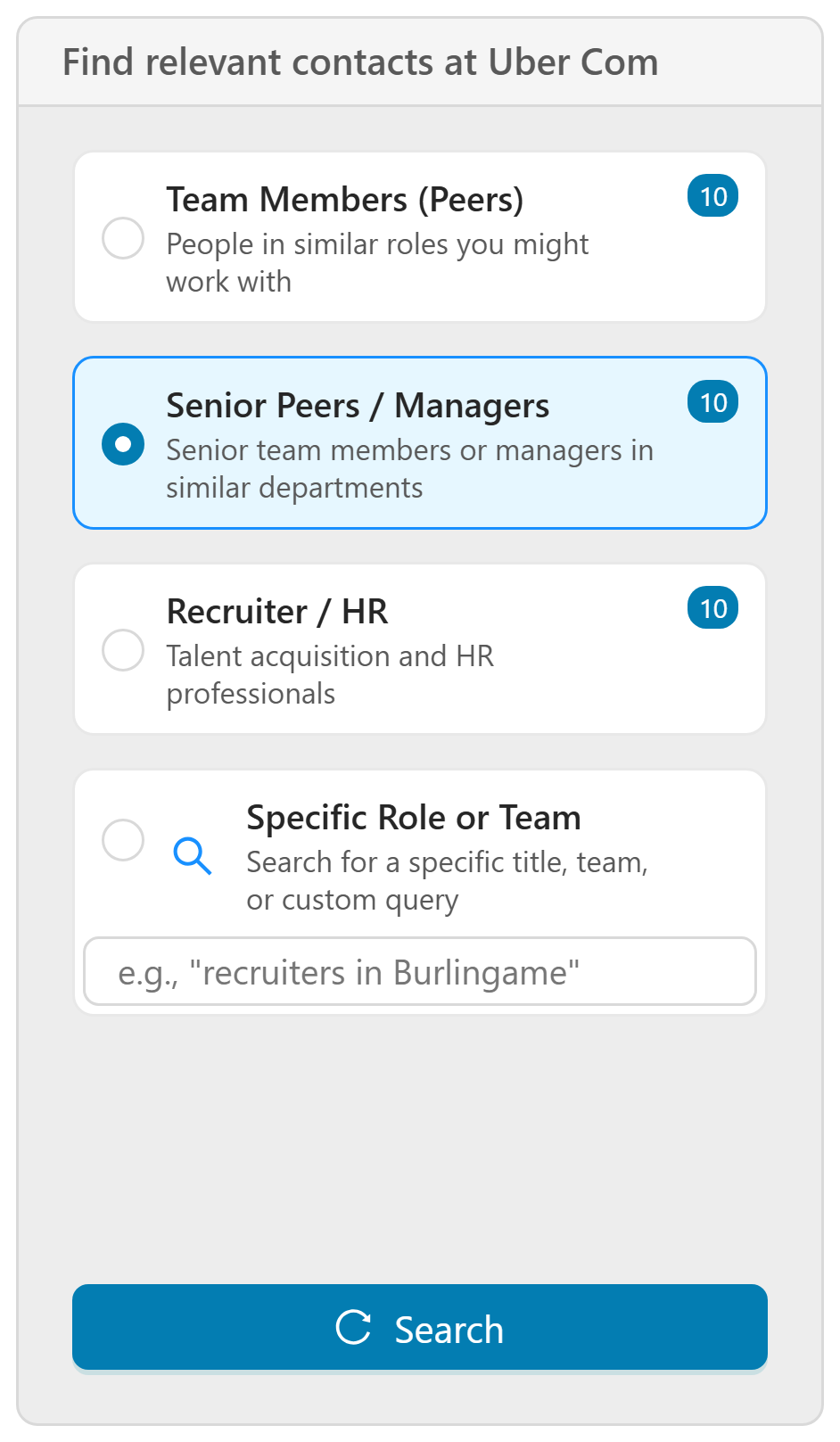
Each category shows a count badge indicating how many contacts were found. You can search each category independently: results are cached so you can switch between categories without re-searching.
Searching for Contacts
- Select a category from the left sidebar
- For Specific Role or Team, enter your search query (e.g., "Engineering Manager" or "recruiters in San Francisco")
- Click the Search button at the bottom of the sidebar
- Results appear in the right panel as a grid of contact cards
The search typically takes 10–30 seconds per category. You can search multiple categories one after another, and each category's results are saved independently.
Tip: After your first search, the Search button shows a refresh icon. Click it to re-search the same category for fresh results.
Contact Cards
Each contact card in the results shows:
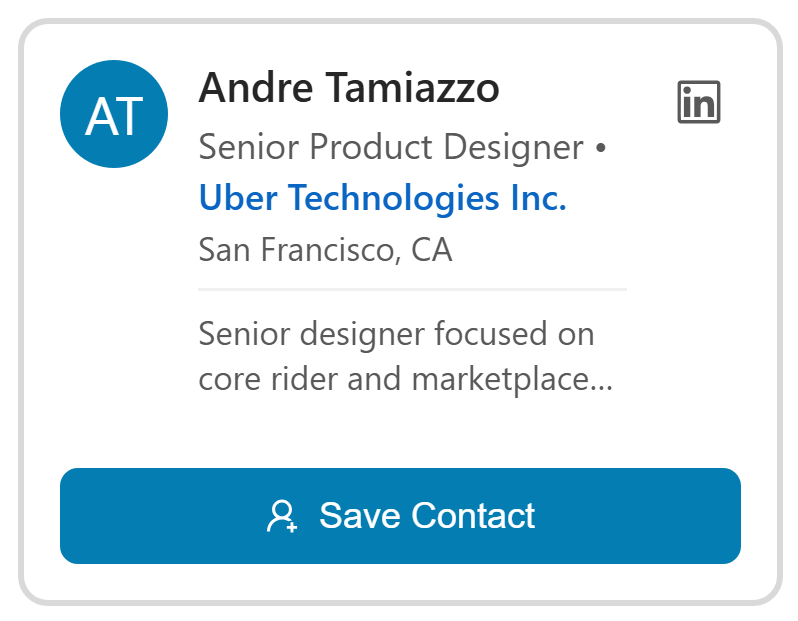
- Name and avatar (color-coded initials)
- Title and company
- Location
- Description: A brief overview of their role and relevance
- LinkedIn icon: Links directly to their LinkedIn profile
- Save Contact button: Adds them to your Networking Targets list
Saving Contacts
Click "Save Contact" on any card to add the person to your Networking Targets list. The button changes to "Saved" once the person is in your list.
Saved contacts receive full AI-powered analysis, just like contacts found through the original suggestion flow: - Why This Person insights - Outreach Strategy - In Common analysis - Networking Profile - Work History, Education, and Interests - Pre-generated outreach messages (email and LinkedIn)
Include Saved Contacts
The "Include saved" checkbox in the results toolbar controls whether already-saved contacts appear in the search results. Uncheck it to see only new, unsaved contacts. This preference is remembered across sessions.
Cached Results
When you reopen the AI Contact Finder for the same job, your previous search results are automatically loaded. You'll see the count badges for each category you've already searched, along with the date of your last search. Click Search again to refresh results at any time.
The Reach Out Button
Click the "Reach Out" button on any contact to open the Outreach Assistant modal:
This launches a comprehensive tool for crafting and sending personalized outreach messages.
Outreach Assistant Modal
The Outreach Assistant is a full-featured tool for preparing and sending networking messages:
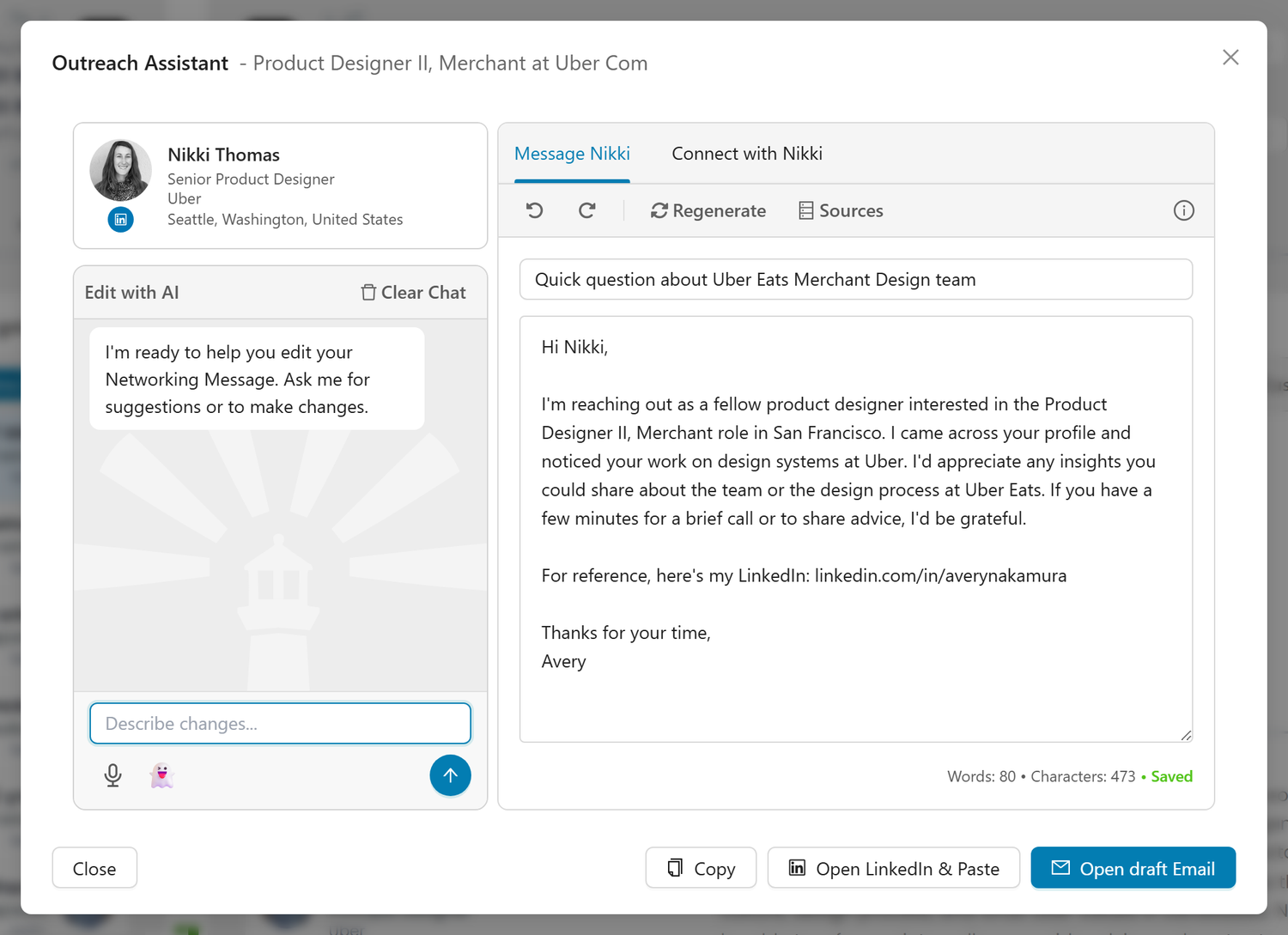
Two message types:
Message Tab (Email): - Pre-generated email with subject line and body - Fully editable in the text areas - Edit with AI chat on the left for refinements and questions; the toolbar also has Regenerate and Sources - Footer buttons: Copy, Open draft Email, Open LinkedIn & Paste
Connect Tab (LinkedIn Connection Request): - Pre-generated LinkedIn connection message - Character counter (300 character limit for LinkedIn) - AI Editor for making adjustments - Footer buttons: Copy, Open LinkedIn & Paste
AI Editor
The AI Editor (left panel) allows you to refine messages conversationally: - Ask questions about the message - Request specific changes ("make it shorter", "add a question about their team") - Get suggestions for improvement - The AI updates the draft in real-time based on your requests
Undo/Redo support: - Use the undo/redo buttons in the toolbar or keyboard shortcuts (Ctrl+Z / Ctrl+Y) - All AI edits can be reversed if you prefer the previous version
Email Workflow
When you click "Open draft Email", the system:
- Checks for existing email - Looks up the contact's email in the database
- Fetches email if needed - If no email found, attempts to find their professional email address
- Presents email selection - If multiple emails are found (work and personal), you choose which to use
- Opens draft email - Creates a mailto: link that opens your default email client with:
- Recipient pre-filled
- Subject line pre-filled
- Message body pre-filled
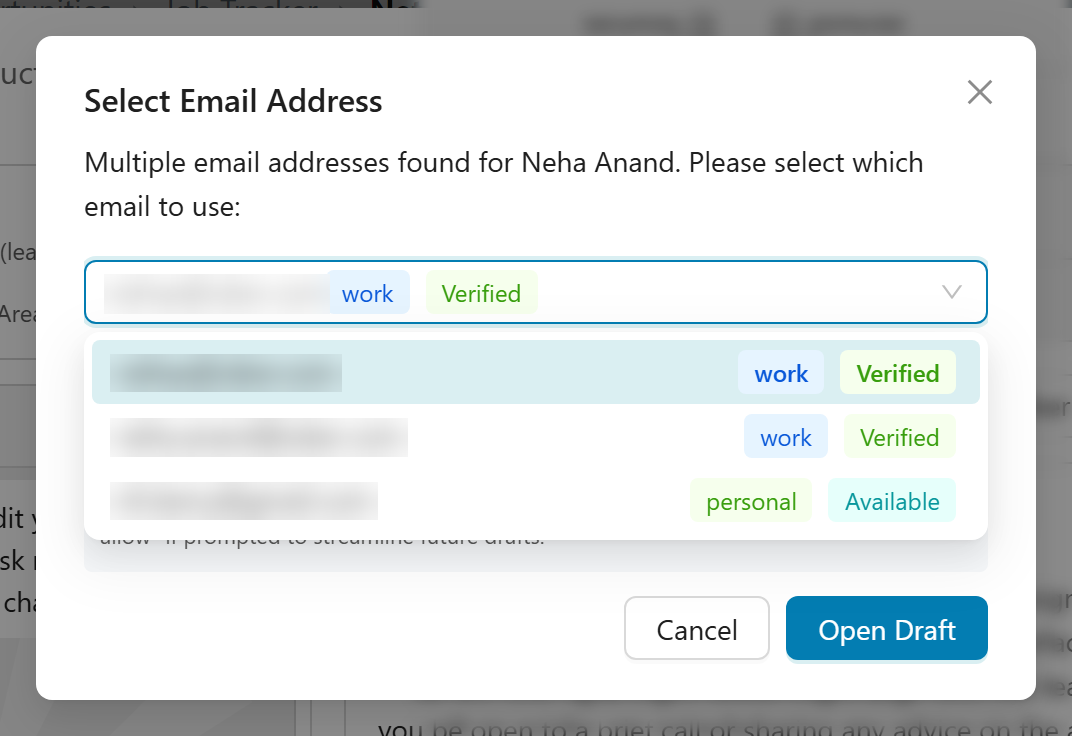
If no email is found: - The system notifies you - You can still open a draft email and manually add the recipient's address - Consider using LinkedIn InMail instead
Saving Your Work
Your message drafts save automatically as you edit: - A Saved note under the draft confirms each save, so Close never loses your work - Your drafts are associated with the specific contact and job - Come back later to continue editing
Notes & To-Do Items
Each contact has a dedicated Contact Notes tab for tracking notes and to-do items:
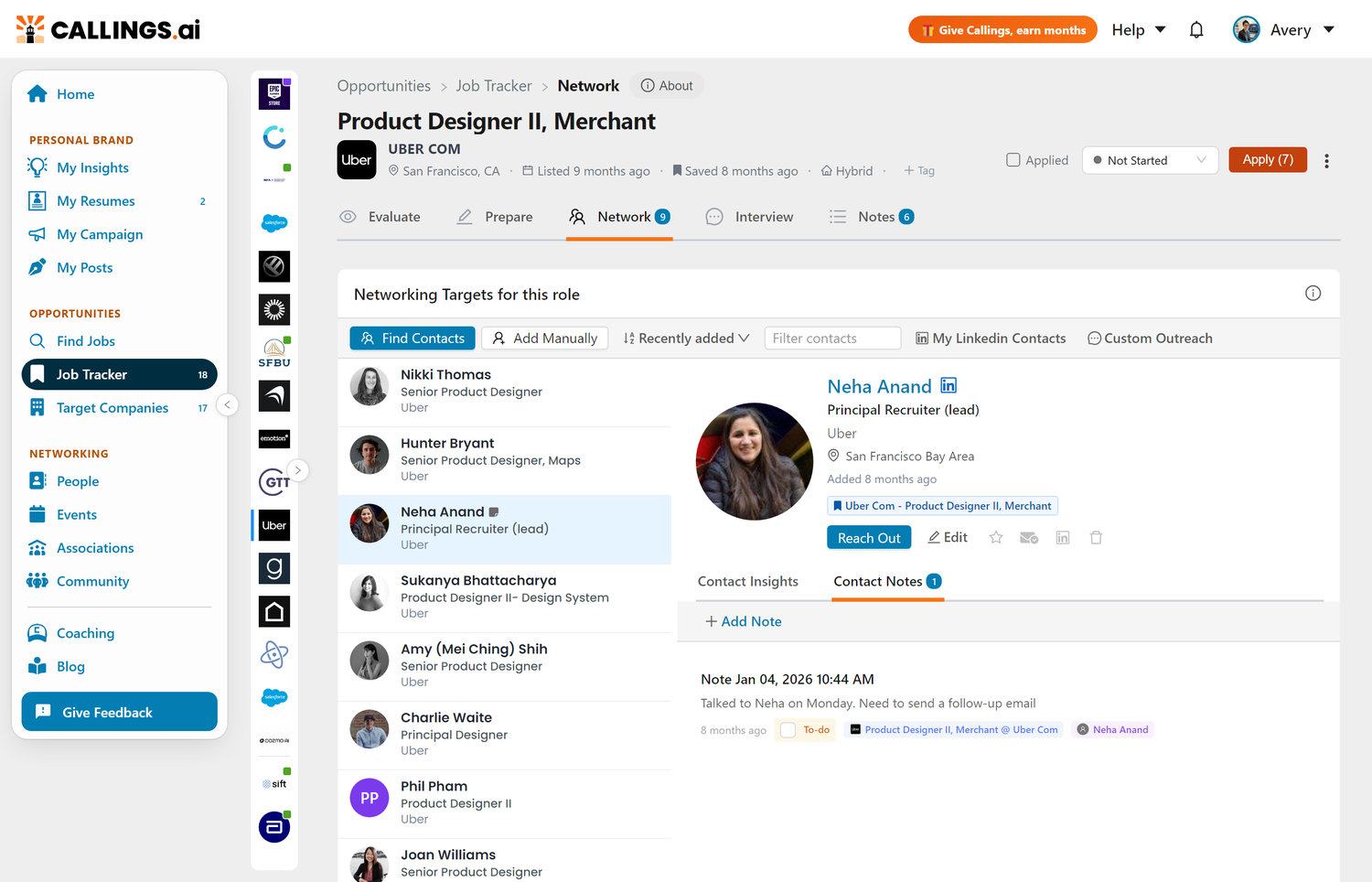
Adding notes: - Click + Add Note to add a new note or to-do item - Associate notes with specific jobs - Set due dates for follow-up reminders - Mark to-dos as complete when done
Use notes to track: - When you reached out - Whether they responded - Key insights from conversations - Follow-up actions needed - Commitments made
Company Referral Program Information
The win-win: Many companies pay employees $1,000-$10,000 for successful referrals. This means: - Employees benefit financially from helping you - You're not imposing - you're offering mutual value - Referrals dramatically increase interview chances - Companies prefer referrals (pre-vetted candidates)
How to Use This Tool
Initial Review & Prioritization (5-10 minutes)
When you first open Networking Targets:
-
Start with the initial suggestions: Click "Suggest Networking Targets" to generate an initial set of contacts
-
Expand with the AI Contact Finder: Click "Find Contacts" to search by category (peers, managers, recruiters, or custom roles)
-
Scan the full list of identified contacts
- How many people are suggested?
- Do you recognize any names?
-
Any shared connections?
-
Identify your top 3 priorities:
- Priority 1: Hiring manager (if identified)
- Priority 2: Someone with shared connections
-
Priority 3: Peer in similar role
-
Check accessibility:
- Are their profiles public and complete?
- LinkedIn connection level (2nd degree is ideal)
-
Recent activity (active on LinkedIn = more responsive)
-
Note any warm introduction paths:
- Mutual connections who could introduce you
- Alumni networks
- Professional associations
- Previous employers
Research Before Reaching Out (10-15 minutes per contact)
Before you message anyone, use the contact details cards and do a bit of additional research:
- Review the contact insight cards:
- Why This Person - Understand their relevance to the role
- In Common - Note shared companies, schools, or connections to mention
- Outreach Strategy - Follow the recommended approach
-
Interests - Find topics to discuss that resonate with them
-
Check their LinkedIn profile directly:
- Recent posts or articles they've shared
- Comments or engagement that reveal their interests
- Any recent job changes or announcements
-
Their communication style and tone
-
Review the Company Report:
- Understand the company's current priorities and challenges
- Note recent news or developments to reference
-
Identify talking points that show you've done your homework
-
Prepare specific, thoughtful questions:
- Based on their background and the role
- Shows genuine interest, not just a generic ask
- Makes helping you easy and interesting
Strategic Outreach Sequence (Over 1-2 weeks)
Don't message all 7 people at once. Strategic sequence:
Week 1: - Monday: Reach out to 1-2 peers (lower-stakes practice) - Wednesday: Message the hiring manager (if responsive) - Friday: Contact someone with a shared connection
Week 2: - Monday: Follow up with anyone who responded - Wednesday: Reach out to 1-2 additional contacts - Friday: Message a recruiter (if appropriate)
Why this sequence: - Spread out to avoid seeming desperate or spammy - Learn from early conversations to refine your approach - Build momentum and gather insights progressively - Give people time to respond before moving on
Prioritizing Who to Contact First
Start with:
1. Warm connections (shared network): - Ask mutual connection for introduction - Or mention them in your message: "Sarah Johnson suggested I reach out..." - Response rates are 3-5x higher with referrals
2. Recent connections: - People who recently joined the company - Remember what it's like to be in your shoes - Often eager to help grow their network
3. Active LinkedIn users: - Regular posters/sharers - More likely to see and respond to messages - Engaged with their professional network
Save for later:
4. Very senior leaders: - Unless you're also senior, they may not be accessible - Use after you've spoken with others - Better for strategic questions, not initial outreach
5. People with hundreds of message requests: - Low response likelihood - Focus on more accessible contacts first
Using Multiple Contacts Strategically
You should reach out to multiple people because:
Increases your odds: - Not everyone will respond (expect 20-40% response rate) - More conversations = more insights and potential advocates - Multiple paths into the company
Different perspectives: - Hiring manager: Decision-making perspective - Peers: Day-to-day reality - Leadership: Strategic direction - Recruiters: Process and timeline
Builds relationships: - Even if you don't get this job, you've expanded your network - Future opportunities might emerge - Referrals to other roles or companies
Shows initiative: - Demonstrates genuine interest in the company - Signals you're serious and thorough - Differentiates you from passive applicants
Important: Don't send identical messages to multiple people at the same company. Customize each outreach.
Tips & Best Practices
Understand Why 70-80% of Jobs Come Through Networking
The reality: - Most jobs are never publicly posted - Even posted jobs often have inside candidates - Referrals skip to the front of the line - Hiring is about risk reduction - referrals are lower risk
What this means: - Applying cold is necessary but not sufficient - Networking is not optional - it's essential - One good conversation can be worth 50 applications - Relationships unlock opportunities you never see otherwise
Networking is not: - Schmoozy or manipulative - Only for extroverts - Asking strangers for jobs - Transactional or fake
Networking is: - Building genuine professional relationships - Learning about opportunities and companies - Helping each other succeed - Long-term career investment
Overcome Common Networking Fears
Fear: "I'm bothering them." - Reality: Most people enjoy helping if you're respectful and genuine - Reality: Referral bonuses mean you're offering value - Reality: People remember their job search and want to pay it forward
Fear: "I don't know what to say." - Reality: Callings.ai provides custom outreach messages - Reality: Simple, honest questions work better than scripts - Reality: Just be yourself and show genuine interest
Fear: "They'll say no or ignore me." - Reality: Most people will; that's okay. You only need a few yes's - Reality: No response is not personal - people are busy - Reality: Move on quickly; don't dwell on non-responses
Fear: "I'm not important enough to reach out." - Reality: Everyone started somewhere; they get it - Reality: Thoughtful, respectful outreach is always acceptable - Reality: You're a professional exploring opportunities, not a beggar
Best Practices for Outreach Volume
How many people should you contact per job?
Minimum (for casual interest): - 1-2 people - Just get a sense of the role and company
Standard (for serious interest): - 3-5 people - Multiple perspectives, good chance of responses - Balance between thorough and manageable
Aggressive (for dream jobs): - 7-10+ people - Leave no stone unturned - Demonstrates exceptional interest and initiative
Remember: - Spread outreach over 1-2 weeks - Customize each message - Follow up on conversations - Track who you've contacted and what you learned
When to Reach Out: Before or After Applying?
Reach out BEFORE applying when: - You want inside information to decide if you should apply - The role is ambiguous and you need clarification - You have shared connections (warmer approach) - It's a company you really care about
Reach out AFTER applying when: - You're already confident about the role - You want to ensure your application is seen - Following up on your application - Asking for referral after you're in the system
You can do both: - Network first to gather intel → Apply with better materials → Network again to advocate
No wrong answer: - Either approach works - The important thing is that you DO network - Timing matters less than quality of outreach
Messaging Best Practices
DO: - Personalize every message - No copy-paste - Keep it concise - 3-4 short paragraphs max - Be specific - Reference their role, background, or shared connection - Ask clear questions - Make helping you easy - Show you've done research - Mention something specific - Express genuine interest - Enthusiasm, not desperation - Offer flexibility - "Even 15 minutes would be valuable" - Follow up once - If no response after 5-7 days
DON'T: - Ask for a job directly - Too aggressive, too soon - Write a novel - They're busy; be concise - Use generic templates - "Dear Sir/Madam..." is instant delete - Be overly formal or stiff - Be professional but human - Apologize excessively - "Sorry to bother you..." is weak - Make demands - "I need to speak with you" won't work - Follow up repeatedly - One follow-up max; then move on
Leverage Your Existing Network
Before reaching out cold:
- Check for mutual connections:
- Can someone introduce you?
-
Warm intros are 5x more effective
-
Alumni networks:
- Same school = instant common ground
-
Alumni often help each other
-
Professional associations:
- Industry groups
-
Shared certifications or training
-
Previous employers:
- Former colleagues now at target company
-
"I worked with Jane at X and she suggested I reach out..."
-
Social connections:
- Friends of friends
- Community involvement
- Shared interests outside work
Warm > Cold always.
Track Your Networking Activity
Quick status tracking with icon toggles:
Use the icon toggles in each contact's header for fast, at-a-glance status:
- Reached out - Turn it on as soon as you send a message; the send icon appears on the contact card in the list so you can see progress without clicking in
- Connected on LinkedIn - Turn it on after they accept your connection request
- Favorite - Star your highest-priority contacts to keep them visible
Use Notes & To-Dos to document: - Who you reached out to and when - Their response (or non-response) - Key insights from conversations - Follow-up actions needed - Next steps or commitments
Why tracking matters: - Avoid contacting the same person twice - Follow through on commitments - Remember important details for interviews - Build your long-term network database
What to Do When People Respond
Express gratitude: - Thank them for their time immediately - Be specific about what was helpful
Ask for follow-up if appropriate: - Informational interview (15-30 min call) - Quick coffee if local - Email follow-up questions
During conversations: - Listen more than you talk (60/40 rule) - Ask open-ended questions - Take notes - Be genuine and curious
After conversations: - Send thank-you note within 24 hours - Connect on LinkedIn (if not already) - Share relevant articles or resources (build relationship) - Keep them updated on your progress
If they offer to refer you: - Provide your resume and anything they need - Make it easy for them - Follow up after they submit referral - Keep them posted on outcomes
Frequently Asked Questions
Q: How many people should I contact per job opportunity?
A: Aim for 3-5 for roles you're serious about. You can go up to 7-10 for dream opportunities. Start with 1-2 if you're just testing the waters.
Q: What if no one responds to my messages?
A: Normal. Expect 20-40% response rates. Keep reaching out to others, refine your messages based on what's (not) working, and don't take it personally. Move on and focus energy on responsive contacts.
Q: Should I mention I'm reaching out to multiple people at the company?
A: No need to mention it. It's understood that you're networking. Each conversation should feel individual and genuine.
Q: Is it weird to reach out to the hiring manager directly?
A: Not at all! They're hiring - they want to meet good candidates. Be respectful and professional, show you've researched, and express genuine interest. Many hiring managers appreciate proactive candidates.
Q: What if I don't have any shared connections?
A: Cold outreach still works, just at lower response rates. Compensate by:
- Being extra thoughtful in your message
- Demonstrating research and genuine interest
- Asking compelling questions
- Reaching out to more people
Q: How long should I wait before following up if someone doesn't respond?
A: 5-7 business days. One polite follow-up is appropriate: "I know you're busy - just wanted to make sure my previous message didn't get lost. Would still love to chat briefly if you have 15 minutes." Then move on.
Q: Should I connect with them on LinkedIn before or after messaging?
A: Either works. If you send a connection request first, include a short note. If you message first (via InMail), connect after they respond. Don't overthink it.
Q: What if they work at the company but in a completely different department?
A: They can still provide valuable company culture insights, referral paths, and insider perspectives. They might also know people on the hiring team and introduce you.
Q: Is it okay to reach out if I haven't applied yet?
A: Absolutely! In fact, networking before applying helps you:
- Decide if you should apply
- Gather intel to improve your application
- Build a relationship that leads to referral
- Stand out from other applicants
Q: What if someone offers to refer me but I'm not sure I'm qualified?
A: Let them decide. They have better context about what the company values. If they're willing to stake their reputation on referring you, trust that judgment. Your job is to be honest about your background.
Q: How do I politely end a conversation if someone is being unhelpful or negative?
A: Thank them for their time, acknowledge their perspective, and gracefully exit: "I appreciate you sharing your experience. I'll definitely factor that into my decision. Thanks for your time!"
Q: Should I offer to "return the favor" in my outreach?
A: Not necessary. The implied social contract is that you'll pay it forward someday. But if there's a genuine way you can help them (introduction, resource, insight), absolutely offer.
Q: What if the person tells me not to apply for the role?
A: Take it seriously. Ask why. If they have concerning insider information (bad manager, layoffs coming, role about to be eliminated), that's valuable intelligence. Thank them for the honesty and make an informed decision.
Q: What does the "Reached out" toggle do?
A: It lets you mark that you have already reached out to a contact. Once it is on, a blue send icon appears directly on the contact card in the list so you can see your outreach progress at a glance without opening each contact. The status is saved and synced across sessions.
Q: What does the "My LinkedIn Contacts" button do?
A: It opens LinkedIn pre-filtered to show your 1st and 2nd degree connections at the company. This helps you quickly discover if you already know someone who works there. If you find a relevant contact, use the Callings.ai Chrome extension to add them to your Networking Targets for full AI-powered outreach support.
Q: Can I use Callings.ai networking tools for jobs I found elsewhere?
A: The tool works best for jobs in your tracker. For external jobs, you can manually search LinkedIn using similar criteria: company name + relevant titles.
Q: Why are there no suggested contacts in the Networking Targets section?
A: If you see a "Suggest Networking Targets" button, click it and the system will generate an initial set of contacts for you. This may take 1–3 minutes. Once contacts are loaded, you can use the "Find Contacts" button in the toolbar to search for additional contacts by category using the AI Contact Finder. If no contacts appear after the initial suggestion, try using the AI Contact Finder directly or add contacts manually with their LinkedIn URLs.
Q: What's the difference between "Suggest Networking Targets" and "Find Contacts"?
A: Suggest Networking Targets is the initial one-time scan that finds 3–7 contacts automatically when you first open the Network tab. Find Contacts opens the AI Contact Finder modal where you can search for contacts by category (peers, senior peers, recruiters, or specific roles) with up to 9 results per category. Use Find Contacts to expand your network beyond the initial suggestions.
Q: How does Networking Targets adapt for speculative roles?
A: When the job is a speculative role (a hypothetical position you created, not an actual job posting), the AI adapts its contact discovery strategy. Instead of finding peers and general contacts, it prioritizes stakeholders and decision-makers who could validate whether your proposed role might exist or be created. The search extracts the "Relevant Stakeholders to Engage" section from your role exploration document and uses it to find specific people. Contact strategies focus on exploration and relationship-building, learning about the company's challenges and whether there's a real need, rather than competitive job application referrals.
Q: How many contacts can I find with the AI Contact Finder?
A: Each category search returns up to 9 contacts. Since there are 4 categories, you can potentially find dozens of relevant contacts per job. You can also re-search categories for fresh results.
Q: Why do some contacts appear here that I added elsewhere?
A: If this job's company is in your Target Companies list, contacts you added on that company's Networking tab are automatically suggested on this job with a "Suggested" tag. It's the same contact record everywhere, so their insights and your notes come along; each job still manages its own list independently.
Related Topics
- Custom Outreach - Generate personalized messages for each contact
- Target Companies - Company-level networking that feeds contacts into your jobs
- Company Report - Research the company before reaching out
- Notes & To-Dos - Track your networking activity
- Job Fit Report - Understand your positioning to discuss in conversations
- Managing Your Pipeline - Stay organized across all networking efforts
Networking isn't optional in the modern job search - it's essential. The Networking Targets tool removes the guesswork, showing you exactly who to contact and why. Focus your energy on building genuine relationships, and watch as hidden opportunities become accessible. You don't need to know everyone; you just need to know the right people for each opportunity.