Notes and To-Do Items
Notes & To-Do Items is a job-specific organization tool for documenting conversations, tracking action items, setting email reminders, and managing follow-ups throughout your application process with each opportunity.
Notes added to contacts in your Networking Targets also appear here automatically, with a reference pill showing the contact name.
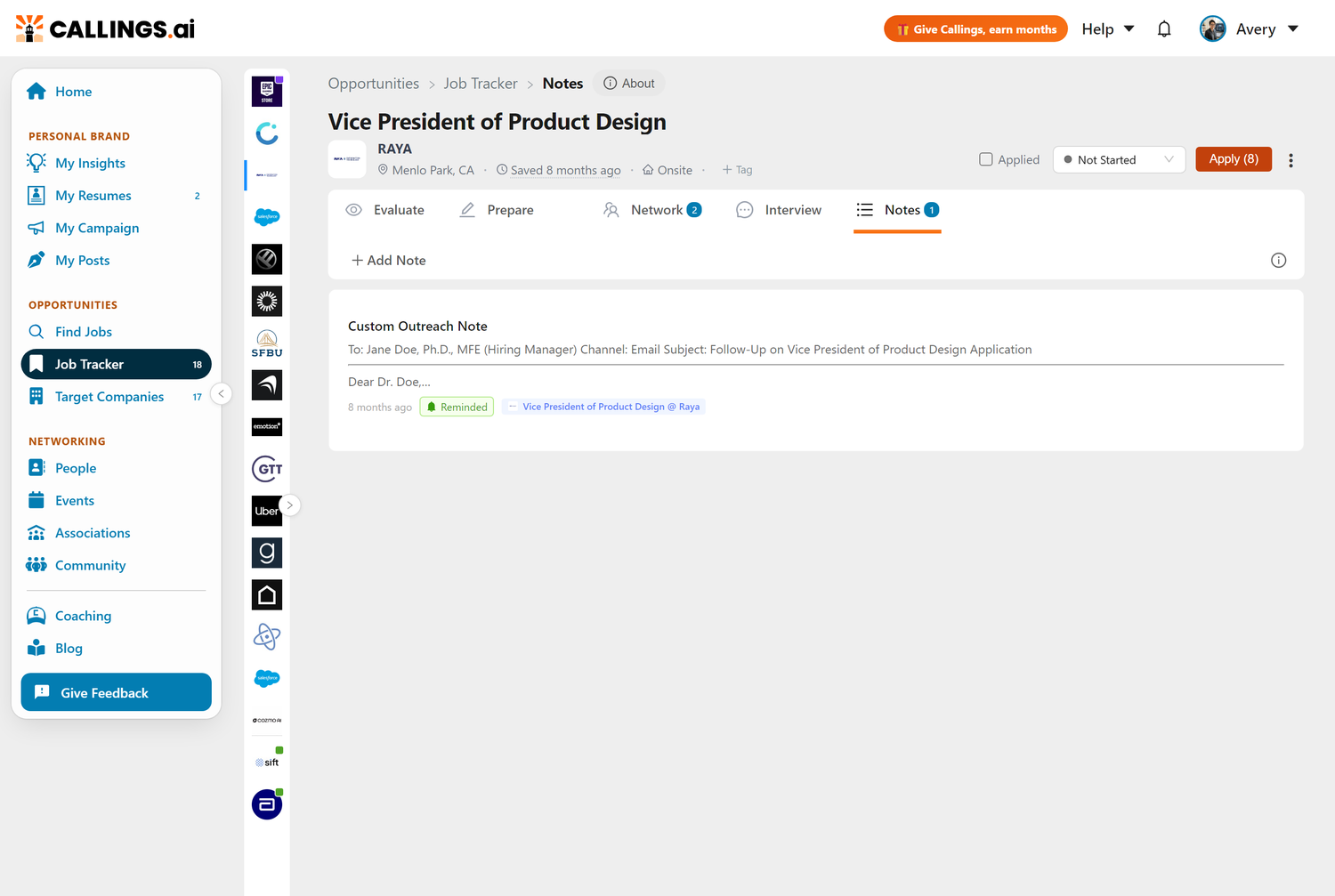
Notes List
Notes are sorted newest first. Each card shows the title, a content preview, a relative timestamp, and any active badges (To-do, Reminder, attachments). The header includes a count badge, a Tips button, and the Add Note button.
Creating and Editing Notes
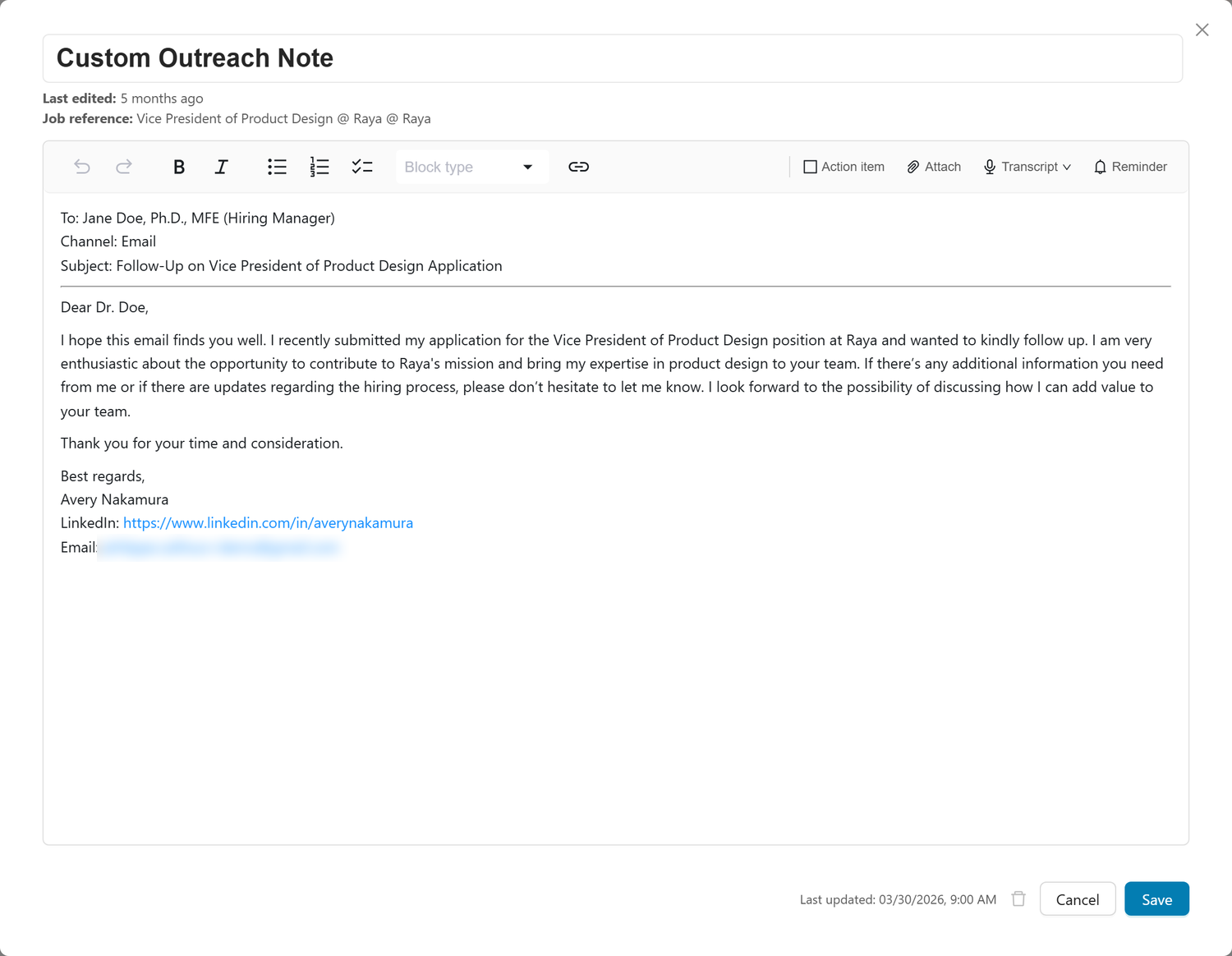
Click Add Note to open the editor, or click any note card to edit it:
- Title - Auto-generated from the date; customizable
- Timestamp - Click the pencil icon to backdate or adjust
- Rich text editor - Bold, italic, lists, headings, and links
- Action item - Checkbox to enable To-do tracking
- Reminder - Bell icon to set an email reminder
- Attach - Paperclip icon to attach files
- Transcript - Turn a recorded conversation into a written debrief
Click Save to create or update the note. The edit modal also shows Last updated and a Delete Note button.
Meeting Transcripts
If you record your calls with a tool like Granola, Fathom, Otter, Fireflies or Zoom, you can hand the transcript to Callings.ai and get back a short debrief instead of a wall of text.
Click Transcript in the note toolbar and choose:
- Paste from clipboard - for a transcript you copied out of your meeting tool
- Choose a file - for a downloaded transcript (TXT, MD, DOCX, PDF, VTT, SRT)
The note is then filled with a written debrief of the conversation: what came up, how things landed, anything left unresolved, what you committed to do next, and the lines worth quoting later. The full transcript is kept as an attachment on the note, so nothing is lost and you can always read the original.
Follow-ups you promised are pulled out automatically. The note is marked as an action item, and if you mentioned a date ("I will send that by Thursday"), the reminder is set for you. A reminder you set yourself is never overwritten.
If you paste a transcript straight into the note without using the button, Callings.ai recognizes it and offers to do the same thing. Choose Keep as is to leave your text exactly as you pasted it.
The debrief adapts to who the note is about. On an interviewer it reads as an interview debrief; on a recruiter it captures role, compensation and process details; on a networking contact it captures what was offered and who was mentioned.
Transcripts are available anywhere you take notes: interviewers, recruiters, networking contacts, target companies, associations, and the job Notes tab.
A note on recording. Only add recordings you had permission to make. Many places, including California and twelve other US states, require every participant to agree before a conversation is recorded. Callings.ai never joins or records your meetings; it only works with a transcript you already have.
Action Items
Check "This is an action item" to enable to-do tracking on a note. The card shows a checkbox and a To-do or Done badge. Click the checkbox directly from the list to toggle completion. Pair action items with a reminder for time-sensitive follow-ups.
Reminders
Set an email reminder on any note so Callings.ai notifies you when it is time to act.
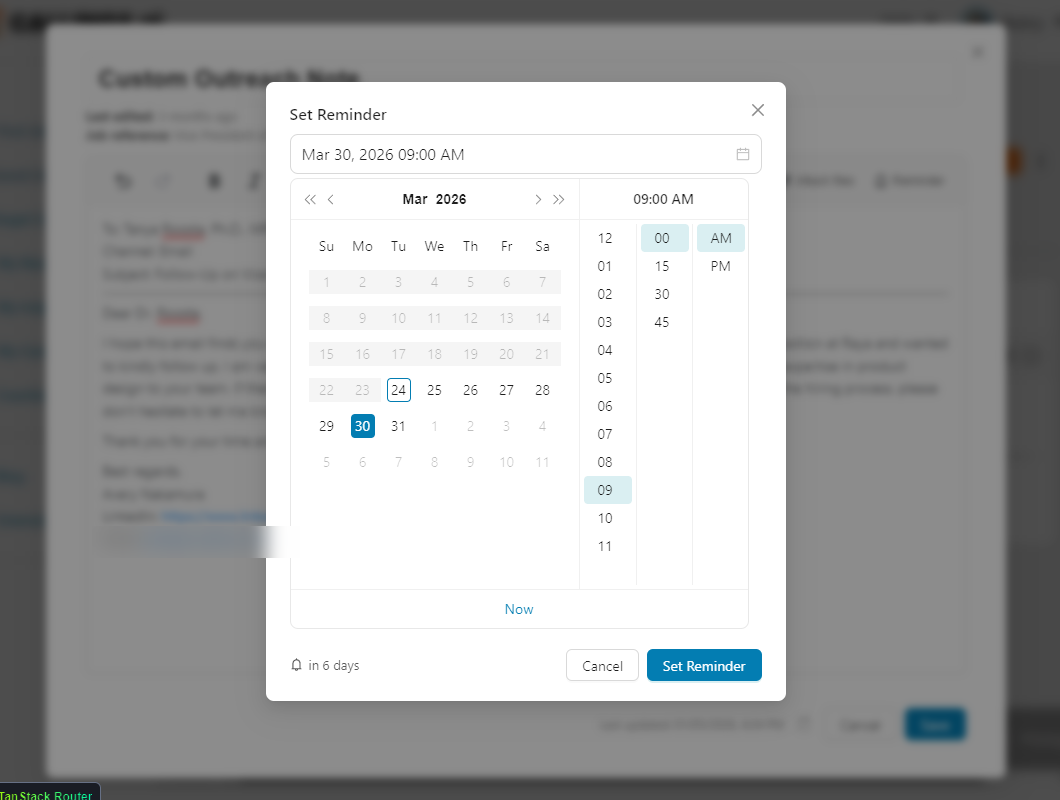
- Open a note and click the bell (Reminder) button in the toolbar
- Choose a date and time, then click Set Reminder
- A yellow bar below the toolbar confirms the schedule -- click it to change, or Cancel reminder to remove it
- Save the note to persist the reminder
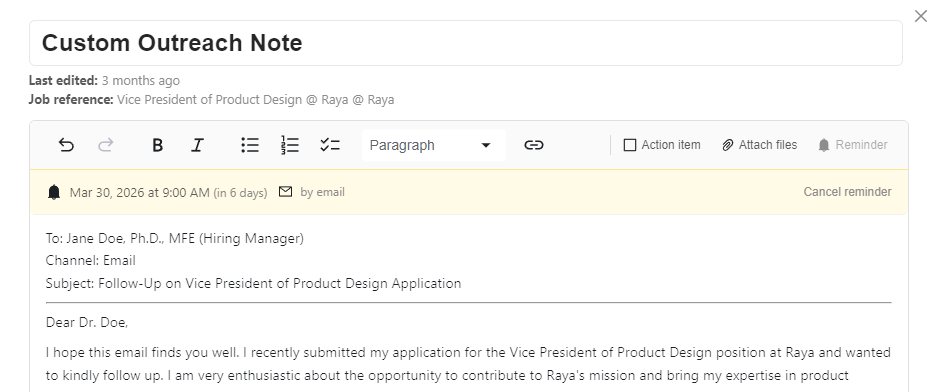
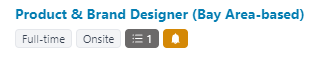
Callings.ai sends an email to your account address within 15 minutes of the scheduled time. The email includes your note content and a link back to the job. Once sent, the yellow bell pill in the list turns green and reads "Reminded". Each note supports one active reminder.
File Attachments
Attach supporting documents, images, or audio to keep all context with the note.
Click the paperclip (Attach) button to add one or more files. Supported types: images (PNG, JPG, GIF, WebP), PDFs, audio (MP3, WAV, M4A), and common text formats (TXT, MD, CSV, JSON). Click any attachment to preview or play it inline. Remove an attachment before saving with the X button.
Useful things to attach: interview whiteboard photos, email confirmations, offer letter PDFs, or photos of handwritten notes.
To add a meeting transcript, use the Transcript button instead so it is summarized for you. If you attach a transcript file here, Callings.ai will notice and offer to summarize it.
Tips & Best Practices
- Document right after interactions while details are fresh -- aim for who, what, and next steps in 5 minutes
- One action item per note so each task can be checked off independently
- Set reminders on time-sensitive to-dos so follow-ups and deadlines don't slip
- Attach supporting files to keep everything related to that moment in one place
Frequently Asked Questions
Q: What's the difference between a regular note and an action item?
A: An action item enables a To-do/Done checkbox on the note. Action items also support reminders.
Q: How do reminders work?
A: Click the bell button in the editor, pick a date and time, and click Set Reminder. An email is sent to your account within 15 minutes of that time.
Q: Can I set a reminder on any note?
A: Yes, the Reminder button is available on all notes regardless of action item status.
Q: What file types can I attach?
A: Images (PNG, JPG, GIF, WebP), PDFs, audio (MP3, WAV, M4A), and text files (TXT, MD, CSV, JSON).
Q: Which meeting tools work with the Transcript button?
A: All of them, because it works with the transcript rather than the tool. Copy the transcript out of Granola, Fathom, Otter, Fireflies, tl;dv or Zoom and paste it in, or download it and choose the file. There is no account to connect.
Q: What happens to my original transcript?
A: It is saved as a text attachment on the note. The note body holds the debrief, and the full conversation stays one click away.
Q: Does Callings.ai record my interviews?
A: No. It never joins a meeting and never records anything. It only reads a transcript you already have and chose to add.
Q: I pasted a transcript but I want to keep the raw text as it is.
A: Choose Keep as is when the summarize prompt appears, and your text stays exactly as you pasted it.
Q: Why do I see notes I didn't add to this job?
A: Notes added to Networking Targets contacts appear here automatically when the contact is linked to this job.
Q: Can I edit the date on a note?
A: Yes. Click the pencil icon next to the timestamp in the editor modal.
Q: Are my notes private?
A: Yes, notes are private to your account and never shared with employers or other users.
Related Topics
- Managing Your Pipeline - Overall strategy for tracking opportunities
- Preparation Overview - AI-generated prep guide (complement to notes)
- Networking Targets - People to document conversations with
- Custom Outreach - Track outreach and responses
- Table View - See all opportunities at a glance
- Kanban View - Visual pipeline management
Your notes are the memory of your job search. Every conversation documented, every follow-up tracked, and every insight captured keeps you organized and confident throughout the process.