Table View
Table View is Callings.ai's spreadsheet-style command center for managing your entire job pipeline, ideal for comparing multiple opportunities and making data-driven decisions about your job search.
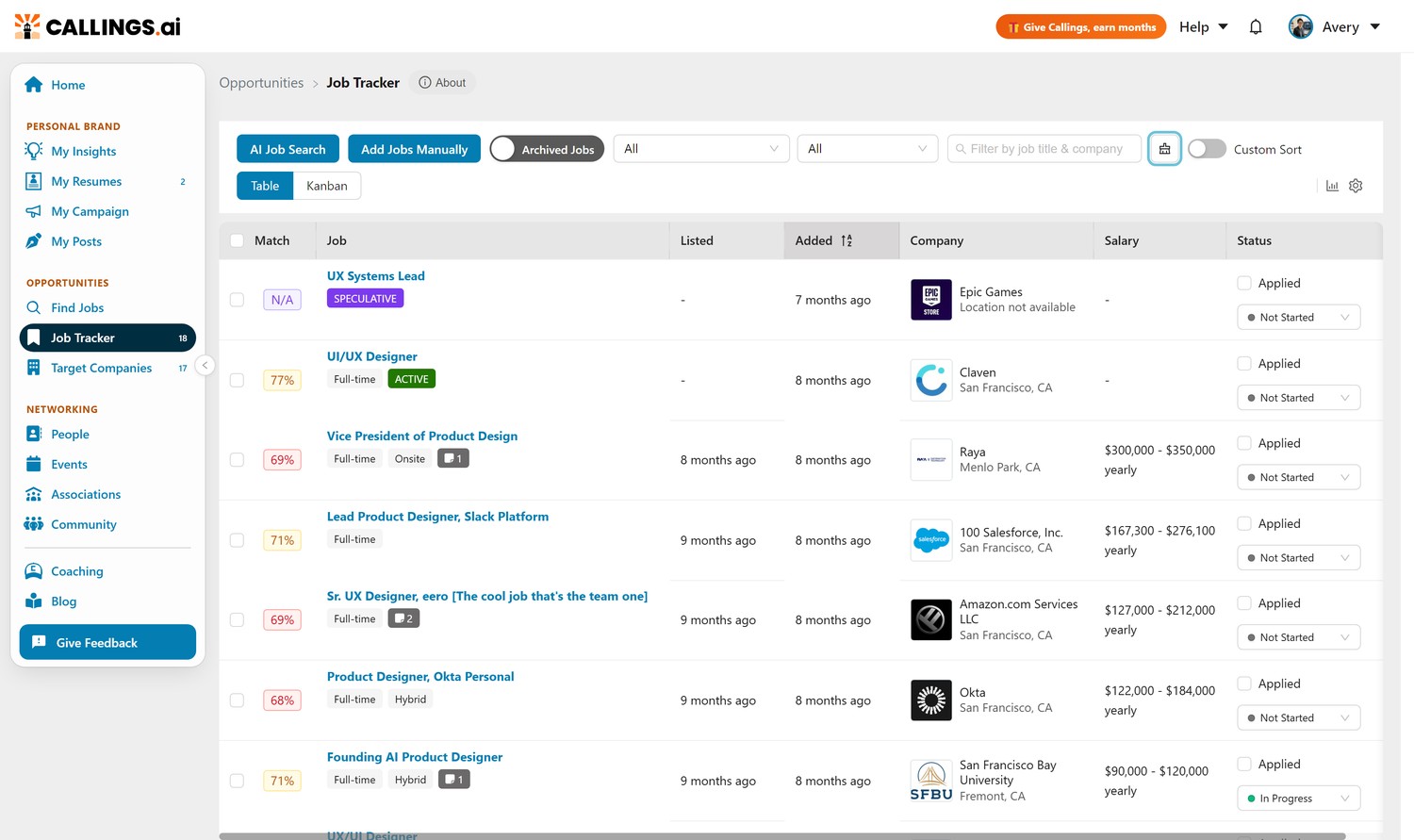
Overview
Table View transforms your job hunt into an organized, data-driven process. Unlike simple spreadsheets, this intelligent table adapts to your workflow with drag-and-drop prioritization, one-click sorting, and instant access to job-specific tools. Every job you add, whether from AI matches, LinkedIn imports, or manual entry, appears here with all the information you need to make smart decisions.
Your sorting preferences, column configurations, and filters persist between sessions and sync across devices.
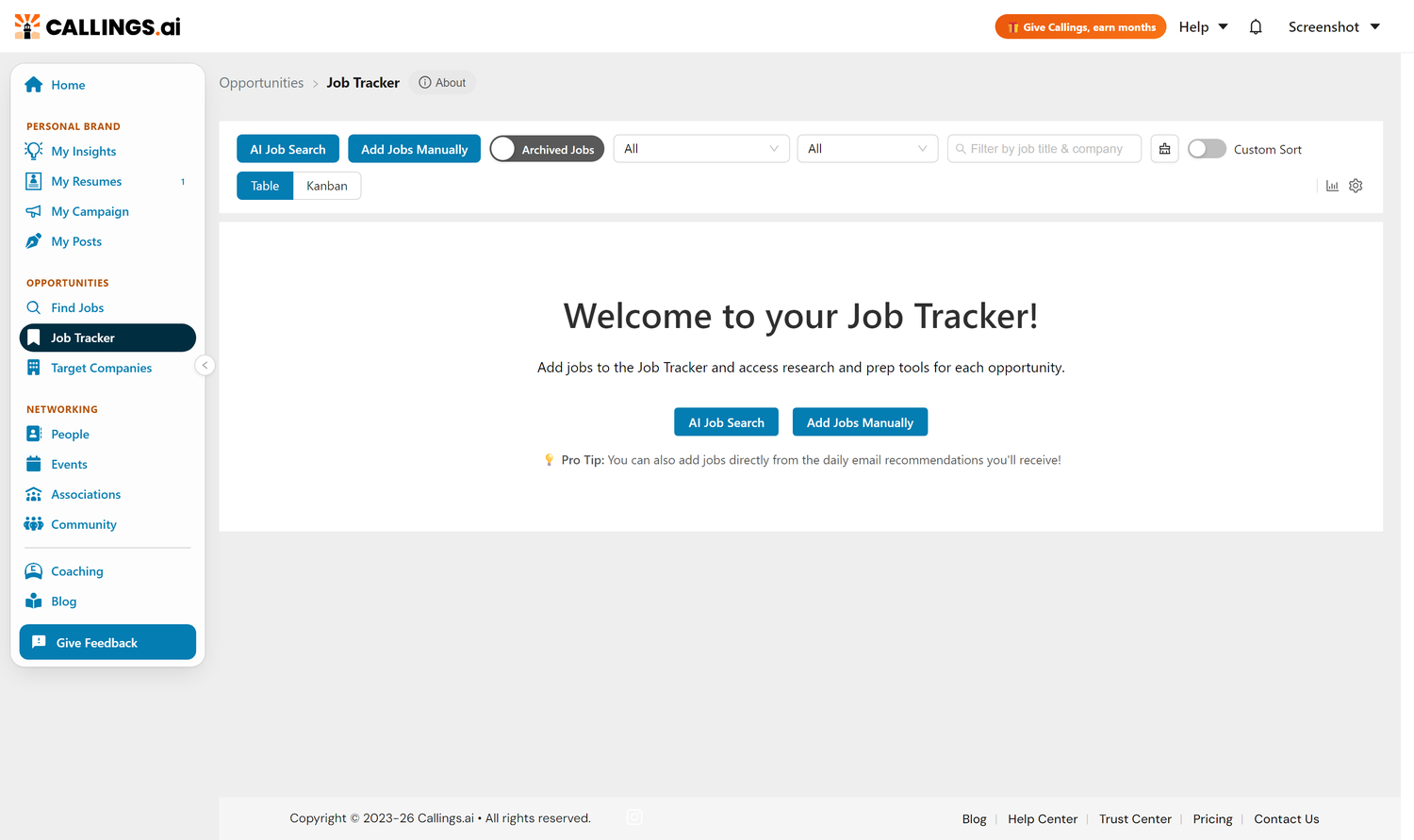
Empty State
When you first access the Job Tracker with no jobs added, you'll see a clean empty state with two ways in: run an AI Job Search, or Add Jobs Manually. It also points out that you can add jobs straight from the daily email recommendations.
Columns
Default Columns
These columns are visible by default when you first use Table View:
| Column | Description |
|---|---|
| Match % | How well the job fits your resume (0-100%). Hover to see which resume it was scored against. Ctrl+click to rescore that job. |
| Job | Job title with employment type and work setting tags. |
| Listed | When the job was originally posted. |
| Added | When you saved the job to your tracker. |
| Deadline | Application deadline (if provided). |
| Company | Company name with logo. Click to view Company Report. |
| Salary | Salary range when available. |
| Status | Current stage. Update with one click via dropdown. |
Optional Columns
These columns are hidden by default. Enable them in Table Settings (gear icon) if relevant to your workflow:
| Column | Description |
|---|---|
| Req ID | Job requisition or reference number assigned by the company (e.g. REQ-12345, JR100200). Automatically extracted from the job listing when available. |
| Tags | Your own labels for organizing jobs your way (e.g. lead source, priority, or favorites). Click + Tag in any row to add or remove tags inline. See Tags below. |
| Clearance | Security clearance level required by the role (e.g. Public Trust, Top Secret), when stated in the listing. |
Match Score Colors
- Green (80-100%): Excellent match
- Orange (70-79%): Good match
- Red (0-69%): Low match
The Match % reflects how well the job fits the resume it was scored against. Hover the score to see which resume that was.
Tip: Scores stay as they are until you ask for a new one. After updating a resume, select the jobs you care about and use Rescore (see Bulk Actions), or ctrl+click a single job's Match % cell.
Tags
Tags are free-form labels you create to organize your jobs your own way. There is no fixed list: you decide what the tags mean for your search, and they stay private to your account (they are separate from any tags used elsewhere in the app).
Adding and removing tags
- In the Tags column, click + Tag on any row, type a label, and press Enter.
- As you type, you'll see suggestions drawn from tags you've already used, so your wording stays consistent (for example, you always pick "Referral" rather than sometimes "ref").
- Click the × on a tag to remove it.
- You can also add tags when you first add a job. See Manual Job Entry.
Ways people use tags
Tags are deliberately open-ended. A few common patterns:
- Lead source: where the job came from, such as
LinkedIn,Indeed,Referral,Recruiter, orCompany site. - Priority or interest:
Dream Job,Favorite,Backup,Stretch. - Logistics:
Remote,Hybrid,Onsite,Relocation,Visa sponsor. - Your own categories: anything that helps you group and find jobs later, such as
Startup,Public sector, or a project codename.
Filtering by tag
You can filter the table to jobs with a specific tag right from the search box. Start typing a tag name and pick the Tag: ... suggestion that appears: it becomes a tag filter and the table shows only jobs carrying that tag. Select more than one tag to narrow further (a job must have all the selected tags). If you'd rather search the text instead of filtering by the tag, just keep typing and press Enter, the word stays a normal title/company search.
Tip: Pick a small, consistent set of tags and reuse them. Consistent tags make the autocomplete more useful and give you a cleaner breakdown in Progress Analytics, which counts how many of your jobs carry each tag.
Sorting
Click any column header to sort. Click again to reverse direction.
Tip: Each column remembers your last sort direction (shown with a gray indicator).
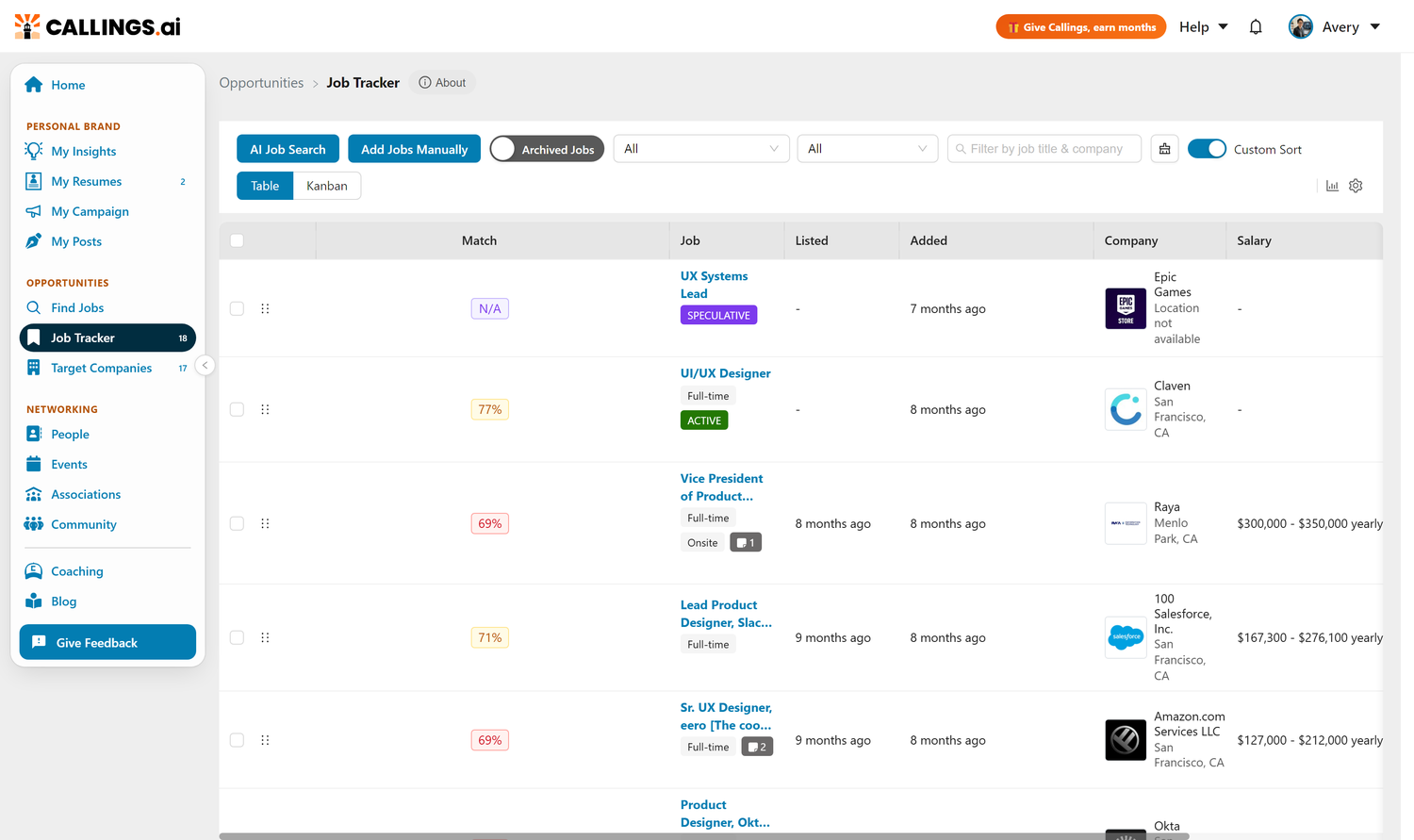
Custom Sort
Enable manual ordering to arrange jobs in your preferred sequence:
- Toggle "Custom Sort" in the filter bar
- Drag the handle (⋮⋮) on any row to reorder
- Your custom order persists until you disable Custom Sort
Pinning Jobs
Pin important jobs to keep them visible at the top of your table. Pinned jobs appear highlighted in yellow and always remain at the top, regardless of sorting.
- To pin: Hover over a row and click the pin icon
- To unpin: Click the pin icon again

Pinning works independently from Custom Sort: pinned jobs stay at the top whether you're using automatic column sorting or manual ordering.
Filtering
Note: Filters (Active/Archived, Stage, Applied, Search) are unique to each view. Table View and Kanban View maintain their own independent filter settings. When you open Split View, it inherits the filters from whichever view you came from (Table Split uses Table filters, Kanban Split uses Kanban filters).
Quick Filters
- Active / Archived: Toggle between your current pipeline and past opportunities
- Stage Filter: Show only jobs in a specific stage (In Progress, Interviewing, etc.)
- Applied Filter: All Jobs, Applied only, or Not Applied only
- Search: Find jobs by title, company, or keywords, and refine with filter tags (Has notes, status badges)
Click Clear Filters to reset all filters at once.
Searching and filters
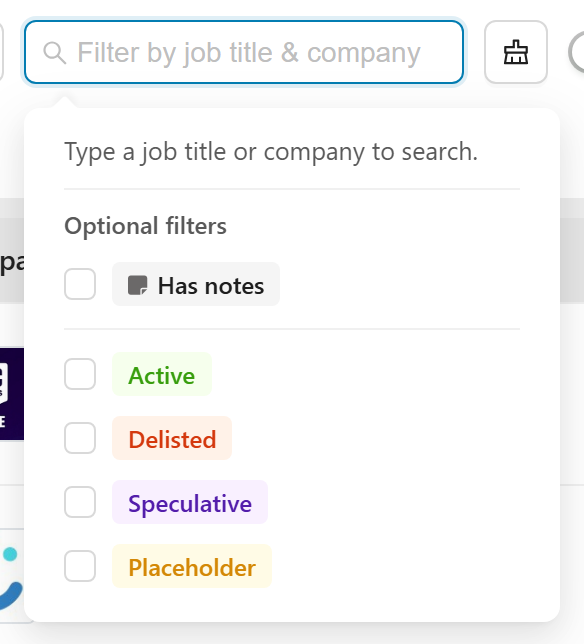
The search box matches a job's title or company. Type more than one keyword to narrow the results: every keyword has to match, so adding words combines conditions rather than widening the list.
Click inside the search box to open the optional filters panel. Tick a filter to add it to your search as a tag, and combine as many as you like with each other and with your typed keywords. A tag stays in the box until you remove it (click the x on the tag, or untick it in the panel).
Filter by your tags: as you type, if your text matches one of your own tags the box suggests a Tag: ... chip. Click it to filter to jobs carrying that tag; ignore it and keep typing to search titles and companies instead. You can combine tag chips with keywords and the other filters, and stacking multiple tag chips narrows to jobs that have all of them.
| Filter | Shows |
|---|---|
| Has notes | Only jobs that have notes attached |
| Active | Jobs added via the Callings search engine whose listing is still live |
| Delisted | Jobs added via the Callings search engine whose listing has been taken down or expired |
| Speculative | Speculative roles (hypothetical roles you added to a company before a posting exists) |
| Placeholder | Quick-captured placeholder jobs awaiting full details |
The four status filters can also be typed directly as keywords (active, delisted, speculative, placeholder). Because keywords combine, you can mix a filter with a title or company word to pinpoint a subset. For example:
delisted Acmelists every delisted job at Acmedelisted engineerlists every delisted job with "engineer" in the titlespeculative googlelists speculative roles at Googleactive designerlists live listings for designer roles
Search results respect your Items per page setting: matches are paginated like the full list, so use the page controls at the bottom to move through a large set of results instead of one long page.
Managing Jobs
Individual Actions
- Click any row to open the job details panel
- Status dropdown: Update stage without opening details
- Hover actions: View, Pin, Archive, or Delete
Bulk Actions
Select one or more jobs using their checkboxes (or the header checkbox to select all on the current page). A blue action bar appears directly below the main toolbar showing the number of selected jobs and available actions:
- Archive (n) – Archive all selected jobs at once (active view)
- Unarchive (n) – Restore selected jobs from the archive (archived view)
- Delete (n) – Permanently delete selected jobs (confirmation required)
- Set status ▾ – Move all selected jobs to a workflow status (for example Not Started, Preparing, or any of your custom stages). Choose the status from the dropdown. Only available in the active view.
- Applied ▾ – Mark all selected jobs as applied or not applied in one step. Only available in the active view.
- Rescore ▾ – Recalculate the Match % for all selected jobs at once. Choose Use each job's base resume to score every job against the resume assigned to it, or pick one of your resumes to apply to the whole selection (which also sets that resume as the base resume for those jobs, so tailored resumes and cover letters use it too). Only available in the active view.
- Generate resumes (n) – Create a tailored resume for the selected jobs that do not have one yet. The number in parentheses is how many of your selected jobs are missing one, and only those are touched: any job that already has a tailored resume is left exactly as it is. Requires a paid plan. Only available in the active view, and only shown when at least one selected job is missing a tailored resume.
Status and Applied changes are applied in place: the rows update instantly without reloading the table, and your selection stays in place so you can keep acting on the same jobs.
Generation runs in the background, up to 10 jobs per click. If your selection has more than that, the action bar tells you how many are left so you can run it again once the first batch finishes.
Click × Deselect all at the end of the action bar to clear the selection and dismiss the bar.

Table Settings
Click the gear icon (⚙️) in the top-right corner to open Table Settings.
Columns Tab
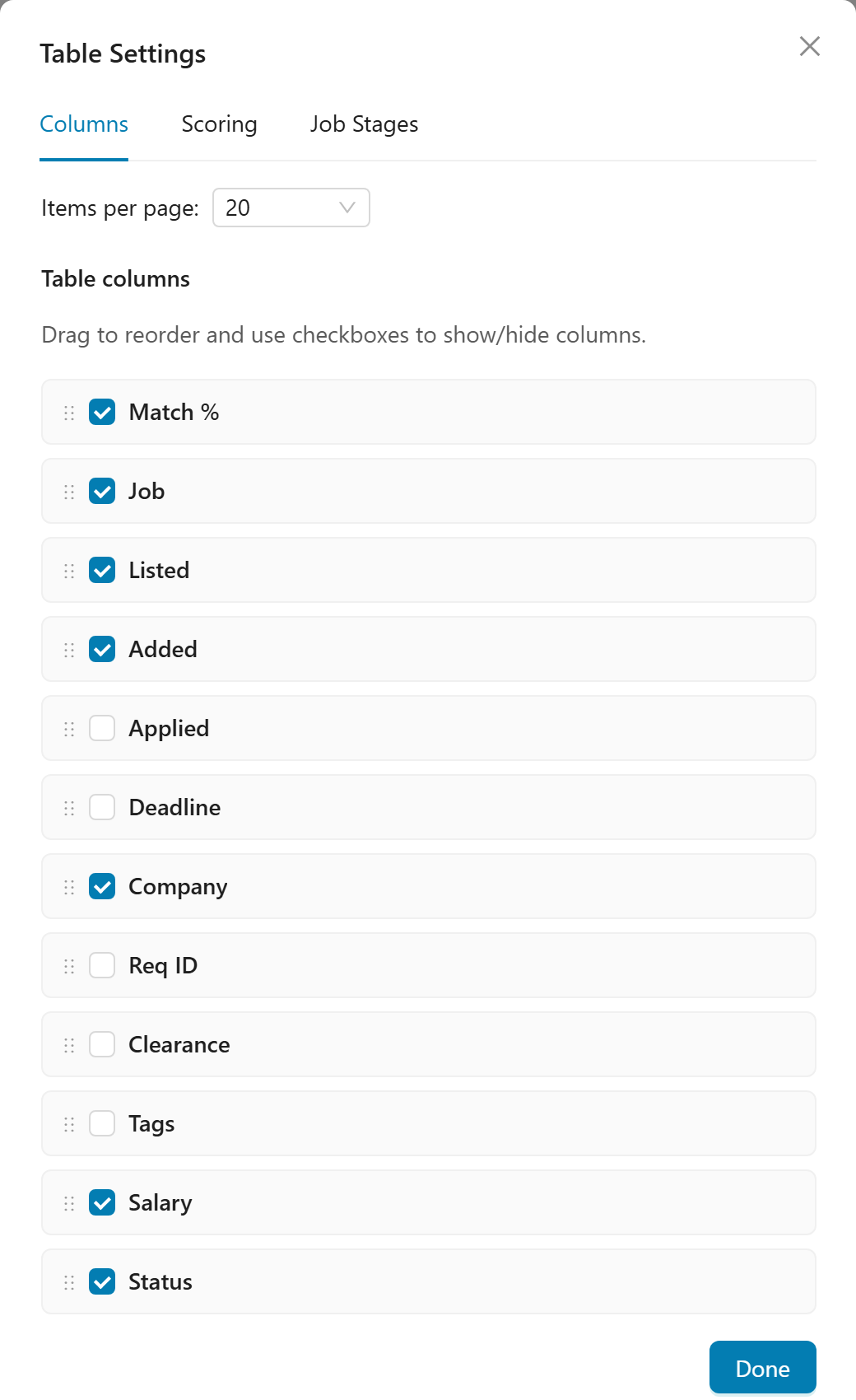
- Show/Hide columns: Check or uncheck each column
- Reorder columns: Drag the handle (⋮⋮) to rearrange
- Page size: Choose 10, 20, 50, 100, or 250 items per page
Tip: Some columns like Req ID, Clearance, and Tags are hidden by default. Enable them in Table Settings if your workflow uses requisition numbers, clearance levels, or your own organizing tags.
Scoring Tab
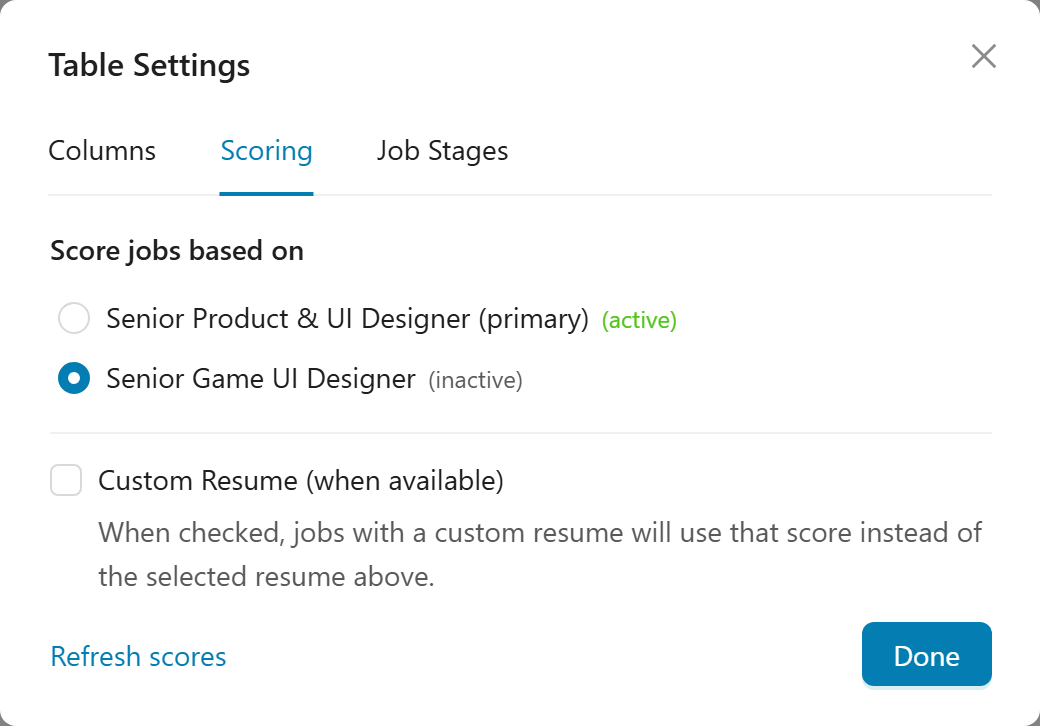
The Scoring tab controls how Match % scores are calculated for your jobs.
Score jobs based on:
Select which of your resumes to use for scoring. All your uploaded resumes appear here with their status. When you switch resumes, scores are recalculated for all your jobs.
- Each resume shows its name, whether it's your primary resume, and its current status
- Switching resumes immediately triggers a rescore across all tracked jobs
- A "Refresh scores" link below the resume list lets you recalculate scores after editing the currently selected resume (without needing to switch resumes)
Tip: To score only some of your jobs against a different resume, select them in the table and use Rescore with that resume instead of switching this setting.
Custom Resume (when available):
When checked, jobs that have a custom resume will use their custom resume score instead of the selected base resume score above. This gives you a more accurate match percentage for jobs where you've tailored your resume.
- Only affects jobs that have a custom resume attached
- Jobs without a custom resume continue using the selected base resume score
- Enabling this triggers a one-time batch calculation for all jobs with custom resumes
Job Stages Tab
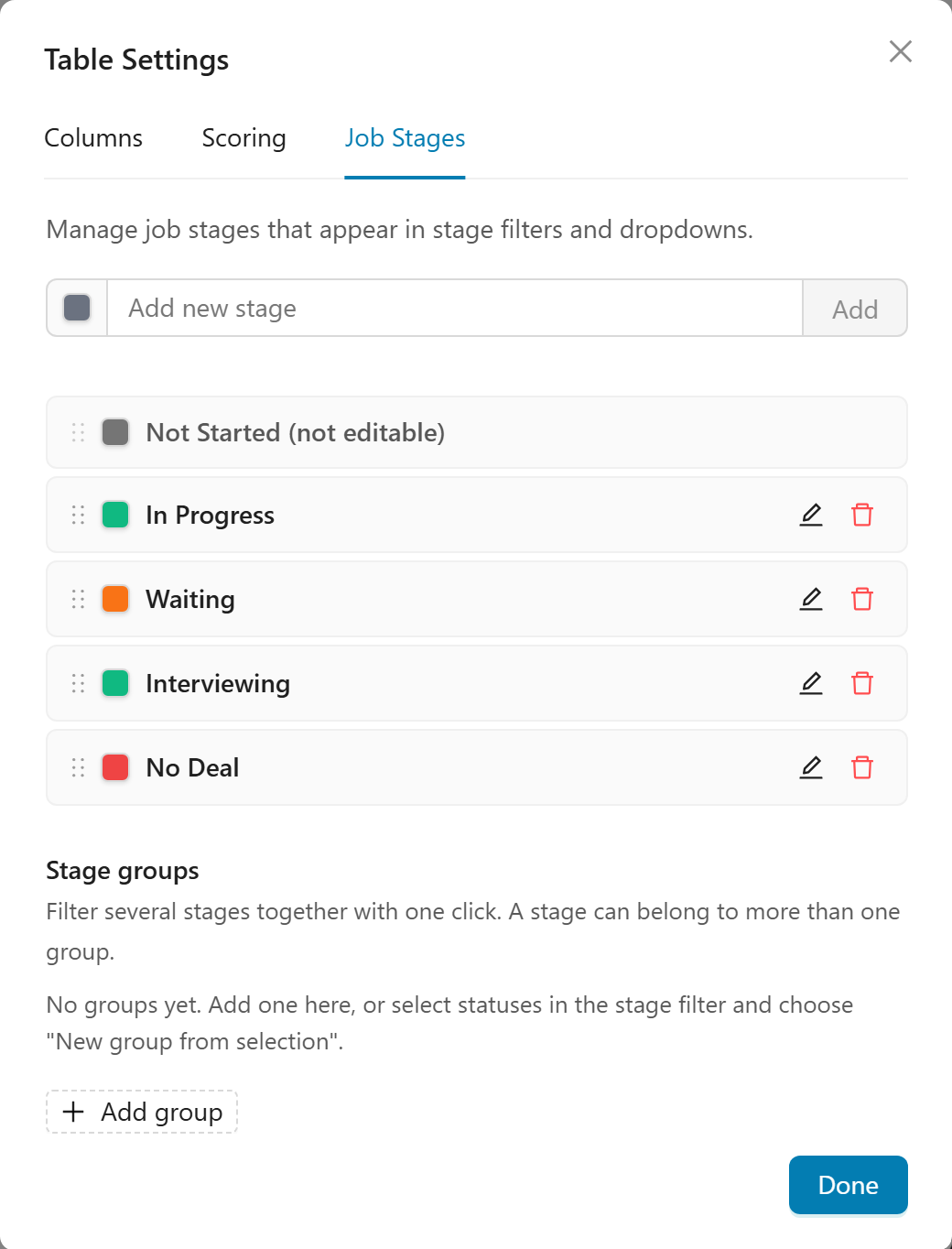
Note: Stage names, colors, and order are global settings shared across all views (Table, Kanban, and Split). Any changes you make here will be reflected in all views.
Default Stages: - Not Started – Always present, non-editable - In Progress – Jobs you're actively working on - Interviewing – In the interview process - Waiting – Awaiting a response - No Deal – No longer active
Managing Stages: - Add: Type a name in the "Add new stage" field, pick a color from the square beside it, then click Add - Rename: Click the edit icon (pencil) on the stage row, change the name or color, then save - Reorder: Drag the handle to change sequence - Delete: Click the delete icon; you'll be prompted to reassign any jobs in that stage
Stage groups:
Below the stage list you can bundle several stages into a named group and filter by all of them with one click. A stage can belong to more than one group. Create a group with Add group here, or select the statuses you want in the stage filter and choose New group from selection.
Tips & Best Practices
When to Use Table View
Table View is ideal for: - Comparing details across many jobs (salaries, deadlines, match scores) - Sorting and filtering to find specific opportunities - Bulk actions (archive, delete, set status, or mark applied for multiple jobs at once) - Data-driven analysis and decision making - Reviewing large numbers of jobs efficiently
When to Use Kanban View
Switch to Kanban when you want to: - Visualize your pipeline stages at a glance - Move jobs between stages with drag-and-drop - See bottlenecks in your application workflow - Get a spatial overview of where opportunities stand
When to Use Split View
Switch to Split View when you need to: - Access job tools (Job Fit Report, Resume Builder, Cover Letter, Interview Prep) - Deep-dive into job details while maintaining your list context - Work through jobs one by one with full tool access
Tip: Click any job row in Table View to automatically enter Split View with that job selected.
Frequently Asked Questions
Q: Can I recover a deleted job?
A: No. Deleted jobs are permanently removed. Use Archive instead of Delete to preserve jobs you might need later; archived jobs can be restored at any time from the Archived view.
Q: How do I create custom stages?
A: Open Table Settings by clicking the gear icon (⚙️), select the Job Stages tab, then click "Add Stage" and enter your custom stage name. Your new stage will be available across all views.
Q: What happens when I delete a stage that has jobs in it?
A: You'll be prompted to reassign those jobs to another existing stage before the deletion completes. This ensures no jobs are lost when removing a stage from your workflow.
Q: What's the difference between Pinning and Custom Sort?
A: Pinning keeps specific jobs at the top of your table regardless of how you sort, and pinned jobs appear highlighted in yellow. Custom Sort lets you manually drag and reorder all jobs in a specific sequence. Both features work independently: you can pin jobs while using either automatic sorting or custom sort mode.
Q: How do I access the job tools like Resume Builder or Interview Prep?
A: Click on any job row to enter Split View, which is the only place where you can access all job tools including Job Fit Report, Custom Resume, Cover Letter, Networking Targets, and Interview Prep.
Q: Can I change which columns appear in my table?
A: Yes. Click the gear icon (⚙️) to open Table Settings, then use the Columns tab to show/hide columns and drag them to reorder. Some columns (like Req ID) are hidden by default but can be enabled here. Your configuration saves automatically and syncs across devices.
Q: What does the Match % score represent?
A: How well your resume fits that specific job (0-100%). Green (80-100%) is an excellent match, orange (70-79%) is a good match, and red (below 70%) is a low match.
Q: Why did a job's Match % not change after I edited my resume?
A: Scores stay put until you ask for a new one. Select the jobs you want re-evaluated and use Rescore, or ctrl+click a single job's Match % cell.
Q: Can I rescore several jobs at once?
A: Yes. Select them with their checkboxes and use Rescore in the bulk action bar. You can score each job against its own base resume, or pick one resume to use for the whole selection.
Q: Can I create tailored resumes for several jobs at once?
A: Yes. Select the jobs and use Generate resumes in the bulk action bar. It only covers jobs that do not have a tailored resume yet, so it never overwrites one you have already worked on, and it runs up to 10 jobs per click.
Q: How do I recalculate scores after editing my resume?
A: Open Table Settings (gear icon), go to the Scoring tab, and click "Refresh scores" below the resume list. This recalculates all job scores using the latest version of your selected resume.
Q: What does the Custom Resume checkbox do?
A: When enabled, jobs that have a custom (tailored) resume will display the match score based on that custom resume instead of your selected base resume. This gives more accurate scoring for jobs where you've customized your application.
Q: How do I find jobs I haven't applied to yet?
A: Use the Applied Filter in the filter bar and select "Not Applied" to show only jobs where you haven't marked the application as submitted.
Q: What are Tags and how do I use them?
A: Tags are your own free-form labels for organizing jobs (for example a lead source like "LinkedIn", a priority like "Dream Job", or a logistics note like "Remote"). Enable the Tags column in Table Settings, then click + Tag on any row to add or remove tags. You can also add tags when you first add a job. There's no fixed list, so use whatever categories help you, and reuse them consistently so the autocomplete and the Progress Analytics breakdown stay clean. Your job tags are private and kept separate from tags used elsewhere in the app.
Related Topics
The Table View puts the power of a spreadsheet at your fingertips: sort by match score, filter by status, compare salaries, and make data-driven decisions about where to invest your time. When you need to analyze, prioritize, or take action on multiple opportunities at once, this is where clarity meets efficiency.