Job Tracker Overview
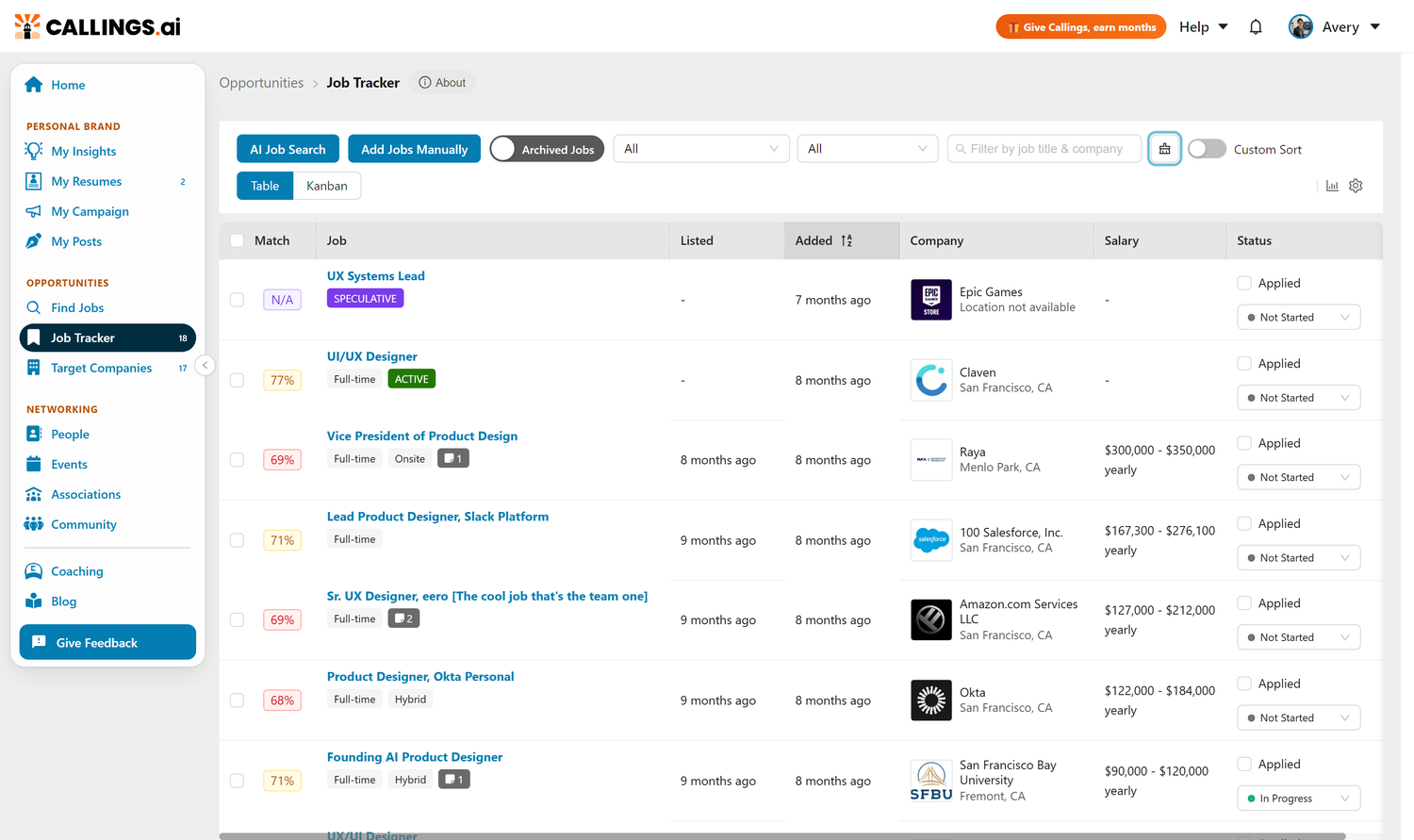
The Job Tracker is Callings.ai's application management system that lets you organize, track, and manage all your job opportunities in Kanban, Table, or Split views. Track every opportunity from discovery through offer in one organized workspace with built-in tools for each job.
What is the Job Tracker?
The Job Tracker is a CRM-style system for job seekers that centralizes all opportunities, tracks application status, and provides instant access to AI-powered job tools.
The Job Tracker is a comprehensive system for: - Organizing all your job opportunities in one place - Tracking progress through your application workflow - Accessing tools and resources for each opportunity
Think of it as your CRM (Customer Relationship Management) system, but for job hunting: you're managing relationships with potential employers.
Key Features
Centralized Pipeline
- All jobs in one view, regardless of source (matched, manual, extension)
- Quick access to job details, tools, and actions
- Never lose track of an opportunity
Multiple View Modes
- Table View: Spreadsheet-style with sortable columns
- Kanban View: Visual board with drag-and-drop status updates
- Split View: Dual-pane for efficient review and action
Built-In Tools
Every tracked job includes instant access to: - Job description and company info - Job Fit Report - Custom resume and cover letter generation - Networking targets and outreach templates - Interview preparation resources - Notes and to-do items
Status Tracking
Track each job through your workflow. These steps are highly customizable, but the default set includes: - In Progress: Jobs you are actively working on - Interviewing: Jobs where you are in the interview process - Waiting: Jobs where you are waiting for a response - No Deal: Jobs that are no longer active
Note that Applied is orthogonal to the workflow steps. A job can be marked as applied or not applied irrespective of its step in the workflow.
Every job's page carries a small timeline of its dates: when the role was listed, when you saved it, when you applied, and when it last changed stage. See The Job's Timeline for what it holds.
Is the Job Still Open?
A tag next to each job's title tells you whether its posting is still open:
| Tag | What it means |
|---|---|
| ACTIVE | The posting is still open. |
| DELISTED | The posting is closed: the employer took it down, it expired, or its page says the job is no longer available. |
| RELISTED | The job is still open, but on a new posting: the employer posted the same role again. |
| CHECKING | Callings is reading the posting of a job added from a link for the first time. It usually turns into one of the tags above within a few seconds. |
| No tag | Callings cannot tell yet (see below). |
Callings follows a job's status in two ways:
- From the job boards. Every job you save from a Callings listing is followed on the job boards Callings reads, whether you saved it in AI Job Search, from a task in My Plan, or by asking Ask Callings or an AI assistant connected to Callings. The job boards can take from an hour to two days to report that a posting closed.
- From the job's own posting page. When you open your tracker or a job, Callings reads the posting page of each job you see, at most twice a day per job, and a small spinner turns inside the tag while it does. The tag first shows the last known status, then updates if the page says something new. This also covers the jobs you added yourself from a link, which had no tag before.
A page that clearly says the job is closed or gone turns the tag to DELISTED right away, even before the job boards catch up. When a page is less clear, Callings waits for a second check before showing DELISTED, so a live job is not marked closed by mistake. Once a job's page says it is closed, Callings stops checking that page.
A job shows no tag when its page cannot be read: a sign-in wall, a page that blocks automated reading, or a job you added from a LinkedIn link. LinkedIn pages are never read: for a job saved from a Callings listing with a LinkedIn link, Callings reads the employer's own posting when it knows it, and otherwise follows the job boards. Archived jobs are not checked, and speculative and placeholder roles keep their own SPECULATIVE and PLACEHOLDER tags.
When a Saved Job Is Reposted
A job is RELISTED in two cases, both meaning the role is still open:
- The listing you saved was taken down, and the employer posted the same job again.
- Your saved link now opens the employer's newer posting of the same role, with a new job number. The link still works and takes you to the new posting; hover the tag to see why it changed.
Open Apply on the job to find the new link. A repost on LinkedIn is tagged Relisted, and hovering the tag shows the date the job was reposted; a repost on the employer's own site is tagged Similar job. The link you originally saved is tagged Delisted.
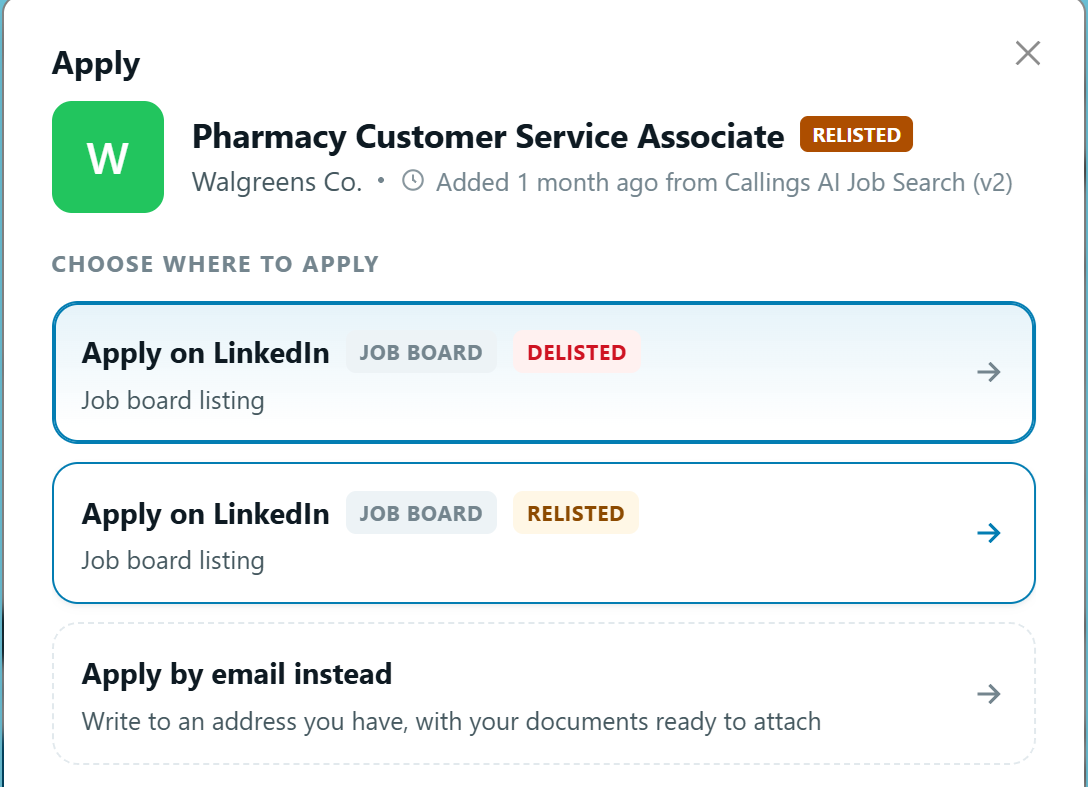
A new link is only offered when it is at the same company, has the same title, is in the same city, is more recent than the one you saved, and its description is nearly identical to it. Anything less is not presented as your job.
Sometimes the employer lists a newer copy while the one you saved is still live. That link is also tagged Similar job and shown for information; the link you saved stays untagged because it still works.
Your Job Hunt Workflow
The tracker supports a proven four-phase workflow: Evaluate → Prepare → Network → Interview. Each phase has specific goals and tools to help you succeed. See the Job Tools Overview for detailed guidance on each phase.
Getting Started
Adding Your First Jobs
Start building your pipeline:
- From Matching Jobs: Click "Add to Tracker" on matched opportunities
- Manual Entry: Use "Add Job" button to enter any job
- Chrome Extension: Save jobs while browsing LinkedIn or Indeed
Pinning Jobs
Pin the jobs you are currently working on or plan to work on today. Pinned jobs always appear at the top of the Table view and Split view, helping you stay focused on your priorities.
Tips & Best Practices
- Update status promptly when things change; status drives your workflow
- Take notes after every interaction so you don't forget details
- Archive regularly to keep your active list focused on real opportunities
- Pin strategically to highlight jobs needing immediate attention
Frequently Asked Questions
Q: How many jobs should I track?
A: Most successful job hunters maintain 30-50 active opportunities. This provides enough options without overwhelming you.
Q: Should I track jobs I applied to outside the platform?
A: Absolutely! Add any job you're pursuing so you have one complete view of your job hunt.
Q: What if a job posting expires?
A: Keep it in your tracker if you applied. Historical data helps you learn and improves your approach. If the employer posts the same job again, its tag changes to RELISTED and Apply shows the new link. See When a Saved Job Is Reposted.
Q: How do I know which view mode to use?
A: Try each and see what fits your style. Table is great for data-driven folks, Kanban for visual thinkers, Split for efficient processors.
Related Topics
- Job Tools Overview - Detailed workflow guide
- Table View - Spreadsheet-style tracking
- Kanban View - Visual board tracking
- Split View - Dual-pane for efficient review
- Managing Your Pipeline - Status tracking and pipeline organization
- AI Job Search - Finding opportunities to fill your pipeline
The Job Tracker is your command center for the job search, replacing scattered spreadsheets and forgotten bookmarks with intelligent organization. Every opportunity tracked, every status updated, and every tool at your fingertips means you spend less time managing and more time landing your next role.