Split View
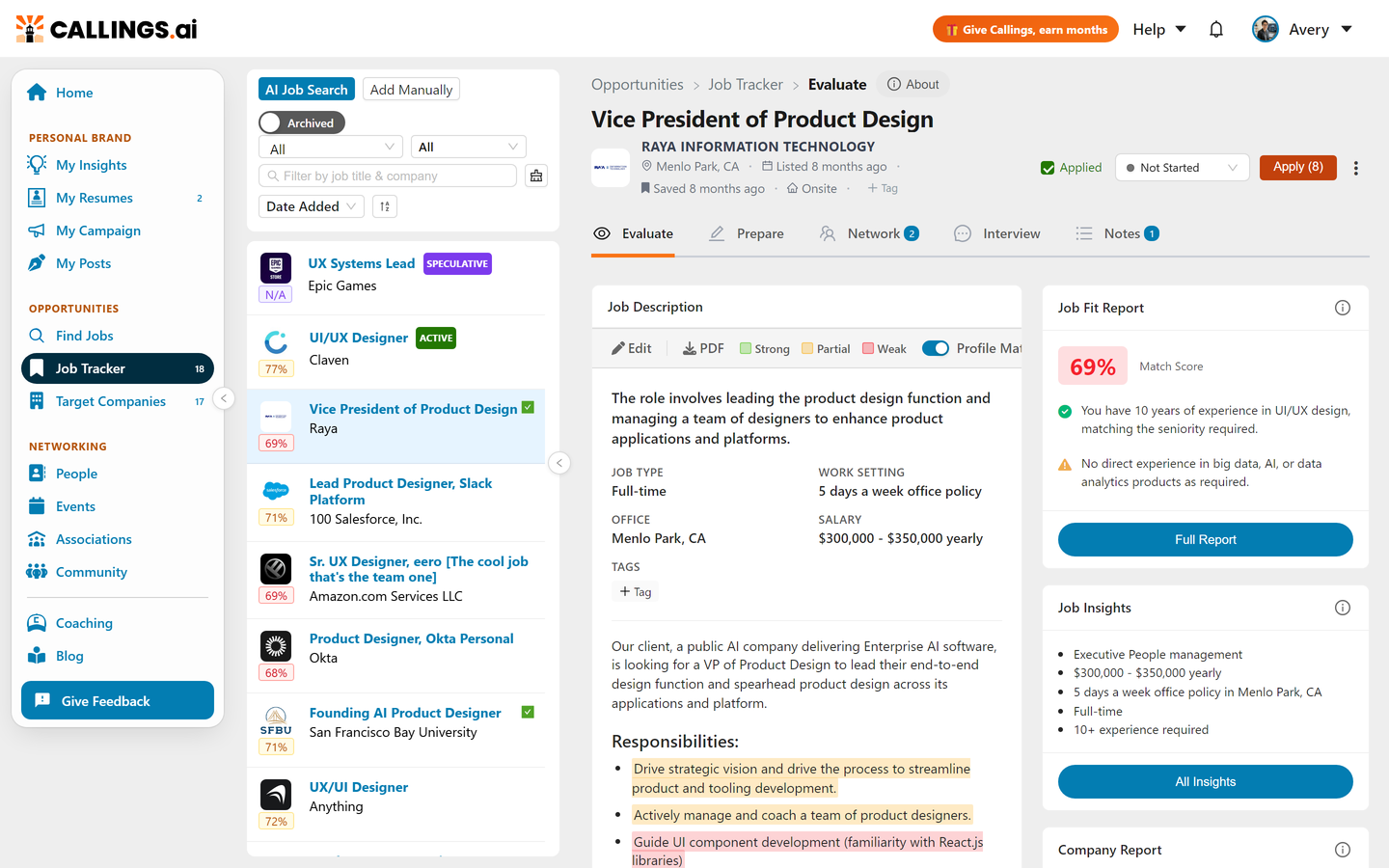
Split View opens when you click any job from Table View or Kanban View. It shows a job list on the left and the full job details with all Job Tools on the right.
How It Works
Click any job in Table View or Kanban View to enter Split View. The right panel displays the complete job details, identical regardless of which view you came from. The left panel shows your job list so you can quickly navigate between jobs.
Right Panel (Job Details): Always the same: full job information with all Job Tools: - Evaluate: Job Description, Job Fit Report, Job Insights, Company Report - Prepare: Custom Resume, Custom Cover Letter - Network: Networking Targets, Custom Outreach - Interview: Interview workspace (Preparation Overview plus per-interviewer prep) - Notes: Notes & To-Do Items
Left Panel (Job List): Varies slightly based on your source view.
Differences Based on Source View
| Feature | From Table View | From Kanban View |
|---|---|---|
| Stage Filter | Can select "All" stages or any specific stage | Can select any specific stage, but not "All" |
| Pagination | Page numbers (Previous/Next) | Load More button (infinite scroll) |
| Jobs Shown | All jobs matching your table filters | Jobs from one stage only |
From Table View
- The left panel shows all jobs matching your current Table View filters
- Navigate pages using Previous/Next buttons at the bottom
- Change the stage filter to any stage or "All"
From Kanban View
- The left panel initially shows jobs from the column you clicked
- You can switch to any other stage, but "All" stages is not available
- Load more jobs by clicking the "Load More" button at the bottom
Resizing the Job List
Drag the thin divider between the job list and the job details to make the list wider or narrower. The width you set is remembered in that browser, so the list comes back the same size next time. You can also focus the divider with the keyboard and use the left and right arrow keys, or Home to return to the default width.
Expanding and Collapsing the Job List
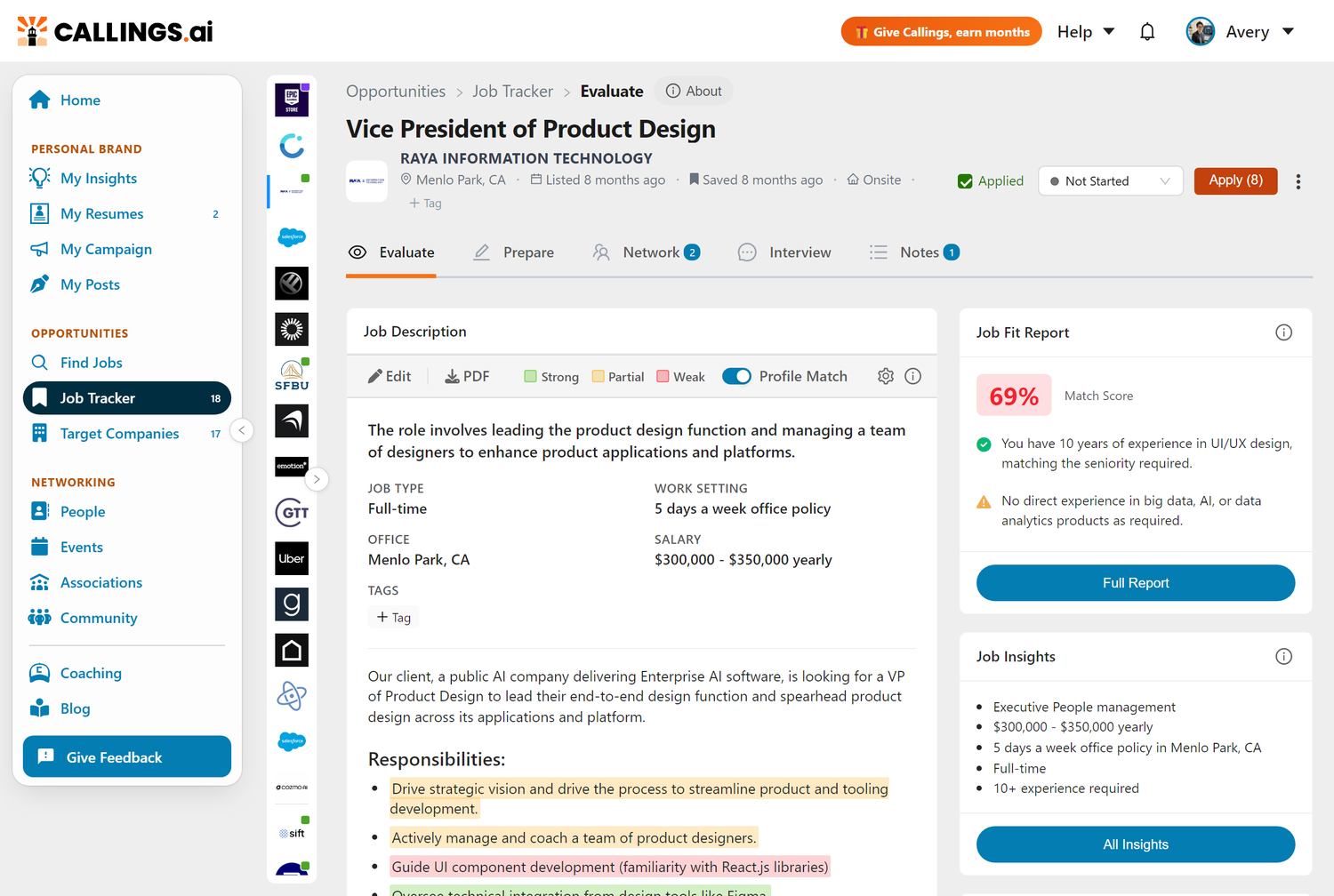
Click the chevron button (▶) to expand the left panel and see your full job list. Click the chevron (◀) to collapse it and give more space to the job details. When collapsed, a compact navigator appears showing company logos; click any logo to switch jobs. Logos display a green dot for jobs marked as applied. Hover over a logo to see a tooltip with the job title and company name.
Job Actions
From the right panel, you can: - Change Stage: Use the status dropdown to move the job to a different stage - Mark as Applied: Click the Apply button or checkbox - Archive: Move the job to your archived list - Delete: Permanently remove the job - Pin: Keep the job at the top of your list
Exiting Split View
To return to the main Table or Kanban view, click Job Tracker in the breadcrumb at the top of the page, or in the sidebar. You can also use your browser's back button, but note that it will first step back through each job you viewed in the list before returning to the main view.
Frequently Asked Questions
Q: How do I return to Table View or Kanban View?
A: Click Job Tracker in the breadcrumb at the top of the page, or in the sidebar, to return to your main view. The browser back button also works, but it will step through each job you previously viewed before returning to the main view.
Q: Why can't I select "All" stages when I came from Kanban View?
A: The left panel represents a single Kanban column, which only shows one stage. To see all stages, click Job Tracker to return to the main view.
Q: Can I drag-and-drop jobs to different stages in Split View?
A: No, drag-and-drop is only available in the main Kanban View. Use the status dropdown in the right panel to change a job's stage.
Q: Are the Job Tools different based on where I came from?
A: No. The right panel with all Job Tools is identical regardless of whether you entered from Table or Kanban View.
Related Topics
- Table View - Data-focused view with sortable columns
- Kanban View - Visual board with drag-and-drop stage management
- Job Fit Report - Understanding detailed match analysis
- Custom Resume - Generate tailored resumes
Split View combines the best of both worlds: quick navigation through your job list on one side, full details and powerful tools on the other. Move through opportunities efficiently while keeping everything you need within reach, so you can focus on what matters: preparing your best application.