Progress Analytics
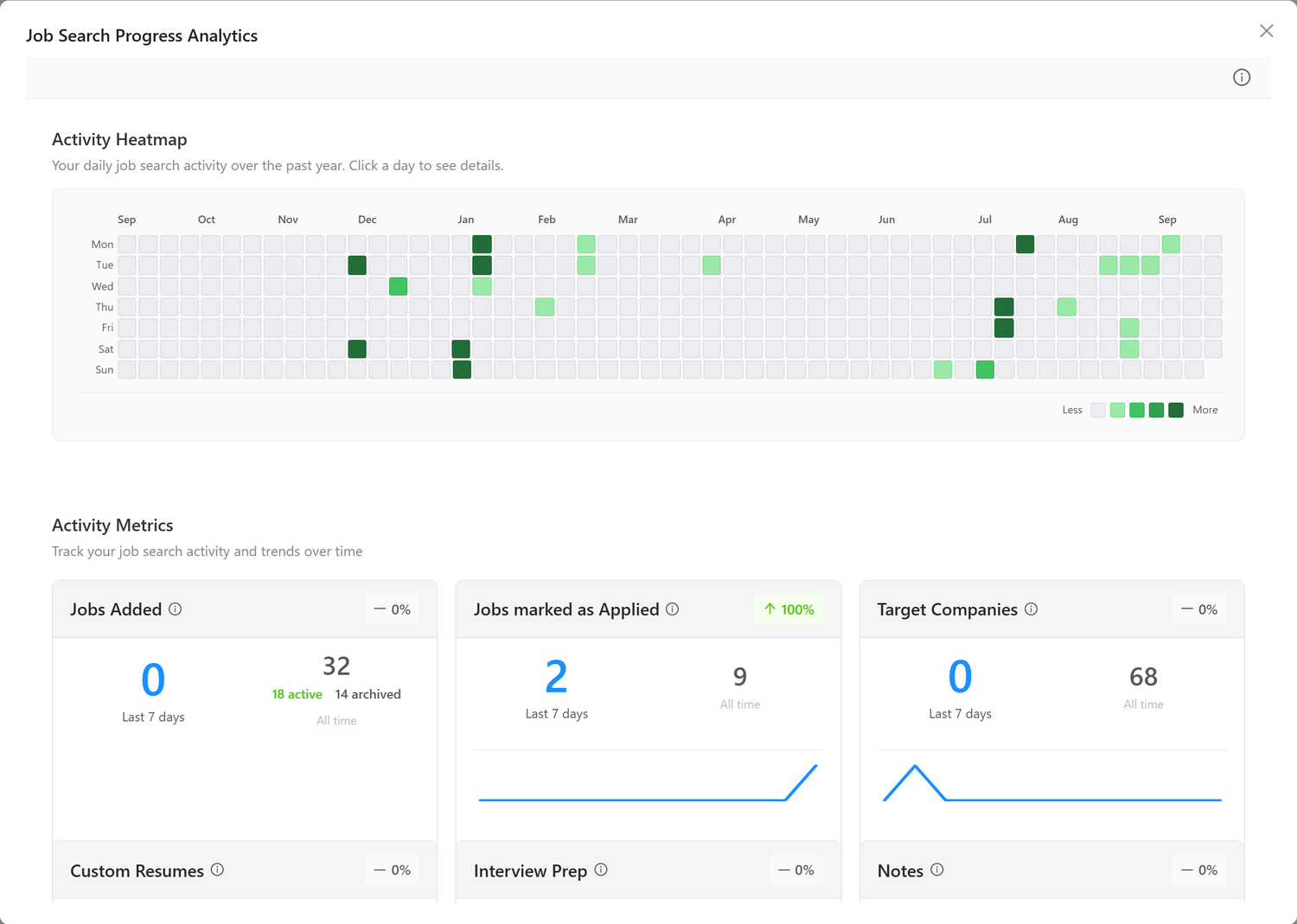
The Progress Analytics dashboard provides a comprehensive visual overview of your job search activity, helping you identify patterns, maintain momentum, and celebrate your progress.
What is Progress Analytics?
Progress Analytics transforms your job search data into actionable insights through:
- Activity Heatmap: A year-long view of daily activity levels
- Metric Cards: Key statistics with trend indicators and sparklines
- Pipeline Stages: Current distribution across your job workflow
- Tags: How your jobs are labeled across your tracker
- Daily Details: Drill-down views of specific days
Access Progress Analytics by clicking the chart icon in the Job Tracker header or from the user menu.
Activity Heatmap
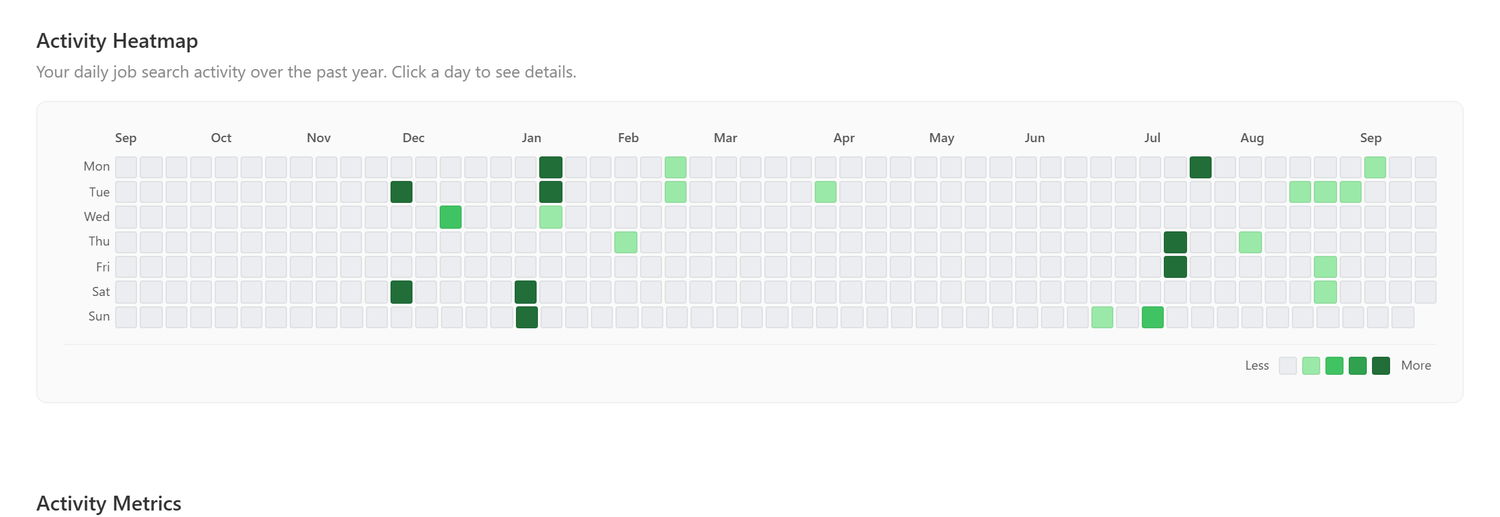
The heatmap displays 365 days of job search activity at a glance, similar to GitHub's contribution graph.
Reading the Heatmap
- Color intensity indicates activity level (darker = more activity)
- Hover over any day to see the activity count
- Click a day to view detailed breakdown
What Counts as Activity?
The heatmap tracks: - Jobs added to your tracker - Applications submitted - Notes created - Contacts added - Pipeline stage changes
Using the Heatmap Effectively
- Identify patterns: Notice which days of the week you're most active
- Maintain streaks: Keep your momentum by staying consistent
- Spot gaps: Recognize when you've been less active and adjust
Metric Cards
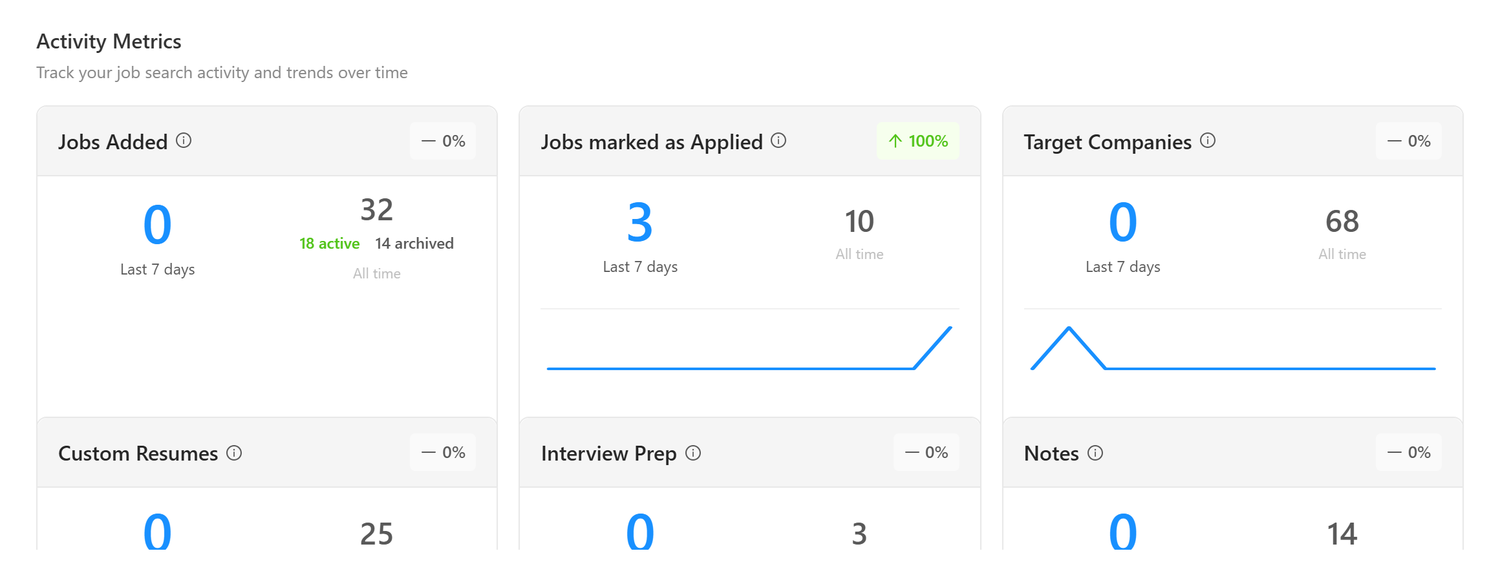
The main analytics cards show your key statistics with trend indicators and 90-day sparklines.
Jobs Added
Tracks new opportunities added to your tracker from all sources (matched jobs, manual entry, Chrome extension).
- Last 7 days: Recent additions
- All time: Total jobs tracked
- Trend: Percentage change from previous week
- Active/Archived: Current pipeline breakdown
Jobs marked as Applied
Counts jobs where you've marked "Applied" status.
- Helps track your application rate
- Compare against jobs added to measure conversion
Target Companies
Companies you've saved to Target Companies.
- Last 7 days: Companies added this week
- All time: Everything currently on your list
Notes
User-created notes and annotations on jobs and contacts.
- Only counts notes you've written (not system-generated)
- Includes notes from placeholder forms and custom outreach drafts
Custom Resumes
Tailored resumes generated for specific job applications.
Interview Prep
Interview preparation reports generated for jobs in your pipeline.
Manual Contacts
Networking contacts you've manually added to jobs.
Suggested Contacts
AI-suggested contacts you've added from the networking recommendations.
Trend Lines
Each metric card includes a sparkline showing the last 90 days of activity, plotted weekly.
- Upward trend: Increasing activity in that area
- Flat line: Consistent activity
- Downward trend: Decreasing activity (may need attention)
Hover over the sparkline to see "Last 90 days trend" tooltip.
Pipeline Stages
The bottom section shows your current job distribution across pipeline stages.

Understanding the Stage Cards
Each stage card displays:
- Stage Name: Your pipeline step (Not Started, In Progress, Interviewing, etc.)
- Moved last 7d: Jobs that entered this stage in the past week
- Total now: Current count of jobs in this stage
- Trend: Percentage change in movement compared to previous week
Using Stage Analytics
- Identify bottlenecks: If jobs pile up in one stage, investigate why
- Track momentum: Movement between stages shows active progress
- Balance your pipeline: Aim for a healthy distribution across stages
Tags
The Tags section shows how your jobs are labeled across your tracker, ranked from most-used to least-used.
Each row lists a tag, a bar sized relative to your most-used tag, and the number of jobs that carry it. Tags are the free-form labels you apply to jobs (for example a lead source, a priority, or your own categories). You add them when creating a job (in the Advanced section) or inline in the Tracker table. See Tags in the Table View for how to create and manage them.
Using the Tags Breakdown
- See where your jobs come from: if you tag by source (such as
LinkedIn,Referral,Recruiter), this is a quick view of which channels you rely on most. Pair it with your application and interview activity to judge which sources are worth more of your time. - Check your focus: tags like
Dream JoborFavoriteshow how many top-priority roles you're actually tracking. - Spot your own patterns: any category you tag consistently (industry, location, remote vs onsite) becomes a count you can watch over time.
Note: The breakdown counts each tag once per job and only appears when you've tagged at least one job. Consistent tag wording (helped by the autocomplete) keeps the counts meaningful, so reuse the same labels rather than creating near-duplicates.
Daily Activity Details
Click any day on the heatmap to see a detailed breakdown of that day's activities.

Daily Summary
The summary panel shows: - Total activities for the selected day - Quick counts for each activity type - Expandable lists with specific items
Activity Lists
Click "View Details" to open the full detail modal with complete information:
- Jobs Added: Job titles, companies, and how they were added
- Applications: Jobs you applied to
- Notes: Note subjects and previews
- Contacts: New contacts with their titles and companies
- Pipeline Moves: Stage transitions with from/to states
Tips & Best Practices
Maintaining Momentum
- Set daily goals: Aim for consistent heatmap colors
- Weekly reviews: Check your 7-day trends each week
- Celebrate milestones: Notice when your all-time numbers grow
Using Analytics for Strategy
- Low application rate? Focus on completing more applications
- Few custom resumes? Use tailored resumes for better responses
- Not enough networking? Add contacts for your target jobs
- Stuck in stages? Review jobs that haven't moved recently
Interpreting Trends
- Positive trends (green arrows) show increasing activity
- Negative trends (red arrows) may indicate areas needing attention
- Neutral trends show steady, consistent effort
Frequently Asked Questions
Q: Why does my heatmap show gaps?
A: Gaps simply mean no tracked activity on those days. This is normal; you don't need to be active every single day. Focus on overall consistency rather than daily streaks.
Q: What's the difference between "Last 7 days" and "All time"?
A: "Last 7 days" shows your recent activity for momentum tracking. "All time" shows your complete history since you started using Callings.ai.
Q: How often does the data refresh?
A: Analytics data refreshes each time you open the Progress Analytics modal, showing your most current statistics.
Q: Why is the Tags section empty or missing?
A: The Tags breakdown only appears once you've tagged at least one job. Add tags when creating a job (in the Advanced section) or inline in the Tracker table, and they'll show up here ranked by how many jobs use each tag.
Q: Why are similar tags counted separately?
A: Tags are matched case-insensitively (so "LinkedIn" and "linkedin" count together), but different wording is counted separately (for example "Referral" and "Referrals"). Reuse the same labels, helped by the autocomplete, to keep your counts clean.
Q: Can I export my analytics data?
A: Export functionality is not currently available.