Manual Job Entry
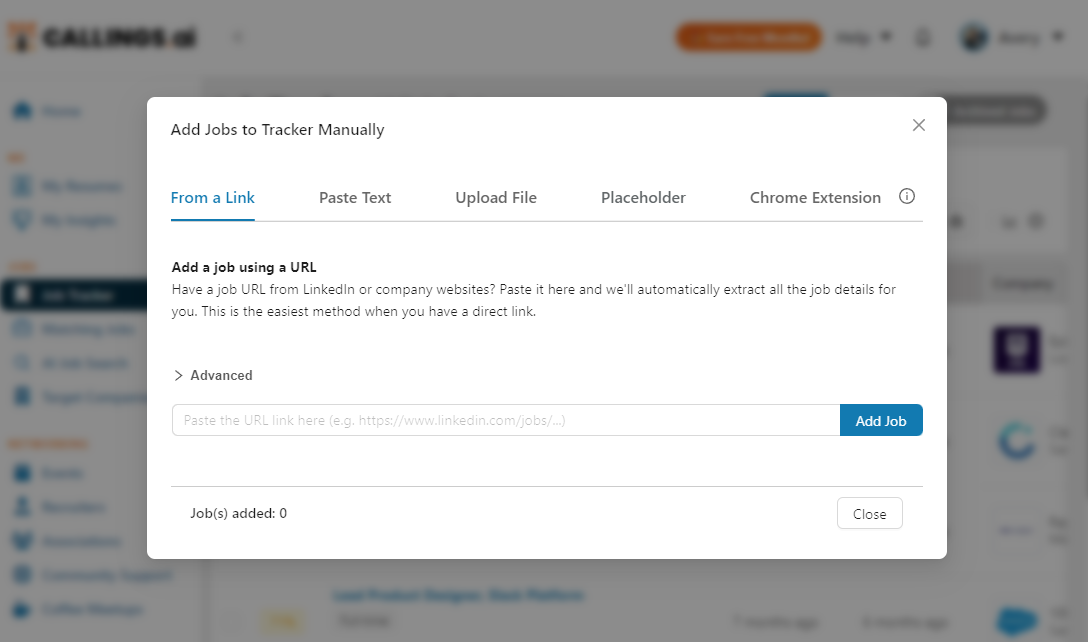
Manual Entry in Callings.ai lets you add jobs from any source by pasting a URL for automatic extraction, pasting job description text, uploading files (such as PDFs or Word documents), creating quick placeholders, or using the Chrome Extension while browsing. The AI automatically extracts job title, company, requirements, and details to create a complete tracker entry.
Add any job from any source to your tracker, even if it's not on a major job board.
Overview
The Manual Entry tool allows you to add jobs to your tracker from sources that automatic matching might not cover. Whether you found a job in an email, a private company portal, a PDF document, or even a screenshot, you can add it to Callings.ai to keep your entire job hunt centralized.
Privacy Note: Jobs you add manually are private. They are not shared with other users or published to the platform. They are visible only to you.
Ways to Add Jobs
There are five methods to manually add a job, designed to handle different situations:
1. Paste Link
Best for: Public job postings (Job Boards, Company Careers Pages)
If you have a direct URL to a job posting, this is the easiest method. 1. Copy the URL from your browser. 2. Select the Paste Link tab. 3. Paste the URL into the input field. 4. Click Add Job.
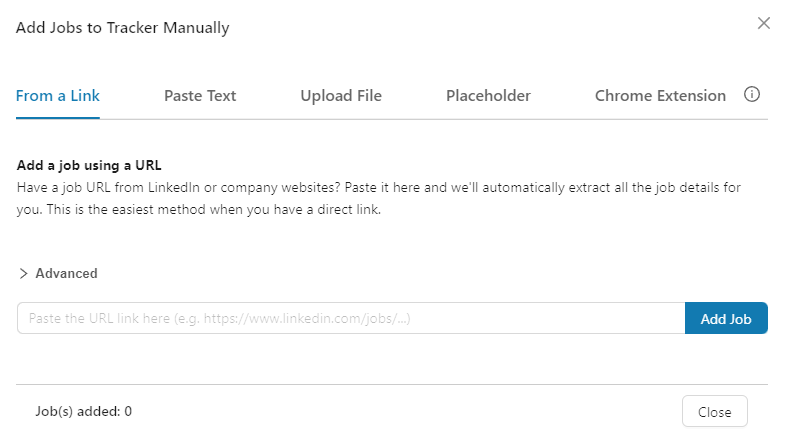
The system will visit the link and automatically extract the job details, including title, company, description, and requirements.
Compatibility: This method works for most URLs, including: - Most company career pages - LinkedIn job listing URLs - Many job boards (Indeed, Glassdoor, etc.)
Limitations: In some cases, the system cannot automatically extract job details: - Password-protected pages: If the job posting is behind a login wall, the system cannot access the content. - Blocked pages: Some websites block automated access even if the page is publicly visible.
If Paste Link doesn't work: Fall back to the Paste Text method: copy the job description text directly and paste it. You can still include the original URL in the "Source URL" field for your personal reference.
Note: The Paste Link feature uses the same extraction system as the Chrome Extension. If the Chrome Extension cannot add a job from a particular URL, there's a high chance that pasting the URL here won't work either.
2. Paste Text
Best for: Emails, Private Portals, or when Links fail
Sometimes a link might be behind a login wall or the automated scraper can't read it. In these cases, simply copy the text. 1. Select the text of the job description (from an email, document, or webpage). 2. Select the Paste Text tab. 3. Paste the text into the large text area. 4. (Optional) Add a "Source URL" if you want to remember where you found it. 5. Click Add Job.
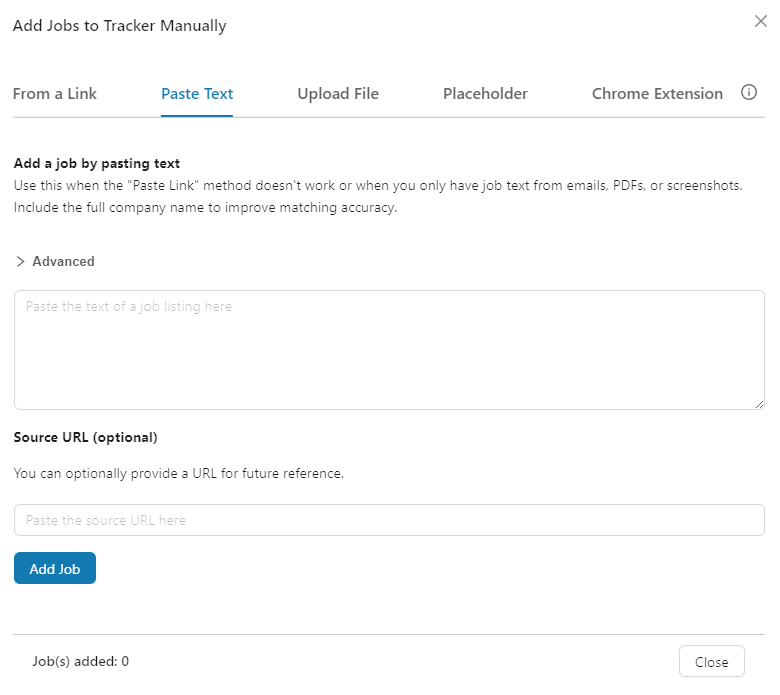
Tip: Make sure to include the Company Name and Job Title in the pasted text so the AI can identify them correctly.
3. Upload File
Best for: PDFs and Word Documents (e.g., job descriptions received by email)
If you have a job description saved as a file, for example a PDF or Word document that a recruiter sent you by email. 1. Select the Upload File tab. 2. Drag and drop your file or click to browse. 3. The system will upload and process the file to extract job details.
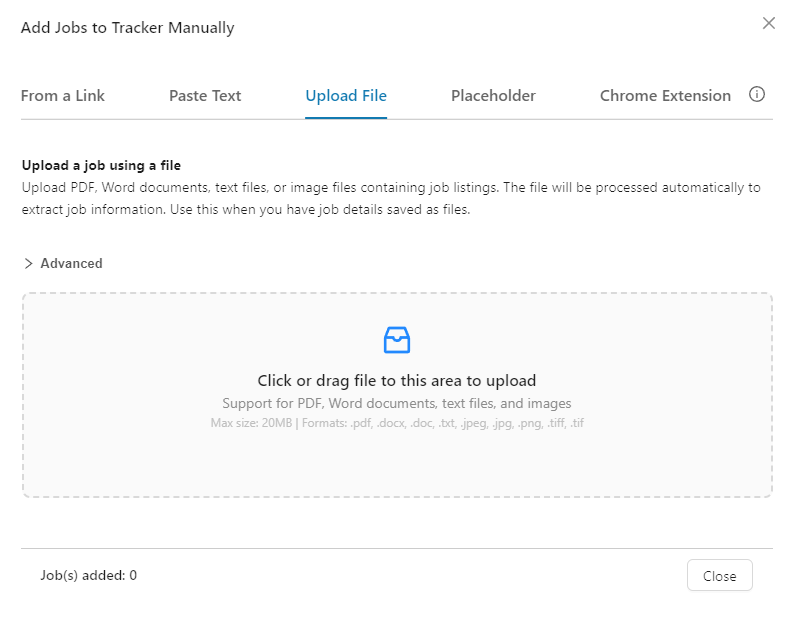
Supported Formats: - Documents: PDF, DOC, DOCX, TXT - Images: JPG, PNG, TIFF - Max file size: 20MB
4. Placeholder
Best for: Quick capture when you don't have full job details yet
Sometimes you hear about a job opportunity (through a referral, networking event, or casual conversation) but don't have the full job description yet. The Placeholder tab lets you capture what you know now and fill in details later.
- Select the Placeholder tab.
- Enter the Company Name and/or Job Title (at least one is required).
- Optionally add Location (with auto-complete suggestions).
- Optionally add Notes (e.g., who referred you, context from a conversation).
- Click Add Placeholder Job.
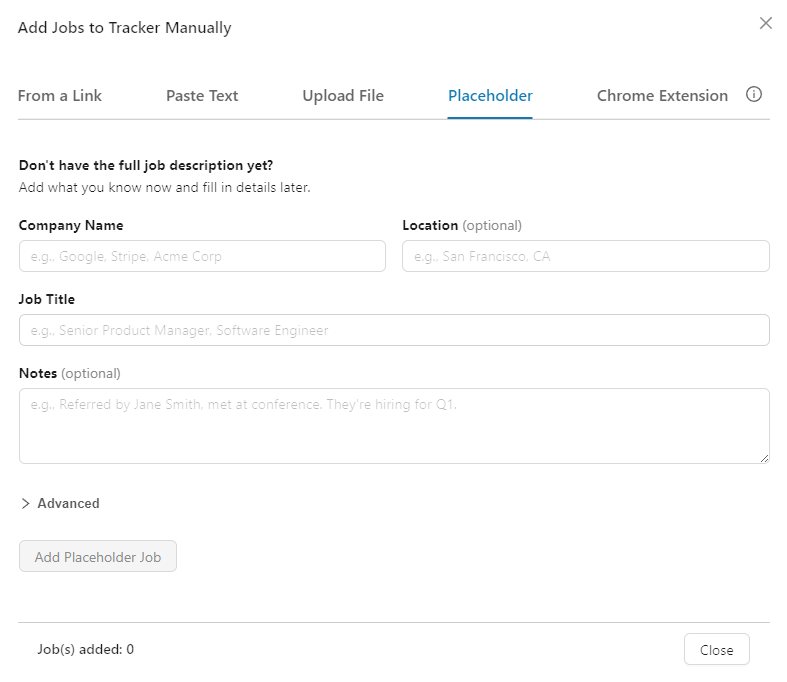
Use cases for placeholders: - A friend mentions their company is hiring, but you don't have the job posting yet. - You met a recruiter at a networking event and want to remember to follow up. - You're tracking a company you want to apply to once a role opens. - You want to quickly capture an opportunity and research it later.
Tip: You can always edit the placeholder job later to add the full job description, URL, or any other details once you have them.
5. Chrome Extension
Best for: Adding jobs while browsing job boards and company websites
The Chrome Extension is the fastest way to add jobs while you're actively browsing. It lets you save jobs with a single click without leaving the job page.
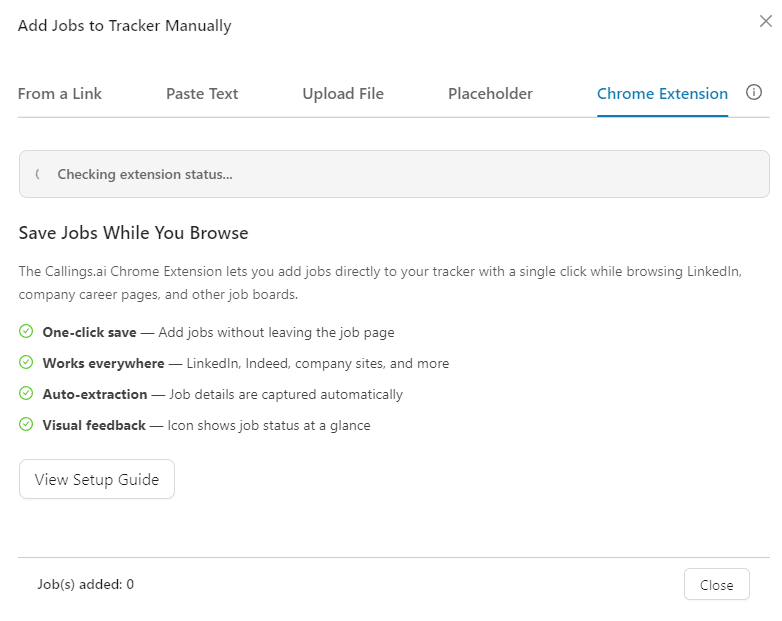
How it works: 1. Select the Chrome Extension tab to check your extension status. 2. If not installed, click Install Chrome Extension to add it from the Chrome Web Store. 3. Once installed, browse job sites as usual (LinkedIn, Indeed, company career pages, etc.). 4. Click the Callings.ai extension icon to save a job to your tracker instantly.
Extension Features: - One-click save: Add jobs without leaving the job page. - Works everywhere: LinkedIn, Indeed, company sites, and more. - Auto-extraction: Job details are captured automatically. - Visual feedback: Icon shows job status at a glance.
Extension Status Indicator: The Chrome Extension tab shows your current extension status: - ✅ Installed: The extension is active and ready to use. - ⚠️ Not Installed: Install the extension to enable one-click job saving. - ℹ️ Non-Chrome Browser: The extension only works in Google Chrome. Use other methods (Paste Link, Paste Text, Upload File) to add jobs.
Note: For detailed setup instructions and usage tips, see the Chrome Extension Guide.
Advanced: Tags (optional)
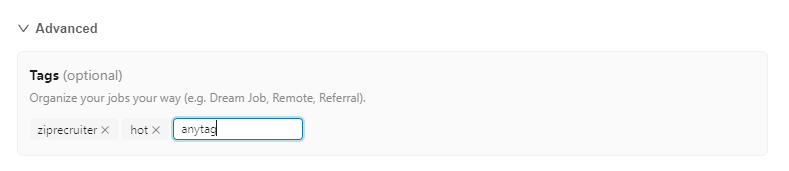
Every add method (Paste Link, Paste Text, Upload File, and Placeholder) includes an optional Tags section. Open it by clicking Advanced above the form, then add one or more tags before you add the job. The tags are applied to that job automatically.
Tags are free-form labels you create to organize your jobs your own way. There's no fixed list and nothing is pre-filled: you decide what the tags mean for your search. As you type, you'll see suggestions from tags you've used before so your wording stays consistent.
Examples of how to use tags
- Track the source: label where the job came from, such as
LinkedIn,Indeed,Referral,Recruiter, orCompany site. This is handy when you add jobs from many places and want to know later which sources lead to interviews. - Flag your favorites or priority:
Dream Job,Favorite,Backup,Stretch. - Note logistics:
Remote,Hybrid,Relocation,Visa sponsor. - Make your own categories: anything that helps you group jobs, like
Startup,Public sector, or a personal project name.
The Advanced section stays collapsed or expanded based on your last choice, so if you tag every job you only need to open it once. After each job is added, the selected tags clear so the next one starts fresh, while the tags you just used remain available as quick suggestions.
Tags you add here appear in the Tags column of the Job Tracker table (enable it in Table Settings) and feed the tag breakdown in Progress Analytics. Your job tags are private and kept separate from tags used elsewhere in the app.
Tip: Pick a small, consistent set of tags and reuse them. Consistent labels make the autocomplete more useful and give you a cleaner breakdown in analytics.
Key Features
- Universal Import: If you can see it, you can track it.
- AI Extraction: The system automatically identifies and recognizes information within the job listing, including job title, company, requisition ID, requirements, and description.
- Duplicate Detection: When you add a job that already exists in your tracker, you are notified with the existing job's details (title, company, stage, and when it was added). You can choose to skip the duplicate or add it anyway.
- Quick Placeholders: Capture opportunities instantly when you don't have full details yet.
- Browser Integration: Use the Chrome Extension for seamless one-click job saving while browsing.
- Confidentiality: Manually added jobs are never shared with the public pool.
- Source Tracking: Keeps a record of where the job came from (URL or file).
Tips & Best Practices
- Use "Paste Text" as a backup: If "Paste Link" fails (e.g., due to a password-protected page or blocked website), copying and pasting the text is a foolproof alternative. Include the original URL in the "Source URL" field for your reference.
- Upload documents from recruiters: If a recruiter emails you a job description as a PDF or Word document, use the Upload File tab to add it directly to your tracker.
- Create placeholders for leads: When you hear about an opportunity but don't have details yet, use the Placeholder tab to capture it immediately. You can always add more information later.
- Install the Chrome Extension: For the best experience while browsing job boards, install the Chrome Extension. It's the fastest way to add jobs to your tracker.
- Consolidate everything: Don't keep a separate spreadsheet for "offline" jobs. Add them here so you can use the Job Fit Report, Interview Prep, and Kanban Board for every opportunity.
- Tag as you add: Open the Advanced section and tag the job at creation (for example with its source or priority). It's faster than tagging later, and consistent tags power the analytics breakdown. See Advanced: Tags.
Frequently Asked Questions
Q: What happens if I try to add a job that's already in my tracker?
A: The system checks for duplicates before adding. If it finds a match (by URL or by job title and company), a notification appears showing the existing job's details, including when you added it and its current pipeline stage. You can choose to skip the duplicate or add it anyway if you want a separate tracker entry.
Q: If I add a job to my tracker, will other people see it?
A: No. Manually added jobs are strictly private and only visible in your account. They are not shared with other users or published to the platform.
Q: How long does processing take?
A: Usually between 15 to 90 seconds for URL and text extraction. This includes scraping the content from the source and processing the data to extract job details. Placeholders are created instantly since no extraction is needed.
Q: Do manually added jobs get a match score?
A: Yes. Once processing finishes, the job is scored against your resume just like any other job in your tracker. Placeholder jobs are the exception: with no job description yet, there is nothing to score until you add the details.
Q: Can I edit the details after adding?
A: Yes. Once the job is added to your tracker, you can edit the job listing, including title, company, description, and more. This is especially useful for placeholder jobs where you add more details later as you learn more.
Q: What are the optional Tags in the Advanced section?
A: Tags are your own labels for organizing jobs (for example a source like "LinkedIn", a priority like "Dream Job", or a note like "Remote"). Click Advanced to open the Tags section, then add any tags before adding the job. There's no fixed list, so use whatever categories work for you. Tags show in the Tracker table's Tags column and feed the Progress Analytics breakdown. For URL and file adds, tags are applied once the job finishes processing.
Q: Do I have to add tags?
A: No. Tags are completely optional. The Advanced section is collapsed by default, and you can add jobs without ever opening it. You can always add or change tags later from the Job Tracker.
Q: What's the difference between the Placeholder tab and the Chrome Extension tab?
A: The Placeholder tab is for quickly capturing job opportunities when you don't have the full job posting yet (e.g., from a referral or networking conversation). The Chrome Extension tab helps you install and use the browser extension, which lets you save jobs with one click while actively browsing job boards.
Q: Why would I use the Chrome Extension instead of Paste Link?
A: The Chrome Extension is faster and more convenient when you're actively browsing job sites. You can save jobs without copying URLs or switching tabs. Use Paste Link when you already have a URL saved somewhere (like from an email or note).
Q: A recruiter sent me a job description by email. How do I add it to my tracker?
A: You have two options depending on the format:
- If it's an attachment (PDF or Word document): Use the Upload File tab to upload the file directly.
- If it's in the email body: Copy the job description text and use the Paste Text tab. You can optionally include a link to the company careers page in the "Source URL" field for reference.
Q: I found a job on a specialized or niche job board. Which method should I use?
A: Try these methods in order:
1. Chrome Extension: If you're on the job page and have the extension installed, this is the fastest option.
2. Paste Link: Copy the job URL and paste it. This works for most public job boards.
3. Paste Text: If the above methods don't extract the details correctly, copy the full job description text and paste it directly. This is a reliable fallback that works with any source.
Q: The job listing is behind a login wall (requires sign-in to view). How do I add it?
A: When a job posting requires authentication, automated extraction can't access the content. Here's what to do:
1. Sign in to the job board and navigate to the job listing.
2. Select and copy the entire job description text from the page.
3. Use the Paste Text tab to paste the content.
4. Optionally add the URL in the "Source URL" field so you can return to the original posting later.
This is a common situation with company career portals, recruiter platforms, and some premium job boards. The Paste Text method works regardless of login requirements because you're providing the content directly.
Related Topics
Every opportunity deserves to be tracked, no matter where you found it. Whether it's a tip from a friend, an email from a recruiter, or a posting on an obscure job board, Manual Entry ensures nothing slips through the cracks. Your entire job search, all in one place.