Chrome Extension
The Callings.ai Chrome Extension lets you save jobs with one click while browsing company career pages, job boards, and other job sites, automatically extracting job details and adding them directly to your Job Tracker without leaving the page you're viewing.
The Callings.ai Chrome Extension is your personal assistant for saving and tracking jobs. It allows you to save jobs from most company career pages and job boards directly into your Callings.ai Job Tracker with a single click.
Installation Guide
Follow these simple steps to install and configure the extension for your browser.
Step 1: Install the Extension
⚠️ Important: Direct Link Required
The Callings.ai extension is NOT publicly listed in the Chrome Web Store.
You MUST use this direct link to install it; searching for "Callings.ai" will not find it:
Install Callings.ai Chrome Extension
Or copy this URL into your browser:
https://chromewebstore.google.com/detail/callingsai/glefbliidoffdjcnecpkldahmcllcnnp
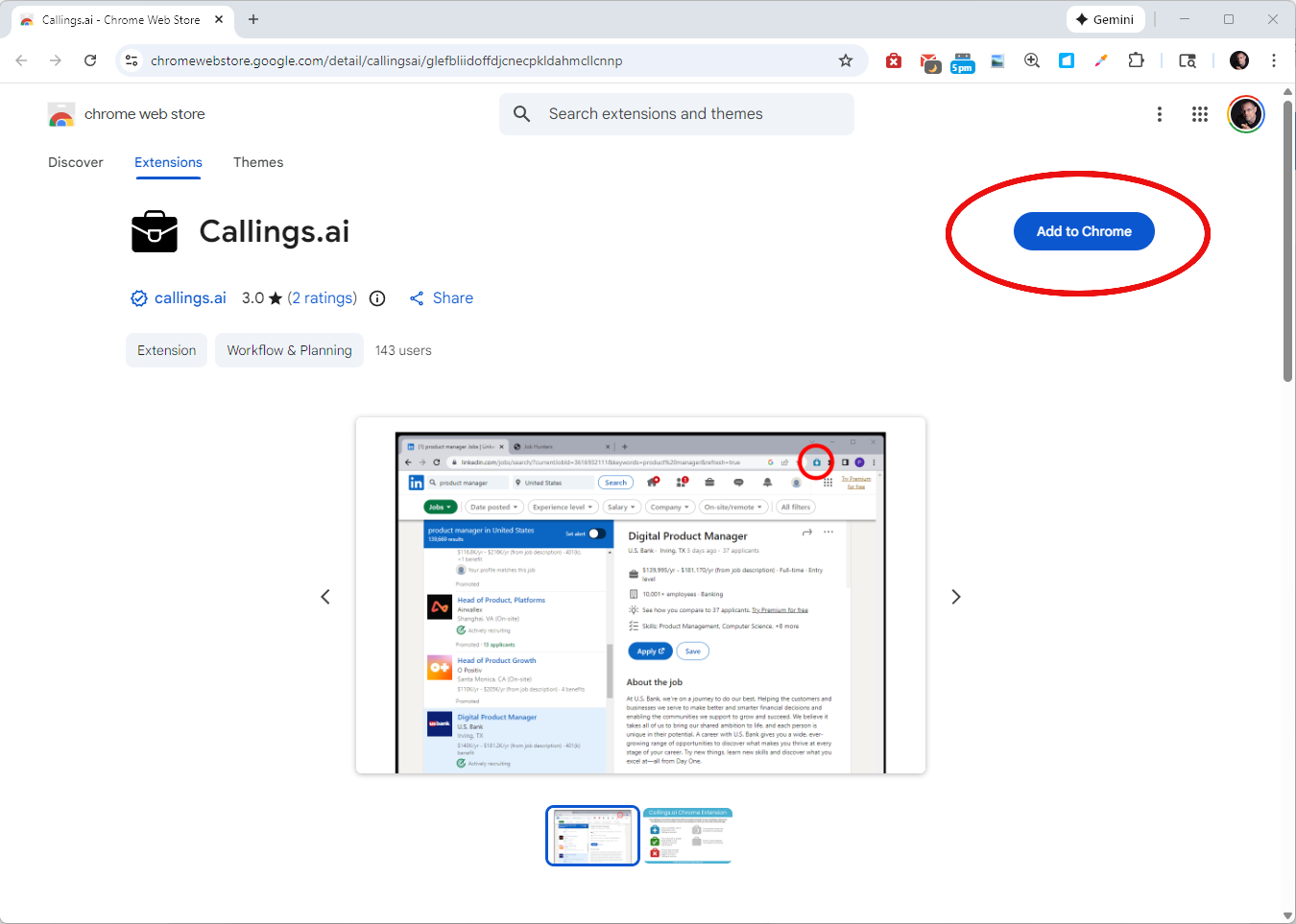
Once on the Chrome Web Store page, click the "Add to Chrome" button to install the extension.
Step 2: Access in Chrome Toolbar
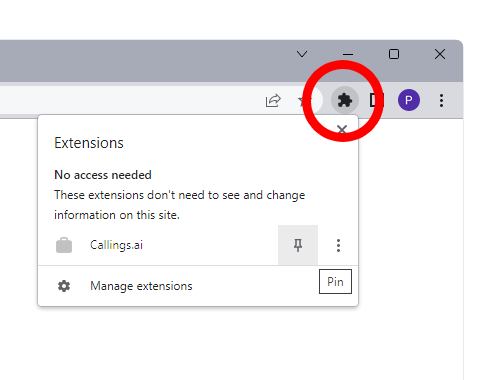
After installation, access the Callings.ai Chrome extension from the toolbar. Click the puzzle icon in the top right corner of Chrome to access your extensions menu.
Step 3: Pin the Extension
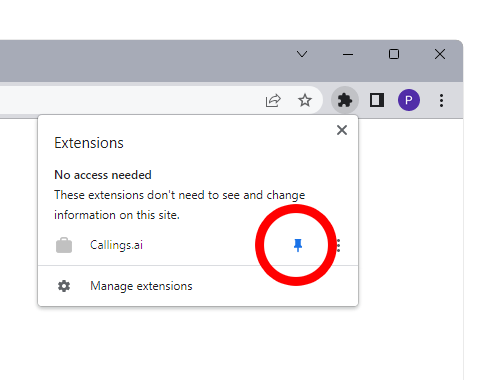
Locate Callings.ai in the dropdown menu and click the pin icon next to its name. This ensures the extension is always visible for easy access when you find a job you want to save.
Step 4: Adjust Extension Position
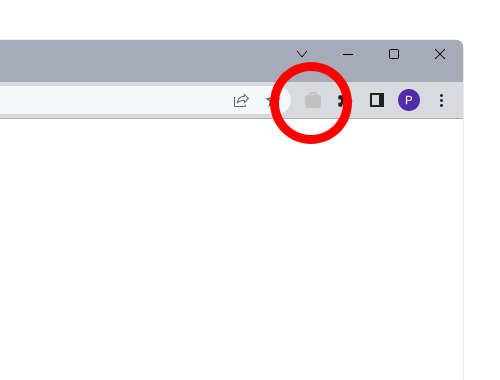
You can drag the Callings.ai icon to your preferred location in the Chrome toolbar.
Important: Before using the extension, make sure you are signed in to your account at callings.ai.
Using the Extension
The extension automatically detects job postings as you browse the web and lets you save them to your Job Tracker with a single click.
As you navigate websites, the extension monitors the page for job listings. When you land on a job posting, whether on a company career page or a job board, the extension icon in your toolbar changes to indicate what action you can take.
How It Works
-
Job Detected (Blue Icon): When the extension detects a job on the current page, the icon turns blue. Click the blue icon to add the job to your Job Tracker.
-
Processing (Animated Icon): After clicking, the icon displays a small animation while the job is being added to your tracker. Wait a moment for the process to complete.
-
Job Saved (Green Icon): Once the job has been successfully added, the icon turns green with a checkmark. If you navigate back to this job page in the future, the green icon will appear immediately, indicating the job is already in your tracker.
-
Error (Red Icon): If adding the job fails, the icon turns red. This typically happens when you are not signed in to Callings.ai. Make sure you are logged in at callings.ai in another browser tab.
Understanding the Status Icons
The Callings.ai extension icon changes to indicate the status of the current page:
| Icon | Status | Description |
|---|---|---|
 |
Add Job | A job has been detected on the page. Click the icon to save it to your Job Tracker. |
 |
Already Saved | This job is already in your Job Tracker. Click to view the job details in Callings.ai. |
 |
Processing | The system is currently adding the job to your Job Tracker. Please wait a moment. |
 |
No Job Detected | No job posting was detected on the current page. The system continues to monitor as you browse. |
 |
Error | Something went wrong. This usually happens if you are not signed in. Check your connection and sign in status. |
Tips & Best Practices
- Sign In First: Ensure you are logged into Callings.ai in another tab for the extension to work. The extension requires an active session to save jobs to your account.
- Company Career Pages: The extension works on many direct company career pages including those powered by Greenhouse, Lever, Workday, and other applicant tracking systems.
- Refresh if Needed: If the icon doesn't update immediately on a new job page, try refreshing the browser tab.
- Manual Entry Fallback: If a job page isn't detected automatically, you can always use the Add Job Manually feature by copying and pasting the job description text.
Frequently Asked Questions
Q: I see "The Chrome extension is not installed or is disabled" in the Add Jobs modal. What does this mean?
A: This message appears in the Chrome Extension tab of the "Add Jobs to Tracker Manually" modal when our system cannot detect the Callings.ai extension in your browser. This can happen for several reasons:
- Extension not installed: You haven't installed the extension yet. Click the "Install Chrome Extension" button or use this direct link to add it to Chrome.
- Extension disabled: The extension is installed but has been disabled. Click the puzzle icon in Chrome's toolbar, find Callings.ai, and make sure it's enabled.
- Wrong browser: You're using a browser other than Chrome (like Firefox or Safari). The extension only works on Google Chrome.
- Page needs refresh: Sometimes the detection takes a moment. Try refreshing the page or reopening the modal.
Once installed and enabled, you'll see a green checkmark with "The Callings.ai Chrome extension is installed and running."
Q: Does the extension work on Firefox or Safari?
A: Currently, the extension is only available for Google Chrome. Firefox and Safari are not supported at this time.
Q: The extension shows a red error icon. What should I do?
A: The red icon indicates that the job could not be added to your tracker. First, verify that you are signed in to your Callings.ai account in another browser tab. If you are signed in and still see the error, the job page format may not be supported. In this case, use the Add Job Manually feature to paste the job listing text directly.
Q: Can I save jobs from any website?
A: The extension is designed to work on major job boards and applicant tracking systems. If a site isn't supported, you can use the Add Job Manually feature in the Job Tracker to paste the job description text.
Q: Will using this extension affect my LinkedIn account?
A: No. The Callings.ai Chrome Extension does not read any content from the LinkedIn page: it only uses the URL from your browser's address bar. All job data retrieval is handled anonymously on our servers. There are no background requests to LinkedIn servers, no interaction with your LinkedIn session, and no violation of LinkedIn's terms of service. Your LinkedIn account is completely safe.
Q: Why isn't the extension listed publicly in the Chrome Web Store?
A: The Chrome extension is a companion tool designed for existing Callings.ai users. It is published as an unlisted extension to avoid confusion: we want users to understand that the extension works alongside their Callings.ai account, not as a standalone application. If you have a Callings.ai account, you can use the direct link above to install the extension and start saving jobs to your tracker.
Related Topics
Save jobs instantly from anywhere on the web. With the Chrome Extension in your toolbar, every interesting opportunity is just one click away from your Job Tracker: no more lost listings, no more forgotten URLs. Your job search stays organized effortlessly.