Daily Job Email
The daily job email brings you new postings from every saved search you have email turned on for, once a day, in one message. Each search gets its own section, ranked the way that search ranks in the app, with up to three jobs per search that you have never been sent before.
Everything in it comes from your saved searches, so you control the email entirely through them: the words, the resume they match against, the minimum match score, and the jobs you hide.
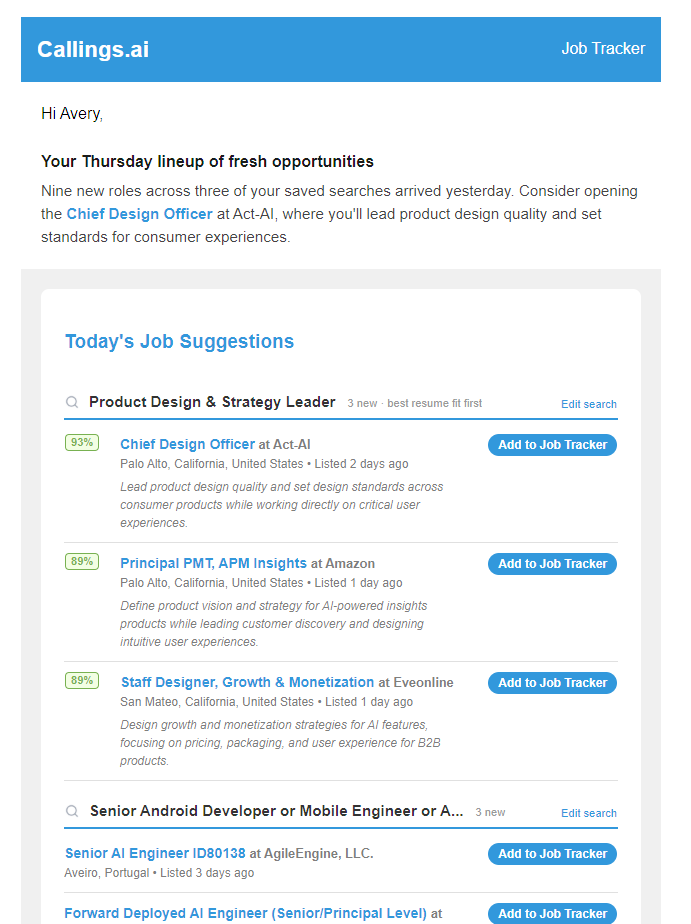
What the Email Contains
Each email is built from your saved searches, one section per search that has its Email checkbox ticked.
- A short intro. A few sentences that sum up the batch: how many new roles, which one stands out and why, how fresh they are. It only talks about jobs that appear in the sections below.
- One section per saved search. The header carries the search's name, how many new jobs it found, and how they are ordered. Edit search at the right of the header opens that search in AI Job Search.
- Up to three jobs per search, in the order that search uses in the app: relevance, newest first, or best resume fit first. Each row shows the title, company, location, listing age, a one-line summary, and an Add to Job Tracker button. The title opens the full listing.
- Match scores only where they mean resume fit. A percentage badge appears on searches that match against a resume, and it is the same score the app shows for that job. Searches that match keywords only, or that sort by newest, show no badge: a percentage there would not describe how well you fit. A search where you unticked Show resume match scores shows none either.
- Also matches. A posting found by several of your searches appears once, in the first section, with a note naming the other searches that matched it.
- Links at the bottom take you to the AI Job Search page for the full results and your saved-search library.
How the Jobs Are Chosen
The email runs each email-enabled saved search exactly as you would in the app, then keeps only jobs you have not seen.
- Same search, same rules. The search text, the resume or group it matches against, your search defaults, its sort order, and its posting-date window (the "posted in the last X days" wording, the window in your search defaults, or the default when neither says one) are all used as saved. The email never answers a different question than the search does.
- New to you. A job is dropped if it was sent to you in an earlier email, if you have hidden it, or if it is already in your Job Tracker.
- Your minimum score. On searches sorted by Resume match score, jobs below your minimum match score are left out, as long as Don't email me jobs with a match score lower than N% is ticked (it is by default). The minimum is one setting for your whole account, set from the gear icon in the results toolbar (see Minimum Match Score).
- Top three. What remains is cut to the top three for that search, in the search's own order.
- No news, no email. If nothing new clears these steps for any of your searches, no email is sent that day. A quiet morning means the searches found nothing new, not that the email is off.
The email goes out once a day, early morning US time. The subject line counts the jobs inside, for example "3 new job matches for you".
How to Improve What You Receive
Tuning a search tunes the email. Open the search from the Edit search link in its section header, or from AI Job Search in the app, and change it there. The AI Job Search guide covers every control in detail.
| If the email... | Try this |
|---|---|
| Shows roles that are off target | Tighten the search wording: add a title, a seniority, a location or salary floor, or exclude companies and industries. Rules you always want applied belong in your search defaults. |
| Shows no match scores | Match the search against a resume with the pill at the left of the search box. Scores appear only for resume-matched searches. |
| Shows too many low scores | Raise the minimum match score: the gear icon at the right end of the results toolbar, with Don't email me jobs with a match score lower than N% ticked. It applies to searches sorted by Resume match score. |
| Is thin, or stops arriving | Loosen the search: fewer must-haves, a wider posting window, a lower minimum score. The email never repeats a job, so a narrow search runs dry faster than it does on the page. |
| Keeps showing a kind of job you never want | Hide those jobs on the search page. Hidden jobs stay out of that search and out of every future email. |
| Has too many sections | Untick Email on the searches you do not want mailed. Each search's subscription is independent. |
| Should stop altogether | Untick Email on every search, or use the unsubscribe option your mail client shows. Turning the email off never deletes a search. |
Where to Turn It On or Off
- In AI Job Search: tick Email me new matches above the results, or the Email checkbox on the search's row in the saved-searches panel. New accounts start with one search, matched to the first resume, with email on.
- From a target company: Get job alerts on a company's Open Listings tab saves a search for that company's new postings with email on. It is an ordinary saved search, listed and switched off in the same places. See Get Job Alerts.
- In Settings: Settings > Notifications lists your saved searches with a checkbox each, alongside the other emails you can receive.
- From the email: Manage Email Preferences at the bottom opens those same checkboxes. The unsubscribe option your mail client shows turns the daily email off for every search at once. Either way, the searches themselves are kept.
Tips & Best Practices
- Keep two or three focused searches rather than one broad one. Each gets its own section and its own three slots, so the email covers more ground.
- Match at least one search against your resume, so the email carries scores and its intro can point at your best fit.
- A search you only want to browse can stay saved without its Email checkbox ticked.
- Add the jobs you like to the Job Tracker straight from the email. They will not be mailed again, and the Job Fit Report, Custom Resume and Cover Letter tools open up for them.
- Hide what you do not want as you browse. Hides feed back into the email the next morning.
Frequently Asked Questions
Q: Why did I not get an email today?
A: Nothing new cleared your searches. The email only sends when at least one email-enabled search has a job you have not been sent, hidden, or added to your tracker, and above your minimum score where one applies. Widen a search or lower your minimum score if this happens often.
Q: Why does one section show percentages and another does not?
A: Percentages are resume-fit scores, so they appear only on searches that match against a resume. Keyword-only searches and searches sorted by newest have nothing comparable to show, so their rows carry no badge.
Q: Why do I see jobs in the app that were not in the email?
A: The email is capped at three jobs per search and skips anything already sent, hidden, or tracked. The page shows everything the search matches, including jobs from earlier emails.
Q: Will the email repeat a job?
A: No. Once a job has been sent to you it is not sent again, even if it still matches. Jobs you hide or add to your Job Tracker are skipped as well.
Q: I changed my search. When does the email reflect it?
A: The next morning. Each email runs the search as it is saved at send time, so an edit made today shapes tomorrow's email. Click Update on the saved search first: an unsaved edit is not part of it.
Q: Does turning the email off delete my search?
A: No. The Email checkbox only controls the daily email. The search, its results, and its settings stay in your library.
Q: Where does the intro text come from?
A: It is generated automatically from the jobs in that day's email and nothing else: counts, freshness, match scores and section names. The wording varies from day to day.
Related Topics
- AI Job Search - Writing and saving searches, match modes, search defaults
- Account Settings - The Notifications checkboxes
- Job Tracker - Where jobs go when you add them from the email
The daily email is your saved searches working while you sleep. Keep the searches sharp and the inbox stays worth opening.