Target Companies
Target Companies is your strategic company targeting hub: a place to discover, research, and build relationships with companies where your skills and experience would be valued. Instead of waiting for job postings, you identify the right companies first and create your own opportunities.
Most great roles are never posted. Research consistently shows that 70-85% of jobs are filled through networking, referrals, and internal promotions, not through applications to open listings. Target Companies helps you flip the script: rather than reacting to job boards, you proactively identify companies where you'd thrive and approach them with a compelling, personalized pitch.
How It Works
Target Companies follows a three-step workflow designed to take you from market intelligence to actionable outreach:
1. Discover Companies
There are multiple ways to add companies to your list: - Find Companies: Discover employers across your recommended sectors from one search field - Add Manually: Add a specific company by pasting its LinkedIn URL, entering details by hand, or searching LinkedIn directly - Chrome Extension: Save companies straight from LinkedIn as you browse
2. Get Company Fit Report
When you save a company, AI generates a personalized analysis explaining why this company fits you, not generic company information, but a tailored assessment based on your resume, your skills, and your career goals. Each company gets fit scores, positioning advice, and a networking strategy.
3. Create Speculative Roles
Define roles you'd like to pursue at target companies, even before they're officially posted. See the full Speculative Roles guide for details.
Accessing Target Companies
Target Companies is accessible from the left sidebar as a top-level section. Click Target Companies to open the page.
First-time users: You'll see an empty state with a Find Companies button to get started.
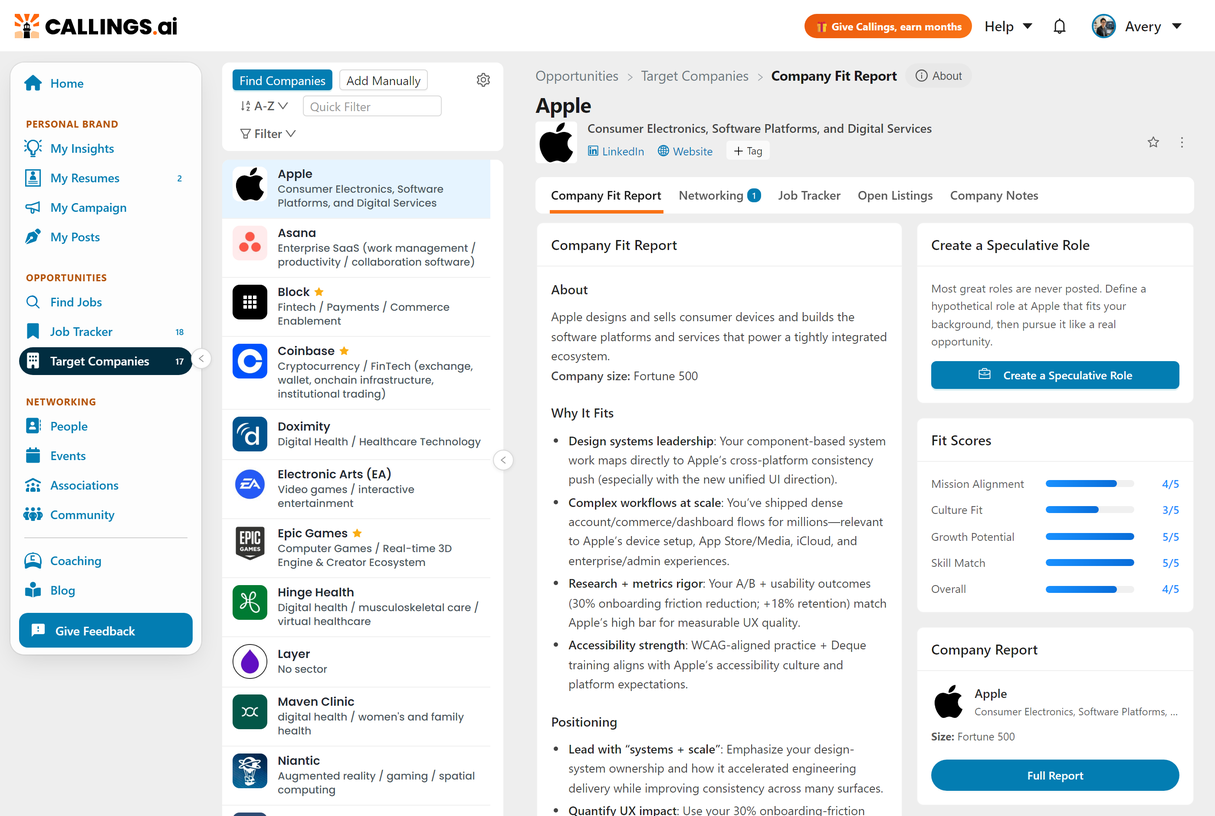
Returning users: The page is a full-width split view, the same layout as the Job Tracker. The left pane holds the company list under its own toolbar, and the right pane shows the selected company's details. Each pane scrolls independently, and a thin toggle bar between them lets you collapse the list into a compact logo rail when you want more room for the details.
Find Companies
Find Companies is your primary tool for discovering employers. Click the "Find Companies" button in the toolbar to open it.
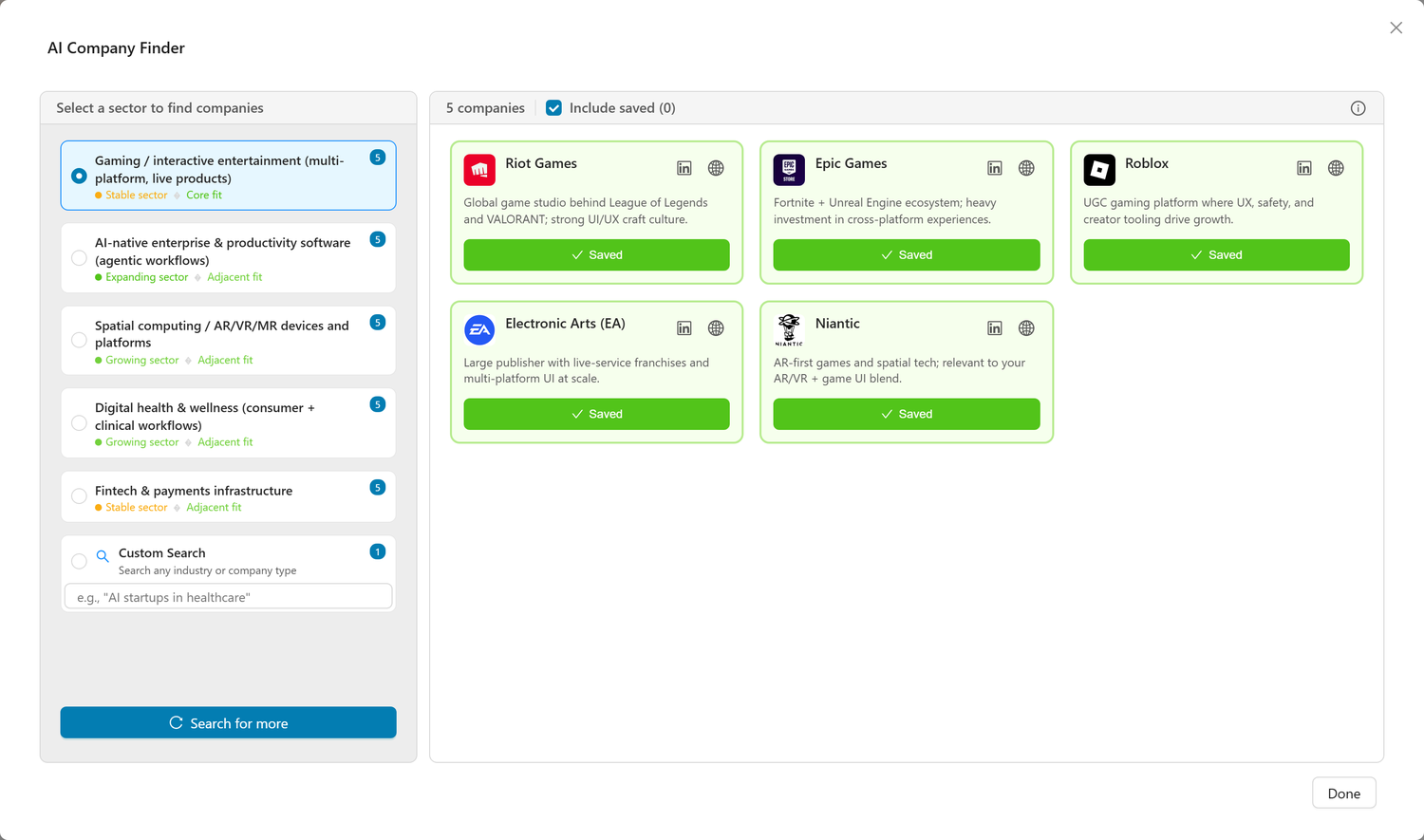
It is built like the AI Job Search: one box, and what you type in it is the whole search. Nothing is attached and nothing is read behind your back.
Describe what you are after
A place, a size, an industry or a kind of company all narrow the search, in any combination:
- "Companies in digital health, based near Boston"
- "AI startups in healthcare, 50-500 people"
- "Fintech companies in New York"
- "Employee-owned engineering firms in the Netherlands"
Suggested for you
The control at the left of the box opens your suggestions: the five markets your Market Fit Report picked out for you, each one a ready-made search.
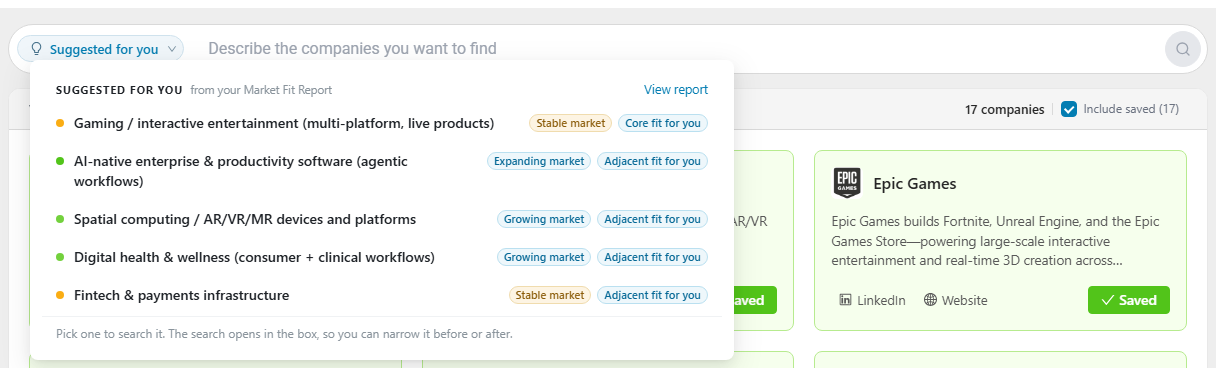
Every row carries what the report concluded:
| On the row | What it tells you |
|---|---|
| The market | The sector, as your Market Fit Report named it |
| First tag | How that market is doing: an expanding, growing, stable, declining or contracting market |
| Second tag | How close it is to what you have already done: a core or adjacent fit for you, a sideways move, a career pivot or a major one |
Click a row and a search for that market goes into the box and runs, so you can always read what was asked for and change it: name a different city, add a size, drop a word, then search again.
That search leans towards your own area without being pinned to it, and it asks for the market in plainer words than the report uses to describe it. Both are deliberate. A search pinned to one town returns whoever happens to be in that town; a search with no place at all returns the five companies everyone has already heard of. The point of this dialog is the ones in between.
No Market Fit Report yet? The sheet offers a link to generate one. The search itself works either way: describe what you are looking for and run it.
The band above the results repeats the search that produced them, so you can always see what you asked for.
How long it takes, and what is remembered
A search takes up to a minute, and each search replaces the last, so the results are always the answer to the search in the box.
Searches are remembered for a week. Running the same search again, or reopening the dialog, answers instantly from what it found last time instead of searching again. When you want a fresh look rather than the same answer, press search on the words already on screen: asking again for what is already there is what sends the search back out.
Saving and hiding
Each result card carries a Save button. Click it to add the company to your Target Companies list.
When you save a company: 1. AI enrichment begins automatically: the AI researches the company and generates a personalized analysis (why it fits you, positioning advice, networking strategy, fit scores) 2. Details fill in automatically: logos, ratings, and additional company data appear as they become available 3. The button turns green and reads "Saved"
Hide takes a company out of your results for good, so later searches will not offer it again.
Already-saved companies show "Saved" immediately. Use the "Include saved" checkbox in the results band to toggle whether they appear at all.
Your last search is kept, so closing the dialog and opening it again comes back to where you left off.
Company List
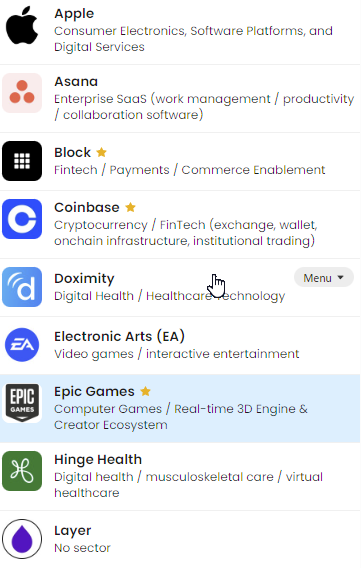
The left pane displays all your target companies in an independently scrolling list. The page title and the About pill, which opens the feature guide, sit in the breadcrumb header at the top of the page. At the top of the pane, a toolbar holds Find Companies, Add Manually, and a Settings gear (page size: 10, 20, 50, or 100 companies per page).
Toolbar
The toolbar sits at the top of the list pane.
| Control | Purpose |
|---|---|
| Find Companies | Opens the Find Companies dialog (subscription required) |
| Add Manually | Opens the manual company addition modal (free for all users) |
| Sort | Sort by "Recent" (newest first) or "A-Z" (alphabetical) |
| Quick Filter | Text search to instantly filter by company name |
| Filter | Opens the filter panel (Favorites, Industry, Size, Tags); shows a badge with the number of active filters |
Filtering Your List
Use filters to focus on the companies most relevant to your current priorities. Filters combine with the quick search text box.
Quick Filter
The text box in the toolbar filters the company list in real time as you type. It matches against company names.
Advanced Filters
Click the Filter button to open the filter panel. A badge on the button shows the number of currently active filters at a glance.
The panel contains a Favorites section plus three columns:
| Section | What It Filters |
|---|---|
| Favorites | Check Favorites only to show just the companies you have marked as favorites. |
| Industry | Filter to companies in specific industries. Each industry shows a count of matching companies. Use the search box at the top to find a specific industry. |
| Company Size | Filter by size band: Startup, Growth, Mid-size, Large, Enterprise, Fortune 500, Public Sector. |
| My Tags | Filter to companies with specific tags. Each tag shows a count of matching companies. |
You can combine any of these selections. The list updates immediately as you check each item.
Active Filter Chips
When one or more filters are active (including Favorites only), they appear below the toolbar as closable chips. Click the × on any chip to remove that individual filter. Click Clear all filters in the filter panel to remove all active filters at once.
Filter Persistence
Your active filters are saved automatically and restored the next time you open the page. You do not need to reapply them after navigating away.
Company Cards
Each card in the list shows: - Company logo - Company name with a star indicator when the company is a favorite - Sector - A Menu control (visible on hover) with the company commands: Edit company, Add to / Remove from favorites, and Delete company - Enrichment spinner if insights are still being generated
Click any company card to view its full details in the right pane. Pagination appears below the company list when there are more companies than the configured page size.
Collapsing the Company List
Resizing the list. Drag the thin divider between the company list and the detail pane to make the list wider or narrower. The width you set is remembered in that browser, so the list comes back the same size next time. You can also focus the divider with the keyboard and use the left and right arrow keys, or Home to return to the default width.
The thin toggle bar between the list and the detail pane has a chevron that collapses the list into a compact logo rail. In the rail, each company appears as its logo; the selected company is marked with a blue bar, and clicking any logo switches to that company. Click the chevron again to expand the full list. Your choice is remembered across sessions.
Company Detail
When you select a company, the right pane displays comprehensive information organized into five tabs: Company Fit Report, Networking, Job Tracker, Open Listings, and Company Notes. Tabs with content show a count badge (for example, the number of networking contacts or open listings). The Open Listings badge counts postings from the last 30 days.
Header
The detail header displays: - Company logo and a large company name, with a gold star when the company is a favorite - Sector - Links row: Clickable LinkedIn profile link, website link, and the + Tag editor for the company's tag chips (see Tags below)
Below the tabs, the Company Fit Report tab opens with a white toolbar carrying the company commands: Edit company, Add to / Remove from favorites, and Delete company (the same commands as each row's Menu in the list).
As you scroll the details, the header shrinks to a compact single line and stays pinned at the top together with the tabs, so you can always see which company you are viewing and switch tabs without scrolling back up.
Company Fit Report Tab
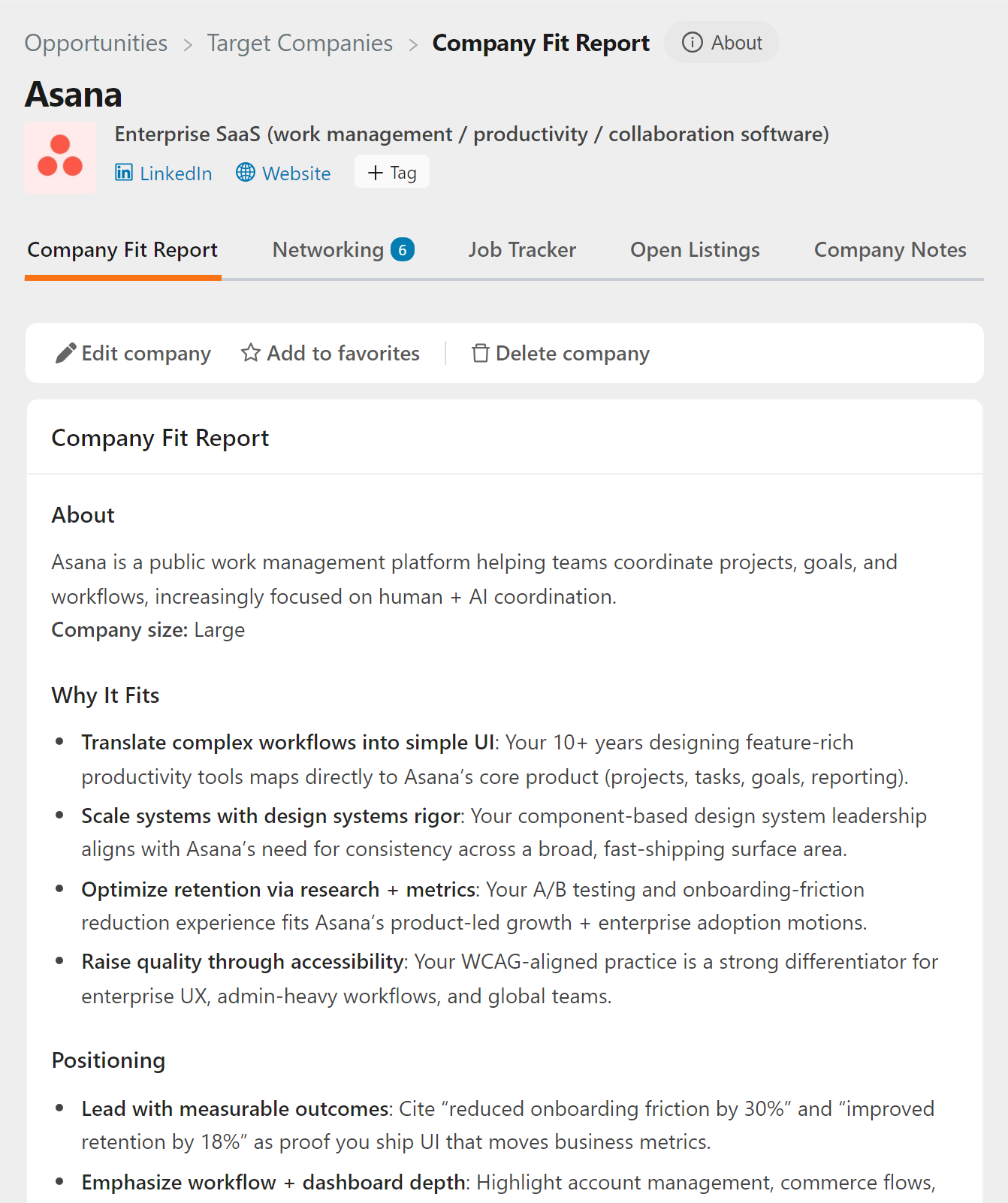
The primary tab with AI-generated intelligence about the company. It uses a two-column layout: a main Company Fit Report card with the written analysis, and a right-hand column of cards with actions and at-a-glance data.
Company Report Banner
If a company is missing both a LinkedIn URL and a website, a banner prompts you to add one. Click the "Edit Company" button on the banner, add either identifier, and the full Company Report and employee ratings unlock for that company.
Main Card Sections
| Section | What It Contains |
|---|---|
| About | One-line company description and company size |
| Why Prioritized | Why this company was ranked for outreach priority |
| Why It Fits | Personalized analysis of strategic fit: how your experience maps to company needs |
| Positioning | Concrete talking points and skills to highlight when approaching this company |
| Networking Strategy | Actionable step-by-step plan for outreach: specific departments, roles, and approaches to target |
| Sector Context | Why this sector aligns with your trajectory + macro-economic drivers |
Sidebar Cards
| Card | What It Contains |
|---|---|
| Create a Speculative Role | The action card for generating a hypothetical position at this company. See Creating Speculative Roles. |
| Fit Scores | Visual bar gauges for five dimensions (see below) |
| Company Report | A summary of the company's employee ratings: overall star rating with review count, Recommend and Outlook percentages, and company size. Click Full Report to open the complete Company Report. |
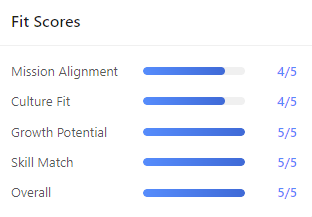
Fit Scores Explained
Each company receives five fit scores on a 1-5 scale:
| Score | What It Measures |
|---|---|
| Mission Alignment | How well the company's mission resonates with your values and goals |
| Culture Fit | Alignment with company culture based on your work style and preferences |
| Growth Potential | Career growth opportunities at this company for someone with your profile |
| Skill Match | How well your skills match roles typically hired at this company |
| Overall | Weighted average considering all factors |
These scores help you quickly compare companies and prioritize where to focus your outreach energy.
Enrichment Status
When you first save a company, you may see an enrichment banner indicating that AI analysis is in progress. Enrichment typically completes within 30-60 seconds. The page updates automatically when insights are ready. You don't need to refresh.
Networking Tab
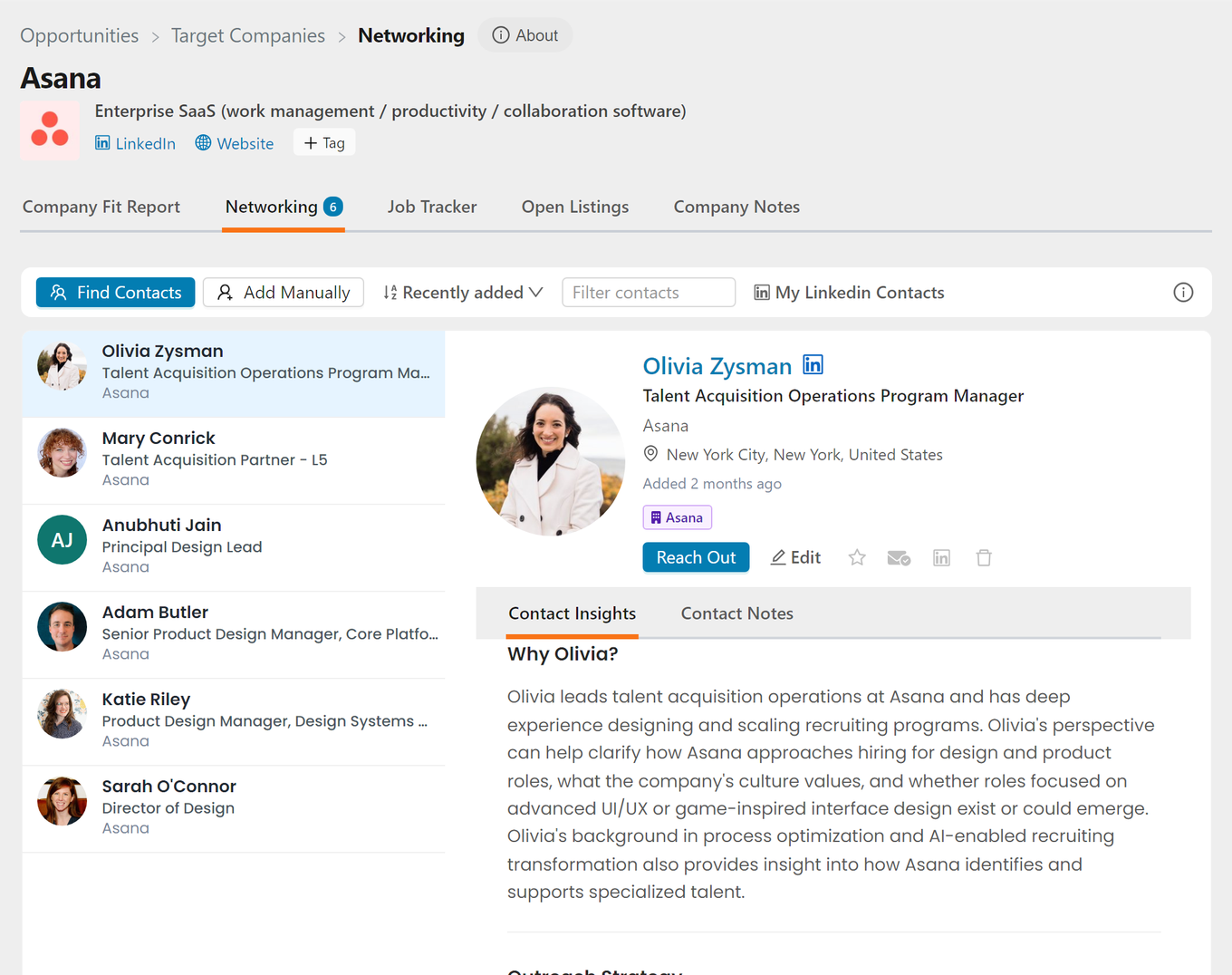
The Networking tab helps you find, research, and reach out to the people worth talking to at this company, even before any job posting exists. It works like the Networking Targets card on a job in your Job Tracker, but scoped to the company and your background instead of a specific role.
The tab shows a white toolbar above a card with the contact list on the left and the selected contact's details beside it; the first contact is selected automatically. If you want more room, collapse the company list into the logo rail using the toggle bar's chevron.
Suggest Networking Targets
With no contacts yet, the tab shows a Suggest Networking Targets button. Click it to run an AI search for up to 7 people at the company worth reaching out to, selected relative to your background:
- Decision-makers: leaders who could create or approve a role for someone like you (heads, directors, and VPs of your function)
- Senior peers: experienced practitioners who would know of unposted needs and could refer you
- Recruiters: internal talent-acquisition people who hire for roles like yours
Each person is verified against their LinkedIn profile to be a current employee of the company; look-alikes at other companies are dropped. Suggestions you have not kept or ignored yet show a Suggested pill, where you can keep or ignore them. The search usually takes one to three minutes. You can switch companies or leave the page while it runs: the run continues on the server, each company keeps its own progress, and the tab shows the result the next time you open it.
Finding and Adding Contacts
The toolbar offers the same tools as the job Networking card:
| Control | Purpose |
|---|---|
| Find Contacts | Opens the AI Contact Finder to search the company by category: peers, senior peers, recruiters, or a custom query. Save the people you like from the results. |
| Add Manually | Add a contact yourself (by LinkedIn URL or by hand) |
| Sort / Filter | Sort the contact list or filter it by name/company as you type |
| My LinkedIn Contacts | Cross-reference your imported LinkedIn connections at this company |
Each contact row has a Menu control (visible on hover) with quick actions: edit, favorite, mark connected on LinkedIn, mark reached out, and delete. Status icons next to the contact's name show favorites, LinkedIn connections, and reach-outs at a glance.
Contact Insights and Outreach
Selecting a contact opens their profile with AI-generated insights: why this person is worth contacting given your background, a networking profile based on their LinkedIn activity, and an outreach strategy. Because there is no job posting, the messaging is exploratory: focused on learning about the company and building a genuine relationship, not applying for a role.
Click Reach Out to open the Outreach Assistant. It drafts a personalized email and a LinkedIn connection message for you automatically, grounded in your resume and the company context, and you can refine either with the AI chat. Each contact also has its own Contact Notes tab for tracking conversations.
Contacts Are Shared with Your Jobs
Contacts are a single record across the app. If you later track a job at this company (or already have one), the company's networking contacts are automatically suggested on that job's Network tab, marked with a "Suggested" tag. Each job keeps its own list, so removing a contact from one job doesn't affect another, and any notes you've written travel with the contact everywhere it appears.
Job Tracker Tab
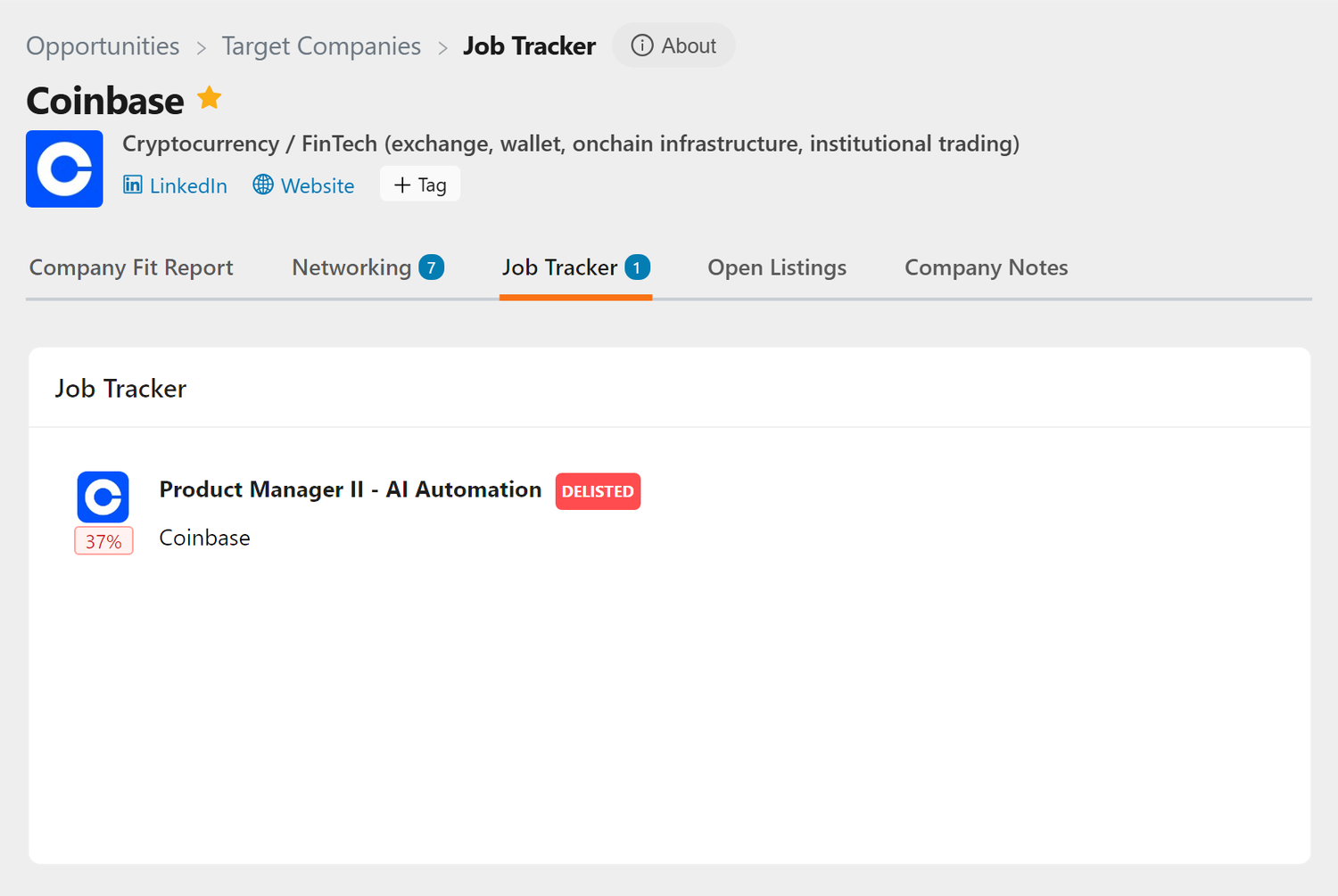
The Job Tracker tab lists the roles from your Job Tracker that are associated with this company, including speculative roles you created from the company. The tab badge shows the count. Use it to jump straight from company research to the jobs you're actively pursuing there.
Open Listings Tab
The Open Listings tab answers one question: what has this company posted lately. It shows the job postings from the Callings.ai jobs database that this company published in the last 30 days, newest first.
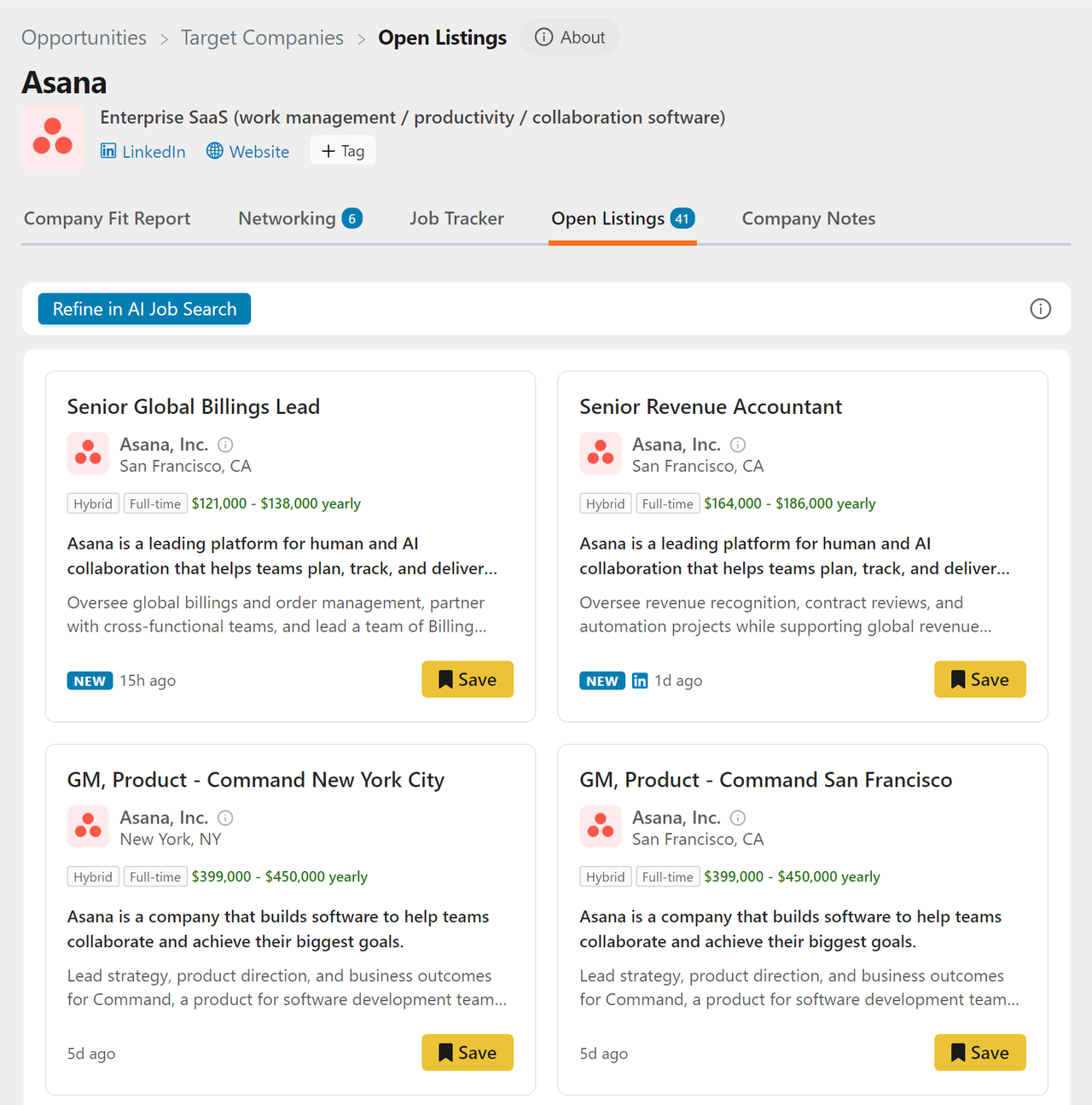
The tab is deliberately simple. There is no ranking, no match percentage and no sorting to choose, so the order never changes under you: the newest posting is always at the top. When you want to narrow the list, rank it, or be told about new roles, use Refine in AI Job Search (below).
Important: Open Listings shows the postings Callings.ai has found for this company; it does not search the web or external job boards in real time. If no listings appear, it does not mean the company has no open roles; always check the company's careers page for the complete picture.
Each listing card shows: - Job title and location - Save button (bottom-right of each card) to add the listing directly to your Job Tracker pipeline - Hide button to dismiss a listing you're not interested in
Refine in AI Job Search
The toolbar above the listings has a Refine in AI Job Search button. It opens the AI Job Search with this company already pinned as a tag, so everything that search can do is available on top of it:
- Narrow by anything else: type a role, a location, a salary floor or a date range beside the tag
- Sort by relevance, by newest, or by how well each role matches one of your resumes
- Save the search, and turn on Email me new matches so new roles at this company reach you without you having to check back
The tag is matched on the company's website rather than on its name, so spelling differences do not matter. Remove it with the small x on the tag to search everywhere again.
Refreshing Listings
When no listings are found, the empty state offers a Recheck button that runs a fresh lookup. This is useful if you believe the company has recently posted new roles that may not have appeared yet.
If we cannot work out which organization a saved company refers to, the tab says so rather than reporting no listings, since the two mean very different things. Adding the company's website through Edit company almost always resolves it.
Coverage Limitations
Coverage varies by company size, geography, and industry. For a broader view of available roles, open the full Company Report from the Company Report card on the Company Fit Report tab, which provides additional context about the company's hiring patterns.
Company Notes Tab
The Company Notes tab provides a personal workspace for each company, with an Add Note button in its toolbar.
- Add notes about conversations, impressions, or research
- Track your interactions and outreach progress
- Notes are private and only visible to you
Tags
Tags let you organize your target companies with your own labels. Create tags like "Top Priority", "Follow Up", "Series B", "Mission-Driven", or anything else that helps you stay organized. You can then filter your entire list to show only companies with a specific tag.
Adding Tags
Tags can be added in two places:
From the Company Detail header: 1. Select a company to open its detail panel 2. Click the + Tag button in the header (dashed border) 3. Type a tag name: autocomplete suggests tags you've already created on other companies 4. Press Enter or click a suggestion to apply the tag
From the Edit Company modal: 1. Click Edit company on the toolbar at the top of the Company Fit Report tab (or choose it from the row's Menu in the list) 2. The tag editor appears at the bottom of the form 3. Add or remove tags the same way as in the detail header 4. Click Save to apply all changes
Removing Tags
Click the × on any tag chip to remove it from a company. The tag is removed immediately.
Tag Autocomplete
When you start typing a tag name, the input suggests tags you've used on other companies. Selecting an existing tag keeps your labels consistent and makes filtering more useful. You can also type a brand-new label and press Enter to create it.
Filtering by Tag
Once tags are assigned, use the Filter button in the toolbar to filter your company list by one or more tags. The My Tags column in the filter panel lists all your tags with a count of how many companies have each tag. Check one or more tags to narrow the list.
Adding Companies Manually
Click "Add Manually" in the toolbar to open the Add Company modal. The modal offers four ways to add a company:
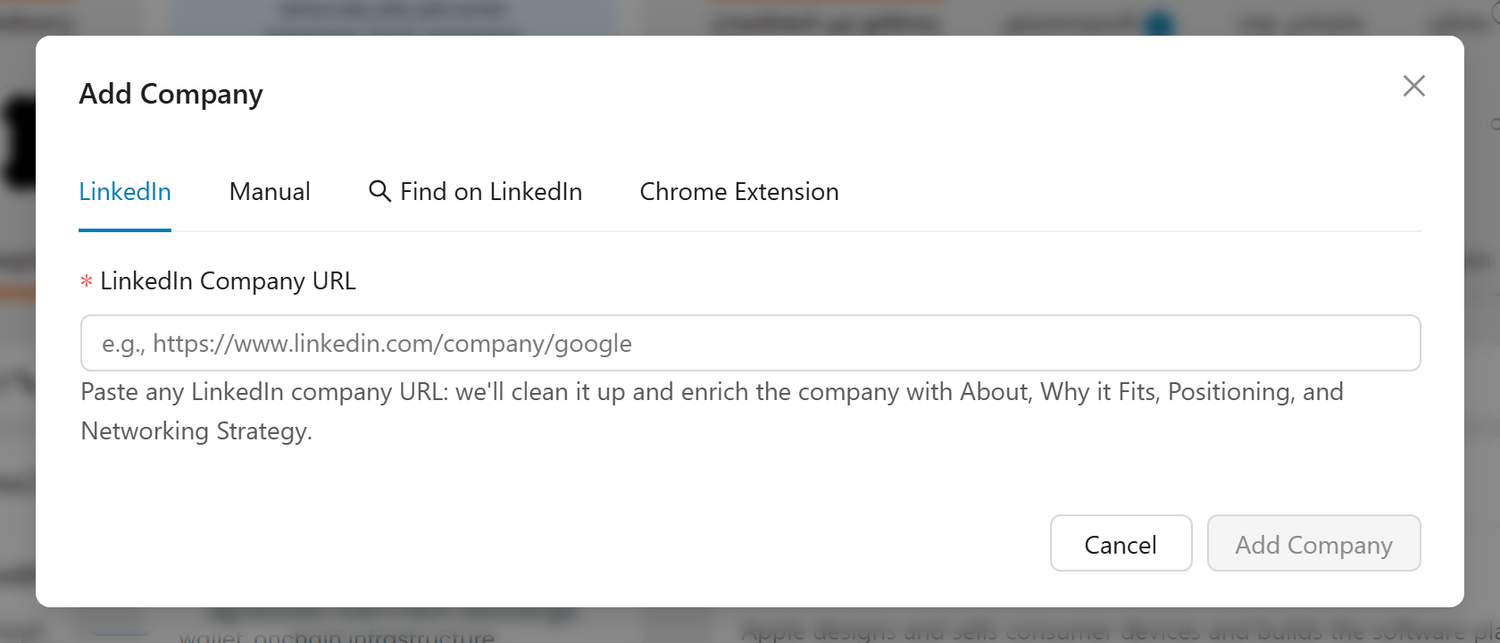
LinkedIn URL (Recommended)
The LinkedIn tab is the default and recommended method:
- Paste the company's LinkedIn URL (e.g.,
https://www.linkedin.com/company/microsoft) - Click Add Company
- The system automatically enriches the company with AI-generated insights, logos, ratings, and fit analysis
This is the fastest way to add a company with the full profile: insights, logo, ratings, and the Company Report, with no further setup.
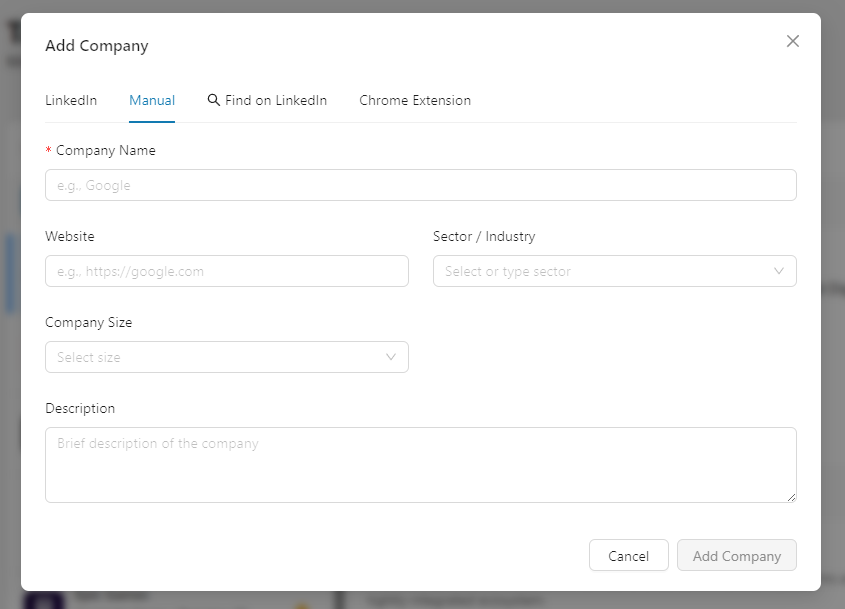
Manual Entry
The Manual tab lets you enter company details by hand:
- Enter the Company Name (required)
- Optionally fill in: Website, Sector/Industry, Company Size (Startup, Growth, Mid-size, Large, Enterprise), Description
- Click Add Company
Companies added by name only start with basic information. Add a LinkedIn URL or website later (via Edit) to unlock AI insights, ratings, and the Company Report.
Find on LinkedIn
The Find on LinkedIn tab helps you search for companies on LinkedIn directly:
- Enter Keywords for the company you're looking for
- Optionally filter by Industry, Location, and Company Size
- Click "Search on LinkedIn" to open LinkedIn's company search results in a new browser tab
- From LinkedIn, copy the company's URL and paste it in the LinkedIn tab to add it
This is useful when you know the type of company you want but don't have the exact LinkedIn URL.
Chrome Extension
The Chrome Extension tab shows the status of the Callings.ai Chrome Extension and provides installation instructions. With the Chrome Extension installed, you can save companies directly from LinkedIn as you browse (see Adding Companies from LinkedIn below).
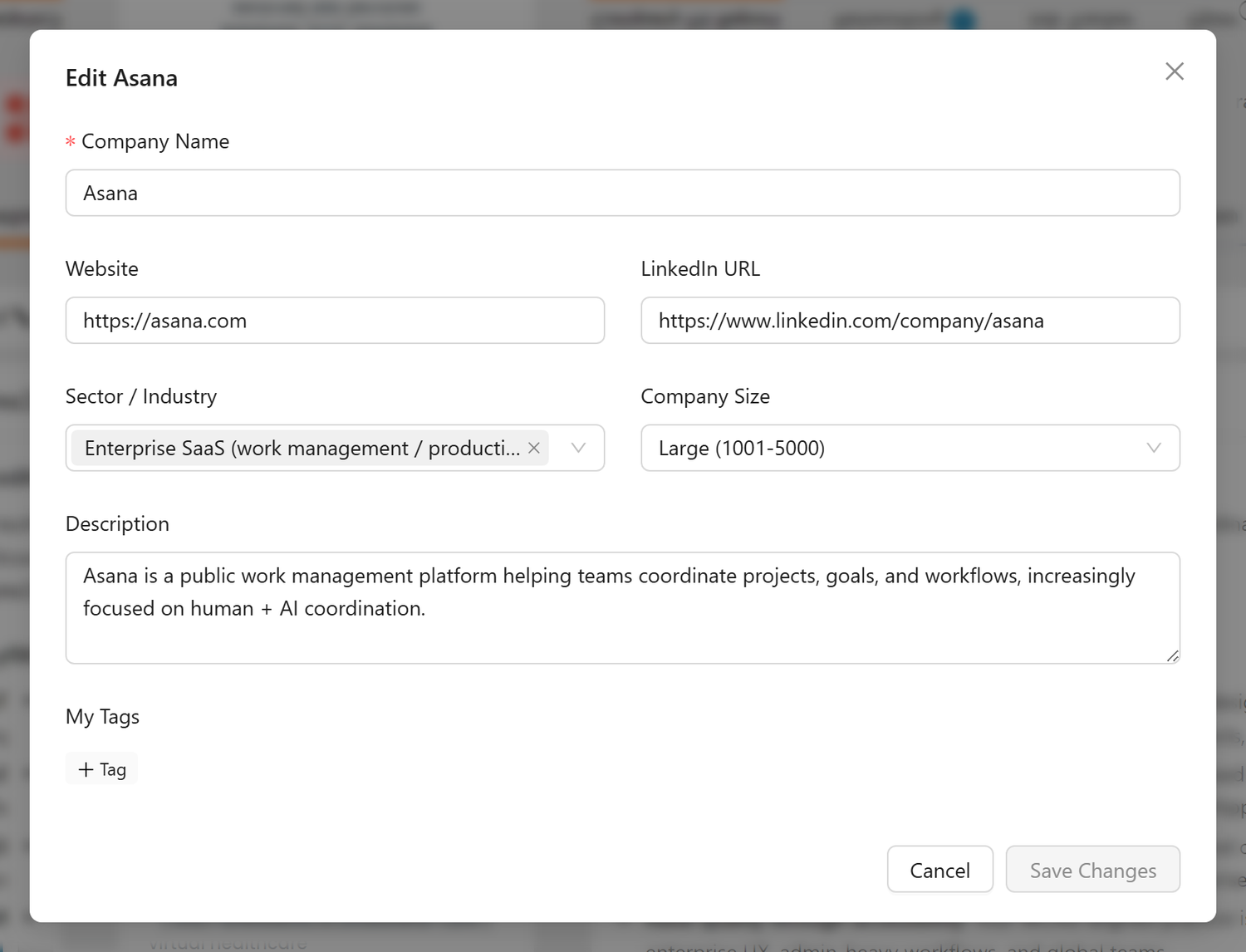
Editing a Company
You can edit any company's details after adding it:
- Select the company in the list
- Click Edit company on the toolbar at the top of the Company Fit Report tab (or choose it from the row's Menu in the list)
- The Edit Company modal opens with the current values pre-filled
Editable Fields
| Field | Description |
|---|---|
| Company Name | The company's display name (required) |
| Website | Company website URL |
| LinkedIn URL | LinkedIn company profile URL |
| Sector / Industry | Industry classification |
| Company Size | Size band (Startup, Growth, Mid-size, Large, Enterprise) |
| Description | Brief company description |
| Tags | Add or remove tags to organize this company |
Unlocking the Full Company Profile
Adding a LinkedIn URL or Website to a company unlocks its full profile: the Company Report, employee ratings, and richer AI analysis. You can add a company by name first and come back later to add either identifier; everything fills in automatically from there.
Adding Companies from LinkedIn
With the Callings.ai Chrome Extension installed, you can save companies directly from LinkedIn:
- Browse LinkedIn and visit any company page (e.g.,
linkedin.com/company/google) - The Chrome Extension detects you're on a company page (works with
/company/,/school/, and/showcase/URLs) - Click the extension button to add the company to your Target Companies list
- The company appears on your Target Companies page with AI enrichment starting automatically
If the company is already in your list, the extension shows it as "already saved."
Your Target Companies page updates in real time when you add companies via the Chrome Extension, even if the page is already open in another tab. New companies appear in the list automatically, no refresh needed.
Creating Speculative Roles
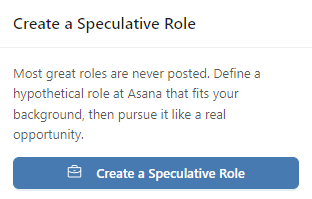
From any enriched company, use the Create a Speculative Role card at the top right of the Company Fit Report tab to generate a hypothetical position tailored to both your skills and the company's needs. The role is saved to your Job Tracker where you can use all the standard tools (Custom Resume, Cover Letter, Interview Prep, etc.).
For the complete guide on creating, editing, and using speculative roles, see Speculative Roles.
Subscription required: Creating speculative roles requires an active subscription.
The Workflow: From Discovery to Opportunity
Target Companies is designed to work as part of a larger career strategy:
1. Generate your Market Fit Report → Understand which sectors value your skills
2. Discover companies → Use Find Companies, add manually, or save from LinkedIn via the Chrome Extension
3. Save promising companies → AI enriches each with personalized insights
4. Edit and enrich → Add LinkedIn URLs or websites to unlock Company Reports and ratings
5. Review insights → Understand why each company fits, how to position yourself, and who to contact
6. Create speculative roles → Define the positions you'd pursue at each company
7. Add to Job Tracker → Use the full suite of tools (Custom Resume, Cover Letter, Interview Prep)
8. Build relationships → Use the networking strategy to approach the right people
This workflow helps you access the hidden job market, the 70-85% of roles that are never publicly posted.
Tips & Best Practices
Start with Your Market Fit Report
Find Companies gets its examples from your Market Fit Report. Generate your Market Fit Report first. It provides the industry intelligence that makes company recommendations relevant and personalized.
Cast a Wide Net, Then Focus
Save more companies than you think you need. You can always dismiss or delete companies later, but having a broader list gives you more options and helps you spot unexpected opportunities. Mark your top priorities as favorites and use the Favorites only filter to focus when you're ready to take action.
Use the Positioning Advice
Each company's Positioning section contains specific talking points tailored to that company. These aren't generic suggestions. They reference your actual skills and the company's actual needs. Use these when: - Writing connection requests - Drafting cold outreach emails - Preparing for informational interviews - Updating your resume for a specific company
Follow the Networking Strategy
The Networking Strategy section provides step-by-step outreach plans. These are concrete, actionable steps, not vague advice like "network more." They tell you which departments to target, what roles to look for, and how to approach specific types of people at the company.
Revisit and Refresh
Companies evolve. Revisit your target companies periodically: - Re-search sectors for newly discovered companies - Delete companies that no longer fit your goals - Add notes about conversations and progress
Combine with Company Reports
Click Full Report on the Company Report card (top right of the Company Fit Report tab) to generate a deeper analysis. The Company Report provides additional intelligence beyond what's in the Target Companies insights, including competitive landscape, company culture signals, and detailed hiring patterns. If ratings are missing from the card, add a LinkedIn URL or website via the Edit Company button on that notice, or Edit company on that tab's toolbar, to unlock them.
Add Identifying Data Early
When adding companies manually by name only, come back and add a LinkedIn URL or website as soon as you can. This unlocks the full Company Report, employee ratings, and richer AI analysis. Look for the banner in the Company Fit Report tab prompting you to add it.
Use the Chrome Extension for Passive Discovery
Install the Chrome Extension to build your target company list as you naturally browse LinkedIn. When you come across an interesting company, one click saves it to your list with automatic AI enrichment. Your Target Companies page updates in real time, so you can continue browsing without interruption.
Frequently Asked Questions
Q: How does Find Companies choose the companies it shows?
A: It searches for real companies matching the sentence in the box, and nothing else. An example button fills that box for you, and you can edit it before running it again.
Q: Do I need a Market Fit Report to use Target Companies?
A: No, but it's recommended. Without one, you can still search by typing what you are looking for, or use Add Manually or the Chrome Extension. The Market Fit Report is what fills the example buttons under the search box, with their health and fit readings.
Q: How long does AI enrichment take?
A: Typically 30-60 seconds per company. The page updates automatically when enrichment is complete. No need to refresh.
Q: Why do Open Listings only go back 30 days?
A: The tab is meant to answer "what has this company posted lately", so it stays short and current rather than becoming a long archive. For a wider window, use Refine in AI Job Search and ask for a longer period, for example "in the last 3 months".
Q: Why is there no match score on the Open Listings cards?
A: This tab is a straight recency list, so nothing reorders it and the newest posting is always first. To see how each role matches you, open Refine in AI Job Search and sort by one of your resumes.
Q: The tab says it could not match my company. What does that mean?
A: It means we could not tell which organization the saved company refers to, which is different from that company having no openings. It usually happens when the company was added without a website. Choose Edit company, add the website, and the listings appear.
Q: I know this company is hiring, so why does the tab look empty?
A: Open Listings only shows what Callings.ai has already found and only covers the last 30 days, so a very recent posting or a company we do not yet cover well can leave it thin. Try Recheck first, then check the company's own careers page.
Q: Is saving companies free?
A: Find Companies requires an active subscription. However, you can add companies manually for free using the "Add Manually" button or the Chrome Extension, and each added company automatically receives AI-generated insights (fit analysis, positioning advice, networking strategy). Creating speculative roles also requires a subscription.
Q: How many companies can I save?
A: There's no fixed limit. Save as many companies as you want to build a comprehensive target list.
Q: What's the difference between "Find Companies" and "Add Manually"?
A: Find Companies uses AI to discover companies based on your profile and sector analysis. Add Manually lets you add a specific company you already know about via its LinkedIn URL (recommended), by entering details manually, or by searching LinkedIn to find it.
Q: Can I edit a company after adding it?
A: Yes. Click Edit company on the toolbar at the top of the Company Fit Report tab (or choose it from the row's Menu in the list). You can update the name, website, LinkedIn URL, sector, size, and description. Adding a LinkedIn URL or website unlocks the Company Report and ratings.
Q: What does the "Company Report Unavailable" banner mean?
A: It appears when we need a LinkedIn URL or website to identify the company. Add either one via the Edit Company button on the banner (or Edit company on the Company Fit Report tab's toolbar) and the Company Report unlocks automatically.
Q: Can I add companies from LinkedIn using the Chrome Extension?
A: Yes. With the Chrome Extension installed, visit any LinkedIn company page and click the extension button. The company is automatically added to your Target Companies list with full AI enrichment. Works with company, school, and showcase pages.
Q: What is the "Open Listings" tab and why does it show no results?
A: Open Listings shows the postings Callings.ai has found for the selected company over the last 30 days. Seeing zero results does not mean the company has no open roles; coverage varies by company. Use the Company Report for a broader view of the company's hiring activity, and check the company's LinkedIn page or careers site for the most up-to-date listings.
Q: Does my Target Companies page update when I add companies from the Chrome Extension?
A: Yes. The page updates in real time; new companies appear in the list automatically without a manual refresh.
Q: Can I remove a company from my list?
A: Yes. Click Delete company on the toolbar at the top of the Company Fit Report tab (or choose it from the row's Menu in the list). Notes and insights for that company will be permanently deleted.
Q: What are the fit scores based on?
A: Fit scores are generated by AI analysis that considers your resume, the company's industry position, their typical hiring patterns, and alignment across five dimensions: Mission Alignment, Culture Fit, Growth Potential, Skill Match, and Overall.
Q: How is this different from the Networking Targets in Job Tools?
A: Target Companies focuses on companies: discovering and analyzing organizations where you'd want to work, and its Networking tab finds people at a company based on your overall background. Networking Targets (in Job Tools) finds contacts for a specific job you're pursuing. They complement each other, and the contacts are shared: people you add on a company are automatically suggested on your jobs at that company.
Q: Who does "Suggest Networking Targets" find on the company Networking tab?
A: Up to 7 current employees of the company worth reaching out to given your background: decision-makers who could create or approve a role for someone like you, senior peers who know of unposted needs, and internal recruiters. Each person is verified against their LinkedIn profile to actually work at the company before being added.
Q: Do contacts I add on a company show up on my jobs?
A: Yes. When you open the Network tab of a job at the same company, the company's networking contacts are automatically suggested there with a "Suggested" tag. Each job keeps its own independent list, and any notes you've written travel with the contact.
Q: How is outreach different when there's no job posting?
A: Company networking outreach is exploratory by design. The AI drafts messages focused on genuine curiosity: learning about the company, asking for perspective, and building a relationship, rather than pitching yourself for a specific role. The Outreach Assistant generates the email and LinkedIn message automatically when you open it.
Q: Can I search for companies in sectors not listed by my Market Fit Report?
A: Yes. Type the industry, company type or niche into the Find Companies box. The examples are a starting point, never a limit.
Q: What does "Create a Speculative Role" do?
A: It generates a hypothetical job opportunity tailored to your skills and the company's needs. Once created, it's saved to your Job Tracker. See the full Speculative Roles guide.
Q: How often should I search for new companies?
A: Search whenever your career focus shifts or you want fresh perspectives. Markets change, new companies emerge, and your own priorities evolve. There's no cost to re-searching a sector.
Q: Can I configure how many companies appear per page?
A: Yes. Click the Settings gear at the top right of the company list pane and choose your preferred page size (10, 20, 50, or 100). The setting is saved and persisted across sessions.
Q: What are tags and how do I use them?
A: Tags are custom labels you assign to companies to help you organize your list. For example, you might tag certain companies "Top Priority", "Warm Contact", or "Series B". Once tagged, you can filter your list to show only companies with a given tag using the advanced Filter panel. Add tags via the tag editor in the company detail header or in the Edit Company modal.
Q: Do my tags carry over between sessions?
A: Yes. Tags are saved with each company record. They persist until you explicitly remove them.
Q: Can I apply the same tag to multiple companies?
A: Yes. Type the same tag name when editing any company and the autocomplete will suggest it. Reusing tags is what makes filtering by tag useful.
Q: What filters are available in the filter panel?
A: The filter panel has a Favorites only checkbox plus three columns: Industry (filter by industry/sector with counts), Company Size (Startup, Growth, Mid-size, Large, Enterprise, Fortune 500, Public Sector), and My Tags (your custom tags with counts). All selections can be combined. Active filters are shown as chips below the toolbar and are saved across sessions.
Q: How do I clear all active filters quickly?
A: Open the Filter panel and click Clear all filters at the top right. You can also remove filters one at a time by clicking the × on any active filter chip below the toolbar.
Related Topics
- Market Fit Report: Generate the sector intelligence that powers Find Companies
- Chrome Extension: Save companies directly from LinkedIn as you browse
- Networking Targets: Find specific contacts at your target companies
- Custom Outreach: Craft personalized outreach messages
- Job Fit Report: Evaluate your fit for specific roles
- Company Report: Get deeper company analysis
The best career opportunities rarely come from job boards. They come from knowing which companies value what you offer, understanding how to position yourself for each one, and building relationships before a role is ever posted. Target Companies gives you the intelligence to find those companies, the insights to approach them with confidence, and the tools to create opportunities that don't exist yet.