Job Description Analysis and Profile Match
Job Description displays the complete original job posting with AI-powered Profile Match highlighting, showing how your skills and experience align with each requirement, giving you a visual map of your strengths, partial matches, and gaps to address before applying.
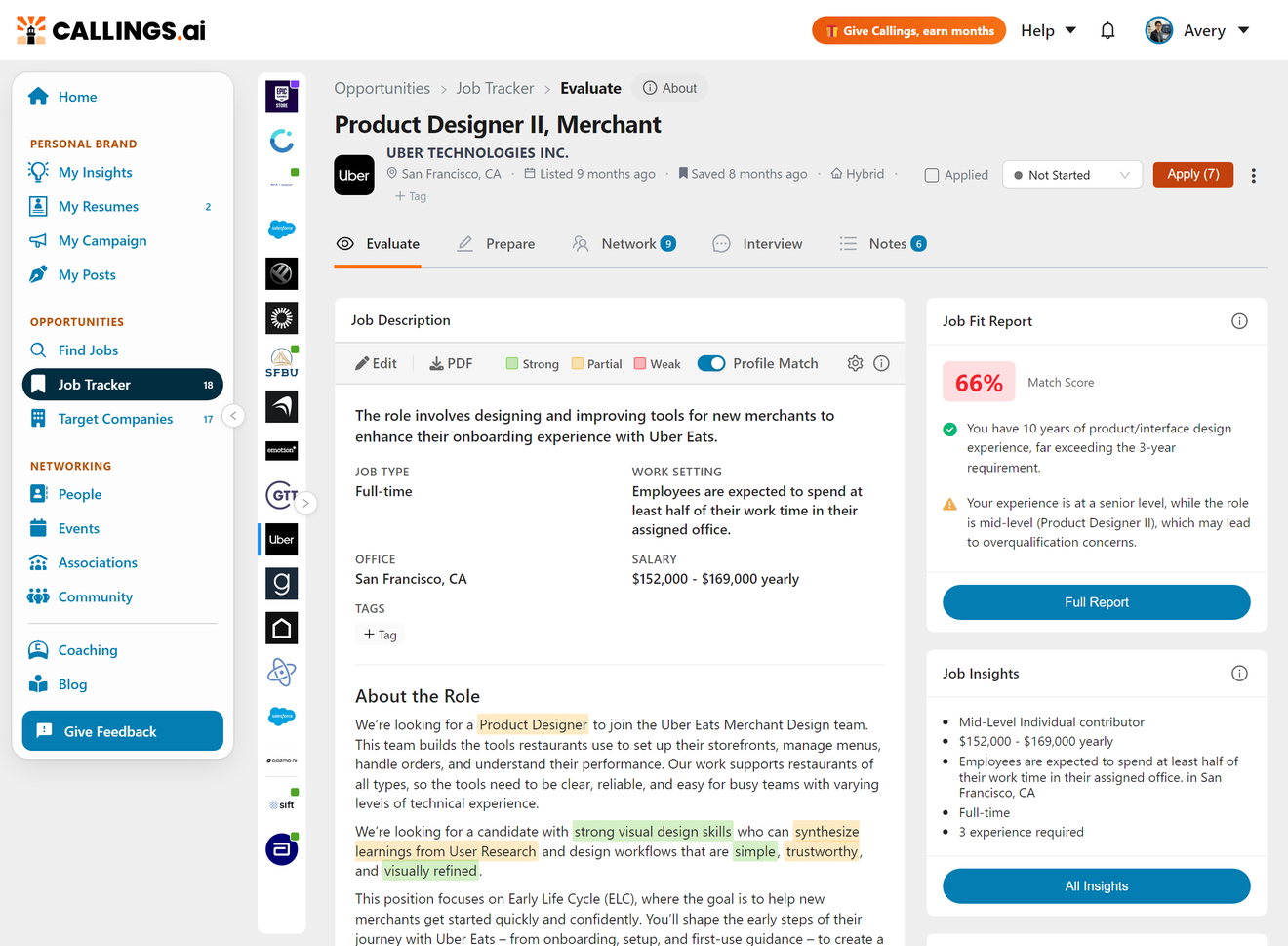
What You'll See
Profile Match Highlighting
The Profile Match feature automatically highlights text in the job description to show how your background aligns with each requirement:
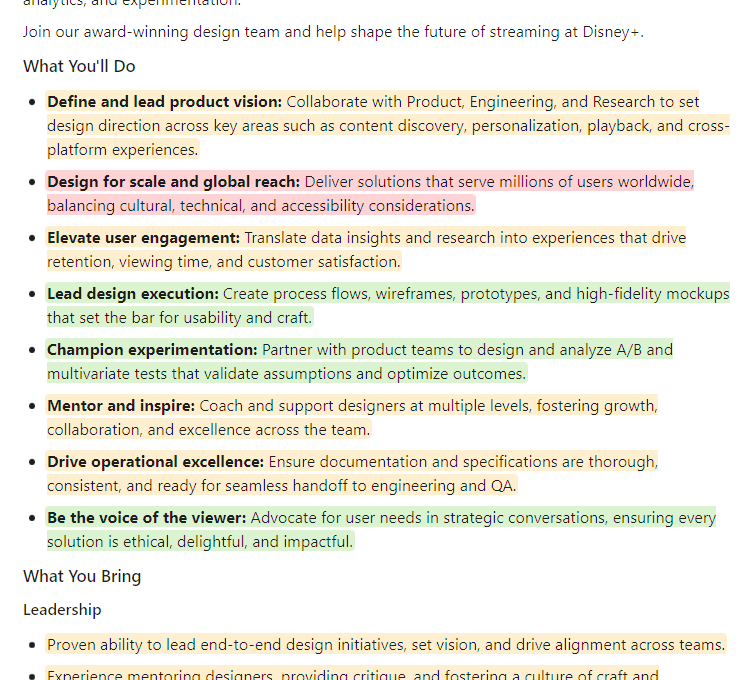
Understanding the Highlight Colors
| Color | Meaning | What It Indicates |
|---|---|---|
| Green | Strong Match | Requirements that strongly align with your experience and skills |
| Yellow | Partial Match | Areas where you have transferable skills or related experience |
| Red | Gap/Weak | Skills or requirements you may need to develop or address in your application |
Using Profile Match Effectively
The highlighting helps you:
- Quickly identify your strengths - Green highlights show where you're well-positioned
- Find transferable skills - Yellow areas indicate where adjacent experience applies
- Prepare for objections - Red highlights reveal gaps you should address proactively
- Prioritize interview prep - Focus on demonstrating strength in highlighted areas
Tip: Pay special attention to red-highlighted requirements. These are opportunities to prepare compelling responses about how you'll bridge those gaps or why your alternative experience is valuable.
Toggling Profile Match On/Off
Use the Profile Match toggle to show or hide the highlighting:
- Toggle ON - See the color-coded alignment visualization
- Toggle OFF - View the clean job description text without highlights
Toolbar Actions
| Action | Description |
|---|---|
| Edit | Open the editor to modify text, highlights, or job details |
| Download the job description as a PDF document | |
| Settings (gear icon) | Options for the PDF download |
To re-analyze the job description against your profile and update the highlights, open the editor and click Refresh Highlights.
Editing Job Information
Since job data is automatically extracted from postings (either captured via the browser extension or processed by AI), there may be times when you need to make corrections or updates. Callings.ai provides a built-in editor that lets you refine any job's information.
Accessing the Editor
To open the editor:
- Click the Edit button in the toolbar, or
- Click anywhere on the job description text
The editor has three tabs.
Note: The editor is designed for small updates only (titles, locations, salary adjustments). No AI reprocessing occurs when you save changes. For major corrections or if the AI captured the wrong job entirely, consider adding the job opportunity fresh instead.
The Three Editor Tabs
1. Job Description Tab
This tab provides a rich text editor for the full job description with integrated Profile Match highlighting tools.
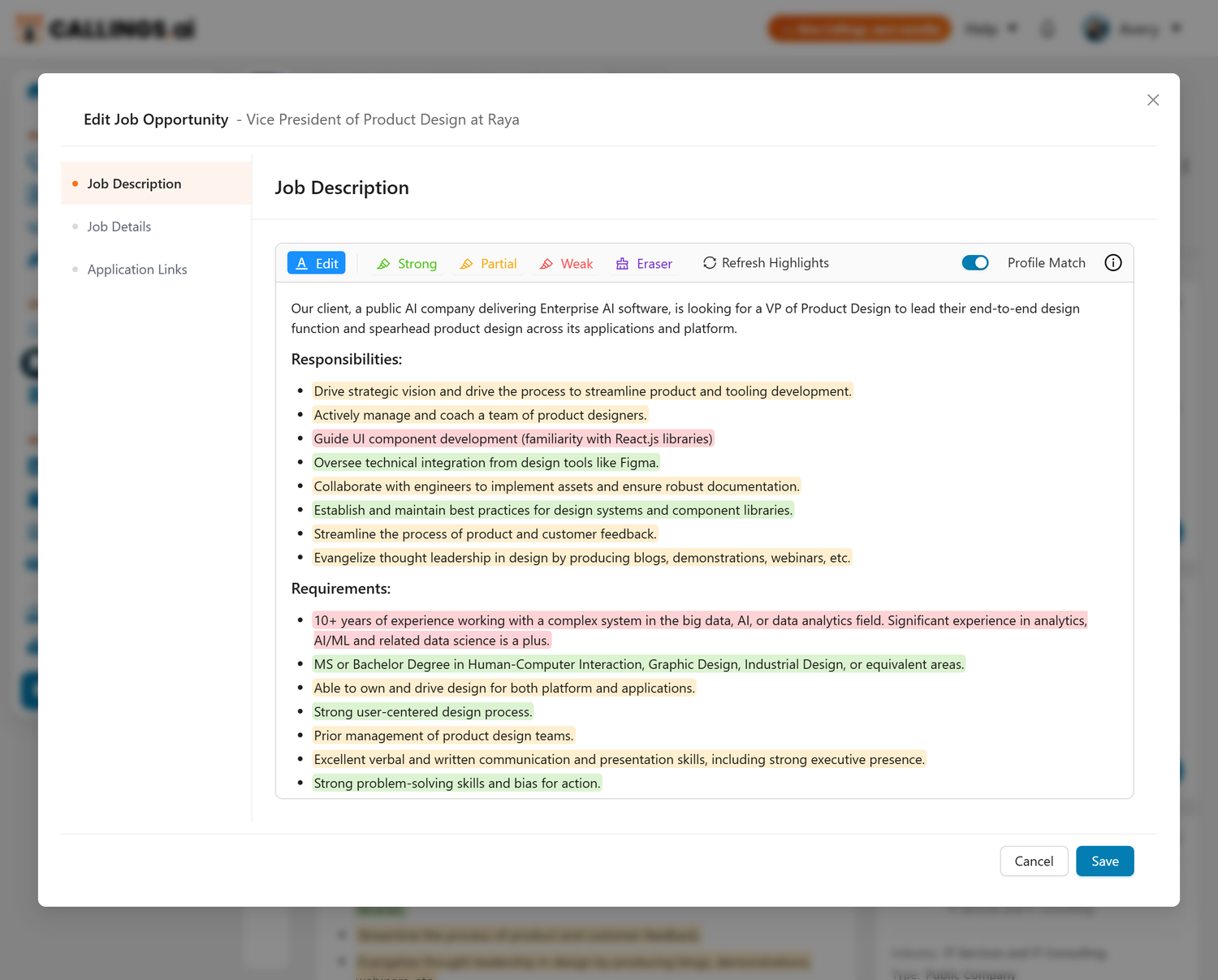
Text Editing: - Formatting - Headers, lists, bold, italic, links - Full WYSIWYG editing - See formatting as you type - Preserve original content - Or rewrite sections as needed
Profile Match Highlighting Tools:
The editor toolbar includes these tools for editing text and managing highlights:
| Tool | Purpose |
|---|---|
| Edit | Enable text editing mode to modify the content |
| Highlighter | Mark text as Strong match (green), Partial match (yellow), or Weak (red) to show how requirements align with your profile. Clicking on an existing highlight removes it. |
| Eraser | Click on any highlight to remove it |
| Refresh Highlights | Re-analyze the job description against your profile and redraw the highlights |
How to add highlights: 1. Select one of the highlighter tools (Strong, Partial, or Weak) 2. Select the text you want to highlight 3. The highlight is applied automatically 4. Switch back to Edit mode to continue editing text
How to remove highlights: 1. Select the Eraser tool 2. Click on any highlighted text 3. The highlight is removed, leaving the text intact
When to customize highlights: - When the AI's assessment doesn't match your actual experience - To mark specific phrases you want to emphasize in your application - To track requirements you've addressed during interview prep - To create a personal study guide for interview preparation
Tip: Keep the original wording wherever possible; it contains the exact keywords you'll want for your resume and cover letter. Use highlights to annotate, not to modify the source text.
2. Job Details Tab
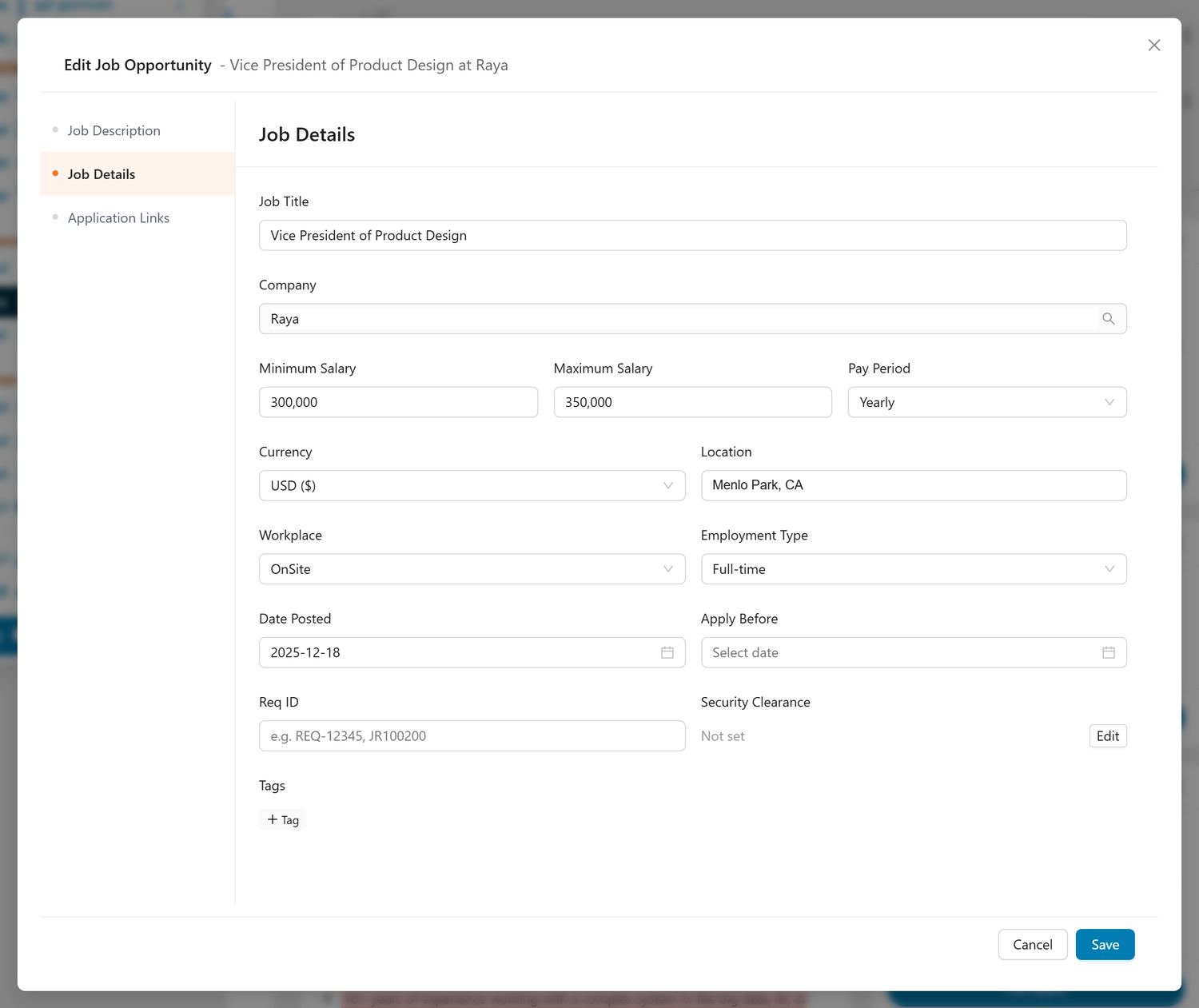
This tab contains the core structured information about the position:
| Field | Description |
|---|---|
| Job Title | The official position title |
| Company | The hiring organization (click the field to open the AI-powered Find Company search) |
| Salary Range | Minimum and maximum compensation |
| Pay Period | Yearly, monthly, or hourly |
| Currency | USD, EUR, etc. |
| Date Posted | When the job was posted |
| Apply Before | When applications close |
| Location | Where the role is based (with autocomplete) |
| Workplace | Remote, Hybrid, On-Site, or Other |
| Req ID | Job requisition number, reference code, or job ID (e.g. REQ-12345, JR100200) |
| Employment Type | Full-time, Part-time, Contract, etc. |
| Security Clearance | The clearance the role requires, if any |
| Tags | Your own labels for organizing the job |
Finding the Correct Company
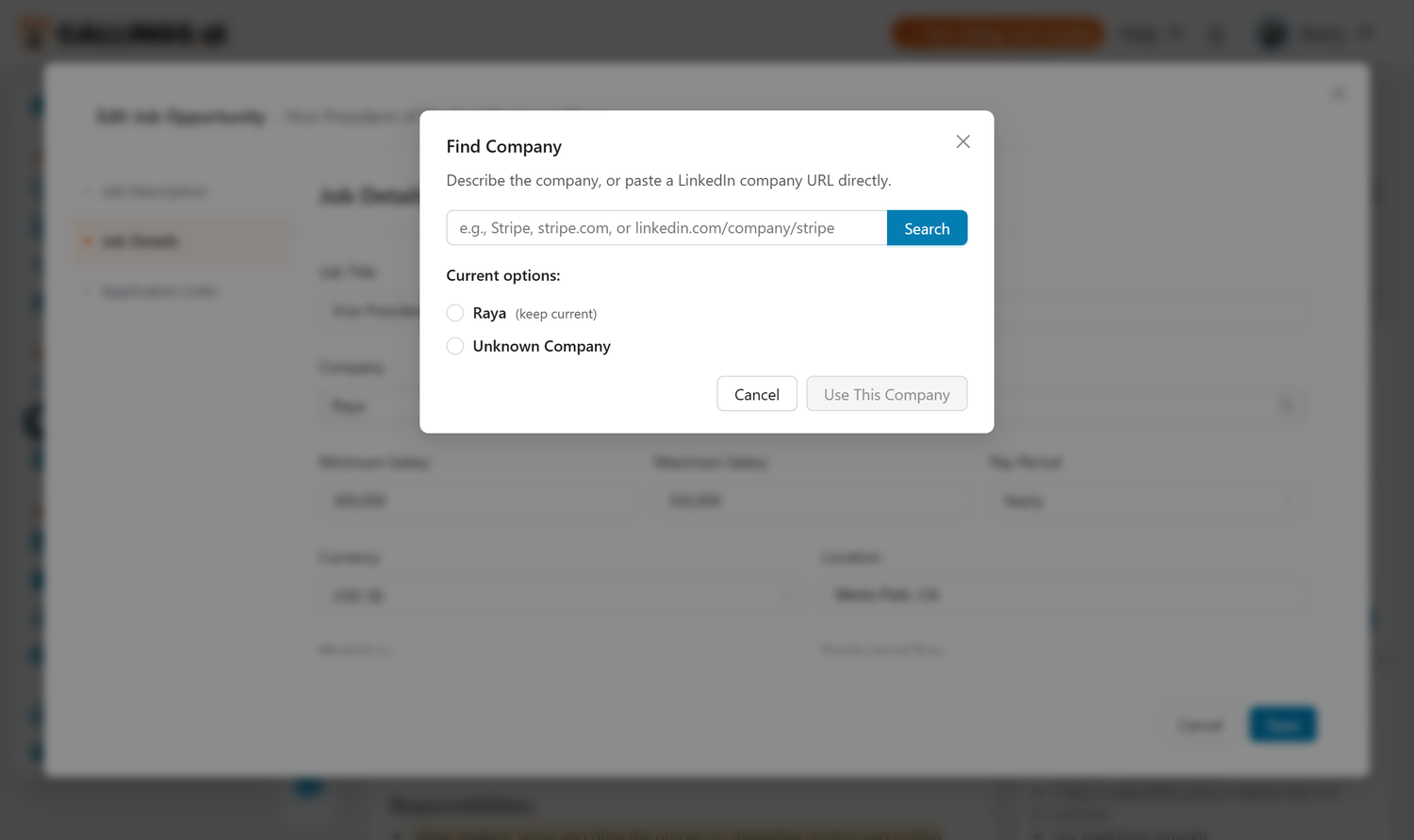
Clicking the Company field opens an AI-powered search to help you identify the correct employer:
- Click the Company field (it shows a magnifier icon)
- In the modal, describe the company - you can enter:
- The company name (e.g., "Oracle")
- A website domain (e.g., "stripe.com")
- A description (e.g., "fintech company in San Francisco that does payments")
- Press Enter or click Search
- Review the result - you'll see the company name and LinkedIn URL
- Click Use This Company to select it
- Click Save to apply the changes
This is especially useful when: - The job listing uses a subsidiary or brand name instead of the parent company - The company name is abbreviated or stylized - The listing was posted by a staffing agency - You're not sure of the exact company name
Common corrections: - Fixing salary information the AI misinterpreted (e.g., hourly vs. annual) - Using Find Company to identify the correct company - Adding or correcting the Req ID (requisition number) for the job - Adding location details that weren't in the original posting - Setting the workplace type when it wasn't explicitly stated
3. Application Links Tab
This tab manages where you (or others) can apply for the job:
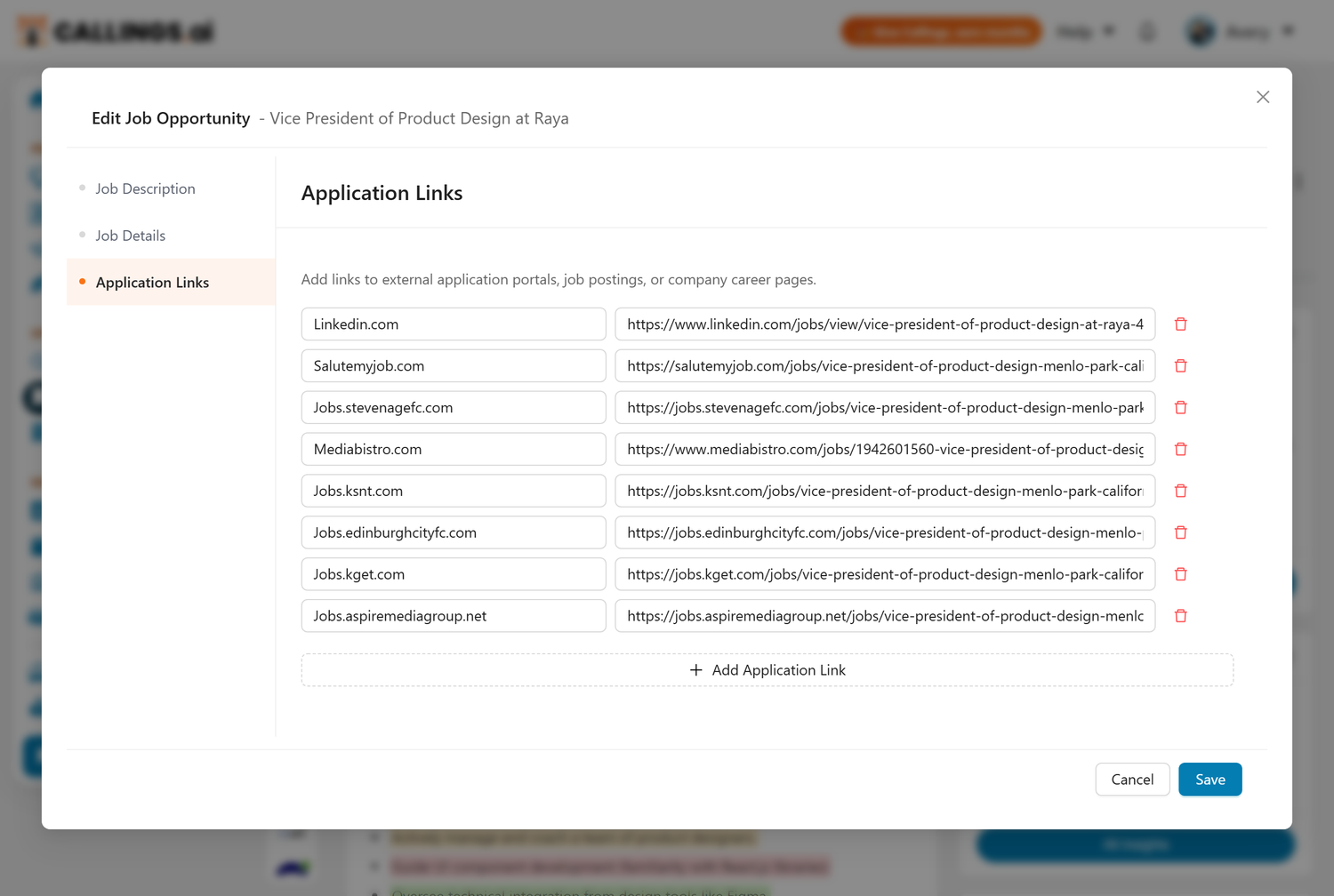
- Add links - Click "Add Application Link" to create new entries
- Edit existing links - Modify the name or URL of any link
- Remove links - Delete links that are no longer valid
- Multiple sources - Track both the original posting and any referral links
Each link has two fields: - Link Name - A friendly label (e.g., "LinkedIn", "Company Website", "Referral Link") - URL - The full web address where applications are submitted
Why multiple links matter: - Jobs often appear on multiple job boards - Referral links may provide better tracking - Company career pages sometimes offer different application flows - Internal links (for referrals) may be different from public postings
When to Edit vs. Add New
| Scenario | Recommendation |
|---|---|
| Minor typo in title | Edit the existing job |
| Wrong salary period (hourly vs. annual) | Edit the existing job |
| AI captured completely wrong job | Add a new job, delete the wrong one |
| Missing application deadline | Edit to add the date |
| Want to track a different posting for same role | Add as a new job to preserve both |
| Job requirements changed significantly | Consider adding new, keeping old for comparison |
How to Use This Tool
First Review: Understanding the Role (5-10 minutes)
When you first add a job to your tracker:
- Review the Profile Match highlights to get an instant read on fit
- Green highlights show where you're already strong
- Yellow highlights indicate transferable experience
-
Red highlights reveal areas requiring preparation
-
Read the full description from top to bottom
- Don't skim - details matter
- Note phrases that resonate with you
-
Identify any red flags or concerns
-
Review the AI analysis to confirm understanding
- Check if your interpretation matches the extraction
- Look for requirements you might have missed
-
Verify the Profile Match highlights feel accurate
-
Ask yourself key questions:
- Do I meet 70%+ of the required qualifications?
- Am I genuinely interested in the responsibilities?
- Does the role align with my career goals?
- Can I see myself succeeding here?
Application Preparation: Mining for Keywords (20-30 minutes)
Before customizing your resume and cover letter:
- Review and refine highlights in the editor
- Click on the job description to open the editor
- Adjust any highlights that don't match your assessment
-
Add highlights to phrases you want to emphasize in your application
-
Focus on green-highlighted requirements
- These are your strongest selling points
- Use exact phrases in your resume and cover letter
-
Prepare specific examples for each
-
Address yellow highlights strategically
- Identify how your adjacent experience applies
- Frame transferable skills positively
-
Note specific projects that demonstrate capability
-
Prepare for red-highlighted gaps
- Decide whether to address proactively or wait
- Identify learning plans or quick wins
-
Find adjacent experience that partially fills the gap
-
Identify story opportunities for your cover letter
- Which responsibilities excite you most?
- Where can you share relevant experiences?
- What unique value do you bring to these challenges?
Interview Preparation: Deep Understanding (30-45 minutes)
Before interviews, return to this view:
- Review your highlighted job description as a study guide
- Focus preparation on green (demonstrate confidently) and red (prepare to address) areas
- Yellow highlights are opportunities to show growth mindset
-
Use highlights as a checklist for stories and examples
-
Memorize the top 5-7 requirements
- These will frame interview questions
- Your answers should reference these directly
-
Be ready to give examples for each
-
Understand the business context
- Why does this role exist?
- What problems will you solve?
-
How does it fit in the organization?
-
Prepare questions based on the description
- Ask about vague or unclear responsibilities
- Probe deeper into interesting projects mentioned
-
Clarify expectations around key requirements
-
Review compensation if you move forward
- Know the stated range (if provided)
- Research typical compensation for this role
- Determine your acceptable range before negotiation
Tips & Best Practices
Make Profile Match Work for You
Use highlights as a preparation checklist: - Green highlights → Prepare strong examples and stories - Yellow highlights → Practice explaining how your experience transfers - Red highlights → Develop honest responses about how you'll bridge gaps
Refine highlights over time: - After researching the company, you may realize some gaps aren't as critical - Talking to employees might reveal which requirements are truly essential - Your own reflection may uncover experience you initially overlooked
Don't let red highlights discourage you: - Most successful hires don't meet 100% of requirements - Gaps can become talking points about learning agility - Companies often value potential and culture fit over perfect matches
Don't Self-Reject Too Quickly
The 70% Rule: If you meet ~70% of requirements, you're likely qualified enough to apply. Job descriptions are often wish lists, not hard requirements.
Common over-qualifications: - "10+ years experience" often means "very experienced" (7-8 years often fine) - Long skill lists include both required and nice-to-have - Advanced degrees can be offset by strong practical experience
When to apply even if you're uncertain: - You meet core requirements but lack some nice-to-haves - You have adjacent experience that transfers well - The role aligns perfectly with your goals and values - Networking reveals the company values potential over perfect matches
When NOT to apply: - You'd need to fabricate experience to seem qualified - The role requires certifications or licenses you lack - Core responsibilities don't interest you - The job conflicts with your non-negotiable criteria
Look Beyond the Bullet Points
Job descriptions often reveal more than intended:
Red flags to watch for: - "Fast-paced environment" might mean chaotic or understaffed - "Wearing many hats" could indicate lack of clear role definition - "Self-starter" might suggest insufficient support or training - "Unlimited PTO" sometimes correlates with taking less time off - Extremely long requirement lists may indicate unrealistic expectations
Green flags to seek: - Specific projects or initiatives mentioned - Clear growth path or learning opportunities - Team collaboration emphasized - Investment in tools, training, or professional development - Concrete metrics or goals for the role
Neutral phrases that need investigation: - "Startup environment" - Could be exciting or exhausting - "Hybrid work model" - Clarify what this means in practice - "Competitive salary" - Wide interpretation, research the range - "Occasional travel" - Could be 10% or 40%, ask for specifics
Use This Tool in Context
The Job Description is most powerful when used alongside:
Job Fit Report: - Shows how your background aligns with the requirements - Identifies specific strengths and gaps - Provides strategy for addressing weaknesses
Company Report: - Adds context about the employer's culture and values - Helps interpret vague requirements - Reveals whether stated values match reality
Custom Resume: - Use exact keywords from the description - Mirror the language and priorities - Highlight the most relevant experience
Preparation Overview: - Anticipates questions based on requirements - Helps you frame answers around their priorities - Prepares you to discuss gaps confidently
Track Changes Over Time
Some job postings get updated:
- Salary ranges might be added or adjusted
- Requirements could be relaxed or tightened
- Application deadlines may be extended
- Role scope sometimes expands or narrows
If you're tracking a job for a while: - Check back periodically for updates - Note any significant changes in your tracker Notes - Consider whether changes affect your fit or interest
Save Your Analysis
As you review job descriptions:
- Add notes about key insights
- Requirements you meet exceptionally well
- Concerns or questions to investigate
- Phrases to use in your application
-
Follow-up research needed
-
Highlight patterns across similar roles
- Common skills in your target roles
- Typical salary ranges
- Standard responsibilities
-
Industry expectations
-
Build your keyword library
- Terms that appear frequently
- Different names for similar skills
- Company-specific terminology
- Industry jargon to master
Frequently Asked Questions
Q: What do the highlight colors in Profile Match mean?
A: Green indicates requirements that strongly match your profile, yellow shows partial matches or transferable skills, and red highlights gaps or areas where you may need to develop. Use these as a visual guide for interview preparation and application customization.
Q: How does the AI determine Profile Match highlights?
A: The AI compares each requirement in the job description against your resume and profile information. It assesses skill matches, experience relevance, and qualification alignment. The analysis considers both direct matches and related experience that could transfer.
Q: Can I change the Profile Match highlights?
A: Yes! Click anywhere on the job description to open the editor. Use the highlighter tools (Strong, Partial, Weak) to add or adjust highlights, and the Eraser tool to remove them. Your customizations are saved with the job.
Q: The AI highlighted something as a gap, but I have that skill. What should I do?
A: Open the editor and change the highlight to Strong (green) or Partial (yellow). The AI bases its assessment on your uploaded resume: if a skill isn't explicitly mentioned there, it may be flagged as a gap. This is a good reminder to ensure your resume reflects all relevant skills.
Q: Should I be worried if I see a lot of red highlights?
A: Not necessarily. Most successful candidates don't meet 100% of job requirements. Red highlights help you prepare: they show where you need to either address gaps proactively in your application or prepare thoughtful responses for interviews.
Q: How do I turn off the Profile Match highlighting?
A: Use the Profile Match toggle in the Job Description card header. When toggled off, you'll see the clean job description text without any highlights. Toggle it back on anytime to see your alignment visualization.
Q: Why do I see the original posting instead of a cleaned-up version?
A: The exact original language matters for ATS compatibility and understanding employer priorities. We provide AI analysis separately so you get both the authentic source and helpful interpretation.
Q: What if the job description is vague or poorly written?
A: This is common, unfortunately. Use the Company Report for more context, and consider reaching out via Networking Targets to clarify expectations with actual employees.
Q: The AI extracted information seems wrong. What should I do?
A: Trust your own reading first - you're the human expert. The AI analysis is a helper, not an authority. If something seems off, rely on your interpretation and add clarifying notes.
Q: Should I apply if I don't meet the required years of experience?
A: If you're 1-2 years short but have strong skills and relevant projects, absolutely apply. Years of experience is often a proxy for competence, and you can demonstrate that in other ways.
Q: How important is it to use exact keywords from the description?
A: Very important for ATS systems and moderately important for human reviewers. Use exact phrases where authentic, but don't force awkward language just to match. Natural, competent communication trumps keyword stuffing.
Q: The description lists 20+ skills. Do I need all of them?
A: No. Job descriptions are often wish lists. Focus on the top 5-7 requirements and showing strong competence in core responsibilities. Most hires meet 60-80% of listed qualifications.
Q: What if salary isn't mentioned?
A: Research typical ranges for similar roles in your market using Glassdoor, Levels.fyi, Payscale, or industry surveys. If you get an interview, you can ask about the budgeted range early in the process.
Q: The job was posted months ago. Should I still apply?
A: Maybe. If it's still listed as active, they're likely still looking. Older postings might indicate:
- High standards making it hard to fill
- Multiple openings under one posting
- Recent rejections of other candidates
- Renewed search after internal candidate didn't work out
Apply if genuinely interested, but manage expectations.
Q: How do I know if a description is AI-generated vs written by a real person?
A: AI-generated descriptions tend to be more generic and buzzword-heavy. Human-written ones often include:
- Specific team names or projects
- Personality in the writing
- Unique quirks or requirements
- Details about day-to-day work
Neither is inherently better - focus on whether the role itself is appealing.
Q: What is the Req ID field in the Job Details editor?
A: Req ID (Requisition ID) is the unique reference number that companies assign to job openings - for example "REQ-12345", "JR100200", or "R-00422". When you add a job, the AI automatically extracts this number from the listing if one is present. You can also enter or correct it manually in the Job Details tab of the editor. The Req ID is useful for referencing specific openings when communicating with recruiters or applying through company portals.
Q: Should I apply if I exceed the requirements significantly?
A: Consider whether you'd be satisfied in the role. Being overqualified can lead to:
- Boredom and lack of challenge
- Frustration with pace or complexity
- Difficulty finding your next role (looks like a step back)
- Lower compensation than you could command elsewhere
Only apply if the role genuinely excites you despite being "below" your level.
Related Topics
- Evaluate Overview - Overview of the Evaluate tab
- Job Fit Report - See how well you match this description
- Company Report - Learn about the employer
- Custom Resume - Tailor your resume to this description
- Custom Cover Letter - Write a compelling application
- Networking Targets - Find people who can provide insider insights
The job description is your roadmap for the entire application process. Read it carefully, refer to it often, and use it to guide how you present your candidacy at every stage.