People
People is your personal CRM for the job search: everyone you meet in one place, ready to reach out to. Your recruiters and the people you added yourself each have a tab, and the search box narrows whichever one is open. Coaches have their own page: Coaching > Find a coach.
Find it under Networking > People.
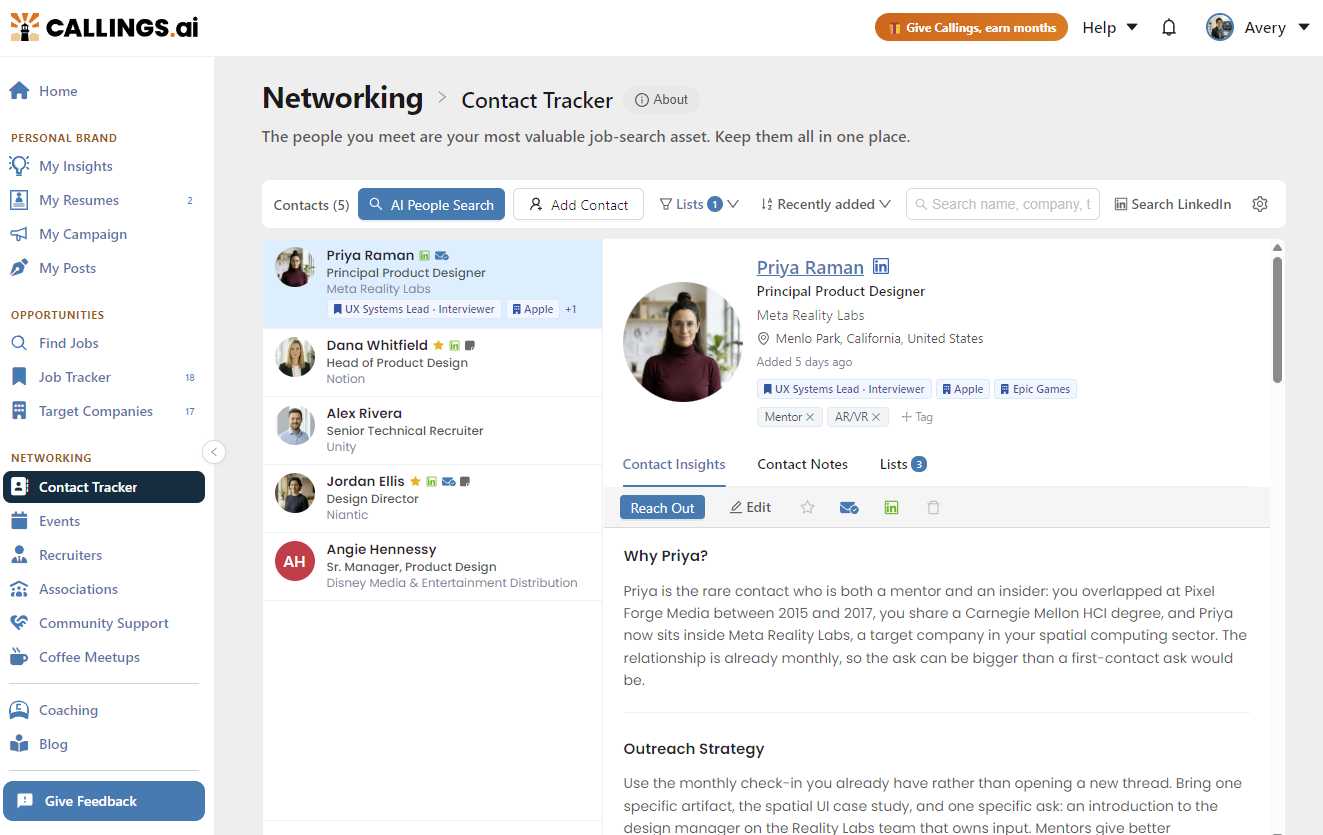
The Layout
The page is a two-pane workspace under a tab strip and a toolbar:
| Area | What it holds |
|---|---|
| Tabs | Who the page is showing, with a count on each |
| Toolbar | Add and find people, plus everything that narrows the list |
| Left pane | The people themselves, one row each |
| Right pane | The selected person's record: insights, notes, and lists |
Selecting a row opens that person on the right. The first row opens automatically, so the record pane is never empty beside a full list.
The Tabs
The tabs decide who the page shows. There are two, and one is open at a time:
| Tab | Who is in it |
|---|---|
| Recruiters | Recruiters you kept, plus any the recruiter search proposed, plus anyone you filed as a recruiter from their record. See The Recruiters tab |
| My contacts | People you added yourself: the form, a LinkedIn URL, the browser extension, AI People Search |
A person can be on both: a recruiter you added yourself appears on each tab, and each tab counts only the people in it.
People attached to a job in your Job Tracker or to a company on your Target Companies list are worked from that job or that company. When one of them is also a recruiter or someone you added, they appear here too, with the job or company chip under their name.
Someone you add who works at a company on your Target Companies list is attached to that company as well, so they show on its Networking tab and carry its chip here. Nothing is added to Target Companies for you: at a company that is not on your list, they are in My contacts only.
The page opens on Recruiters the first time and remembers the tab you left it on.
The Toolbar
| Control | What it does |
|---|---|
| AI People Search | Describe who you want to meet in plain words and get real people back. See AI People Search |
| Add Contact | Paste a LinkedIn URL and we fill in the profile, or enter the details yourself |
| Show | The two switches for people the list normally hides. See The two switches |
| Sort by | Recently added, Name, or Company. The Recruiters tab adds Best match |
| Search | Free text plus filter chips. See Searching and Filtering |
| Search LinkedIn | Describe anyone in plain words and we open the matching LinkedIn people search |
On the Recruiters tab, AI People Search and Add Contact give way to the ways of finding recruiters; everything after them stays the same.
The list has no page numbers. It loads twenty people at a time and fetches the next twenty as you reach the bottom.
The two switches
The Show menu holds two switches for people the list normally hides:
- Include suggested adds the people we proposed for your jobs, companies and recruiter searches. Each suggestion is a dashed tag that says what it is, with Keep and Ignore on it, until you decide (see Reading a Row).
- Include archived brings back anyone you archived.
Both add people rather than filtering them out, which is why they are switches and not filter chips. When either is on, the Show button says so.
The Recruiters tab
Recruiters are contacts like everyone else here, so they get the same rows, the same record and the same notes. What the tab adds is the ways of finding them and the match grade behind them.
| Control | What it does |
|---|---|
| Find Recruiters | Search external recruiters and search firms against a resume, or with words of your own ("healthcare recruiters in Chicago") |
| Add Manually | Add a recruiter from a LinkedIn URL, or type their details |
| My LinkedIn Connections | Opens a LinkedIn search of your own connections, filtered to recruiters and search firms |
The first time you open the tab we read your primary resume and look for external recruiters and search firms that place people in your field. That runs once; after it, the tab is just your list.
In-house company recruiters are covered separately, on each job in your tracker. This tab is about agencies, search firms and independent headhunters.
Match grades
A recruiter surfaced by the search carries a grade for how well they fit your background: Top match, Excellent fit, Strong fit or Good fit. Where the pool is thin for your field we also show recruiters who matched on one axis only, labelled Industry match or Role match so you can see why they are there.
Sort by > Best match puts the list in that order. Recruiters you added by hand have no grade (there is no resume comparison behind them) and stay at the top.
Open a recruiter and their record carries a What they place section: the kind of firm they work for, the industries and specialties they recruit in, and the levels they place at. Reach Out on a recruiter drafts recruiter-specific outreach: an email, a LinkedIn message and a connection note.
A person's saved email addresses show at the top of their record, under their location, each with a copy icon. Copy one into any email, or open a draft in Gmail, Outlook on the web or your default email app (see Opening a Draft Email).
Searching and Filtering
The search box is also the filter control. Type a name, company or title to search, or click it to add filter chips:
| Chip | Shows |
|---|---|
| Favorites | People you starred |
| Reached out | People you have already contacted |
| Not yet reached out | The people still waiting on a first message |
| Connected on LinkedIn | People you are connected to |
| Has notes | People you have written a note on |
Every chip narrows the list, and they combine with whichever tab is open. When the box is too narrow to show every chip, the ones that do not fit fold into a +N chip: click the box to see them all under Applied filters, where you can remove each one or click a tag chip to flip it.
Filtering by tag
Click the search box to see all your tags, then click one to filter by it. As you type, the list narrows to the tags that match. You can also type a tag in full, for example tag:Mentor or Tag: Mentor, and press Enter. Inside a longer search, a tag with spaces needs quotes: tag:"Conference 2026". Matching ignores case.
Put a minus in front to hide the people with a tag instead: -tag:Recruiter, or switch Your tags to Hide and click the tag. Click a tag chip to switch it between keeping and hiding that tag. A minus works on plain words too, for example -google leaves out everyone whose name, company or title contains "google".
Tags
Tags are your own labels on a person, free-form rather than a fixed list. Add them when you add or edit someone, or straight from the header of their record, under their name. Anything works: Mentor, Conference 2026, Warm intro, Follow up in Q1.
Tags replace the old Group dropdown. Existing group values were carried over as tags, so nothing was lost, and you can now rename or delete them.
Reading a Row
Each row shows the person's name, their title, and their company on its own line, plus small markers:
| Marker | Meaning |
|---|---|
| Star (gold) | A favorite |
| LinkedIn (green) | Connected on LinkedIn |
| Envelope (blue) | You have reached out |
| Note (grey) | You have written a note on this person |
Under the name, chips show every list and record the person belongs to, on every page, the one you are on included. The icon says which kind, the text says which one:
| Chip | Meaning |
|---|---|
| Bookmark and a job title | Attached to that job in your tracker. A separate Interviewer chip says they interview you for one |
| Building and a company | Attached to that target company |
| Person and Recruiter | One of your recruiters, with their match grade beside it |
| Compass and Coach | One of your coaches, with the kind of help they are on your list for |
| Address book and My contact | Someone you added yourself |
A suggestion you have not answered is the same chip, dashed, with "Suggested" in front: Suggested recruiter, Suggested coach, or Suggested for a job or a company. Keep turns it into the plain chip. Ignore removes that one suggestion; the person leaves your lists only when nothing else holds them, and you are asked first only when that would delete your own notes, drafts or tags on them.
Suggestions come first on a row, two at most; the rest are counted in a +N. Click a chip to open the record it names: a company chip opens that target company, a job chip opens the job's networking tab (or its Interview tab, with the person selected, when they interview you for it). The +N opens their Lists tab, where suggested jobs and companies can be kept or ignored as well.
The Record
The right pane opens with the person's name, role, company, location, when you added them, and their tags. Under the tabs sits an action bar: Reach Out to draft a message, then edit, favorite, mark reached out, mark connected on LinkedIn, and delete. The same actions live on each row's Menu in the list, so you can work through the list without opening anyone.
Contact Insights
An AI read of the person: their networking profile, how easy they are to reach, what they value, and a suggested angle for your first message, plus their work history. On a recruiter it also carries What they place.
Contact Notes
Everything you have written about this person. Notes you write are yours; the AI's outreach drafts and research are kept separately and do not count toward the notes marker on the row.
Lists
Which lists this person is in. All four are switches:
- My contacts and Recruiters you set directly. Filing someone as a recruiter puts them on the Recruiters tab and switches their outreach drafts to recruiter wording.
- Job contacts and Company contacts follow what the person is attached to. Each row names every one of them, as the same chips you see under their name, and clicking those chips opens a picker: tick the jobs (or the target companies) they belong on, all in one pass. Each ticked job carries an Interviewer checkbox for when that person is interviewing you, which shows on the job's chip.
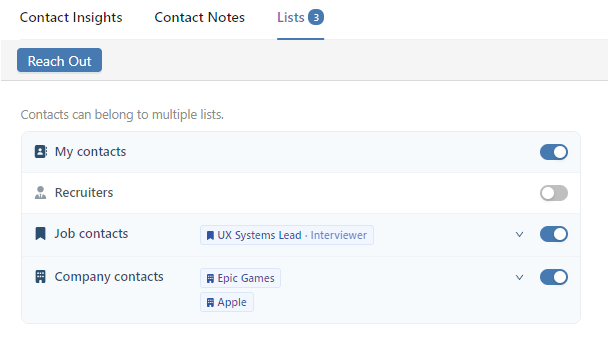
Turning one of the two picker switches off removes them from every job or company at once, so it asks first and tells you how many.
AI People Search
AI People Search finds real people from a sentence, without you filling in a form. Describe who you want to meet the way you would ask a friend, and your own details are used only when your sentence refers to them.
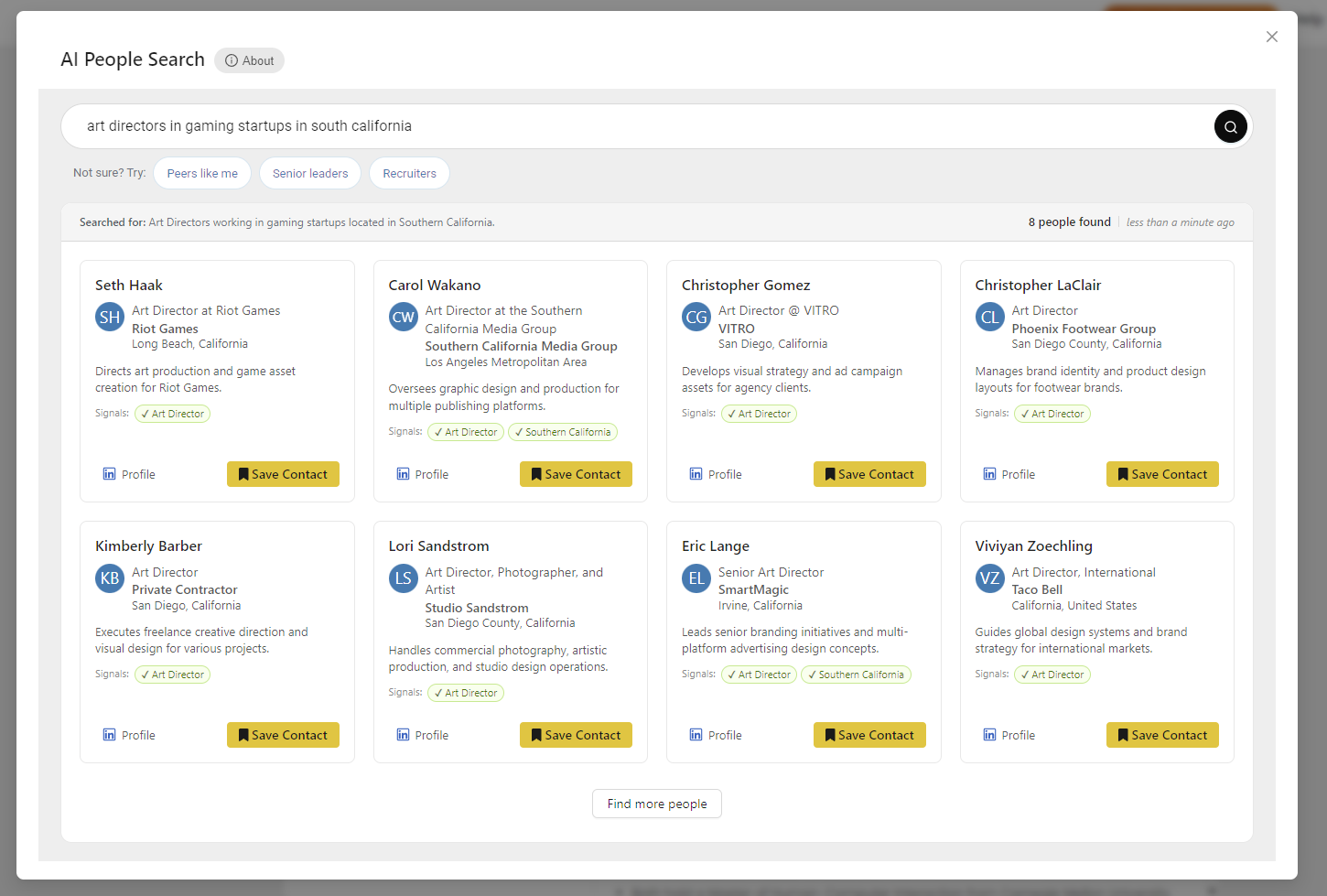
What you can ask for:
- A person by name: "Jane Doe", "Jane Doe at Stripe"
- A kind of person: "heads of design at healthcare startups in Boston"
- People relative to you: "peers like me", "someone who could hire me", "recruiters who place people with my background". Worked out from your resume, so you never spell out your own titles.
- People for a job you're tracking: "the hiring manager for the Product Manager job at Apple". Your Job Tracker supplies the real title and company.
- People who share your history: "alumni who work at Apple", "anyone senior at IBM who worked where I used to". From the schools and employers on your resume.
The Searched for line above the results says how your sentence was read and names anything of yours that was used. If it looks wrong, reword it and search again.
Find more people runs the same search again and adds anyone new. Changing the wording gives you a fresh set instead. Your last search is kept, so reopening comes back to where you left off.
Save Contact adds someone to My contacts with their LinkedIn profile filled in, ready for notes and outreach.
Reaching Out
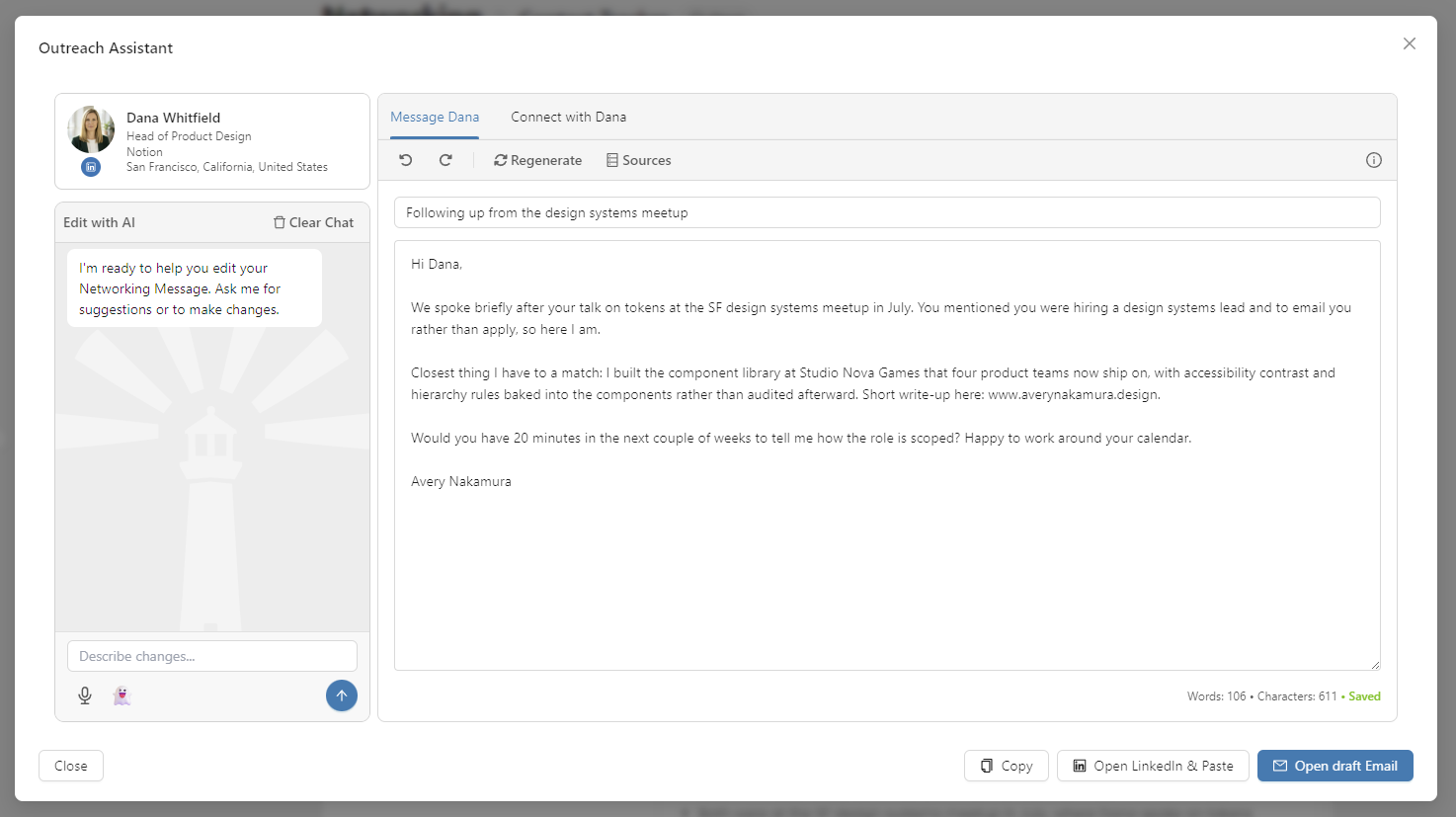
Reach Out on a record drafts a personalized message using what we know about them and about you. Recruiters get their own draft, written for a headhunter rather than a peer. For messages outside this page, or for anyone not in your list, use Custom Outreach.
Frequently Asked Questions
Q: Which parts need a subscription?
A: The features that look people up or write for you: adding a contact from a LinkedIn URL, AI People Search, Find Recruiters and Add Manually on the Recruiters tab, Email Lookup, Contact Insights, and Reach Out. Adding and editing people by hand, tags, lists, notes, search, and Search LinkedIn are free.
Q: What happened to the Recruiters page?
A: It is the Recruiters tab here. Your recruiters were always contacts, and everything on the old page came with them: your notes, your favorites, who you had reached out to, the match grades, the recruiter search, and the recruiter outreach drafts.
Q: Where are the people attached to my jobs and target companies?
A: On the job and the company. A job's networking tab in your Job Tracker lists the people attached to it, and a target company does the same. Anyone among them who is also a recruiter or someone you added shows here as well, with the job or company chip under their name.
Q: I filed someone as a recruiter. Did that change anything else?
A: They joined the Recruiters tab, and their outreach drafts switch to recruiter wording. They stay in every other list they were already in.
Q: What happens when I turn off Job contacts or Company contacts on a record?
A: They are detached from every job (or every target company) at once. The switch asks first and tells you how many attachments it is about to remove.
Q: Where do suggested people go when I ignore them?
A: Ignore removes that one suggestion: the job, company, Recruiters or Find a coach list that proposed them. If they still belong somewhere else (you added them, or they are on another job), they stay there. If nothing else holds them they leave your lists: a job or company suggestion is archived (Include archived brings them back), a suggested recruiter or coach is removed. You are asked first only when that would delete your own notes, drafts or tags.
Related
- Recruiters: the recruiter search in full
- Find a Coach: the coaches picked for you on the Coaching page, Find Coaches, and reaching out to one
- Networking Targets: contacts suggested for one specific job, from inside that job's page
- Custom Outreach: draft a message for any recipient and any channel
- Target Companies: your target companies, and the people attached to each