Opening a Draft Email
Callings.ai writes the email; you send it from your own mailbox. The open-draft button puts the draft in Gmail, Outlook on the web, or your default email app, with the address, subject and message filled in, so you only check it and click Send.
You will find it wherever Callings drafts an email for you to send: the Outreach Assistant on a contact, recruiter outreach, and applying to a job by email.
Choosing Where the Draft Opens
The main button says where your draft opens. The arrow beside it opens a menu with the three choices; picking one opens the draft there straight away, and your choice is remembered in this browser for next time.
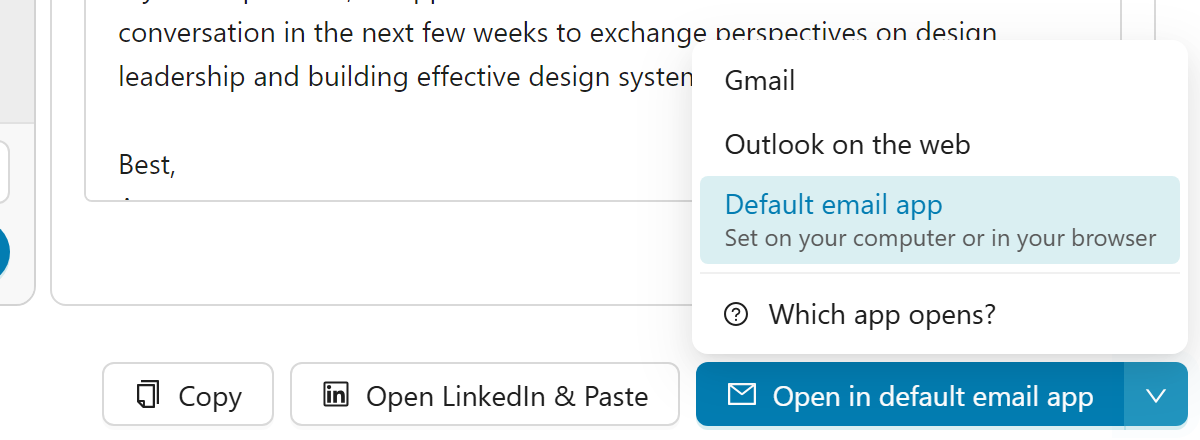
| Choice | Where the draft opens | Best for |
|---|---|---|
| Gmail | A new browser tab on Gmail's new-message page | Gmail and Google Workspace accounts |
| Outlook on the web | A new browser tab on Outlook's new-message page | Outlook.com and Microsoft 365 work or school accounts |
| Default email app | The app your computer, phone or browser opens email links with | An email program installed on your computer, or any setup described below |
For Gmail and Outlook on the web, you need to be signed in to that account in the same browser. If you are not, the service asks you to sign in first.
Note: Callings never sends the email for you and never connects to your mailbox. It only hands the draft to the place you chose.
How the Default Email App Is Chosen
Default email app does not pick an app itself: it hands the draft to whatever your device is set to open email links with. Two settings decide which one that is.
Your computer's default email app
This is an email program installed on your computer, such as Outlook, Apple Mail or Thunderbird. You choose it in your computer's settings for default apps (on a Mac, in Apple Mail's settings). If no email program is set up, which is common on Windows computers, nothing opens.
Your browser's email handler
A browser can send email links to a webmail site instead of a program. Gmail, for example, may offer to open all email links the first time you use it, and you can turn this on or off in your browser's site settings. When your browser has an email handler, it is used instead of your computer's program. This is the way to make Default email app open a webmail that is not in the menu.
On a phone or tablet
The draft opens in the device's default mail app. You can change that app in your phone's settings, or your phone asks which app to use.
When Nothing Opens
If your device has no email app set up, nothing opens. Callings closes the empty tab after a few seconds and, above the buttons at the bottom of the dialog, shows the address the draft was for with a copy icon:

Copy the address, copy the message with Copy, and paste both into the email you use. Next time, pick Gmail or Outlook on the web from the menu, or set up your default email app as described above.
Copying a Contact's Email Address
Every email address Callings finds for a contact can be copied, so you can send from any mailbox, including ones the menu does not list (Yahoo Mail, iCloud Mail or Proton Mail, for example):
- On the contact's record, saved addresses show under their location at the top, each with its status (Verified, Unverified or Available) and a copy icon. The first two are shown; Show more lists the rest. An address found while you draft appears there right away.
- In the address picker, when a contact has several addresses, each one has its own copy icon. Copying an address does not choose it.
- After a draft opens, a line above the buttons shows the address it went to, with a copy icon.
- When applying by email, each address pill in the To list has a copy icon beside it.
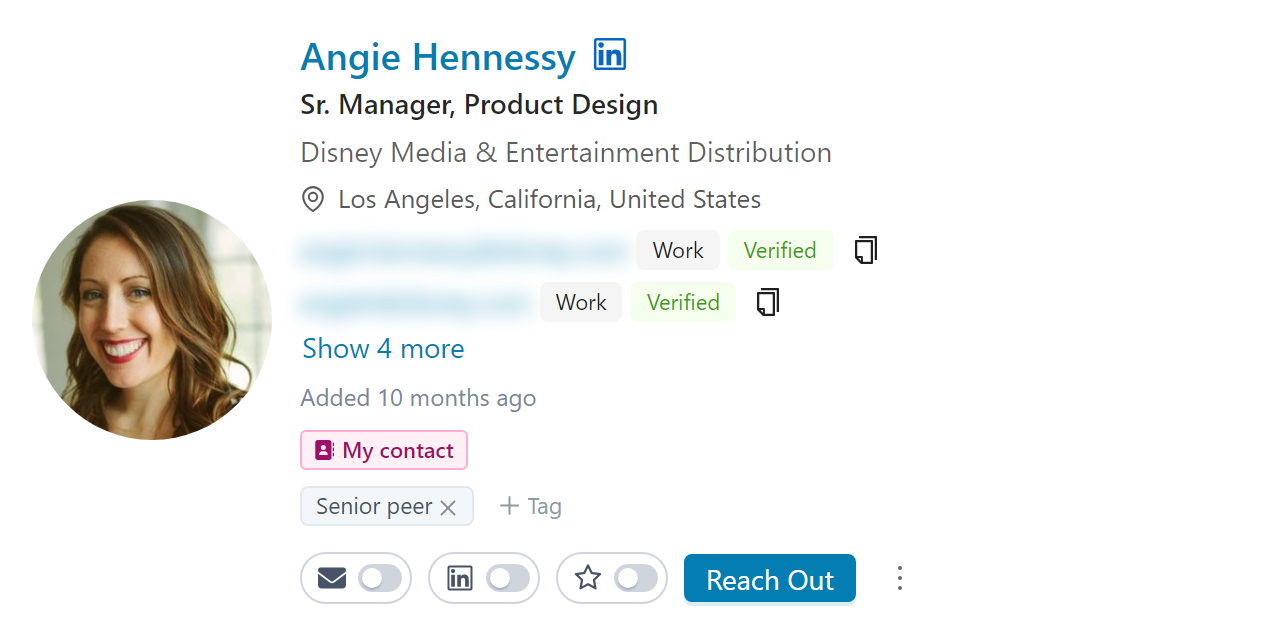
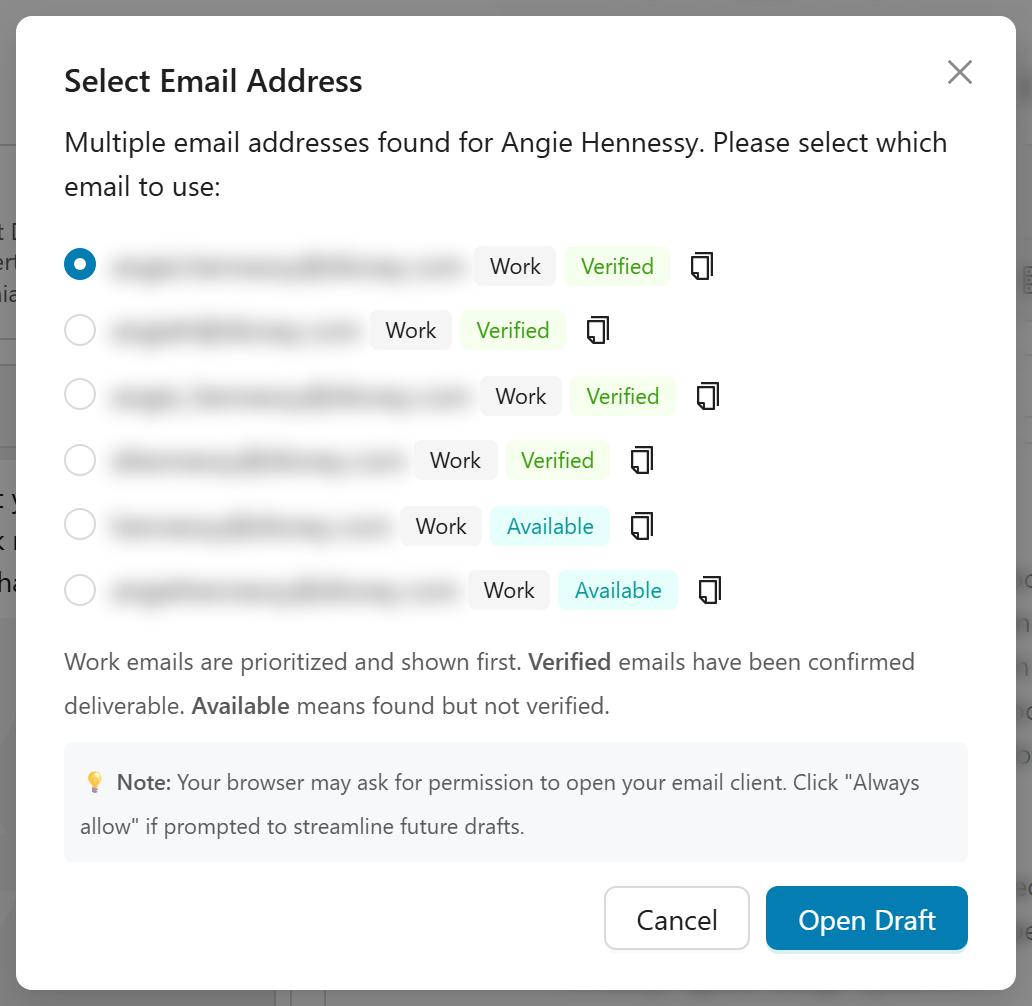
Clicking the icon copies the address and briefly shows a check mark. If your browser blocks copying, the icon says Select and copy: select the address with your mouse and copy it yourself.
Frequently Asked Questions
Q: Can Callings send the email for me?
A: No. Callings writes the draft and opens it in your mail; you check it and click Send. Nothing is sent from your account without you.
Q: I chose Default email app and nothing happened. What now?
A: Your device has no email app set up for email links. Copy the address and the message into the email you use, pick Gmail or Outlook on the web from the menu, or set up your default email app as described in How the Default Email App Is Chosen.
Q: The draft opened in the wrong email program. How do I change it?
A: Either pick Gmail or Outlook on the web from the menu, or change your default email app: in your browser's site settings if a webmail handles your email links, otherwise in your computer's settings for default apps.
Q: I use Yahoo Mail (or another webmail). Can I use it?
A: Yes. Copy the address and the message into it. If your webmail offers to handle email links in your browser, allow it and Default email app will open it.
Q: Can I attach files to the draft?
A: Not through the link itself: no email link can carry attachments. When applying by email, Callings downloads your files next to the draft so you can drop them in.
Q: Does my choice carry over to my phone or another computer?
A: No. The choice is remembered in each browser separately.