Promote Your Calling Card
Once your Calling Card is live, the next step is getting it in front of the right people. My Campaign includes two built-in promotion tools that generate ready-to-send content: one for your inner circle and one for your broader social network. Both are in the toolbar of your Calling Card's editor, which is where My Campaign in the left sidebar takes you.
Both tools use the same AI editing workflow: a chat panel on the left where you can refine the content conversationally, and an editable text area on the right where you review and finalize your message. Your drafts are saved automatically, so you can come back anytime without losing your work.
Promote to Your Supporters
Share your Calling Card with your inner circle. Click Rally supporters in the editor's toolbar, between Design and Promote on social.
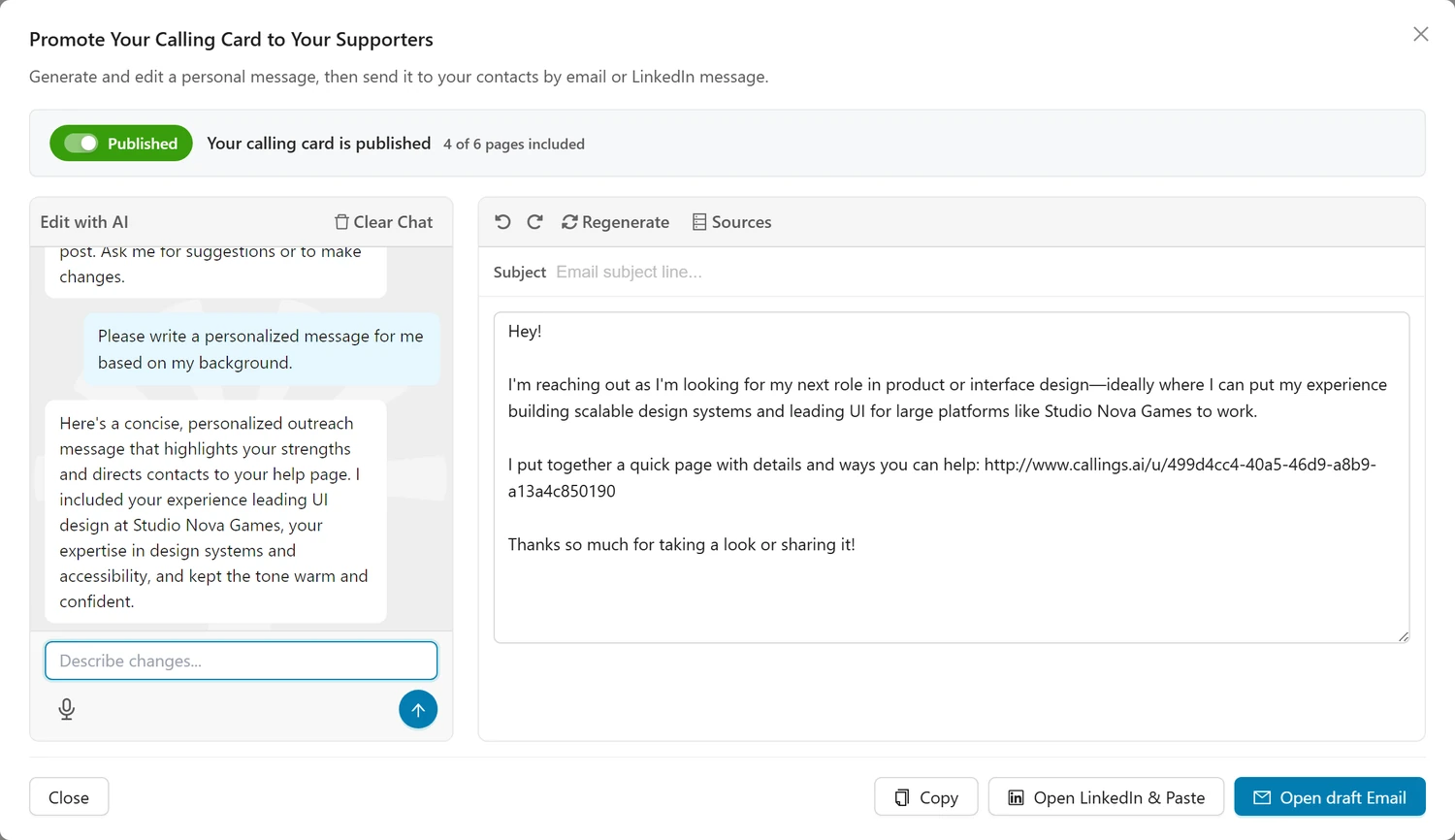
This tool generates a warm, personal message you can send directly to friends, colleagues, and trusted contacts. The goal is simple: share your Calling Card link and make it easy for people to visit your page and take action.
How It Works
- Open the modal - Click Rally supporters in the editor's toolbar
- AI generates your message - A personalized email is created automatically based on your resume and profile
- Review and edit - Read the message in the editor on the right. Adjust the subject line and body text as needed
- Send it your way - Use one of the action buttons to send the message
The AI writes the initial message in a casual, warm tone, as if you're emailing a friend. It includes your calling card URL and a brief context about what you're looking for, without a full career recap (your calling card handles that).
The AI Chat Panel
The left side of the modal features an Edit with AI chat where you can refine your message conversationally:
- "Make it shorter"
- "Add a mention of my healthcare experience"
- "Change the tone to be more formal"
- "Write a version for a close friend vs. a former manager"
Each instruction generates a new draft that appears in the editor. You can go back and forth until the message feels right.
Tip: Click Clear Chat to start a fresh conversation while keeping your current draft.
The Email Editor
The right side shows your message with two editable fields:
| Field | Description |
|---|---|
| Subject | A short email subject line (AI-generated). Keep it 3-7 words, conversational, and direct |
| Message body | The full message text with greeting, context, your Calling Card link, and sign-off |
You can edit both fields directly. Changes are saved automatically.
Undo and Redo
The toolbar above the editor includes undo and redo buttons, and Sources, which shows the material (your resume and other sources) the current draft was written from. Every edit you make (including AI-generated changes) is tracked, so you can step backward and forward through your revision history.
Regenerate
Click Regenerate in the toolbar to have the AI write a completely new message from scratch. If you have existing content, a confirmation dialog appears before overwriting.
Tip: Regeneration is useful after updating your resume or if you want a completely different angle. Your previous draft is replaced, so save a copy first if you want to keep it.
Sending Your Message
The footer provides three ways to send:
| Button | What It Does |
|---|---|
| Copy | Copies the subject and message body to your clipboard |
| Open draft Email | Opens your default email client with the subject and body pre-filled |
| Open LinkedIn & Paste | Copies the message to your clipboard, then opens LinkedIn Messaging so you can paste and send |
Publish Status
A banner at the top of the modal shows whether the link you are about to send works: a Published or Offline switch, and how many of your Calling Card's pages are included, for example "4 of 6 pages included". While it is offline, a line under it reminds you to turn it on, and you can publish straight from that switch without closing the modal. Pages you have left Hidden are not in that count: to include one, untick Hidden on its tab in the editor.
Important: Send your messages only after your Calling Card is published. Otherwise, recipients who click your link will see a placeholder instead of your content.
Best Practices for Supporter Messages
- Personalize the greeting - Even though the AI writes a generic "Hi," consider replacing it with the recipient's name before sending each message
- Send to 10-20 people first - Start with your closest contacts. Their visits, introductions, and social shares create momentum
- Follow up - If someone shows interest, send a thank-you and ask if they know anyone specific who might help
- Adjust for the relationship - Use the AI chat to create different versions for close friends versus former colleagues versus industry contacts
- Keep it brief - The AI targets 60-90 words. Resist the urge to add your full resume. Your calling card has all the details
Promote on Social Media
Broadcast your job search to your extended network. Click Promote on social in the editor's toolbar.
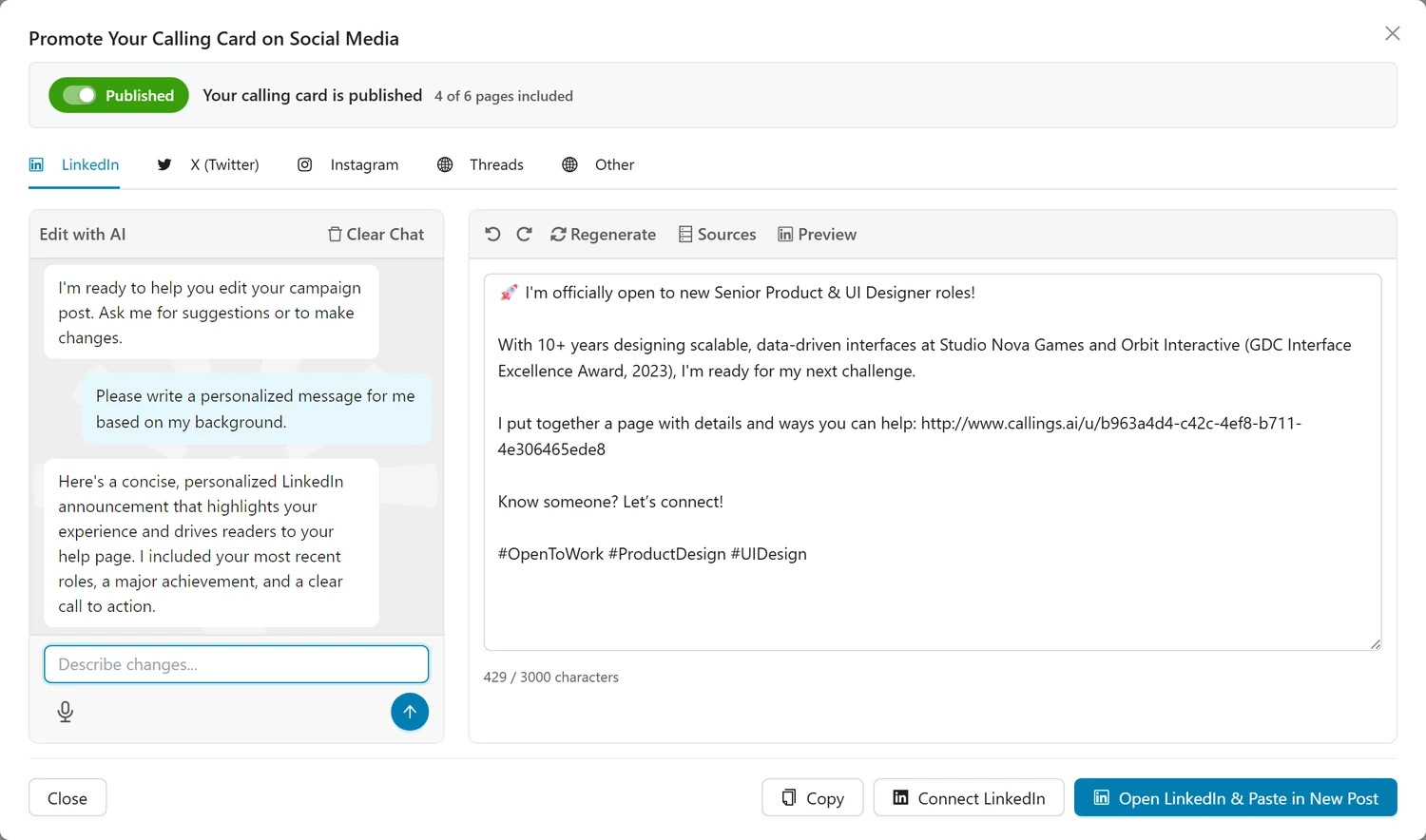
This tool generates a polished post for each social media platform, tailored to the platform's style, tone, and character limit. Your Calling Card link is included so followers can visit your page directly. The same publish-status banner as in Rally supporters sits at the top, so you know the link works before you post it.
Platform Tabs
The top of the modal shows five platform tabs. Click any tab to see your post for that platform:
| Platform | Character Limit | Style |
|---|---|---|
| 3,000 | Professional but genuine. 3-4 short paragraphs, 2-3 hashtags | |
| X (Twitter) | 280 | Tight and confident. 1-2 hashtags. Every character counts |
| 2,200 | Warm and personal. 5-8 hashtags. "Link in bio" phrasing | |
| Threads | 500 | Casual, like a group chat. 0-2 hashtags |
| Other | No limit | Platform-agnostic. Clean and adaptable |
All five posts are generated in parallel when you open the modal. A spinning indicator appears on tabs that are still processing.
How Each Post Is Written
The AI crafts each post using your resume, profile, and campaign content. Every post follows a three-part structure:
- Opening - Signal that you're exploring new opportunities (never "looking for a job" or "open to work")
- Calling card link - Direct readers to your page with context about what they'll find
- Call to action - Ask followers to help: share a warm intro, a LinkedIn recommendation, or a connection via the page
The tone and format adapt to each platform, but the core message stays consistent.
Character Counter
A character counter below the text area shows your current count against the platform's limit. The counter turns red when you exceed the maximum, so you know to trim before posting.
Tip: For X (Twitter), remember that URLs count as approximately 23 characters via t.co link shortening, regardless of the actual URL length.
The AI Chat Panel
Each platform has its own independent AI chat. You can refine a post without affecting the others:
- "Make this punchier"
- "Remove the emoji"
- "Focus more on my AI experience"
- "Add a question to encourage engagement"
The chat history is preserved per platform. Switching tabs saves the current chat and restores the target platform's conversation.
Editing and Regenerating
You can edit the post text directly in the editor. Use the toolbar buttons to:
- Undo / Redo - Step through your edit history
- Regenerate - Generate a completely new post for the current platform (confirmation dialog if content exists)
Regeneration only affects the active tab. Your other platform drafts are untouched.
Posting
The footer buttons change based on the active platform:
| Platform | Primary Action | What It Does |
|---|---|---|
| LinkedIn (connected) | Publish to LinkedIn | Opens a confirmation preview, then publishes the post directly to your LinkedIn feed and returns a link to the live post |
| LinkedIn (not connected) | Open LinkedIn & Paste in New Post | Copies text to clipboard, opens LinkedIn's post composer. A secondary Connect LinkedIn button is shown so you can enable one-click publishing |
| X (Twitter) | Open in X | Opens X's tweet composer with your text pre-filled |
| Open Instagram & Paste in New Post | Copies text to clipboard, opens Instagram | |
| Threads | Open in Threads | Opens Threads' post composer with your text pre-filled |
| Other | Copy & Post | Copies the text to your clipboard |
Every platform also has a Copy button for manual pasting, and the toolbar above the editor has a Preview button (for LinkedIn, X, Instagram, and Threads) that opens a rendered mockup of how the post will look on that platform.
Publishing to LinkedIn in One Click
If you connect your LinkedIn account (via Settings > Integrations, or the Connect LinkedIn button in this modal), the LinkedIn tab gains a one-click publishing flow so you never have to leave Callings.ai:
- Click "Publish to LinkedIn" - The primary footer button on the LinkedIn tab
- Review the confirmation preview - A dialog opens showing the exact post text that will be published, plus a note if your selected calling-card image will be attached
- Click "Post now" - Callings.ai publishes the post directly to your LinkedIn profile
- See the success screen - Once published, you get a confirmation with two buttons:
- View on LinkedIn - Opens the live post in a new tab so you can verify it, share it further, or reply to comments
- Done - Closes the dialog
If something goes wrong (for example, your LinkedIn token expired), you'll see an error screen with the reason and a chance to retry or cancel.
Once a post has been published, the Publish to LinkedIn button stays available but its tooltip changes to "Already published. Click again to publish a new copy." so you don't accidentally double-post.
Tip: Posts published this way are real LinkedIn posts on your profile - they're not drafts. They count toward LinkedIn's daily posting limits and behave exactly like posts you write in LinkedIn's composer.
Draft Persistence
Your posts are saved automatically as you type (with a short delay). Closing the modal and reopening it later brings back your drafts exactly as you left them, including the AI chat history for each platform.
Platform-Specific Tips
- The most impactful platform for professional job searches
- Your post can be up to 3,000 characters, so take advantage of the space
- Use line breaks and short paragraphs for readability
- 2-3 relevant hashtags help with discoverability
- Avoid #OpenToWork (the AI never includes it)
- One emoji at the opening is fine; don't overdo it
X (Twitter)
- 280-character hard limit. The AI targets 200-250 characters to leave room for engagement
- URLs are automatically shortened to ~23 characters, so your Calling Card link doesn't eat too much space
- 1-2 hashtags maximum
- Be direct and confident
- Captions don't support clickable links, so the post uses "Link in bio" phrasing
- The Calling Card URL is still included for context and manual copying
- 5-8 hashtags at the end boost discoverability
- Warm, personal tone with 2-4 emoji
Threads
- The Threads community tends to be more casual and conversational
- Keep it under 500 characters
- Hashtags are optional (the platform culture leans anti-hashtag)
- Think of it as posting to a group chat
Other
- A clean, platform-agnostic version you can adapt anywhere
- Works for Slack communities, alumni groups, Discord servers, email newsletters, or any other channel
Best Practices for Social Media Promotion
- Post on LinkedIn first - It's the highest-impact platform for professional networking and job searches
- Don't post on all platforms at once - Space them out over a few days for sustained visibility
- Engage with comments - When people respond to your post, reply promptly. This boosts the post's reach and shows you're active
- Ask connections to reshare - A reshare from a well-connected contact multiplies your reach exponentially
- Update and repost periodically - If your search extends over weeks or months, regenerate fresh content and post again with updated context
Frequently Asked Questions
Q: Do I need to publish my Calling Card before promoting it?
A: Yes. While it is unpublished, anyone who clicks your link sees a placeholder. Both promote tools show your publish status in a banner at the top, and you can publish straight from its switch.
Q: Does the AI use my resume to personalize the messages?
A: Yes. Both prompts draw from your active resumes, profile information, and market fit report (if available) to create specific, personalized content. The more complete your profile, the better the results.
Q: Can I create different versions of the supporter message for different contacts?
A: Yes. Use the AI chat to adjust the tone or focus for different recipients. You might want a casual version for close friends and a more professional one for former managers. Copy each version before generating the next.
Q: Are my drafts saved if I close the modal?
A: Yes. Both the supporter message and all social media posts are saved automatically. Reopening the modal restores your drafts and AI chat history exactly as you left them.
Q: Can I edit the social media post after the AI generates it?
A: Yes. The text area is fully editable. You can also use the AI chat to request specific changes without rewriting manually.
Q: Why does the Instagram post say "Link in bio" instead of including a clickable link?
A: Instagram captions don't support clickable URLs. The AI adapts the call-to-action accordingly. The Calling Card URL is still included in the text for reference and manual copying.
Q: What if my X (Twitter) post exceeds 280 characters?
A: The character counter turns red when you exceed the limit. Edit the text or use the AI chat to ask for a shorter version. The AI targets 200-250 characters to leave room, but manual edits can push it over.
Q: Does regenerating a social media post affect other platforms?
A: No. Regeneration only applies to the currently active tab. Your other platform drafts remain unchanged.
Q: Do I need a paid plan for these tools?
A: For the AI drafting, yes: writing and rewriting the supporter message and the social posts is part of the paid plans. Building your Calling Card and publishing your Home page stay free.
Related Topics
- My Campaign Overview - What your Calling Card is and how all the pieces fit together
- Setting Up Your Calling Card - Create and customize your Calling Card
- Design - The look of every page of your Calling Card
- Public Calling Card - How visitors experience and interact with your Calling Card
- Personal Branding - Develop the brand elements that power your campaign
Building your calling card is the first step. Promoting it is what creates momentum. A personal message to your inner circle gets the first wave of visitors. A social media post brings the second wave. And every visitor who takes action, whether they introduce you, share your page, or simply show encouragement, adds energy to your search.