Public Calling Card Visitor Experience
Your public Calling Card is what your network sees when they click your link. This page explains that experience end to end, so you know exactly what you are sending people to.
Every part of it is built around one goal: make it easy for people to help you. Visitors need no Callings.ai account, no login, nothing but the link.
The Shape of It
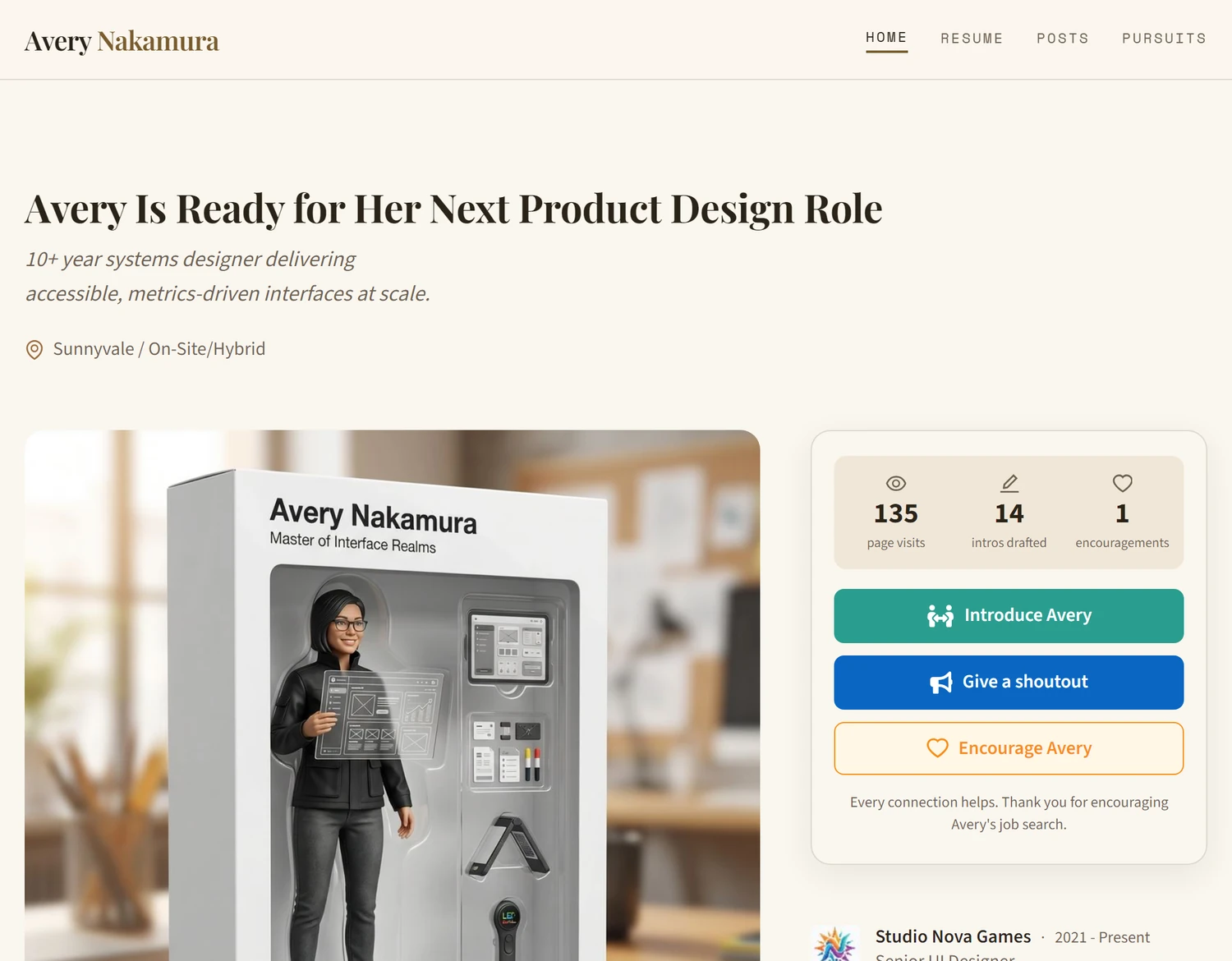
Your Calling Card is a small site, not a single page. Visitors land on Home and can move between whichever other pages you have not set to Hidden.
The header carries your name on the left and the navigation on the right. Only the pages you have not set to Hidden appear there; the rest are invisible and unreachable. On a computer the header stays with the visitor as they scroll. On a phone it works differently: see On a Phone below.
Home
The page that makes the ask, and the one everyone sees.
Down the main column:
- Banner: your headline and subheadline, with your location and how you want to work
- Cover image: your AI-generated visual
- Your story: the hook, the context behind it, why you are worth helping, and a warm closing
Down the side column:
- The supporter card: three live counters (page visits, intros drafted, encouragements) above the three action buttons
- Career snapshot: your roles with company logos, most recent first
- My Posts: your latest published posts, if you have any
- The Paperwork: your resume preview, download buttons, and your LinkedIn
The Other Pages
| Page | What a visitor gets |
|---|---|
| About | Two short grids on who you are and how you work, then quotes about working with you |
| Resume | Your full resume in a readable column, with your core skills and headline numbers beside it |
| Posts | Your published posts, newest first, each opening in full |
| Pursuits | What you do outside work: causes, side projects, community, interests |
| Contact | A Send message button that opens a short form for writing to you, your profile links, and a closing call to action |
A page you have left Hidden simply is not there. There is no broken link and no empty section: a visitor cannot tell it exists.
A message sent from the Contact page is forwarded to your inbox with the visitor's address as the reply-to, so you can answer them directly. Your own address never appears on the page. Each message is checked automatically before it reaches you, so ads, scams and abusive messages are not forwarded.
On a Phone
Most people will open your link on a phone, usually from a message, and the Calling Card is laid out for it.
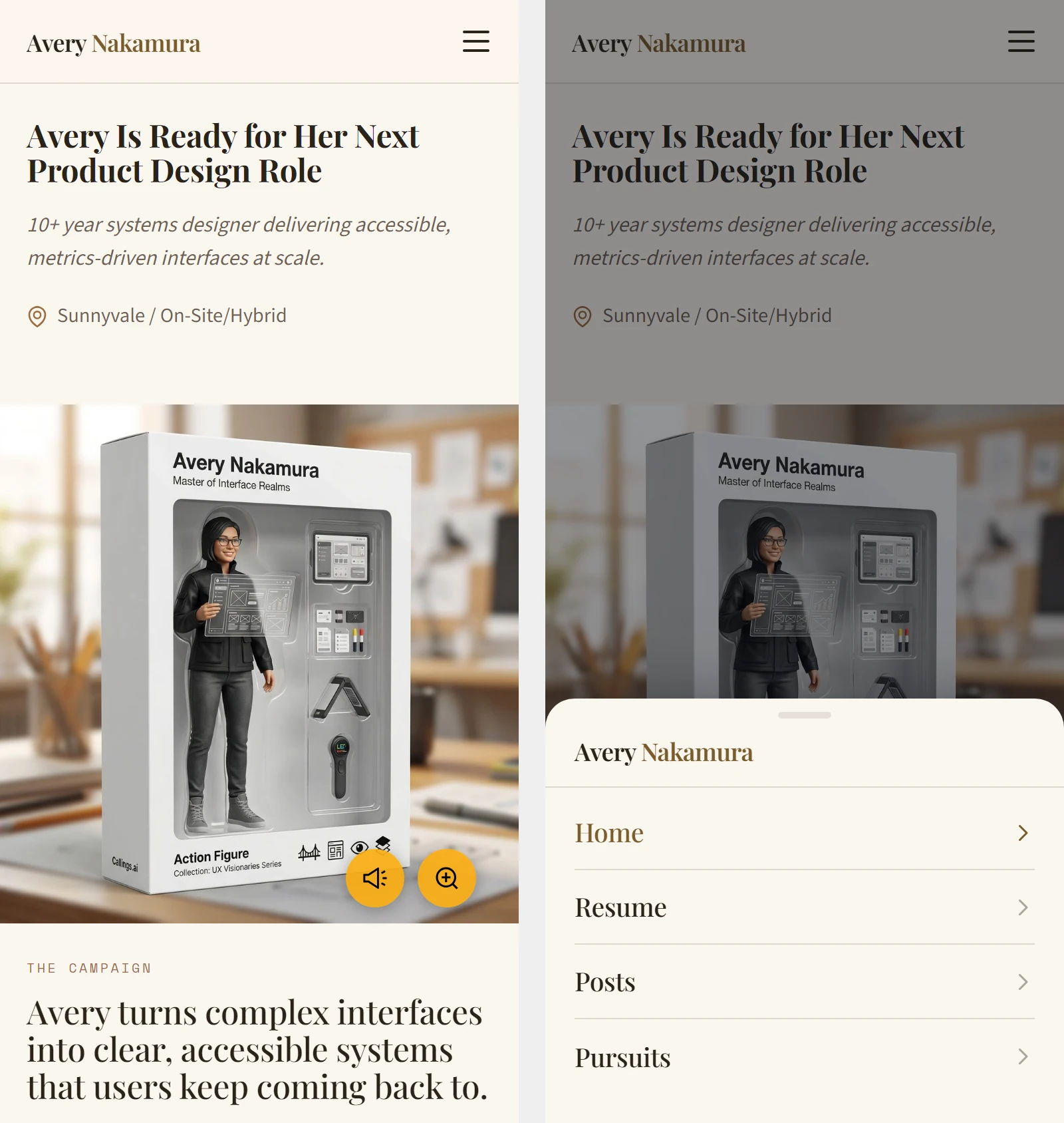
- One column. Every page stacks into a single column
- A menu button replaces the row of page names. It opens a sheet listing every page you have shown, with large rows that are easy to tap
- The header gets out of the way. It slides away as the visitor scrolls down and comes back the moment they scroll up
- The dialogs fit the screen. Introduce, Give a Shoutout and the contact form open as full-width sheets with buttons sized for a thumb
Check it yourself with the phone Preview in the editor before you share the link.
The Three Action Buttons
The action buttons are the heart of your calling card. Each gives visitors a specific, easy way to help.
Introduce [Your Name]
This is the most powerful action on the page. When a visitor clicks "Introduce [Your Name]", they enter a guided flow that generates a ready-to-send introduction message.
Step 1: Pick a Role
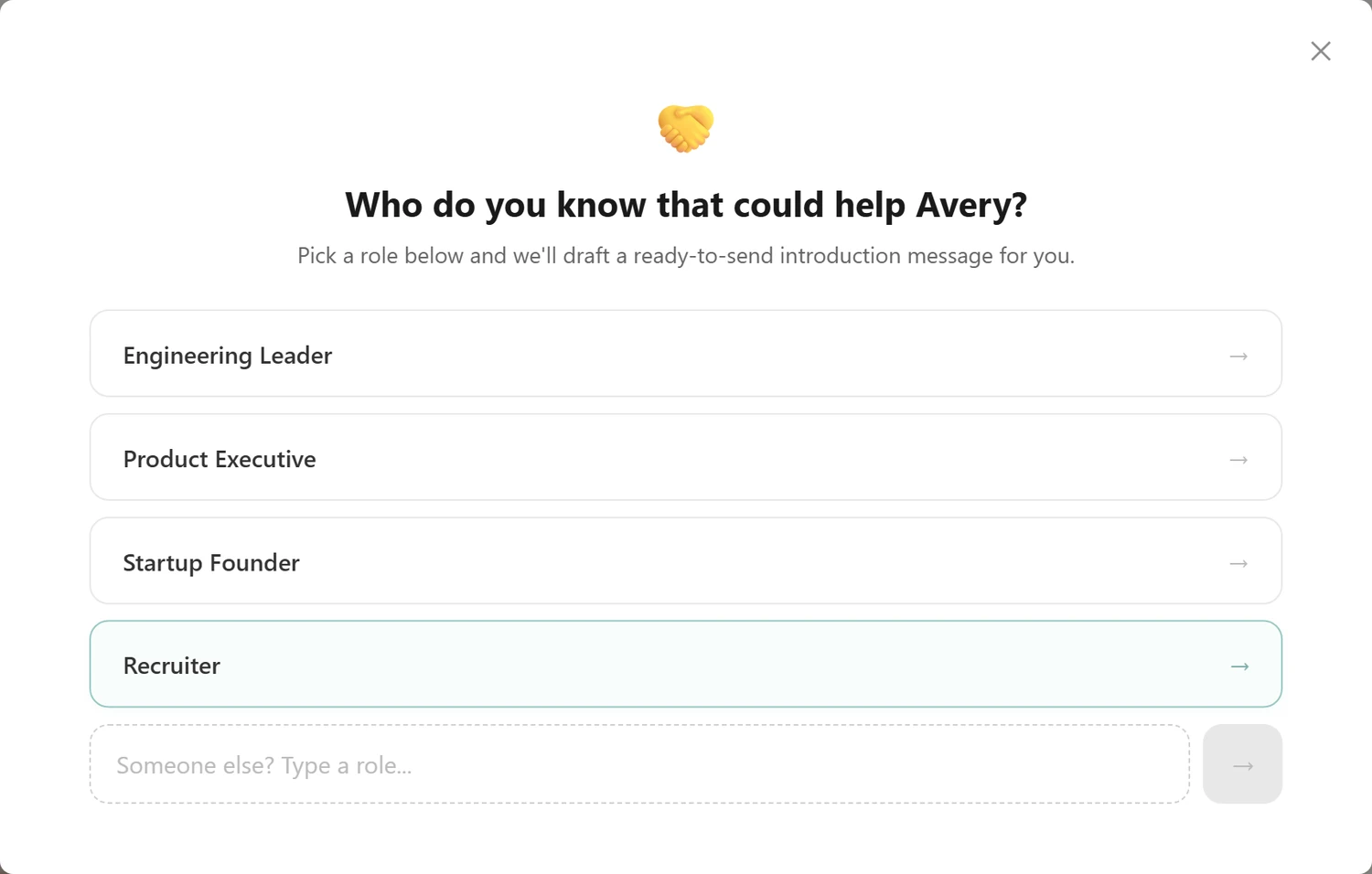
The visitor sees the question: "Who do you know that could help [Your Name]?" with the prompt: "Pick a role below and we'll draft a ready-to-send introduction message for you."
Below it, a set of suggested roles appears as clickable cards. These are generated by AI based on your target roles and Calling Card content. For example: - AI Product Leaders - Healthtech Founders - Engineering Managers - Recruiter
The visitor clicks a role card to select it and immediately begin generating the introduction.
At the bottom, a custom role input lets the visitor type any role that isn't listed (e.g., "A lead developer in AI") and submit it. This ensures visitors can always introduce you to someone relevant, even if the suggested roles don't cover their contact.
Step 2: Review and Send the Introduction
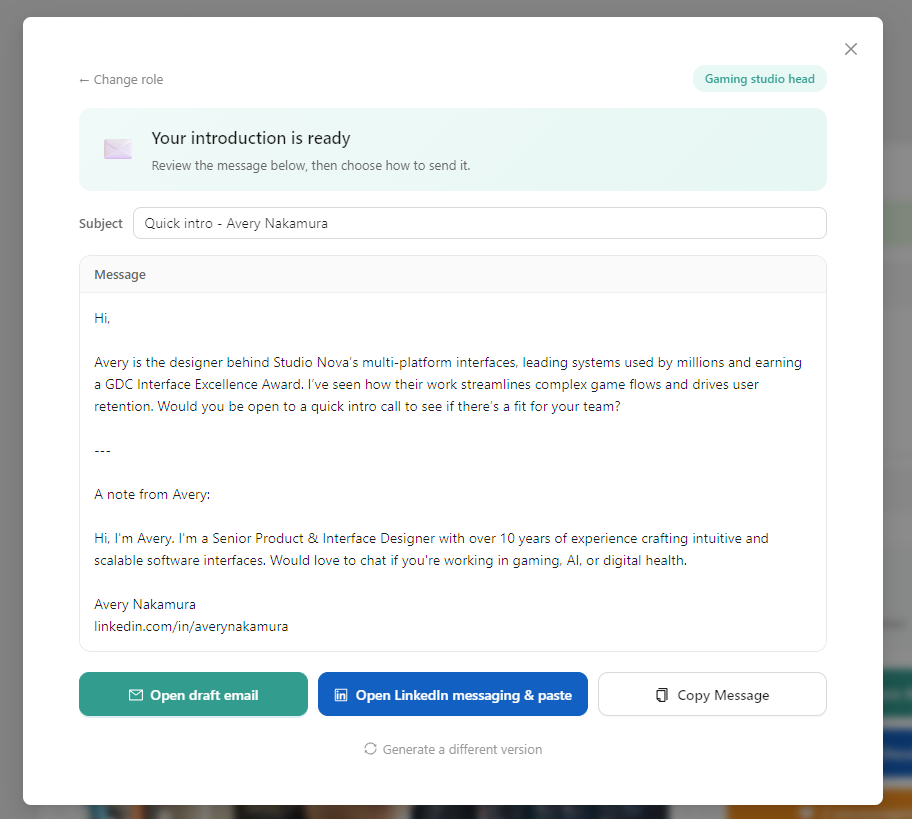
Once a role is selected, the AI generates a complete introduction message. The visitor sees "Your introduction is ready" with the prompt: "Review the message below, then choose how to send it."
The generated message includes: - Subject line: Professional and specific (e.g., "Quick intro - [Your Name]"), editable - Introduction body: A warm message explaining who you are, why you're worth meeting, and what you're looking for - A personal note from you: the introduction you wrote in the supporter card on your Home page appears below a separator, so the recipient also hears from you directly
The visitor can edit both the subject and body before sending. A role badge at the top right shows which role was selected, and a Change role link lets them go back and pick a different one.
Sending options:
| Action | What It Does |
|---|---|
| Open draft email | Opens their default email client with the subject and body pre-filled |
| Open LinkedIn messaging & paste | Copies the message to clipboard, then opens LinkedIn Messaging so they can paste and send |
| Copy Message | Copies the full message (including subject) to clipboard |
The visitor can also click Generate a different version to get a fresh version of the message with the same role.
What you see: Each time a visitor generates an introduction, your "Intros drafted" counter increments. You can track this in your analytics.
Give a Shoutout
When a visitor clicks "Give a Shoutout", they enter a three-step flow that creates a social media post promoting you.
Step 1: Add a Personal Touch
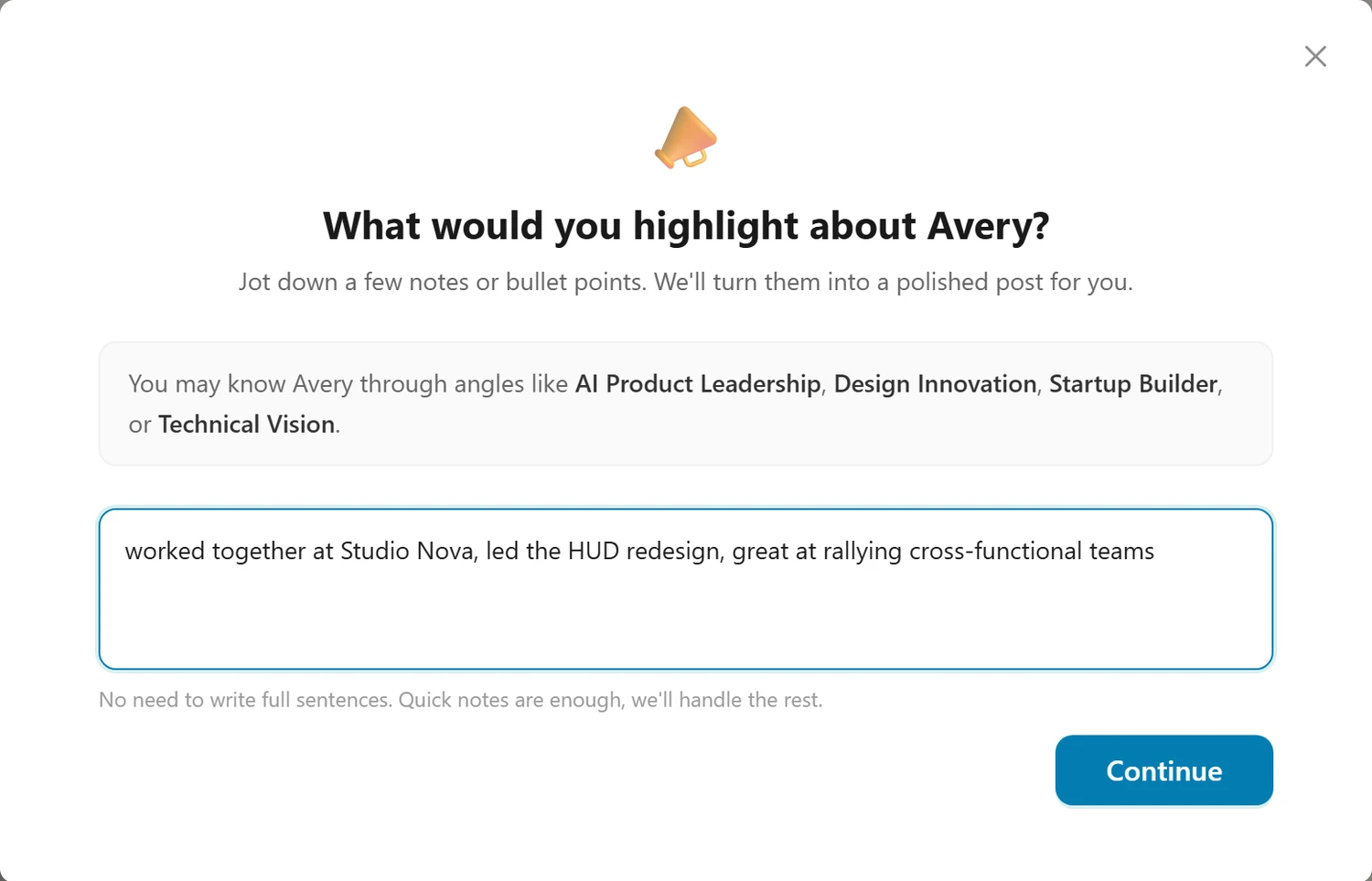
The visitor sees: "What would you highlight about [Your Name]?" with the prompt: "Jot down a few notes or bullet points. We'll turn them into a polished post for you."
If your Calling Card includes suggested angles (generated from your profile), they appear as hints, for example: "You may know [Your Name] through angles like AI Product Leaders, Healthtech Founders, or Engineering Managers."
Below, a text area lets the visitor write quick notes or bullet points about what they know and appreciate about you (e.g., "worked together at Acme Corp, led the data platform rebuild, great at rallying cross-functional teams"). These personal observations are woven into the generated post, making it feel authentic rather than generic.
Tip displayed to visitors: "No need to write full sentences. Quick notes are enough, we'll handle the rest."
The visitor clicks Continue to move to the next step.
Step 2: Choose a Platform
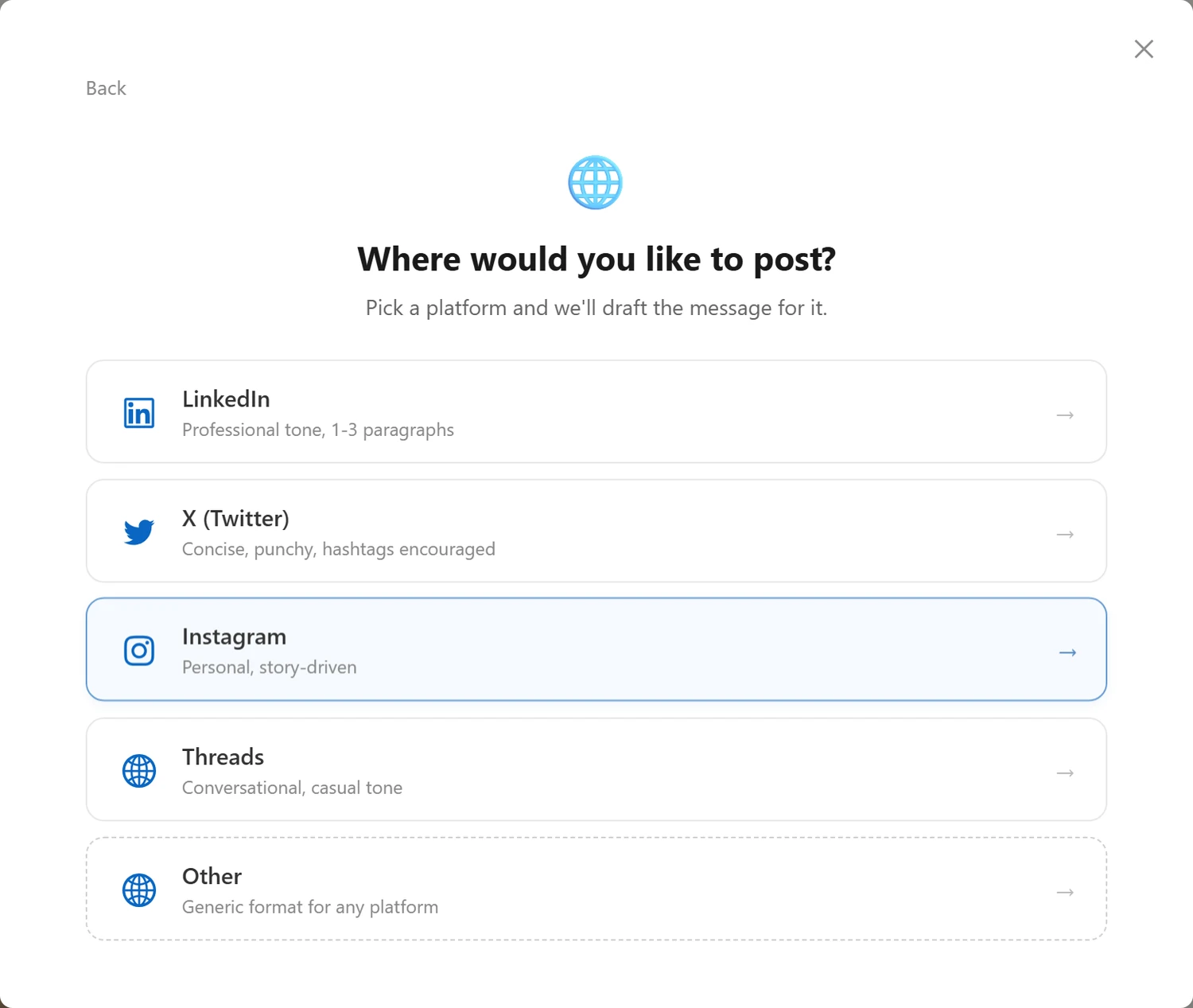
The visitor sees: "Where would you like to post?" with the prompt: "Pick a platform and we'll draft the message for it."
Each platform is shown as a card with its tone description:
| Platform | Tone | Character Limit |
|---|---|---|
| Professional tone, 1-3 paragraphs | 3,000 | |
| X (Twitter) | Concise, punchy, hashtags encouraged | 280 |
| Personal, story-driven | 2,200 | |
| Threads | Conversational, casual tone | 500 |
| Other | Generic format for any platform | No limit |
The visitor clicks a platform card to select it, and the AI immediately generates the post.
Step 3: Review and Post
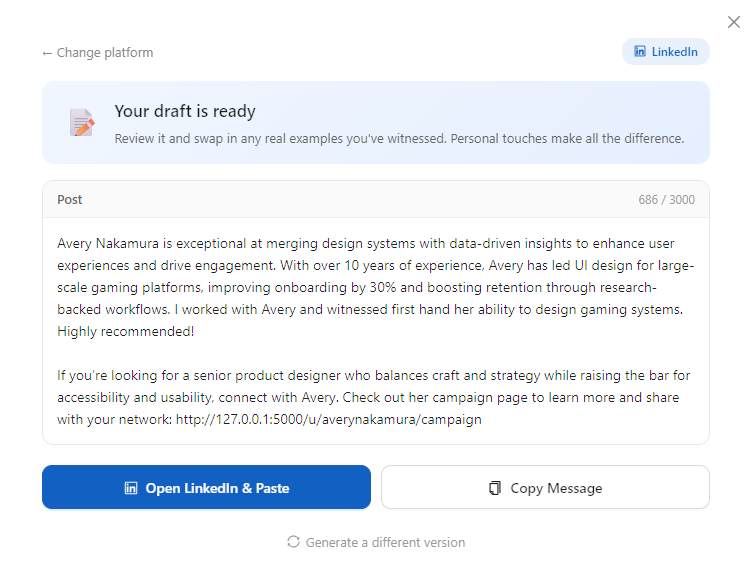
The AI generates a platform-appropriate post and the visitor sees "Your draft is ready" with the prompt: "Review it and swap in any real examples you've witnessed. Personal touches make all the difference."
The generated post: - Incorporates the visitor's personal notes from Step 1 - Includes your Calling Card URL so their followers can visit your page - Fits within the platform's character limit (a live counter shows current length vs. limit) - Uses the tone and style appropriate for the selected platform
A platform badge at the top right shows which platform was selected, and a Change platform link lets the visitor go back and pick a different one.
Posting options:
| Action | What It Does |
|---|---|
| Open LinkedIn & Paste | Copies the text, then opens LinkedIn's post composer (shown for LinkedIn) |
| Open X & Paste | Copies the text, then opens X's post composer (shown for X/Twitter) |
| Copy Message | Copies the post text to clipboard (shown for all platforms) |
The visitor can also click Generate a different version to create a fresh post.
What you see: Each social share increments your "Shoutouts" counter. If their post includes your Calling Card link, their followers can visit your page too, creating a viral loop.
Encourage
The simplest action: a single click to show they're rooting for you.
When a visitor clicks "Encourage [Your Name]!": - The counter increments immediately - The button changes to show the encouragement count with a filled heart - The encouragement counter updates
Below the buttons, a note reads: "Every connection helps. Thank you for encouraging [Your Name]'s job search."
What you see: The encouragement count is visible to all visitors, creating social proof. When someone sees that 15 people have already shown encouragement, they're more likely to take action too.
Your Resume
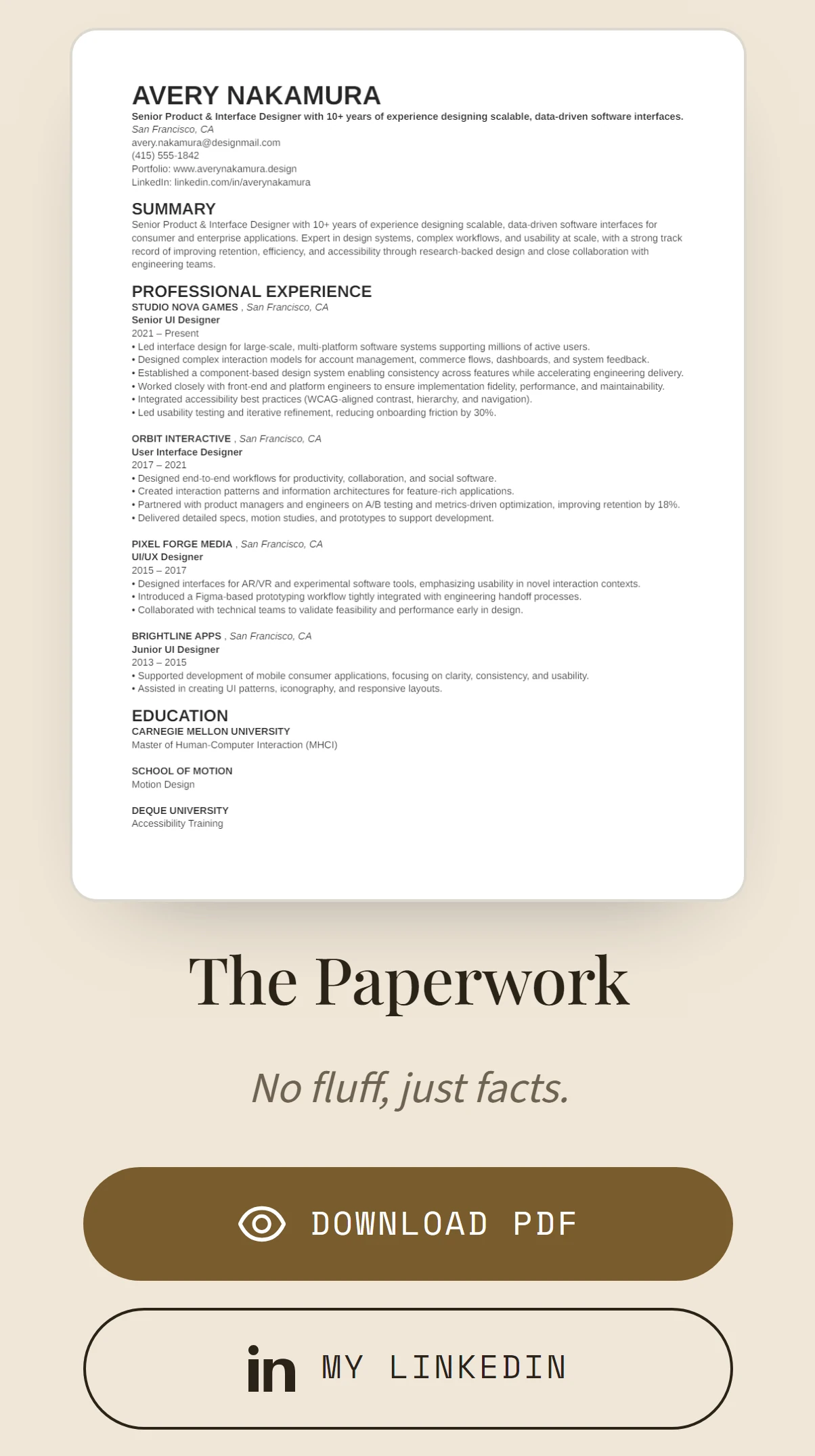
The Paperwork block on Home shows a preview of the first page of your resume above its buttons. Visitors can open the PDF, download the DOCX, or click through to your LinkedIn. Which buttons appear is up to you; each is a tick box in the editor.
The Resume page goes further and shows the whole thing inline, so someone can read it without downloading anything. It is pulled live, so it always reflects your latest edits.
My Posts
If you have published posts, Home lists your latest few with their titles, dates and cover images, and the Posts page lists all of them. Either way a visitor can click through and read one in full.
With nothing published, neither shows: the block hides itself rather than leaving a blank section. To start writing, see Posts.
The Counters
The supporter card leads with three numbers, visible to everyone who visits.
| Counter | What it shows |
|---|---|
| Page visits | How many times visitors have opened your Calling Card |
| Intros drafted | How many introductions visitors have generated |
| Encouragements | How many people have clicked Encourage |
They are there on purpose. Someone who sees that fifteen people have already helped is more likely to help too.
Your own activity never counts: checking your page while signed in, or clicking your own buttons, leaves these numbers alone.
The Footer

Every page closes the same way: a copyright line with your name, links to each page you have shown, and a line reading "[Your first name]'s page is powered by Callings.ai" with a Create your own button beside it.
That is how a visitor who likes what they see finds their way to building one.
What Visitors Cannot See
- No editing controls. Nothing on the page can be changed by a visitor
- No detailed analytics. They see the three counters, not your dashboard
- No page management. No adding, removing or reordering
- No hidden pages. A page you have set to Hidden does not appear and does not resolve
- No account, and no tracking of them personally. Visitor counts use privacy-safe fingerprinting: no cookies, no personal data stored
Your Link
Your Calling Card lives at your handle:
https://callings.ai/u/[your-handle]
That is Home. Every page you have shown sits beneath it, for example /u/[your-handle]/about and /u/[your-handle]/resume, and visitors reach them through the navigation rather than by typing them.
Your handle is the Callings Handle field in your Profile. Share the root link and let the navigation do the rest.
How to Share It
Start with your inner circle. Send it directly to close friends, family and colleagues with a personal note. Ask for an introduction or a shoutout. These are the people who actually act, and their introductions are the strongest.
Then your professional network. Post it on LinkedIn with a short explanation of what you are looking for. Put it in your LinkedIn About section and your email signature.
Then go broad. Ask people to share it on. Post it in alumni groups, professional communities and relevant Slack workspaces.
Rally supporters and Promote on social draft all of these for you.
The Multiplier
- You share the link with fifty people
- Five of them post it on LinkedIn, each reaching hundreds of connections
- Some of those open it and share it again
- Every visitor who drafts an introduction sends it to one specific person, who might be exactly the right one
Each share widens the circle beyond the people you know.
When Your Calling Card Is Unpublished
With Published switched off, anyone following your link sees a short placeholder saying the page is not available. None of your content is visible.
Common reasons to switch it off:
- You accepted a role
- You are in the middle of significant edits
- You want to pause the search
Switch it back on and everything returns exactly as it was, analytics included.
Frequently Asked Questions
Q: Do visitors need an account?
A: No. Anyone with the link can read every page you have shown, download your resume, draft an introduction, post a shoutout and encourage you, without logging in.
Q: Can I see who visited?
A: No. You see counts, not identities. Visitor counting is privacy-safe by design.
Q: What happens to a page I have set to Hidden?
A: It is not in the navigation and its address does not resolve. Visitors cannot reach it or tell it exists.
Q: Does the introduction email come from me?
A: It is drafted for the visitor to send from their own email or LinkedIn, so it arrives from someone the recipient already knows. Your own note is included below it.
Q: Can a visitor edit the messages before sending?
A: Yes, all of them. Subject, body and post text are fully editable, and they can generate a different version instead.
Q: What do visitors see on a phone?
A: The same pages in a single column, with the navigation behind a menu button and the dialogs sized for the screen. See On a Phone. Most people will open your link on a phone, so it is worth checking in the editor's phone Preview before you share.
Related Topics
- My Campaign Overview - How the pieces fit together
- Setting Up Your Calling Card - Build it, add pages, show them, publish
- Design - The look of every page
- Promote Your Calling Card - Supporter messages and social posts
One link, several pages, and three ways for any visitor to move your search forward. Send it to people who want to help and it will tell them how.