AI Resume Editor
AI Resume Editor is a Callings.ai tool that lets you collaborate with AI through conversation to rewrite, refine, and polish your resume content: ask questions, give editing instructions, or work through specific improvement areas identified in your Resume Assessment, with all changes saved to your master resume.
The AI Resume Editor is a powerful tool that allows you to collaborate with our AI to rewrite, refine, and polish your resume content. The editor features a three-panel layout designed for efficient editing and real-time preview.
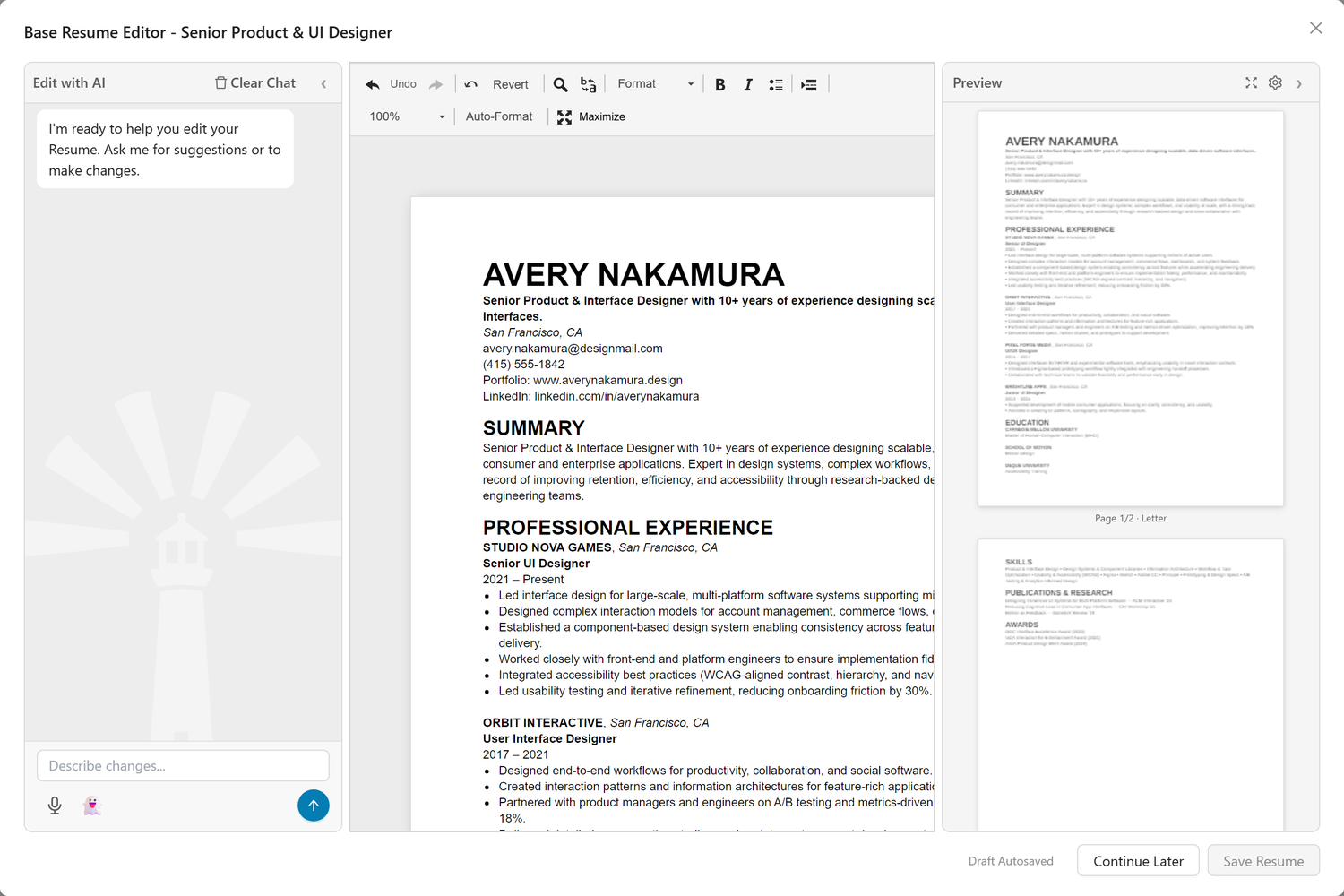
Editor Layout
The three panels are resizable: drag the dividers between panels to adjust widths based on your preference.
| Panel | Purpose |
|---|---|
| AI Chat (left) | Ask questions, give editing instructions, and collaborate with AI on your resume |
| Editor (center) | Edit your resume content directly with a full-featured word processor |
| Page Preview (right) | See how your resume will look when printed or downloaded, updating live as you edit |
AI Chat Panel:
The left panel provides an AI assistant to help you refine your resume: - Ask questions about your resume content or structure - Give instructions to edit specific sections - Have a discussion that combines questions and editing requests - Work through improvement topics from your Resume Assessment - Clear chat history with the Clear Chat button - Revert to original content using the Revert button
Page Preview Panel:
The right panel shows a live thumbnail preview of your resume exactly as it will appear when downloaded: - Real-time updates - Changes in the editor are reflected immediately in the preview - Page break visibility - See exactly where your content splits across pages - Paper size support - Preview automatically adjusts for Letter or A4 paper sizes - Font size support - The editor and preview use your Resume Font Size setting (9, 10, or 11 point), matching the downloads - Multi-page display - All pages are shown as thumbnails with page indicators (e.g., "Page 1/2 Letter")
Ghost Writer
If you are not sure what to ask the AI, the Ghost Writer gives you a library of ready-made prompts based on advice from well-known career coaches and resume experts. Open it with the 👻 (ghost) button in the AI Chat input toolbar, next to the microphone.
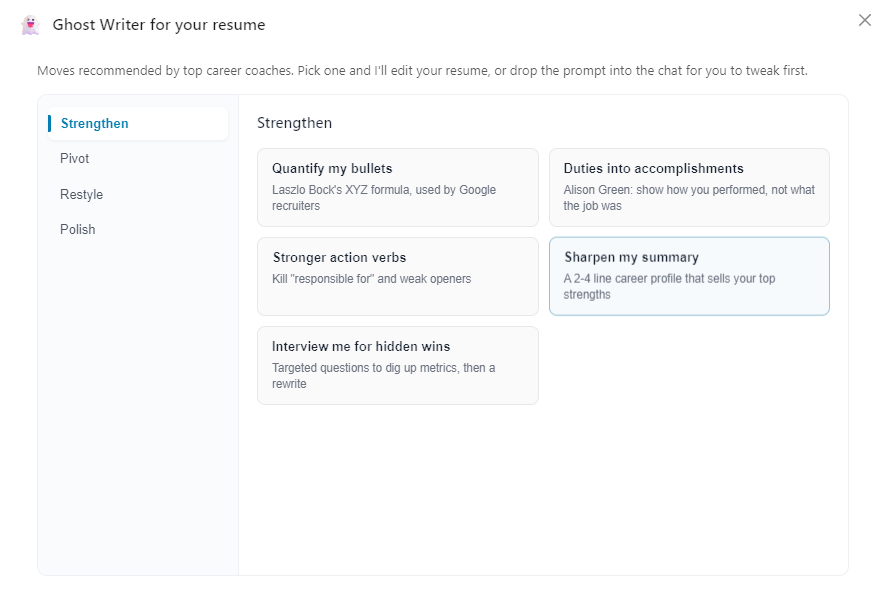
The prompts are grouped into four categories:
| Category | What it does | Examples |
|---|---|---|
| Strengthen | Make your existing content hit harder | Quantify my bullets (Laszlo Bock's XYZ formula), turn duties into accomplishments, stronger action verbs, sharpen my summary, interview me for hidden wins |
| Pivot | Retarget your resume for a new direction | New industry (same role), new role (same industry), or the big jump to a new role in a new industry |
| Restyle | Change the voice without changing the facts | Cut buzzwords and cliches, tighten it, make it sound human |
| Polish | Final pass for correctness and surface details | Fix grammar and typos, consistency check, ATS keyword check |
How to use it:
- Click the 👻 button to open the Ghost Writer.
- Pick a category on the left, then click a prompt card.
- Most prompts run right away and edit your resume, telling you in the chat what changed.
- Some prompts drop the text into the chat input first so you can tweak it before sending (for example, prompts that ask you to name a target industry or paste extra detail).
- A few prompts (like the bigger pivots and "Interview me") start a short back-and-forth: the AI asks you questions first, then rewrites once you reply.
Pivot prompts never invent experience. They work only by reworking what your resume already says: re-weighting, rewording, reordering, and dropping content. They never add jobs, skills, numbers, or credentials you do not have, and they flag anything the target role expects but your resume does not show.
How It Works
There are two main ways to use the AI Resume Editor:
Direct Editing from My Resume
- Navigate to My Resume from the main navigation
- Click directly on your resume or click the "Edit with AI" button
- Start a conversation with the AI by typing in the chat panel
You can prompt the AI in various ways: - Ask questions about your resume content or structure - Give instructions to edit specific sections - Have a discussion that combines questions and editing requests
The AI has access to information you've already shared with the system, so you don't need to repeat your background or context.
From the Resume Assessment
- Go to the Resume Assessment page
- Click on any feedback item or improvement topic (e.g., "Weak Impact Metrics")
- Click "Let's work on selected topic" to launch the AI Editor with that context
- The AI will ask probing questions to help you improve that specific area
Example conversation: - AI: "You mentioned you 'managed a team.' How many people were on the team? Did you hire them?" - You: "It was 5 people, and I hired 2 of them." - The AI will then draft improved content based on your answers.
Manual Editing
You can also use the editor as a standard word processor, and freely switch between AI-assisted and manual editing:
- Click directly into the resume text in the center panel
- Make any changes you want (typos, rephrasing, adding new roles)
- Go back and forth: edit manually, then ask the AI to refine, then edit manually again
- The AI always works with your latest version, including any manual edits you've made
Editor Tools
Auto-Format
The Auto-Format tool reformats your content based on the suggested default template. This is the same formatting applied when you first upload your resume, but now applied to your modified and improved content.
When to use it: - After pasting text from another source where formatting got broken - After making significant manual edits that disrupted the layout - Anytime you want to restore clean, consistent formatting
Insert Page Break
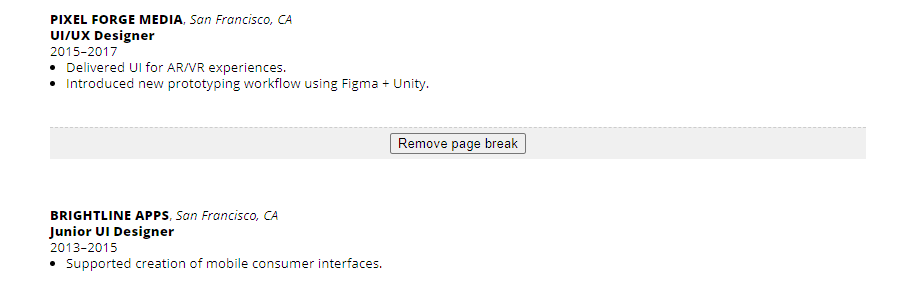
Use the Insert Page Break tool from the editor toolbar to control where pages break in your exported documents. Click anywhere in your resume, then click the page break icon to insert a break at that location. When you generate the PDF or Word document, the content will start on a new page at that point.
Frequently Asked Questions
Q: Will the AI rewrite my entire resume without my permission?
A: The AI applies changes directly as you work together, but it always tells you in the chat what it did. Sometimes the conversation is just a discussion, and sometimes it turns into an action: the AI will explain what it edited on your behalf so you can follow along.
Q: What if I don't like what the AI changed?
A: You can use the Undo feature to reverse any AI changes, or simply edit the content manually yourself. You're always in control.
Q: How do I access the AI Editor?
A: There are multiple entry points: from My Profile > My Resumes (click on a resume card or select "Edit with AI" from the menu), or from the Resume Assessment page (click on improvement topics).
Q: Does the AI Editor work in real-time?
A: Yes. Changes are auto-saved to a draft as you work. When you click "Continue Later", it saves your progress to the draft. Clicking "Save Resume" applies your changes to that specific resume. This lets you work on edits over time without affecting your live resume until you're ready.
Q: Can I just use it as a regular word processor?
A: Absolutely! Click directly into the text and edit manually. The AI assistance is optional: use it only when you want help. You can seamlessly switch between manual editing and AI-assisted editing at any time.
Q: What is the Ghost Writer (👻) button?
A: It opens a library of ready-made prompts based on advice from career coaches and resume experts, grouped into Strengthen, Pivot, Restyle, and Polish. Pick a card and the AI either edits your resume right away or drops the prompt into the chat so you can tweak it first. It is the fastest way to get started if you are not sure what to ask.
Q: Will the Pivot prompts make up experience to fit a new field?
A: No. Pivot prompts only rework what your resume already contains: re-weighting, rewording, reordering, and dropping content. They never add jobs, skills, numbers, or credentials you do not have, and they will tell you in the chat what a target role expects that your resume does not yet show.
Q: What is the Page Preview panel?
A: The right side of the editor shows a live thumbnail of your resume exactly as it will appear when downloaded. It updates in real-time as you edit, so you can see formatting and page breaks immediately.
Q: Why does my Page Preview show multiple pages?
A: If your resume content exceeds one page, the preview shows all pages as thumbnails with indicators (e.g., "Page 1/2 Letter"). These thumbnails help you see where page breaks occur.
Transform your resume from good to great with AI assistance. Whether you're strengthening weak sections, adding quantifiable achievements, or polishing your professional story, the AI Editor is your collaborative partner, helping you articulate your value in ways that resonate with employers and open new opportunities.